
1. Introduction
Thank you for choosing the Benibela 17-inch WiFi Digital Picture Frame. This device allows you to display your cherished photos and videos with ease, offering smart features like a touchscreen, motion sensor, and cloud sharing. This manual provides detailed instructions for setup, operation, and maintenance to ensure optimal performance.
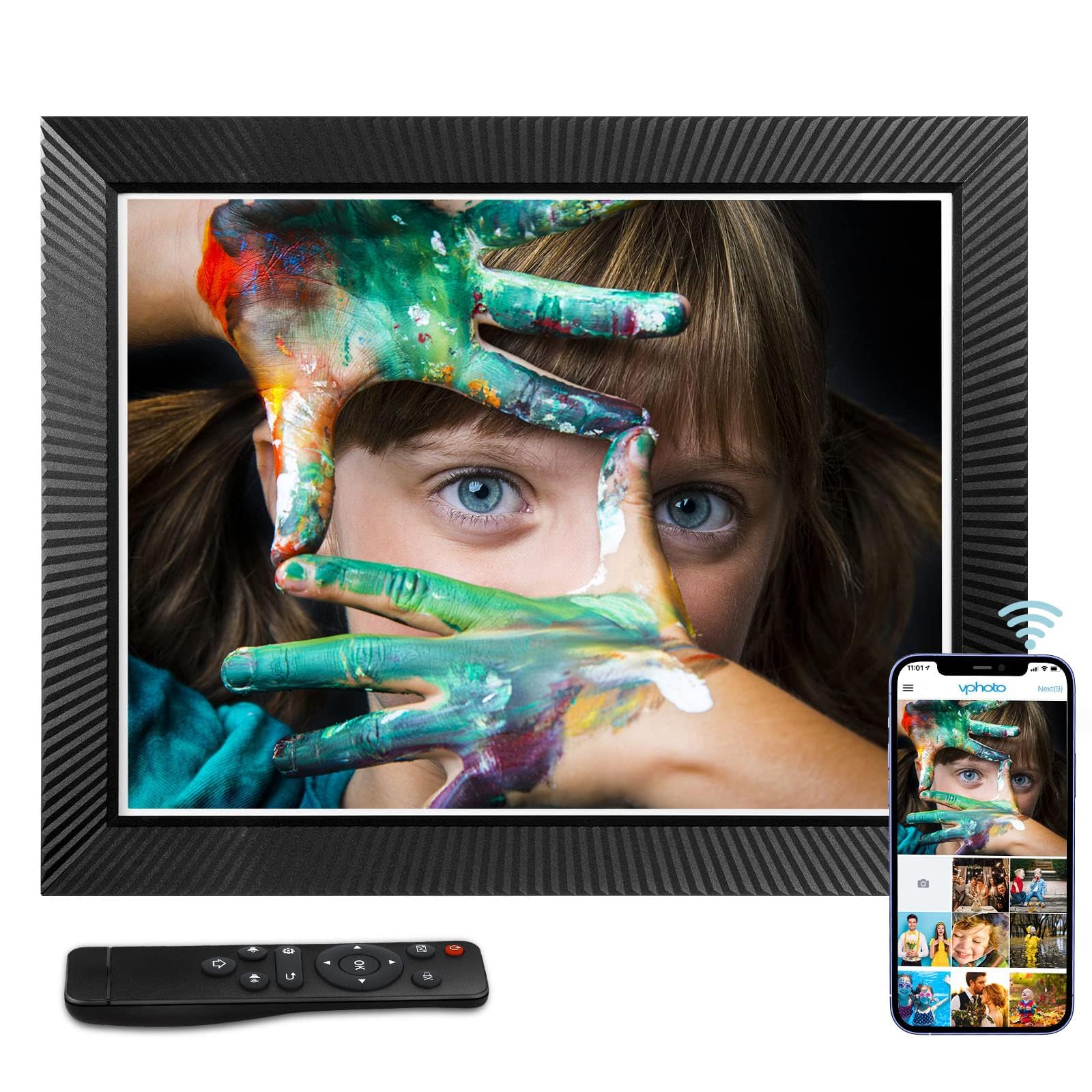
Image: The Benibela 17-inch WiFi Digital Picture Frame, showcasing its sleek design.
2. Package Contents
Please check the box for the following items:
- Benibela 17-inch WiFi Digital Picture Frame
- Power Adapter
- User Manual
- Remote Control (for models with remote functionality)
- Stand (pre-attached or separate)
3. Setup
3.1 Initial Power On
- Carefully unbox the digital picture frame.
- Attach the stand if it is not pre-attached. The frame supports both horizontal and vertical orientation.
- Connect the power adapter to the frame and plug it into a power outlet.
- The frame will automatically power on.
3.2 Wi-Fi Connection
- On the frame's touchscreen, navigate to the Settings menu.
- Select 'Wi-Fi' and choose your desired 2.4G or 5G network.
- Enter your Wi-Fi password and confirm.
- Once connected, the Wi-Fi icon will appear on the screen.
3.3 Vphoto App Setup
The Vphoto app is essential for sharing photos and videos remotely.

Image: The Benibela frame displaying a family photo, with a smartphone showing the Vphoto app interface and Wi-Fi connectivity.
- Download the 'Vphoto' app from the Google Play Store or Apple App Store.
- Open the app and create an account.
- Pair your frame with the app by following the on-screen instructions. This usually involves entering a unique code displayed on your frame.
- Once paired, you can upload photos and videos directly from your phone to the frame.

Image: A visual guide showing the five easy steps to set up and use the Vphoto app for photo sharing.
3.4 Preloading Photos for Gifting
If you are gifting the frame, you can preload photos before giving it. Scan the QR code on the product box for gift setup instructions. For example, a QR code like QNQBSB might lead to specific gift setup instructions.
Image: Instructions on how to preload photos onto the frame before gifting, using a QR code on the box for customization.
4. Operating the Frame
4.1 Uploading Photos and Videos
You have several options to upload media to your Benibela frame:
- Vphoto App: Use the paired Vphoto app on your smartphone to send photos and videos directly to the frame.
- Email: Send photos and videos to the unique email address assigned to your frame (found in settings).
- PC: Connect the frame to a computer via USB to transfer files.
- SD Card/USB Drive: Insert an SD card or USB drive into the designated slots on the frame to display media directly or transfer to internal storage.

Image: An illustration highlighting various methods for sharing photos and videos to the frame, including Cloud WiFi, 2.4G&5G WiFi, Vphoto App, E-mail, SD Card, and USB Drive, emphasizing privacy.
4.2 Controls: Touchscreen and Remote
The frame can be controlled via its responsive touchscreen or the included remote control.
- Touchscreen: Navigate menus, select photos, adjust settings, and control playback directly on the 17-inch IPS display.
- Remote Control: Use the remote for convenient control from a distance, including power, navigation, and slideshow settings.

Image: A family watching the digital frame, illustrating both remote control and touchscreen interaction, with icons for 2.4G/5G WiFi and Gravity Sensing.
4.3 Display Features
- Auto-Rotate: The frame automatically adjusts photo orientation based on its physical position (horizontal or vertical).
- Motion Sensor: The frame can be set to automatically turn on/off or enter standby mode when motion is detected within a 2-meter range.
- Slideshow Settings: Customize slideshow speed, transition effects, and background music through the settings menu.
- Museum Mode / Memory Mode: Apply artistic filters to your photos for a unique display experience.

Image: The digital frame displaying photos in various modes, including a standard display, a blue-tinted 'Museum Mode' for a wedding photo, and a sepia-toned 'Memory Mode' for an older family photo.
4.4 Smart Features
- Multimedia Playback: Enjoy Full HD videos (RMVB/H.264) and lossless music (FLAC/APE).
- Weather Station: View live weather forecasts directly on your frame.
- Calendar: Sync your calendar to display important dates and events.
- AI Face Recognition: The frame can classify and organize uploaded photos based on facial recognition.

Image: The frame's interface showing photos organized by AI face recognition, with options for internal storage, SD card, USB, folder, and favorites.
4.5 Storage Management
The frame comes with 32GB of built-in memory, capable of storing over 30,000 photos. Storage can be expanded via TF (MicroSD) card or USB drive.

Image: The digital frame surrounded by various family photos, illustrating its large 32GB storage capacity for over 30,000 photos.
5. Maintenance
5.1 Cleaning
- Use a soft, dry, lint-free cloth to clean the screen and frame.
- For stubborn smudges, lightly dampen the cloth with water or a screen-safe cleaning solution. Do not spray liquid directly onto the frame.
- Avoid abrasive cleaners or solvents.
5.2 Software Updates
Periodically check for software updates in the frame's settings menu to ensure optimal performance and access to new features. Ensure the frame is connected to Wi-Fi during updates.
6. Troubleshooting
- Frame not powering on: Ensure the power adapter is securely connected to both the frame and a working power outlet.
- Cannot connect to Wi-Fi: Double-check your Wi-Fi password. Ensure the frame is within range of your router. Try restarting your router and the frame.
- Photos not appearing: Verify that photos have been successfully uploaded via the Vphoto app, email, or external storage. Check file formats (supported formats include JPEG, PNG, MP4, etc.).
- Touchscreen unresponsive: Restart the frame. If the issue persists, contact customer support.
- Remote control not working: Ensure batteries are correctly inserted and charged. Point the remote directly at the frame's sensor.
7. Specifications
| Feature | Detail |
|---|---|
| Brand | Benibela |
| Model | B0FCYNDHR6 |
| Screen Size | 17 inches |
| Resolution | 1280x960 (Full HD IPS) |
| Memory Storage Capacity | 32GB (internal) |
| Connectivity Technology | USB, Wi-Fi (2.4G/5G) |
| Power Source | Corded Electric |
| Touchscreen | Yes |
| Aspect Ratio | 4:3 |
| Control Method | Touch, Remote |
| Frame Material | Plastic |
| Compatible Devices | Personal Computer, Smartphone, Tablet |
| Item Dimensions (L x W) | 12.84"L x 16.24"W |
8. Warranty and Support
8.1 Warranty Information
This Benibela Digital Picture Frame comes with a 1-Year Manufacturer Warranty. Please retain your proof of purchase for warranty claims. The warranty covers defects in materials and workmanship under normal use.
8.2 Customer Support
For technical assistance, troubleshooting, or warranty inquiries, please contact Benibela customer support through the vendor's contact information provided at the point of purchase or on the official Benibela website.
8.3 Privacy and Security
The Vphoto App utilizes encrypted cloud storage and invitation-only sharing to protect your data. Your personal information is not required for use, and the system blocks third-party access while auto-backing up your files.
9. Product Videos
9.1 17" Large Digital Picture Frame Overview
Video: A detailed overview of the Benibela 17-inch Large Digital Picture Frame, showcasing its features and functionality. Duration: 0:39.
9.2 Benibela Digital Picture Frame Features
Video: This video highlights the key features of the Benibela Digital Picture Frame, demonstrating its ease of use and benefits. Duration: 0:57.


