
Introduction
This manual provides detailed instructions for the setup, operation, and maintenance of your Samsung HW-Q800F/XL 5.1.2ch Soundbar. Please read this manual thoroughly before using the product to ensure proper functionality and to maximize your audio experience.
What's in the Box
Verify that all components are present in the packaging:
- Soundbar Unit
- Wireless Subwoofer
- Remote Control (with 2 AAA batteries)
- Power Cable(s)
- HDMI Cable
- Wall Mount Bracket (if included)
- User Manual
Setup
1. Placement
Proper placement of the soundbar and subwoofer is crucial for optimal sound performance.
Soundbar Placement:
Place the soundbar centrally below your television. Ensure there are no obstructions in front of the soundbar to allow for clear sound projection, especially from the up-firing and side-firing speakers.
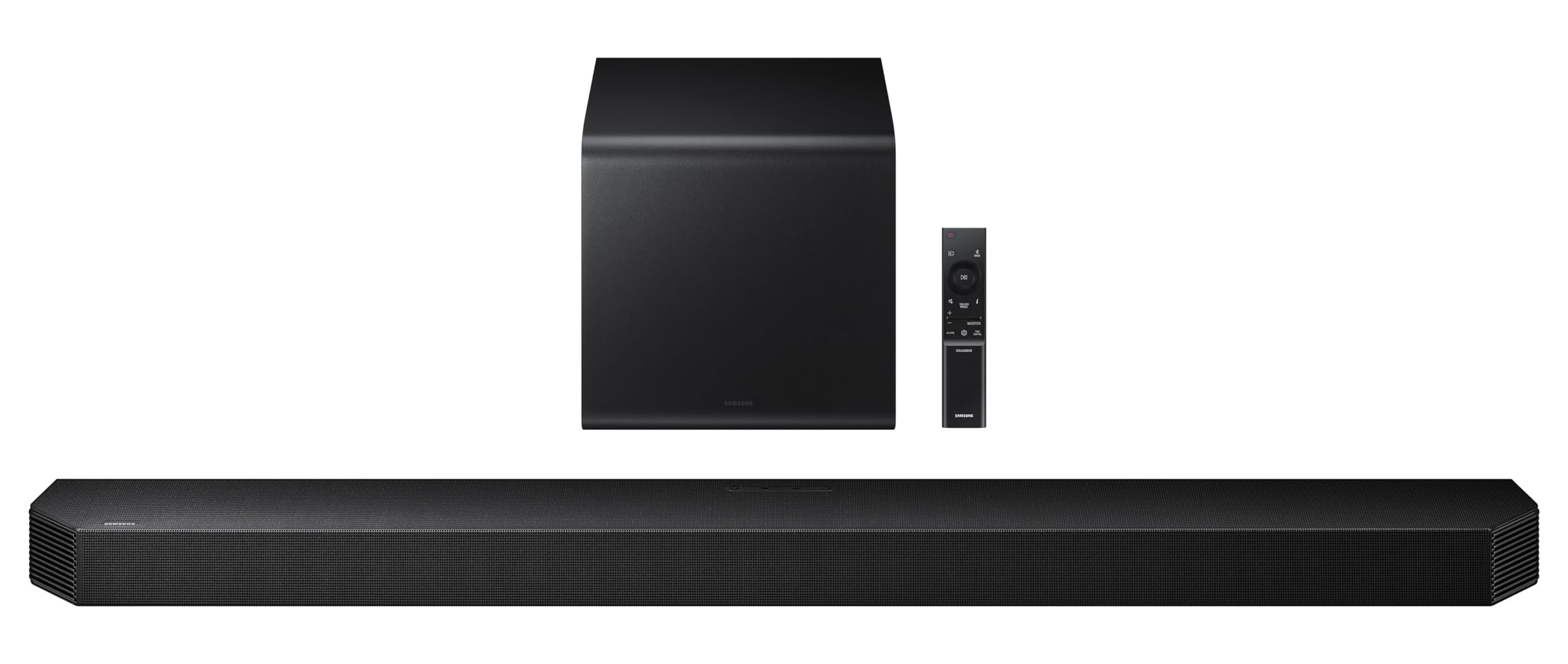
Image: The Samsung HW-Q800F/XL Soundbar positioned in front of a television, with the wireless subwoofer nearby.
Subwoofer Placement:
The wireless subwoofer can be placed anywhere in the room, ideally near the soundbar, to enhance bass. Experiment with different locations to find the best bass response for your listening environment.

Image: A visual representation of sound distribution from the soundbar and subwoofer within a room, illustrating the 5.1.2ch sound experience.
2. Connections
Connect your soundbar to your television and other devices using the available ports.
HDMI ARC/eARC Connection (Recommended):
- Connect one end of an HDMI cable to the HDMI OUT (TV-ARC/eARC) port on the soundbar.
- Connect the other end to the HDMI IN (ARC/eARC) port on your television.
- This connection allows audio from your TV to be sent to the soundbar and enables control of the soundbar with your TV remote.

Image: A close-up of the soundbar's rear panel highlighting the HDMI eARC port, with a diagram illustrating the connection to a television.
Optical Connection:
- If your TV does not support HDMI ARC/eARC, connect an optical cable from the DIGITAL AUDIO OUT port on your TV to the OPTICAL IN port on the soundbar.
- Ensure your TV's audio output is set to "Optical" or "External Speaker."
Bluetooth Connection:
- Press the Bluetooth pairing button on the soundbar or remote.
- On your mobile device, search for and select "Samsung Soundbar HW-Q800F/XL" from the list of available Bluetooth devices.

Image: A visual demonstrating wireless connection options (Wi-Fi and Bluetooth) between the soundbar and a television.
Wi-Fi Connection:
For Wi-Fi connectivity and smart features, download the Samsung SmartThings app on your smartphone or tablet and follow the in-app instructions to connect your soundbar to your home network.
3. Power Connection
- Connect the power cable to the soundbar's power input and then to a wall outlet.
- Connect the power cable to the wireless subwoofer's power input and then to a wall outlet.
- The soundbar and subwoofer should automatically pair. If not, refer to the troubleshooting section for manual pairing instructions.
Operating Instructions
1. Basic Operation
- Power On/Off: Press the Power button on the remote control or the soundbar.
- Volume Control: Use the Volume Up/Down buttons on the remote or soundbar.
- Source Selection: Press the Source button on the remote to cycle through HDMI, Optical, Bluetooth, and Wi-Fi inputs.
2. Sound Modes and Features
The HW-Q800F/XL offers various sound modes and advanced features to optimize your listening experience.
- Standard: Delivers original sound without effects.
- Surround Sound Expansion: Expands the soundstage for a wider audio experience.
- Game Pro Mode: Optimizes sound for gaming, providing directional audio and enhanced effects.
- Adaptive Sound: Analyzes the audio signal and optimizes sound settings in real-time for different content types.
- Wireless Dolby Atmos: Experience immersive, overhead sound without additional cables.
- Q-Symphony: When connected to a compatible Samsung TV, the soundbar and TV speakers work together to create a richer, more expansive sound.
- SpaceFit Sound Pro: Calibrates the sound to your room's acoustics for optimal performance. This feature is accessible via the SmartThings app.
- Active Voice Amplifier (AVA) Pro: Enhances dialogue clarity, making voices stand out against background noise.
- Voice Enhance Mode: Further boosts dialogue for improved clarity.
- Night Mode: Reduces overall volume and bass for late-night listening without disturbing others.
- Tap Sound: Tap your compatible Samsung smartphone to the soundbar to quickly connect via Bluetooth and play music.

Image: A visual representation of Q-Symphony, where sound waves emanate from both the television and the soundbar, creating a unified audio experience.

Image: Two panels illustrating sound enhancement features: Active Voice Amplifier Pro for clear dialogue and Adaptive Sound for optimized audio based on content.

Image: Two panels demonstrating user interaction: Tap Sound for quick smartphone connection and Game Pro Mode for an immersive gaming audio experience.
3. Smart Features and Voice Assistants
The soundbar integrates with various smart home ecosystems and voice assistants.
- Amazon Alexa Built-in: Use voice commands to control playback, ask questions, and manage smart home devices.
- Works with Google Home/Google Cast: Integrate with your Google Home ecosystem and cast audio directly to the soundbar.
- Apple AirPlay: Stream audio from your Apple devices.
- Spotify Connect: Play music directly from the Spotify app.
- SmartThings App: Use the Samsung SmartThings app for advanced control, sound calibration (SpaceFit Sound Pro), and firmware updates.

Image: A collection of logos indicating compatibility with various voice assistants and music streaming services, including Alexa, Google Home, Google Cast, Apple AirPlay, and Spotify.

Image: A smartphone screen showing the Samsung SmartThings app interface, demonstrating control over the soundbar and its settings.
Maintenance
To ensure the longevity and optimal performance of your soundbar, follow these maintenance guidelines:
- Cleaning: Use a soft, dry cloth to wipe the surfaces of the soundbar and subwoofer. Do not use liquid cleaners or abrasive materials.
- Ventilation: Ensure adequate airflow around the soundbar and subwoofer. Do not block ventilation openings.
- Power: Disconnect the power cable from the wall outlet if the unit will not be used for an extended period.
- Firmware Updates: Regularly check for and install firmware updates via the SmartThings app to ensure the latest features and performance enhancements.
Troubleshooting
If you encounter issues with your soundbar, refer to the following common solutions:
| Problem | Possible Solution |
|---|---|
| No sound from soundbar. |
|
| Subwoofer not producing sound. |
|
| Remote control not working. |
|
| Bluetooth connection issues. |
|
Specifications
| Feature | Detail |
|---|---|
| Model Name | HW-Q800F/XL |
| Brand | Samsung |
| Sound Output | 400 Watts |
| Audio Channels | 5.1.2ch |
| Speakers | 11 (Center, Up-firing, Side-firing) |
| Dolby Audio | Dolby ATMOS (ATMOS Music, ATMOS, Dolby 5.1ch, Dolby Digital Plus, Dolby True HD) |
| Connectivity | 1 HDMI In, 1 HDMI Out (ARC/eARC), 1 Optical In, Bluetooth, Wi-Fi |
| Wireless Technology | AirPlay, Bluetooth, Wi-Fi |
| Voice Assistants | Amazon Alexa Built-in, Works with Google Home |
| Streaming Services | Spotify Connect, Google Cast, Roon Ready |
| Special Features | Q-Symphony, SpaceFit Sound Pro, Active Voice Amplifier (AVA) Pro, Adaptive Sound, Game Pro Mode, Tap Sound, 4K Video Pass (60 Hz), HDR 10+ |
| Dimensions (Soundbar) | 111.1W x 12D x 6H Centimeters |
| Weight (Soundbar) | 5.1 Kilograms |
| Power Source | Corded Electric (240 Volts Input) |
Warranty and Support
Your Samsung HW-Q800F/XL Soundbar comes with a 1-year manufacturer warranty from the date of purchase.
For service requests, installation assistance, or technical support, please contact Samsung Customer Service. Details can typically be found on the official Samsung website or in the warranty card included with your product.
Note: Free installation services may be available. The Samsung Installation Team will contact you within 24-48 hours of delivery to schedule. Contact Samsung within 72 hours of delivery if you miss their service call.


