
Lenovo 21MLS18Y00
Lenovo ThinkPad T14 Gen 5 User Manual
Model: 21MLS18Y00
Introduction
Welcome to the user manual for your new Lenovo ThinkPad T14 Gen 5 laptop. This document provides essential information to help you set up, operate, maintain, and troubleshoot your device. Please read this manual thoroughly to ensure optimal performance and longevity of your laptop.
Setup
Unboxing and Initial Inspection
Carefully remove your laptop and accessories from the packaging. Verify that all components are present:
- Lenovo ThinkPad T14 Gen 5 Laptop
- 65W AC Adapter
- MST 32GB USB Drive
Inspect the laptop for any physical damage. If any damage is found or components are missing, contact your vendor immediately.
Connecting to Power
Before first use, ensure the laptop battery is fully charged.
- Connect the 65W AC adapter to the power input port on your laptop.
- Plug the AC adapter into a grounded electrical outlet.
- The battery indicator light will show charging status. Allow the battery to charge completely before disconnecting.
First Boot and Operating System Setup
Press the power button to turn on your laptop.
Follow the on-screen instructions to complete the Windows 10 Pro setup. This typically includes:
- Selecting your region and keyboard layout.
- Connecting to a Wi-Fi network (Intel Wi-Fi 6E AX211).
- Accepting the license agreement.
- Creating a user account.
Operating Your Laptop
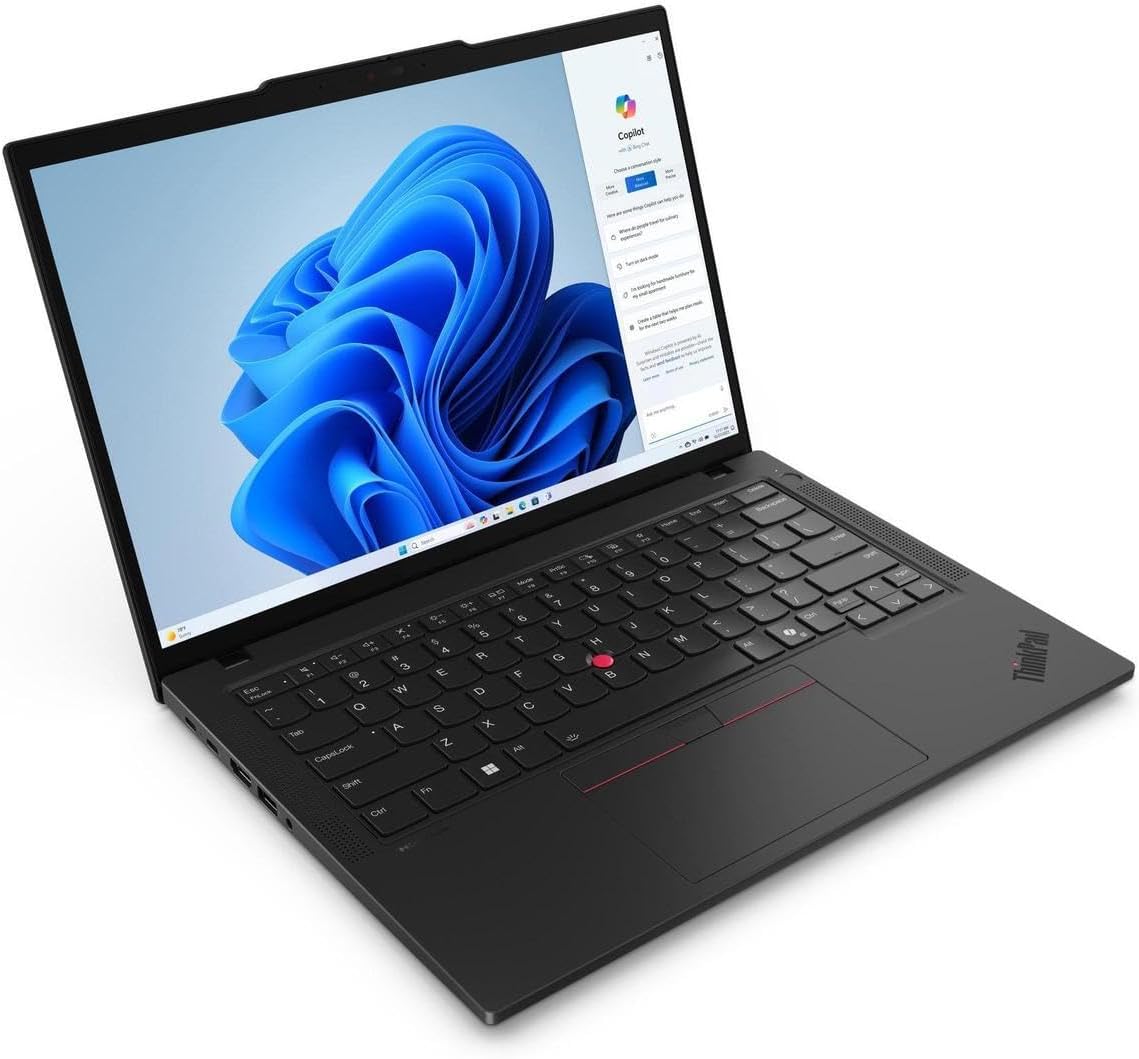
Keyboard and TrackPoint
The ThinkPad T14 Gen 5 features a backlit keyboard and a TrackPoint for precise cursor control.

Backlit Keyboard
To adjust the keyboard backlight, use the function keys (Fn + Spacebar, typically).
TrackPoint
The TrackPoint is located in the center of the keyboard. Use the red cap to move the cursor and the three buttons below the spacebar for left-click, right-click, and scroll functions.
Fingerprint Reader
The integrated fingerprint reader allows for secure and convenient login.
- Navigate to Windows Settings > Accounts > Sign-in options.
- Set up Windows Hello Fingerprint.
- Follow the on-screen prompts to register your fingerprints.
Display and Camera
Your laptop features a 14" WUXGA (1920 x 1200) IPS Anti-Glare display and a 5.0MP + IR Discrete Camera with Privacy Shutter.

Privacy Shutter
To ensure privacy, slide the physical shutter over the camera lens when not in use.
Connectivity
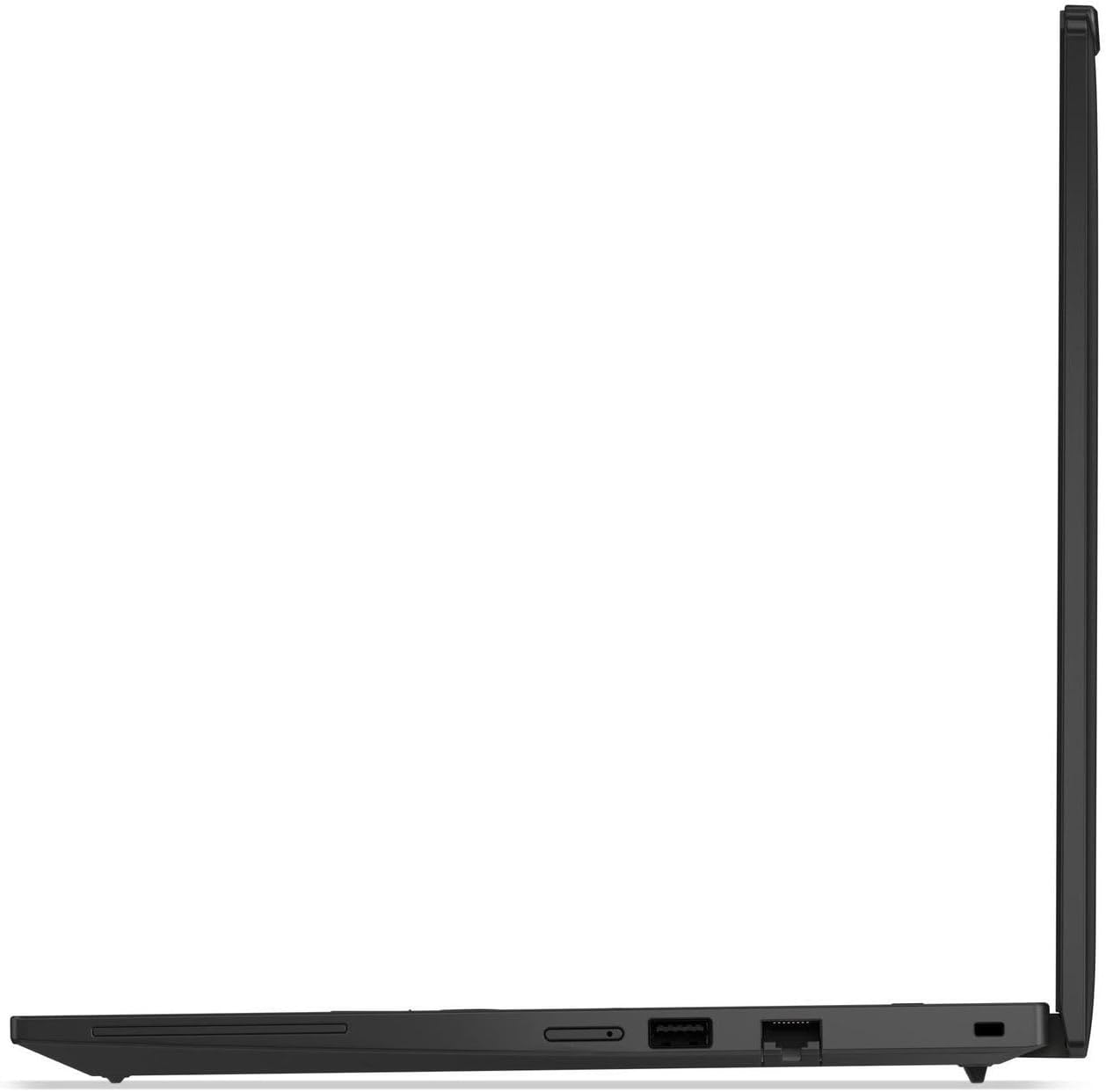
The laptop offers various connectivity options:
- Wireless: Intel Wi-Fi 6E AX211 (2x2) and Bluetooth 5.3
- Wired: 10/100/1000Mbps LAN (RJ-45 port)
- Ports:
- 2 x USB Thunderbolt 4 / USB4 40Gbps Type-C (support Power Delivery / DisplayPort)
- 1 x USB 3.2 Gen 1 Type-A (Always On / 5Gbps)
- 1 x USB 3.2 Gen 1 Type-A (5Gbps)
- 1 x Headphone/microphone combo
- 1 x HDMI v2.1
- 1 x RJ-45

Maintenance
Cleaning
To clean your laptop:
- Use a soft, lint-free cloth slightly dampened with water or a screen cleaner for the display.
- For the keyboard and chassis, use a soft, dry cloth.
- Avoid using harsh chemicals, abrasives, or solvents.
Battery Care
The 4-cell 52.5Wh battery provides up to 8 hours of non-gaming battery life.
- For optimal battery longevity, avoid frequently discharging the battery completely.
- Store the laptop in a cool, dry place if not used for extended periods.
- Use only the provided 65W AC adapter for charging.
Software Updates
Regularly update your Windows 10 Pro operating system and drivers to ensure security and optimal performance.
- Go to Windows Settings > Update & Security > Windows Update.
- Check for updates and install any available.
Troubleshooting
Common Issues and Solutions
| Problem | Possible Cause | Solution |
|---|---|---|
| Laptop does not power on | Low battery; Power adapter issue | Connect AC adapter and ensure it's plugged into a working outlet. Allow to charge for a few minutes before attempting to power on. |
| No Wi-Fi connection | Wi-Fi disabled; Driver issue; Router problem | Check Wi-Fi settings in Windows. Restart laptop and router. Update Wi-Fi drivers. |
| Keyboard backlight not working | Backlight off or at lowest setting | Press Fn + Spacebar to cycle through backlight brightness levels. |
| Camera not detected | Privacy shutter closed; Driver issue | Ensure the privacy shutter is open. Check camera drivers in Device Manager. |
For further assistance, refer to the Lenovo support website or contact customer service.
Specifications
The following table outlines the key technical specifications of the Lenovo ThinkPad T14 Gen 5 laptop:
| Component | Specification |
|---|---|
| Model | ThinkPad T14 Gen 5 (21MLS18Y00) |
| Display | 14" WUXGA (1920 x 1200) IPS Anti-Glare, 400 nits, 45% NTSC, 60Hz |
| Processor | Intel Core Ultra 5 125U (12-Core, up to 4.3GHz) |
| Graphics | Intel Graphics |
| Memory (RAM) | 48GB DDR5 5600 MHz SDRAM |
| Storage | 4TB NVMe M.2 SSD |
| Operating System | Windows 10 Pro |
| Keyboard | Backlit Keyboard, Fingerprint Reader, TrackPoint |
| Camera | 5.0MP + IR Discrete Camera with Privacy Shutter |
| Audio | Stereo speakers (2W x2), Dolby Audio |
| Wireless | Intel Wi-Fi 6E AX211 (2x2), Bluetooth 5.3 |
| Ports | 2x Thunderbolt 4 (USB4), 2x USB 3.2 Gen 1 Type-A, 1x Headphone/mic combo, 1x HDMI 2.1, 1x RJ-45 |
| Battery | 4 Cell 52.5Wh (Up to 8 hours non-gaming) |
| Dimensions (LxWxH) | 12.44 x 8.81 x 0.70 inches |
| Weight | 3.15 lbs |
| Color | Black |
Warranty and Support
For warranty information and technical support, please refer to the official Lenovo support website or the documentation included with your purchase.
Lenovo Support Website: https://support.lenovo.com
Please have your product model number (21MLS18Y00) and serial number ready when contacting support.