1. Introduction
This manual provides essential information for the safe and effective operation of your Creality Falcon A1 10W Laser Engraver and its accompanying Smoke Purifier. Please read this manual thoroughly before operating the device to ensure proper usage and to prevent damage or injury.
Product Overview
The Creality Falcon A1 10W is an enclosed laser engraving and cutting machine designed for precision work on various materials. It features a 10W (10000mW) laser with an ultra-fine 0.06 x 0.08 mm spot, enabling detailed photo-realistic engravings and efficient cutting. The system includes a Class 1 safety certification, an enclosed design for smoke and noise reduction, and an integrated smoke purifier for a clean working environment.

Figure 1: Creality Falcon A1 10W Laser Engraver and Smoke Purifier. The image shows the main laser engraver unit with its enclosed design and the separate smoke purifier unit, along with various materials that can be engraved.
2. Safety Information
Operating a laser engraver involves potential hazards. Adhere to all safety guidelines to prevent injury or damage.
Class 1 Safety Certification
The Falcon A1 is a Class 1 laser product, meaning it is safe under all conditions of normal use. This is achieved through its enclosed design and protective features.
- Protective Covers: The two protective covers filter 99% of laser light, eliminating the need for external goggles during operation.
- Enclosed Design: The enclosed structure blocks smoke and reduces operational noise, contributing to a safer and more comfortable workspace.
- Emergency Stop: An emergency stop button is provided for immediate shutdown in critical situations.
- Lid-Open Stop Feature: The machine automatically stops operation if the lid is opened during engraving or cutting.

Figure 2: Class 1 Safety Certified features. This image highlights the anti-laser baffles (above and side), the automatic stop when the flap is lifted, and the high visibility of the work in progress through the protective cover.
General Safety Precautions
- Ensure the device is placed on a stable, level surface.
- Do not operate the laser engraver unattended.
- Keep flammable materials away from the operating area.
- Ensure proper ventilation, especially when using the smoke purifier.
- Do not attempt to bypass safety mechanisms.
3. Setup
Unpacking and Initial Inspection
Carefully remove all components from the packaging. Inspect for any signs of damage during transit. Report any damage to the retailer immediately.
Assembly
The Creality Falcon A1 is largely pre-assembled, allowing for quick setup. Minimal assembly may be required for certain components or accessories.

Figure 3: Ready to Use out of the Box. The image shows the pre-assembled unit and indicates minimal assembly is required, contrasting with a typical assembly process.
Connecting the Smoke Purifier
The included Falcon Smoke Purifier is designed to work seamlessly with the A1 engraver. Connect the exhaust hose from the engraver to the purifier. The purifier supports dual-size exhaust pipes: 63mm for the A1 and 76mm for other Creality Falcon series machines or protective covers.

Figure 4: Falcon A1 connected to the Smoke Purifier. This image illustrates the connection between the laser engraver and the smoke purifier, highlighting the compatible exhaust pipe sizes.
Power Connection
Connect the power adapter to the engraver and then to a suitable power outlet. Ensure the power switch is in the OFF position before connecting.
4. Operating Instructions
Software Compatibility
The Creality Falcon A1 is compatible with Creality Falcon Design Space software, which offers an intuitive platform for design and operation. It also supports mainstream software such as LightBurn and LaserGRBL.

Figure 5: Software compatibility and key features. This image shows the Creality Falcon Design Space and LightBurn software interfaces, along with details on the compressed laser spot size and cutting capabilities for acrylic and wood.
Engraving and Cutting Process
- Choose a Design: Select or create your desired pattern using the compatible software.
- Place Material: Position the material to be engraved or cut on the work area. The machine features automatic material recognition.
- Preview and Engrave: Utilize the software's preview function to ensure correct placement and settings. Pre-tested optimal parameter settings are available for various materials. Initiate the engraving or cutting process.
Figure 6: Operational workflow. This image illustrates the three main steps: choosing a design, automatic material recognition, and initiating the engraving process.
Material Compatibility
The Falcon A1 10W laser engraver can process a wide range of materials, including:
- Wood (cuts up to 6mm)
- Acrylic (cuts up to 10mm)
- Stainless Steel
- Leather
- Rock
- Glass
- Cork
- Silicon
- Gold
- Silver
- Platinum
- Aluminum
- Titanium
- Brass
- Plastic

Figure 7: Material processing capabilities. This image displays a variety of materials that can be engraved or cut, including wood, acrylic, stainless steel, leather, and more, along with examples of cutting depth for acrylic and wood.
Camera Functionality
The integrated high-definition camera assists with alignment and supports batch engraving or cutting, providing a "What You See Is What You Get" experience for precise positioning.
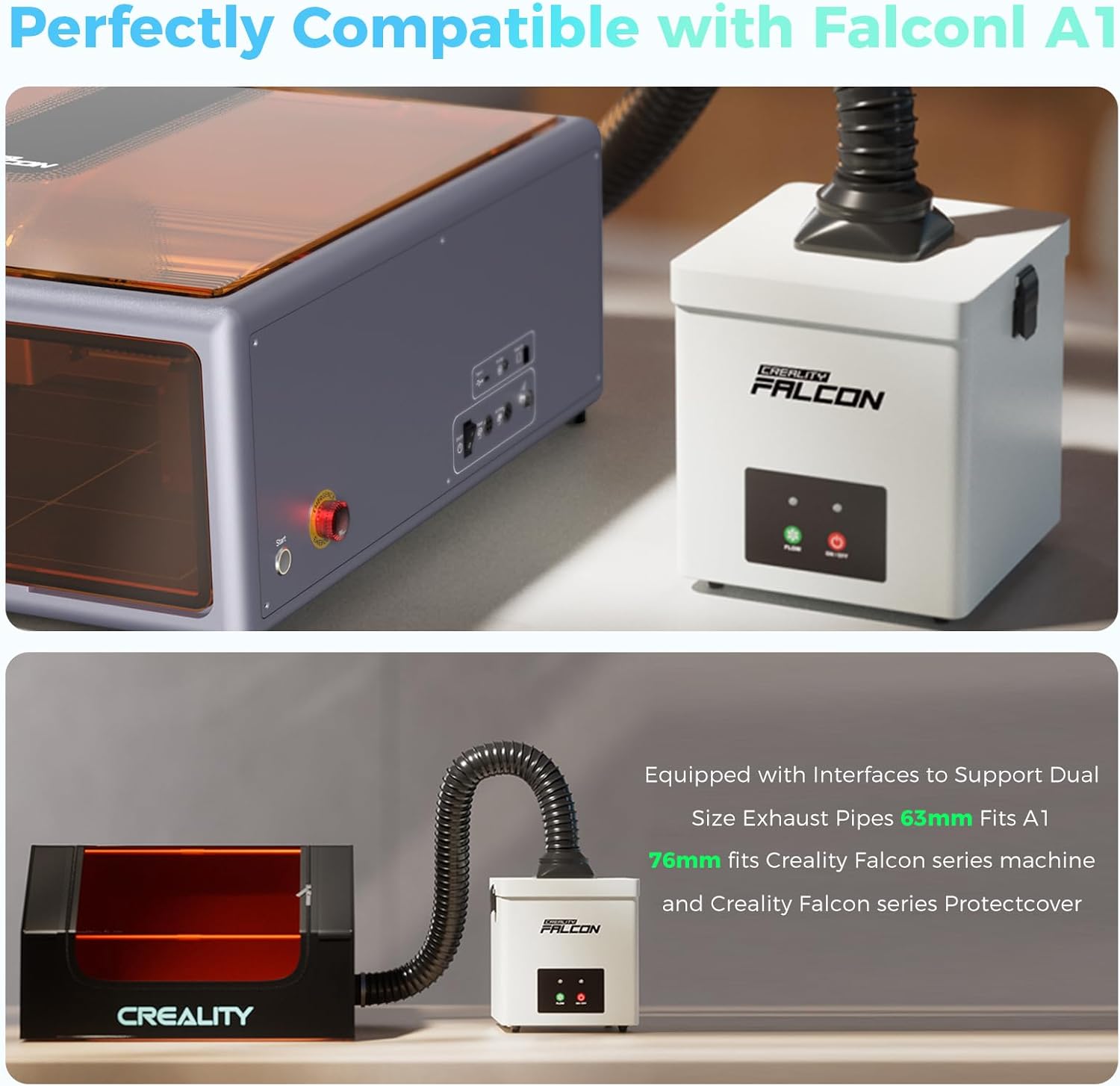
Figure 8: Integrated camera for precise operations. This image shows the laser engraver with its lid open, highlighting the camera and demonstrating how it aids in accurate design placement compared to operating without a camera.
5. Maintenance
Smoke Purifier Filter Replacement
The Falcon Smoke Purifier utilizes a 2-layer filtration system, including a pre-filter and an activated carbon filter, to achieve 99.97% purification. Regular replacement of these filters is crucial for maintaining optimal performance and air quality.

Figure 9: Pre-filter for the smoke purifier. This filter captures larger visible particles like dust.

Figure 10: Activated Carbon Filter for the smoke purifier. This filter absorbs harmful gases and unpleasant odors.
Refer to the purifier's specific manual for detailed instructions on filter access and replacement frequency.
Cleaning the Engraver
- Ensure the engraver is powered off and unplugged before cleaning.
- Use a soft, dry cloth to wipe down the exterior surfaces.
- Periodically clean the work area and laser lens according to the detailed cleaning instructions in the full product manual.
6. Troubleshooting
This section addresses common issues you might encounter. For more complex problems, contact customer support.
| Problem | Possible Cause | Solution |
|---|---|---|
| Laser not firing | Lid open, emergency stop engaged, power issue, software error. | Ensure lid is closed, check emergency stop button, verify power connection, restart software. |
| Poor engraving quality | Incorrect material settings, dirty lens, material not flat, laser focus incorrect. | Adjust power/speed settings, clean laser lens, ensure material is flat, check laser focus. |
| Smoke purifier not effective | Clogged filters, improper hose connection, fan speed too low. | Replace filters, check hose connections for leaks, increase fan speed. |
7. Specifications
| Feature | Detail |
|---|---|
| Model | Falcon A1 10W |
| Laser Power | 10W (10000mW) |
| Spot Size | 0.06 x 0.08 mm |
| Cutting Capacity (Wood) | 6mm (single pass) |
| Cutting Capacity (Acrylic) | 10mm (single pass) |
| Safety Certification | Class 1 |
| Material | Acrylic, Alloy Steel, Metal, Plastic |
| Color | White |
| Operation Mode | Manual |
| Smoke Purifier Size | L7.28*W7.28*H8.07 inches |
| Smoke Purifier Weight | 8.3 lbs |
| Smoke Purifier Filtration | 2-Layer (Pre-filter, Activated Carbon), 99.97% purification |
8. Customer Support and Warranty
Warranty Information
The product comes with a return policy allowing for refund/replacement within 30 days. For detailed warranty terms and conditions, please refer to the official Creality website or contact your retailer.
Contact Information
For technical assistance, troubleshooting, or warranty claims, please visit the official Creality website or contact their customer service department. You can also refer to the Creality Store on Amazon for additional resources.