
AUKABREX G3
AUKABREX G3 2-in-1 Laptop User Manual
Model: G3 | Brand: AUKABREX
Introduction
Welcome to the user manual for your AUKABREX G3 2-in-1 Laptop. This device combines the power of a traditional laptop with the versatility of a tablet, featuring a 15.6-inch Full HD touchscreen and a 360° flip design. Powered by an AMD Ryzen 3 3200U CPU, 16GB RAM, and a 512GB SSD, it is designed for efficient daily computing, entertainment, and productivity. This manual provides essential information on setting up, operating, maintaining, and troubleshooting your new laptop.
Product Features
- 15.6-inch Full HD IPS Touchscreen: Enjoy vibrant visuals with 1920x1080 resolution and a responsive 10-point touch display.
- 360° Convertible Design: Seamlessly switch between Laptop, Tablet, Stand, and Tent modes for various uses.
- AMD Ryzen 3 3200U Processor: Efficient performance for multitasking and demanding applications, with a base frequency of 2.6 GHz and boost up to 3.5 GHz.
- Integrated Radeon Vega 3 Graphics: Capable graphics for everyday tasks and multimedia.
- 16GB DDR4 RAM & 512GB SSD: Ample memory and fast storage for smooth operation and quick data access.
- Comprehensive Connectivity: Includes RJ45, Type-C, USB 3.0, USB 2.0 (x2), Mini HDMI, and a headphone jack.
- Wireless Capabilities: Equipped with WiFi 5 (2.4G+5G) and Bluetooth 5.1 for reliable wireless connections.
- Long-lasting Battery: Features a 5000mAh (38Wh) battery for extended usage.
- Windows 11 Operating System: Pre-installed with the latest Windows operating system for a modern user experience.
Setup
1. Unboxing and Initial Inspection
Carefully remove the laptop and all accessories from the packaging. Inspect the device for any signs of damage. The package should include:
- AUKABREX G3 2-in-1 Laptop
- Power Adapter
- User Manual (this document)
- Keyboard stickers (German/French/Spanish/Italian)
2. Charging the Battery
Before first use, fully charge the laptop's battery.
- Connect the power adapter to the charging port on the laptop.
- Plug the power adapter into a wall outlet.
- The charging indicator light will illuminate. Allow the laptop to charge until the indicator shows a full charge.
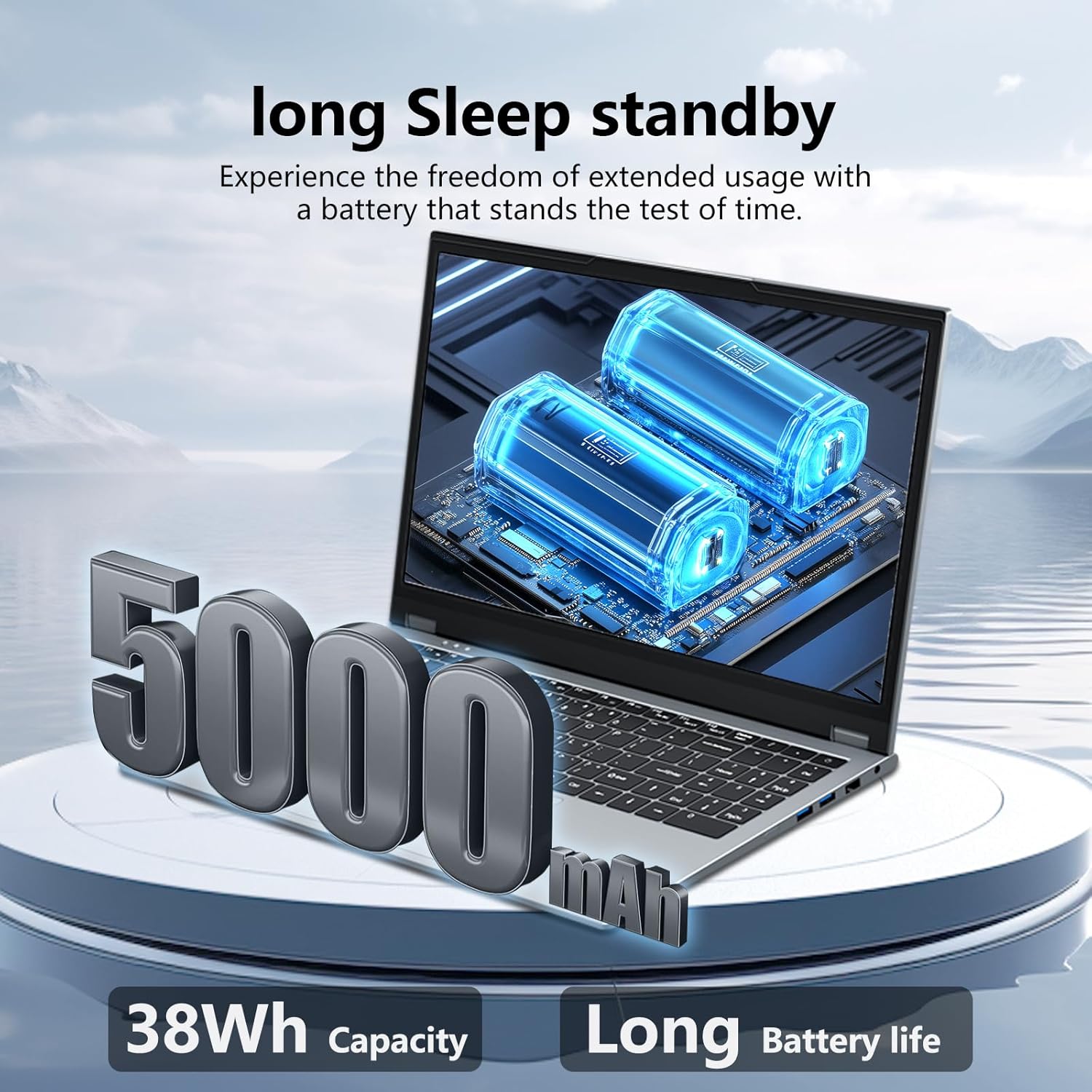
Image: The laptop's battery capacity is 5000mAh (38Wh), providing extended usage.
3. First Boot and Windows Setup
Press the power button to turn on the laptop. Follow the on-screen instructions to complete the Windows 11 setup process. This includes selecting your language, region, connecting to a Wi-Fi network, and setting up your user account.
Operating Your Laptop
1. Understanding the 360° Convertible Design
Your AUKABREX G3 laptop offers four versatile modes:
- Laptop Mode: Standard notebook configuration for typing and productivity.
- Stand Mode: Fold the keyboard back to use the screen for presentations or media viewing.
- Tent Mode: Position the laptop like a tent for stable touch interaction or media.
- Tablet Mode: Fold the keyboard completely back against the screen for a full tablet experience.

Image: The laptop can be used in Laptop, Stand, Tent, and Tablet modes by rotating the screen 360 degrees.
2. Using the Touchscreen
The 15.6-inch Full HD IPS display supports 10-point multi-touch. You can interact with Windows 11 and applications using gestures similar to a smartphone or tablet.

Image: The 15.6-inch IPS Full HD screen provides a clear and enjoyable viewing experience with 1920x1080 resolution.
3. Keyboard and Touchpad
The laptop features a full-size backlit QWERTY keyboard and a large touchpad for precise navigation. Function keys (Fn) provide quick access to system settings like volume, brightness, and Wi-Fi.
4. Processor and Storage Performance
The AMD Ryzen 3 3200U processor ensures smooth performance for daily tasks, while the 16GB DDR4 RAM allows for efficient multitasking. The 512GB SSD provides fast boot times and quick application loading.

Image: Details of the Ryzen 3 3200U processor, highlighting its frequency, manufacturing process, cache, and TDP.

Image: The laptop's 16GB RAM and 512GB SSD enable smooth multitasking with multiple applications running simultaneously.
Connectivity
The AUKABREX G3 offers a variety of ports for connecting external devices and peripherals.

Image: Overview of the comprehensive interface support, detailing the location of various ports on the laptop.
- Power Hole: For connecting the power adapter.
- Type-C Port: Full-function port for data transfer, video output, and charging (if supported by external device).
- HDMI Port: Connect to external monitors or TVs for video and audio output.
- USB 3.0 Port: High-speed data transfer for compatible devices.
- USB 2.0 Ports (x2): For connecting standard USB peripherals like mice, keyboards, or flash drives.
- RJ45 (Ethernet) Port: For wired network connection.
- Headphone Jack: For connecting headphones or external speakers.
- WiFi 5 (802.11ac): For wireless internet connectivity on both 2.4GHz and 5GHz bands.
- Bluetooth 5.1: For connecting wireless peripherals such as headphones, speakers, or mice.
Maintenance
1. Cleaning Your Laptop
To keep your laptop in optimal condition:
- Use a soft, lint-free cloth to clean the screen. For stubborn smudges, use a screen cleaner specifically designed for electronics.
- Wipe the keyboard and chassis with a slightly damp, soft cloth. Avoid excessive moisture.
- Do not use harsh chemicals, abrasives, or solvents.
- Keep vents clear of dust and debris to ensure proper airflow.
2. Battery Care
- Avoid completely discharging the battery frequently.
- Store the laptop in a cool, dry place if not used for extended periods.
- Do not expose the battery to extreme temperatures.
3. Software Updates
Regularly check for and install Windows updates to ensure system stability, security, and performance.
Troubleshooting
| Problem | Possible Solution |
|---|---|
| Laptop does not turn on. | Ensure the power adapter is securely connected and the battery is charged. Try a different power outlet. |
| Screen is blank or black. | Check if the laptop is powered on. Press Fn + F2 (or similar function key) to toggle display output. Restart the laptop. |
| Touchscreen is unresponsive. | Restart the laptop. Ensure display drivers are up to date via Windows Update or Device Manager. |
| Wi-Fi connection issues. | Ensure Wi-Fi is enabled (Fn + F5 or similar). Restart your router. Check network settings in Windows. |
| Slow performance. | Close unnecessary applications. Check for background processes. Ensure sufficient free space on SSD. Run a virus scan. |
For more complex issues, refer to the Windows 11 help resources or contact customer support.
Specifications
| Feature | Detail |
|---|---|
| Brand | AUKABREX |
| Model Name | G3 |
| Screen Size | 15.6 Inches |
| Screen Resolution | 1920 x 1080 pixels (Full HD) |
| Processor Brand | AMD |
| Processor Type | Ryzen 3 3200U |
| Processor Speed | 3.5 GHz (Max Boost) |
| RAM Size | 16 GB DDR4 |
| Storage Type | SSD |
| Storage Capacity | 512 GB |
| Graphics Chipset Brand | AMD Radeon Vega 3 (Integrated) |
| Operating System | Windows 11 |
| Wireless Type | 802.11ac (WiFi 5) |
| Bluetooth | 5.1 |
| USB 2.0 Ports | 2 |
| USB 3.0 Ports | 1 |
| HDMI Port | Mini HDMI |
| Battery Capacity | 5000 mAh (38 Watt-hours) |
| Product Dimensions | 36 x 23 x 2 cm |
| Item Weight | 2.75 kg |
Warranty and Support
Your AUKABREX G3 2-in-1 Laptop is covered by a 2-year warranty from the date of purchase. This warranty covers manufacturing defects and hardware malfunctions under normal use.
For any questions, technical assistance, or warranty claims, please contact AUKABREX customer service. Please have your product model (G3) and purchase details ready when contacting support.
Contact information for support is typically found on the manufacturer's official website or on the packaging.
Ask a question about this manual
Ask about setup, troubleshooting, compatibility, parts, safety, or missing instructions. Manuals+ will review the question and use this page’s manual context to help answer it.