
AutoSky WUA-8-PRO
Contents
AutoSky 8PRO Wireless CarPlay Adapter User Manual
Model: WUA-8-PRO
1. Introduction
Thank you for choosing the AutoSky 8PRO Wireless CarPlay Adapter. This device is designed to convert your vehicle's existing wired CarPlay or Android Auto system into a wireless experience, offering seamless connectivity and enhanced convenience. Featuring an ultra-speed 8PRO chip, it ensures fast, stable, and plug-and-play operation.
Important Note: This adapter requires your vehicle to have factory-wired CarPlay or Android Auto functionality. It does not add CarPlay or Android Auto to vehicles that do not already possess this feature.
2. Product Overview
The AutoSky 8PRO is a compact and discreet wireless adapter. Its sleek design and piano black finish complement any car interior.
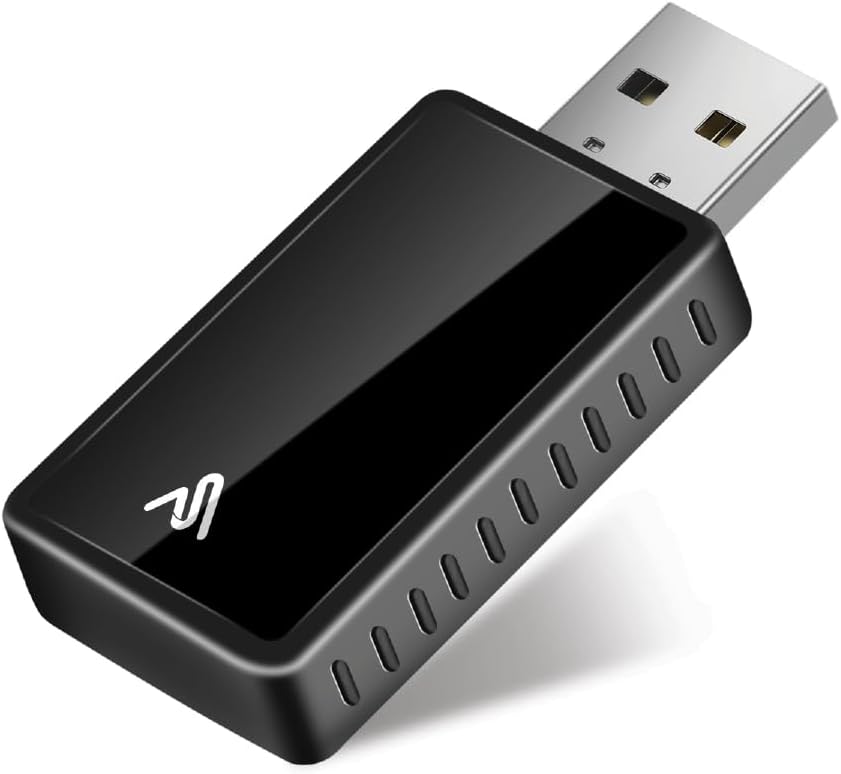
Image: The AutoSky 8PRO Wireless CarPlay Adapter, a compact black device with a USB-A connector.

Image: A hand holding the AutoSky 8PRO adapter, illustrating its small and compact size, approximately 70% smaller than typical dongles.
2.1 Key Features
- 8PRO Ultra-Speed Chip: Ensures lightning-fast and stable wireless connection.
- Plug & Play: No complex setup or app installation required.
- Compact Design: Smallest CarPlay dongle on the market, designed to be discreet.
- Bluetooth 5.3: Provides secure and efficient wireless communication.
- USB-A & USB-C Compatible: Includes a USB-C adapter for broader compatibility.
- Voice Control: Supports Google Assistant and Siri voice commands.
- Steering Wheel Control Compatible: Retains functionality of existing steering wheel controls.
3. Setup Instructions
Follow these steps to set up your AutoSky 8PRO Wireless CarPlay Adapter:
- Verify Wired CarPlay/Android Auto: Ensure your vehicle has factory-wired CarPlay or Android Auto. Connect your smartphone via a USB cable to confirm it activates on your car's display.
- Connect the Adapter: Locate the USB port in your vehicle that supports wired CarPlay/Android Auto. Plug the AutoSky 8PRO adapter into this port. If your vehicle uses a USB-C port, use the provided USB-C adapter. The adapter will power on automatically.
- Pair with Bluetooth: On your smartphone, go to Bluetooth settings. Search for and select the Bluetooth device named "AutoSky-XXXX" (where XXXX is a unique identifier). A pairing request will appear on your phone and/or car screen. Confirm the pairing.
- Initiate Wireless CarPlay/Android Auto: Once paired, your car's display should automatically switch to the wireless CarPlay or Android Auto interface.
- Enjoy: You can now use your smartphone's features wirelessly through your car's infotainment system.

Image: Illustration of plugging the AutoSky 8PRO adapter into a car's USB port, showing the USB-A and USB-C compatibility.

Image: A smartphone screen displaying a Bluetooth pairing request for "AutoSky-4250" with a confirmation code, demonstrating the pairing process.
4. Operating Instructions
4.1 Daily Use
After the initial setup, the AutoSky 8PRO adapter will automatically connect to your paired smartphone when you start your vehicle, provided Bluetooth and Wi-Fi are enabled on your phone.
4.2 Using Voice Control
The adapter supports voice commands through Siri (for Apple CarPlay) and Google Assistant (for Android Auto). Activate voice control using your car's built-in voice button or by saying the wake phrase (e.g., "Hey Siri" or "Hey Google").

Image: A car's infotainment screen showing a message interface with a Siri voice control icon, illustrating the voice command functionality.
4.3 Steering Wheel Controls
Your existing steering wheel controls for media playback, calls, and navigation will continue to function seamlessly with the wireless CarPlay/Android Auto system.

Image: Close-up of a car's steering wheel with media and call control buttons, indicating compatibility with the adapter.
5. Maintenance
The AutoSky 8PRO adapter requires minimal maintenance. Keep the device clean and dry. Avoid exposing it to extreme temperatures or direct sunlight for prolonged periods.
5.1 Firmware Updates
Periodically check for firmware updates to ensure optimal performance and compatibility. Updates can typically be performed wirelessly via a connected smartphone or computer, following instructions provided on the AutoSky official website.
6. Troubleshooting
| Problem | Possible Cause | Solution |
|---|---|---|
| Adapter not connecting automatically. | Bluetooth/Wi-Fi off on phone; adapter not powered; car's infotainment system needs restart. | Ensure Bluetooth and Wi-Fi are enabled on your phone. Unplug and replug the adapter. Restart your car's infotainment system. |
| No CarPlay/Android Auto display. | Vehicle does not have wired CarPlay/Android Auto; incorrect USB port used. | Verify your vehicle supports wired CarPlay/Android Auto. Try a different USB port in your car. |
| Intermittent connection or audio drops. | Interference; outdated firmware; phone issues. | Move phone closer to the adapter. Check for and install firmware updates. Restart your phone. |
| Cannot pair via Bluetooth. | Adapter not in pairing mode; incorrect device selected. | Unplug and replug the adapter to reset. Ensure you select the correct "AutoSky-XXXX" device. Forget previous Bluetooth connections if necessary. |
If you continue to experience issues, please refer to the support section or contact AutoSky customer service.
7. Specifications
- Model: WUA-8-PRO
- Brand: AutoSky
- Wireless Communication: Bluetooth 5.3, 5.8GHz Wi-Fi
- Material: Policarbonate
- Color: Piano Black
- Item Weight: 1.13 ounces (0.03 Kilograms)
- Package Dimensions: 3.43 x 3.35 x 0.67 inches
- Compatibility: Vehicles with factory-wired CarPlay/Android Auto (typically 2016+ models).
8. Warranty Information
The AutoSky 8PRO Wireless CarPlay Adapter comes with a standard manufacturer's warranty. Please refer to the product packaging or the official AutoSky website for specific warranty terms and conditions. Keep your proof of purchase for warranty claims.
Protection plans are available for purchase separately:
- 2-Year Protection Plan
- 3-Year Protection Plan
- Complete Protect (monthly subscription)
9. Customer Support
For technical assistance, troubleshooting not covered in this manual, or warranty inquiries, please contact AutoSky customer support:
- Website: Visit the AutoSky Store on Amazon
- Manufacturer: Promaster Electronic LLC
Ask a question about this manual
Ask about setup, troubleshooting, compatibility, parts, safety, or missing instructions. Manuals+ will review the question and use this page’s manual context to help answer it.