
OPPO Reno 13 5G PKM110 Dual SIM Smartphone
Instruction Manual
Introduction
This manual provides essential information for the safe and efficient use of your OPPO Reno 13 5G PKM110 Dual SIM smartphone. Please read this guide thoroughly before operating your device to ensure optimal performance and longevity. Keep this manual for future reference.
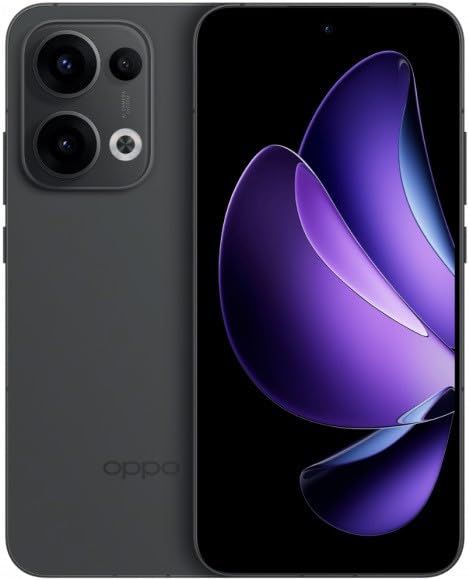
Figure 1: OPPO Reno 13 5G PKM110 Dual SIM Smartphone. This image displays the front and back of the device, highlighting its sleek design and camera module.
Setup
1. Unboxing and Initial Inspection
Carefully remove all items from the packaging. Verify that the following components are present:
- OPPO Reno 13 5G PKM110 Smartphone
- USB Type-C Cable
- Power Adapter
- SIM Ejector Tool
- Quick Start Guide (this document)
Inspect the device for any visible damage. If any components are missing or damaged, contact your retailer.
2. SIM Card Installation
- Locate the SIM card tray on the side of your device.
- Insert the SIM ejector tool into the small hole on the SIM tray and press gently until the tray pops out.
- Place your Nano-SIM cards into the designated slots on the tray. Ensure the gold contacts face downwards and the cut corner aligns correctly. This device supports Dual SIM functionality.
- Carefully reinsert the SIM tray into the phone until it clicks into place.
3. Initial Power On and Setup
- Press and hold the Power button (located on the right side) until the OPPO logo appears.
- Follow the on-screen instructions to complete the initial setup, including language selection, Wi-Fi connection, Google account setup, and security settings.
4. Charging the Device
Before first use, it is recommended to fully charge your device. Connect the USB Type-C cable to the phone's charging port and the other end to the power adapter. Plug the adapter into a wall outlet. The charging indicator will appear on the screen.
Operating Instructions
1. Basic Navigation
- Touchscreen Gestures: Tap to select, swipe to scroll, pinch to zoom.
- Home Screen: Access your apps and widgets. Swipe left or right to navigate between screens.
- Notification Panel: Swipe down from the top of the screen to view notifications and quick settings.
- Recent Apps: Swipe up from the bottom of the screen and hold (or tap the recent apps button, if configured) to view recently used applications.
2. Making Calls and Sending Messages
- Making a Call: Open the 'Phone' app, enter the number, and tap the call icon.
- Sending a Message: Open the 'Messages' app, tap the new message icon, enter the recipient's number or select from contacts, type your message, and tap send.
3. Connecting to Networks
- Wi-Fi: Go to Settings > Wi-Fi, turn Wi-Fi on, select your desired network, and enter the password if required.
- Mobile Data (5G): Go to Settings > Mobile Network, ensure 'Mobile data' is enabled. Your device supports 5G connectivity where available.
- Bluetooth: Go to Settings > Bluetooth, turn Bluetooth on, and pair with compatible devices.
4. Camera Usage
Open the 'Camera' app. Tap the shutter button to take a photo. Swipe left or right to switch between different modes (e.g., Photo, Video, Portrait). Tap the camera icon to switch between front and rear cameras.
5. Security Features
- Fingerprint Unlock: Register your fingerprints in Settings > Password & Biometrics > Fingerprint.
- Face Unlock: Set up face recognition in Settings > Password & Biometrics > Face.
- Screen Lock: Choose a PIN, pattern, or password for screen lock in Settings > Password & Biometrics > Lock screen password.
Maintenance
1. Software Updates
Regularly check for software updates to ensure your device has the latest features and security patches. Go to Settings > About device > Up to date to check for and install updates.
2. Cleaning Your Device
Use a soft, lint-free cloth to clean the screen and body of your phone. Avoid using harsh chemicals or abrasive materials. Do not expose the device to excessive moisture.
3. Battery Care
- Avoid extreme temperatures.
- Do not let the battery drain completely too often.
- Use only OPPO-approved chargers and cables.
4. Storage Management
To free up storage space, regularly clear cache data, uninstall unused apps, and transfer large files (photos, videos) to cloud storage or a computer. Go to Settings > About device > Storage to manage your device's storage.
Troubleshooting
1. Device Not Responding
If your device becomes unresponsive, press and hold the Power button for approximately 10-15 seconds to force a restart.
2. Network Connectivity Issues
- No Signal: Ensure your SIM card is properly inserted. Try restarting the device. Check if airplane mode is off.
- Wi-Fi Connection Problems: Restart your router and your phone. Forget the network in Wi-Fi settings and reconnect.
3. Apps Crashing or Freezing
Clear the cache and data for the problematic app (Settings > Apps > App management > [App Name] > Storage usage > Clear cache/Clear data). If the issue persists, uninstall and reinstall the app.
4. Factory Reset
WARNING: A factory reset will erase all data on your phone, including apps, photos, and settings. Back up your data before proceeding.
To perform a factory reset, go to Settings > System settings > Back up and reset > Reset phone > Erase all data. You will need to confirm your screen lock password.
Specifications
| Feature | Specification |
|---|---|
| Brand | OPPO |
| Model Name | Oppo Reno 13 5G PKM110 |
| Memory Storage Capacity | 256 GB |
| RAM Memory Installed Size | 12 GB |
| Display Type | AMOLED |
| Cellular Technology | 5G |
| SIM Card Slot Count | Dual SIM |
| Form Factor | Bar |
| Colour | Black |
| Wireless Service Provider | Unlocked |
Warranty and Support
1. Warranty Information
Your OPPO Reno 13 5G PKM110 is covered by a limited warranty. Please refer to the warranty card included in your product packaging for detailed terms and conditions, including warranty period and coverage specifics. Keep your proof of purchase for warranty claims.
2. Customer Support
For technical assistance, troubleshooting beyond this manual, or warranty service, please contact OPPO customer support. Visit the official OPPO website for contact information, service center locations, and online support resources.


