
1. Product Overview
The Cricut Explore 4 Smart Cutting Machine is designed for crafting projects, offering cutting and writing capabilities. This machine features faster cutting speeds compared to previous models and includes a built-in sensor for precision cutting around ink-jet printed images, enabling the creation of full-color stickers. The Explore 4 supports various blades and tools for additional effects such as scoring, writing, and foiling, expanding creative possibilities.
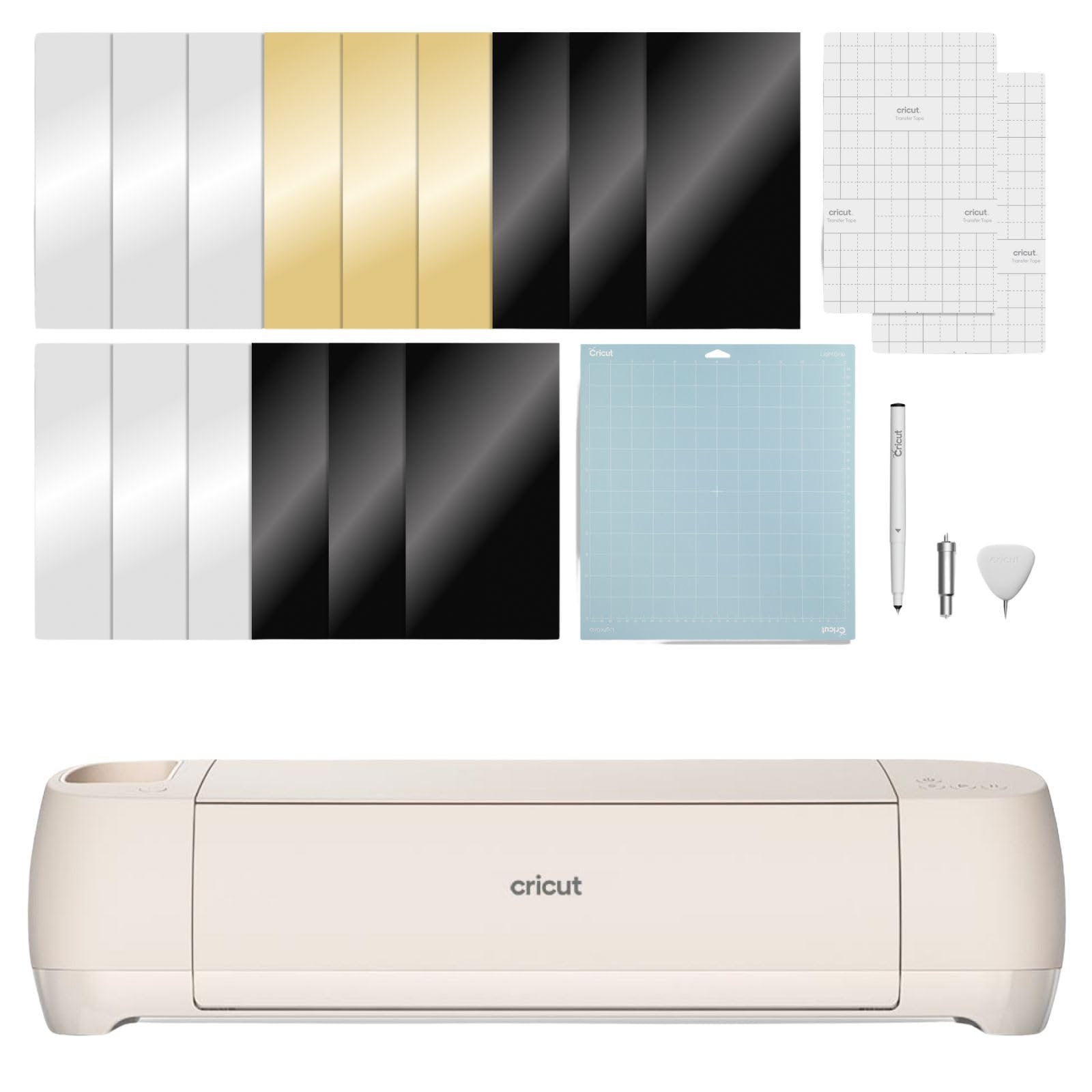
Image: The Cricut Explore 4 Smart Cutting Machine in Seashell color, displayed with various crafting materials and tools.
2. Setup Instructions
Follow these steps to set up your Cricut Explore 4 machine:
- Unboxing: Carefully remove the Cricut Explore 4 machine and all included components from the packaging. Ensure all items listed in the "What's in the Box" section are present.
- Placement: Place the machine on a stable, flat surface with adequate space around it for material loading and unloading.
- Power Connection: Connect the power adapter to the machine and then to a wall outlet.
- Initial Connection: Connect the machine to your computer or mobile device via Bluetooth or USB cable.
- Software Installation: Download and install the Cricut Design Space software from the official Cricut website (design.cricut.com). Follow the on-screen prompts to complete the installation and account setup.
- First Project: Follow the guided setup within Cricut Design Space to perform your first test cut and familiarize yourself with the machine's basic functions.

Image: The Cricut Explore 4 machine ready for use, surrounded by Smart Iron-On vinyl rolls and essential crafting tools.
3. Operating Instructions
Operating the Cricut Explore 4 involves a few key steps to bring your creative projects to life:
- Design Your Project: Use the Cricut Design Space application on your desktop or mobile device to create a new design or select from the extensive library of pre-made projects.
- Prepare Your Material: Select the appropriate material (e.g., vinyl, iron-on, cardstock) for your project. Place the material onto a Cricut cutting mat, ensuring it is properly adhered and aligned. For Smart Materials, you may load directly without a mat.
- Load Material into Machine: Open the machine's clamp and carefully slide the cutting mat (or Smart Material) under the guides. Press the Load/Unload button to secure the material.
- Start Cutting: In Cricut Design Space, select your material type and tool settings. Ensure the correct blade or tool is installed in the machine. Press the "Go" button in the software, then the flashing "C" button on the machine to begin the cutting process. The machine's built-in sensor will assist with precision cuts, especially for print-then-cut projects.
- Unload and Weed: Once the cut is complete, press the Load/Unload button to release the material. Carefully remove the cut design from the mat and weed away any excess material.
- Apply Your Design: Transfer your cut design to your desired surface using appropriate transfer methods (e.g., transfer tape for vinyl, heat press for iron-on).

Image: A user interacting with the Cricut Design Space application on a laptop, showcasing the design interface.

Image: A user carefully loading a green cutting mat with brown material into the Cricut Explore 4 machine.

Image: Hands carefully applying a gold vinyl design to a white ceramic container, demonstrating the final application step.
The Cricut Explore 4 supports various materials including Vinyl, Iron-on, and Cardstock. Explore additional tools and blades for scoring, writing, and foiling to enhance your projects.
4. Maintenance
Proper maintenance ensures the longevity and optimal performance of your Cricut Explore 4 machine:
- Cleaning the Machine: Regularly wipe down the exterior of the machine with a soft, dry cloth. Avoid using abrasive cleaners or solvents.
- Cleaning the Blade Housing: Periodically remove the blade housing and gently clean any debris or material fragments from around the blade and inside the housing. Use a small brush or compressed air if necessary.
- Blade Replacement: Replace blades when they become dull or when you notice a decrease in cut quality. Refer to the Cricut Design Space software for recommended blade types for different materials.
- Mat Care: Keep your cutting mats clean and covered when not in use to maintain their stickiness. Clean mats with warm water and mild soap, then air dry.
- Software Updates: Ensure your Cricut Design Space software and machine firmware are always up to date. Updates often include performance improvements and new features.
5. Troubleshooting
If you encounter issues with your Cricut Explore 4, consider the following common solutions:
- Machine Not Connecting:
- Ensure the machine is powered on and connected via USB or Bluetooth.
- Restart your computer/mobile device and the Cricut machine.
- Check Bluetooth settings on your device.
- Try a different USB port or cable.
- Poor Cut Quality:
- Verify that the correct material setting is selected in Cricut Design Space.
- Check if the blade is clean, properly installed, and sharp. Replace if dull.
- Ensure the material is firmly adhered to the cutting mat.
- Perform a test cut to adjust pressure settings if needed.
- Material Not Loading/Unloading:
- Ensure the material or mat is aligned correctly with the guides.
- Check for any obstructions in the roller path.
- Press the Load/Unload button firmly.
- Print Then Cut Issues:
- Ensure your printer is calibrated.
- Check for adequate lighting around the machine for sensor reading.
- Avoid glossy materials that can cause glare for the sensor.
For further assistance, refer to the official Cricut support website or contact customer service.
6. Product Specifications
| Model Number | 4425-0103 |
| Brand | Cricut |
| Color | Seashell |
| Product Dimensions (L x W x H) | 24.13 x 9.37 x 9.17 inches |
| Item Weight | 7.31 Kilograms (16.12 Pounds) |
| Material Compatibility | Vinyl, Iron-on, Cardstock, and more |
| Included Components | Cricut Explore 4 Machine |
| GTIN (UPC) | 093573425691 |
7. Warranty & Support
For detailed warranty information regarding your Cricut Explore 4 Smart Cutting Machine, please refer to the official Cricut website or the warranty card included with your product. Warranty terms and conditions may vary by region.
For technical support, product registration, or to access additional resources such as tutorials and FAQs, visit the official Cricut support page: help.cricut.com.


