
HONOR Honor 400
HONOR 400 Smartphone User Manual
Model: Honor 400
1. Introduction
This manual provides essential information for the safe and efficient use of your HONOR 400 smartphone. Please read this manual carefully before using your device to ensure optimal performance and longevity.
2. Package Contents
Verify that all items are present in your product packaging:
- HONOR 400 Smartphone
- USB Cable
- SIM Ejector Tool
- Quick Start Guide (this document)
- Power Adapter (may vary by region)
- Clear Protective Case
3. Device Layout
Familiarize yourself with the physical components of your HONOR 400 smartphone.

Image 3.1: Front and back view of the HONOR 400 smartphone. The front displays the full-screen AMOLED display with a punch-hole camera. The back shows the multi-camera module and the HONOR branding.

Image 3.2: Detailed front view of the HONOR 400 smartphone, highlighting the edge-to-edge display and the discreet front camera cutout.
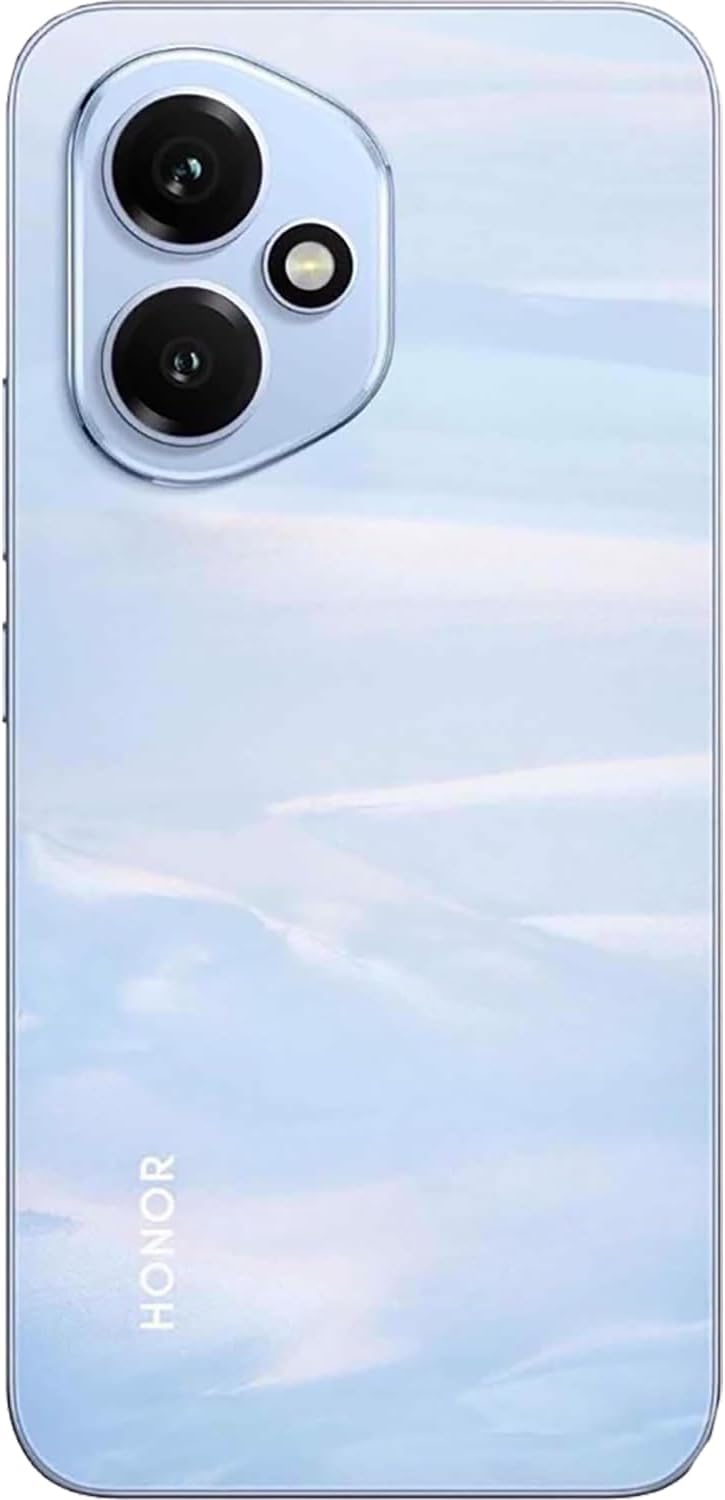
Image 3.3: Detailed back view of the HONOR 400 smartphone, showcasing the circular camera array and the device's finish.
4. Setup
4.1. Inserting the SIM Card
- Locate the SIM card tray on the side of your device.
- Insert the SIM ejector tool into the small hole next to the tray and push gently until the tray pops out.
- Place your Nano-SIM card(s) into the designated slots on the tray. The HONOR 400 supports Dual-SIM functionality (Nano-SIM + eSIM or Nano-SIM + Nano-SIM).
- Carefully reinsert the SIM card tray into the device.
4.2. Initial Power On
- Press and hold the Power button (usually on the right side) until the HONOR logo appears.
- Follow the on-screen instructions to complete the initial setup, including language selection, Wi-Fi connection, and Google account setup.
4.3. Charging the Device
Before first use, it is recommended to fully charge your device.
- Connect the USB cable to the charging port on your phone.
- Connect the other end of the USB cable to the power adapter.
- Plug the power adapter into a wall outlet.
- The charging indicator will appear on the screen.
5. Operating Instructions
5.1. Basic Navigation (Android 15)
- Touch Gestures: Tap to select, swipe to scroll, pinch to zoom.
- Home Screen: Access apps, widgets, and notifications.
- Notifications Panel: Swipe down from the top of the screen to view notifications and quick settings.
- App Drawer: Swipe up from the bottom of the screen to access all installed applications.
5.2. Camera Usage
The HONOR 400 features a powerful camera system.
- Rear Camera: 200 MP (wide) with OIS, 12 MP (ultrawide). Open the Camera app and select your desired mode (Photo, Video, Portrait, etc.). Tap the shutter button to capture images.
- Front Camera: 50 MP (wide). Switch to the front camera for selfies and video calls.
5.3. Connectivity
Your device supports various connectivity options:
- Mobile Network: Supports 2G GSM, 3G HSDPA, 4G LTE, and 5G SA/NSA networks. Ensure your SIM card is compatible with your network provider.
- Wi-Fi: Connect to wireless networks for internet access. Go to Settings > Network & internet > Wi-Fi.
- Bluetooth: Pair with other Bluetooth devices like headphones or speakers. Go to Settings > Connected devices > Bluetooth.
- GPS: Utilize location services for navigation and location-based apps.
6. Maintenance
6.1. Cleaning Your Device
Use a soft, lint-free cloth to clean the screen and body of your phone. Avoid using harsh chemicals or abrasive materials.
6.2. Battery Care
To prolong battery life:
- Avoid extreme temperatures.
- Do not let the battery drain completely before recharging regularly.
- Use the original charger and cable provided.
6.3. Software Updates
Regularly check for and install software updates to ensure your device has the latest features, security patches, and performance improvements. Go to Settings > System > System update.
7. Troubleshooting
If you encounter issues with your HONOR 400, try the following solutions:
- Device not turning on: Ensure the battery is charged. Connect the charger and try again.
- Apps crashing or freezing: Close the app and reopen it. If the issue persists, restart your phone.
- Poor network signal: Check your SIM card insertion. Move to an area with better network coverage. Contact your network provider if the issue continues.
- Battery draining quickly: Reduce screen brightness, close unused apps, or disable unnecessary features like GPS or Bluetooth when not in use.
- Screen unresponsive: Force restart your device by holding the Power button for about 10 seconds.
8. Specifications
| Model Name | Honor 400 |
| Operating System | Android 15.0 |
| Processor | Qualcomm SM7550-AB Snapdragon 7 Gen 3 (4 nm), Octa-core (1x2.63 GHz Cortex-A715 & 3x2.4 GHz Cortex-A715 & 4x1.8 GHz Cortex-A510) |
| RAM | 12 GB |
| Internal Storage | 512 GB (non-expandable) |
| Display | 6.55 inches AMOLED, 1B colors, 1264 x 2736 pixels |
| Rear Camera | 200 MP, f/1.9, (wide), 1/1.4", PDAF, OIS; 12 MP, f/2.2, 112° (ultrawide), AF |
| Front Camera | 50 MP, f/2.0, (wide) |
| Battery Capacity | 5300 mAh (non-removable) |
| Dimensions | 156.5 x 74.6 x 7.3 mm (6.16 x 2.94 x 0.29 in) |
| Weight | 184 g (6.49 oz) |
| SIM Configuration | Dual-SIM (Nano-SIM + eSIM OR Nano-SIM + Nano-SIM) |
| Connectivity | GSM, UMTS, LTE, 5G, Wi-Fi, Bluetooth, GPS |
9. Warranty and Support
Your HONOR 400 smartphone is covered by a manufacturer's warranty. Please refer to the warranty card included in your package for specific terms and conditions. For technical support or service inquiries, please visit the official HONOR website or contact your local customer service center.
Related documentsHonor 400


Ask a question about this manual
Ask about setup, troubleshooting, compatibility, parts, safety, or missing instructions. Manuals+ will review the question and use this page’s manual context to help answer it.