
1. Introduction
This manual provides essential instructions for setting up, operating, maintaining, and troubleshooting your HONOR 400 5G smartphone. Please read this guide thoroughly to ensure proper use and to maximize the performance of your device.
The HONOR 400 is a powerful 5G smartphone featuring a 6.55-inch AMOLED display, a Qualcomm Snapdragon 7 Gen 3 processor, 12GB of RAM, and 512GB of internal storage. It operates on Android 15 and is equipped with a 5300mAh battery, a 200MP main camera, and dual-SIM capabilities.
2. What's in the Box
Upon unboxing your HONOR 400 smartphone, verify that all items are present:
- HONOR 400 5G Smartphone
- USB Cable
- (Other accessories such as a charger, SIM ejector tool, or protective case may vary by region and package contents.)
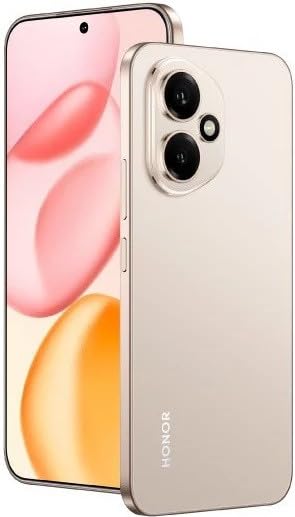
Figure 2.1: The HONOR 400 5G Smartphone. This image displays the device's sleek design and the main screen.
3. Device Overview
Familiarize yourself with the physical components of your HONOR 400 smartphone.
3.1 Front View
- Display: 6.55-inch AMOLED screen with 1264 x 2736 pixels resolution.
- Front Camera: 50 MP, f/2.0 (wide) for selfies and video calls.
- Earpiece: Located at the top edge of the display.
An illustration of the front view would typically show the display, front camera, and earpiece.
3.2 Rear View
- Main Camera System:
- 200 MP, f/1.9 (wide), 1/1.4", PDAF, OIS
- 12 MP, f/2.2, 112° (ultrawide), AF
- Flash: LED flash for low-light photography.
- HONOR Logo: Brand identification.
An illustration of the rear view would typically highlight the camera module and brand logo.
3.3 Side Views and Ports
- Power Button: Typically on the right side, used to power on/off and wake/sleep the device.
- Volume Buttons: Typically on the right side, above the power button, for adjusting volume.
- USB Type-C Port: Located at the bottom, used for charging and data transfer.
- SIM Card Tray: Location varies, typically on the side or bottom, for inserting Nano-SIM cards.
- Microphones & Speakers: Strategically placed for calls and audio output.
Illustrations of the device's sides would show the placement of buttons, ports, and the SIM tray.
4. Setup
4.1 Inserting SIM Cards
- Locate the SIM card tray on your device.
- Insert the SIM ejector tool (if provided) into the small hole next to the tray and push gently until the tray pops out.
- Place your Nano-SIM card(s) into the designated slots on the tray. The HONOR 400 supports Dual-SIM (Nano-SIM + ESIM OR Nano-SIM + Nano-SIM). Ensure the gold contacts face downwards.
- Carefully reinsert the tray into the phone.
An image demonstrating SIM card insertion would be helpful here.
Important: Before purchasing, verify network compatibility with your service provider. This device supports GSM networks (2G, 3G, 4G LTE, and 5G SA/NSA) but does not support CDMA networks.
4.2 Initial Power On and Setup Wizard
- Press and hold the Power button until the HONOR logo appears.
- Follow the on-screen instructions to complete the initial setup, which includes selecting your language, connecting to Wi-Fi, setting up your Google account, and configuring security features.
5. Operating Your Device
5.1 Android 15 Operating System
Your HONOR 400 runs on Android 15, offering a user-friendly interface and access to a vast ecosystem of applications via the Google Play Store. Navigate using gestures or on-screen buttons, customize your home screen, and manage notifications.
5.2 Basic Functions
- Making Calls: Tap the Phone icon, enter the number, and tap the call button.
- Sending Messages: Use the Messaging app to send SMS/MMS.
- Internet Browsing: Open a web browser (e.g., Chrome) to access the internet via Wi-Fi or mobile data.
- App Management: Download, install, and uninstall apps from the Google Play Store.
5.3 Camera Usage
The HONOR 400 features a versatile camera system:
- Rear Camera: Utilize the 200 MP main sensor for high-resolution photos and the 12 MP ultrawide lens for expansive shots. Features include PDAF and Optical Image Stabilization (OIS).
- Front Camera: The 50 MP wide-angle front camera is ideal for selfies and video conferencing.
- Video Recording: Capture videos in up to 4K resolution at various frame rates (30, 60, 120 fps).
A diagram of the camera interface or tips for photography modes could be included here.
5.4 Connectivity
Your device supports multiple connectivity options:
- 5G/4G LTE: High-speed mobile data connectivity.
- Wi-Fi: Connect to wireless networks for internet access.
- Bluetooth: Pair with wireless headphones, speakers, and other devices.
- USB Type-C: For charging and connecting to a computer for data transfer.
6. Maintenance
6.1 Battery Care
- The HONOR 400 is equipped with a 5300mAh non-removable battery.
- To prolong battery life, avoid extreme temperatures and fully discharging the battery frequently.
- Use the provided USB cable and a compatible charger for optimal charging.
6.2 Software Updates
Regularly check for and install software updates to ensure your device has the latest features, security patches, and performance improvements. You can usually find this option in your phone's Settings menu under "System & updates" or "About phone."
6.3 Cleaning Your Device
Use a soft, lint-free cloth to clean the screen and body of your phone. Avoid using harsh chemicals or abrasive materials.
7. Troubleshooting
This section addresses common issues you might encounter with your HONOR 400 smartphone.
7.1 Device Not Powering On
- Ensure the battery is charged. Connect the phone to a charger for at least 15 minutes before attempting to power it on again.
- Try a forced restart by holding the Power button for an extended period (e.g., 10-15 seconds).
7.2 Network Connectivity Issues
- Check if your SIM card is properly inserted.
- Verify that mobile data is enabled in your phone's settings.
- Restart your device.
- Confirm with your service provider that your plan is active and there are no network outages in your area.
- Ensure your device is compatible with your network's frequencies (GSM only, no CDMA).
7.3 Apps Crashing or Freezing
- Close and reopen the app.
- Clear the app's cache and data in Settings > Apps.
- Ensure the app is updated to its latest version.
- Restart your phone.
7.4 Slow Performance
- Close unnecessary background apps.
- Clear cache and temporary files.
- Ensure you have sufficient free storage space (512GB internal storage).
- Restart your device regularly.
8. Specifications
| Feature | Detail |
|---|---|
| Model Name | Honor 400 |
| Operating System | Android 15.0 |
| Processor | Qualcomm SM7550-AB Snapdragon 7 Gen 3 (4 nm), Octa-core (1x2.63 GHz Cortex-A715 & 3x2.4 GHz Cortex-A715 & 4x1.8 GHz Cortex-A510) |
| RAM | 12 GB |
| Internal Storage | 512 GB (non-expandable) |
| Display | 6.55 Inches AMOLED, 1B colors, 1264 x 2736 pixels |
| Rear Camera | 200 MP (wide, OIS) + 12 MP (ultrawide) |
| Front Camera | 50 MP (wide) |
| Video Capture Resolution | 4K (30, 60, 120 fps) |
| Battery Capacity | 5300 Milliamp Hours (non-removable) |
| SIM Card | Dual-SIM (Nano-SIM + ESIM OR Nano-SIM + Nano-SIM) |
| Connectivity | 5G, GSM, LTE, Wi-Fi, Bluetooth, USB Type-C |
| Dimensions | 156.5 x 74.6 x 7.3 mm (6.16 x 2.94 x 0.29 in) |
| Weight | 202 Grams (6.49 oz) |
| Color | Desert Gold (as per product listing, actual color may vary by variant) |
9. Warranty and Support
9.1 Manufacturer's Warranty
The HONOR 400 smartphone comes with a 1 Year Manufacturer Warranty. This warranty covers defects in materials and workmanship under normal use. Please retain your proof of purchase for warranty claims.
For specific terms and conditions of the warranty, please refer to the warranty card included with your product or visit the official HONOR support website.
9.2 Customer Support
For further assistance, technical support, or service inquiries, please contact HONOR customer support through their official website or the contact information provided in your product packaging.
You can typically find support resources, FAQs, and contact details on the official HONOR website: www.hihonor.com


