Introduction
This manual provides essential information for the safe and efficient use of your Vibox VIII-522 Gaming PC. Please read these instructions carefully before setting up and operating your new system. Retain this manual for future reference.
Package Contents
Verify that all items listed below are present in your package:
- Vibox VIII-522 Gaming PC Tower
- 23-inch Monitor
- Gaming Keyboard
- Gaming Mouse
- Headphones
- LED Mouse Mat
- Wi-Fi Adapter
- Power Cables
- Display Cables (HDMI/DisplayPort)

Image: The complete Vibox VIII-522 Gaming PC setup, including the tower, monitor, and peripherals.
Setup Instructions
- Unpacking: Carefully remove all components from their packaging. Retain packaging for potential future transport or warranty claims.
- Placement: Place the PC tower and monitor on a stable, flat surface with adequate ventilation. Ensure no vents are obstructed.
- Connect Monitor: Connect the monitor to the graphics card port on the back of the PC using the provided display cable (HDMI or DisplayPort).
- Connect Peripherals: Plug the keyboard and mouse into available USB ports on the PC. Connect the headphones to the audio jacks.
- Connect Wi-Fi Adapter: Insert the Wi-Fi adapter into an available USB port.
- Power Connection: Connect the power cables to the PC and monitor, then plug them into a wall outlet or surge protector.
- Initial Boot-up: Press the power button on the PC tower. The system will boot into Windows 11. Follow the on-screen instructions for initial setup, including language, region, and network configuration.
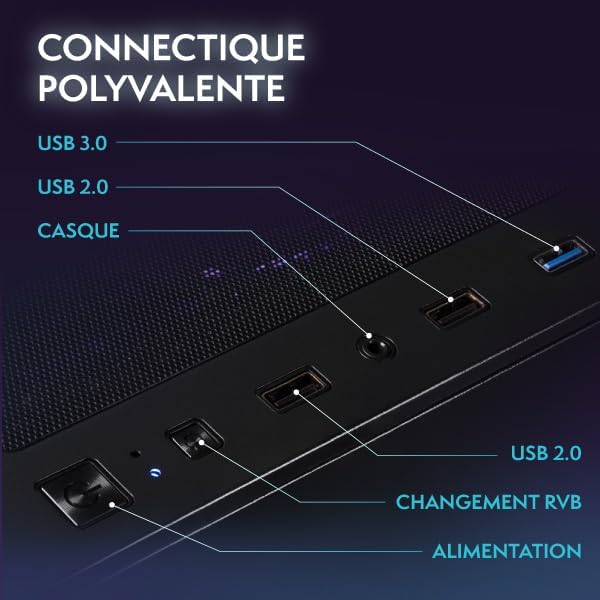
Image: Overview of the PC's front connectivity ports, including USB and audio jacks.
Operating Instructions
Power On/Off
- Power On: Press the power button located on the front of the PC tower.
- Power Off: Click the Start button in Windows, then select Power > Shut down. Avoid direct power off unless necessary to prevent data loss.
RGB Lighting Control
Your Vibox PC features customizable RGB lighting. Use the dedicated RGB change button on the PC case to cycle through various lighting modes and colors. Refer to the image of the connectivity ports for the button location.

Image: Hex RGB Infinity 120mm fans, illustrating customizable lighting options.
Windows 11 Features
Your system comes pre-installed with Windows 11 Home, optimized for gaming and productivity. Key features include:
- Faster loading times with DirectStorage.
- Auto HDR for enhanced graphics.
- Seamless Xbox Game Pass integration.
- Optimized CPU performance.

Image: Visual representation of Windows 11 Home features.
Maintenance
Cleaning
- Exterior: Use a soft, dry cloth to wipe down the exterior of the PC case and monitor. Avoid abrasive cleaners.
- Interior (Advanced Users): Periodically clean dust from internal components, especially fans and heatsinks, using compressed air. Ensure the PC is powered off and unplugged before opening the case.
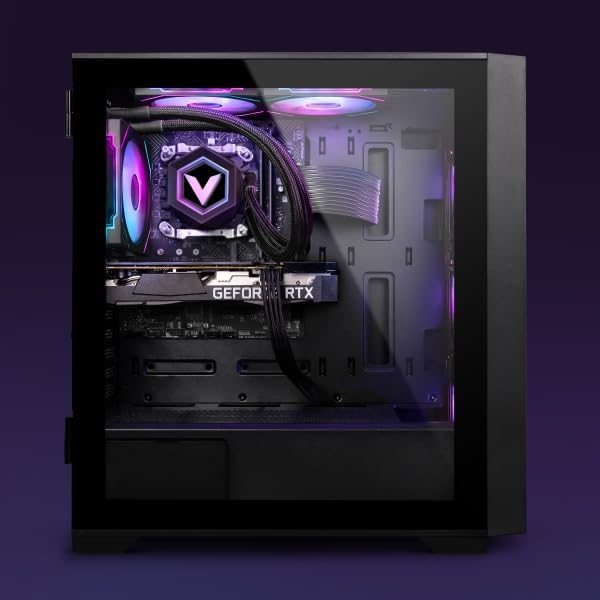
Image: Internal view of the PC, highlighting the liquid cooling system and component layout.
Software Updates
Regularly update your Windows operating system and graphics drivers to ensure optimal performance and security. Windows updates can be managed through the Settings app, and graphics drivers can be updated via the NVIDIA GeForce Experience application or NVIDIA's official website.
System Care
Ensure proper airflow around the PC to prevent overheating. Avoid placing the PC in enclosed spaces. The system features an optimized airflow design for efficient cooling.
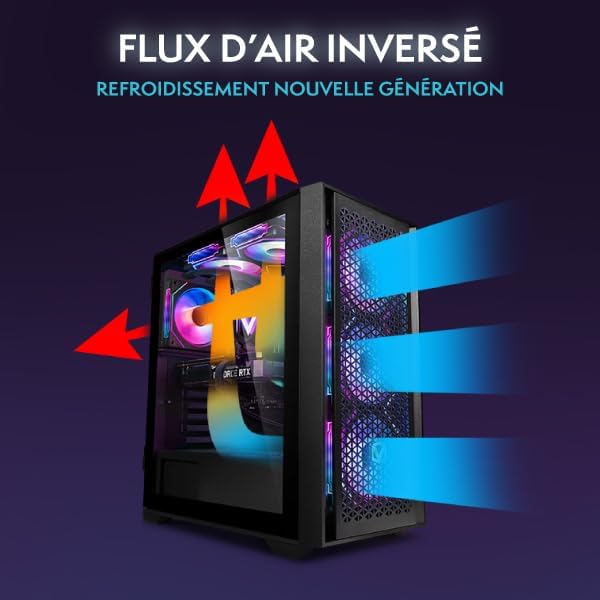
Image: Diagram showing the inverted airflow design for effective cooling.
Troubleshooting
| Problem | Possible Cause | Solution |
|---|---|---|
| PC does not power on | Loose power cable, power supply issue | Check all power connections. Ensure the wall outlet is functional. |
| No display on monitor | Loose display cable, incorrect input source on monitor | Verify display cable connection to both PC and monitor. Select correct input source on monitor. |
| No internet connection | Wi-Fi adapter not installed/configured, router issue | Ensure Wi-Fi adapter is properly installed. Check Wi-Fi settings in Windows. Restart router. |
| System crashes or freezes | Overheating, outdated drivers, software conflict | Ensure proper ventilation. Update drivers. Check for conflicting software. |
For further assistance, please refer to the support section or contact Vibox customer service.
Specifications
| Component | Detail |
|---|---|
| Model Number | VIII-522 |
| Processor | Intel Core i9-12900KF (16 Cores, 3.2 GHz base, up to 5.2 GHz boost) |
| Graphics Card | NVIDIA GeForce RTX 3050 6GB GDDR6 |
| RAM | 16GB DDR4 3200MHz |
| Storage | 1TB NVMe M.2 SSD |
| Operating System | Windows 11 Home |
| Connectivity | Wi-Fi, USB 3.0 (3 ports), USB 2.0 (3 ports), HDMI (1 port) |
| Monitor Size | 23 Inches (1920x1080 Resolution) |
| Dimensions (PC) | 40 x 21 x 45 cm |
| Weight (PC) | 19.1 kg |

Image: PC case dimensions for proper placement and space planning.
Warranty and Support
Warranty Information
Your Vibox VIII-522 Gaming PC is covered by a Vibox Lifetime Evolution Warranty. Please refer to the warranty documentation included with your purchase for full terms and conditions.
Customer Support
For technical support, troubleshooting assistance, or warranty inquiries, please contact Vibox Gaming customer service. Contact details can typically be found on the official Vibox website or through your purchase platform.


