Product Overview
The Tukio Air Tracker Tag is an Apple MFi Certified Bluetooth tracker designed to help you locate your valuables quickly and efficiently. Compatible exclusively with iOS devices, it integrates seamlessly with the Apple Find My app, offering features like real-time location tracking, left-behind reminders, and a lost mode. Its compact, durable design and long-lasting replaceable battery make it an ideal solution for keeping track of keys, bags, luggage, pets, and more.


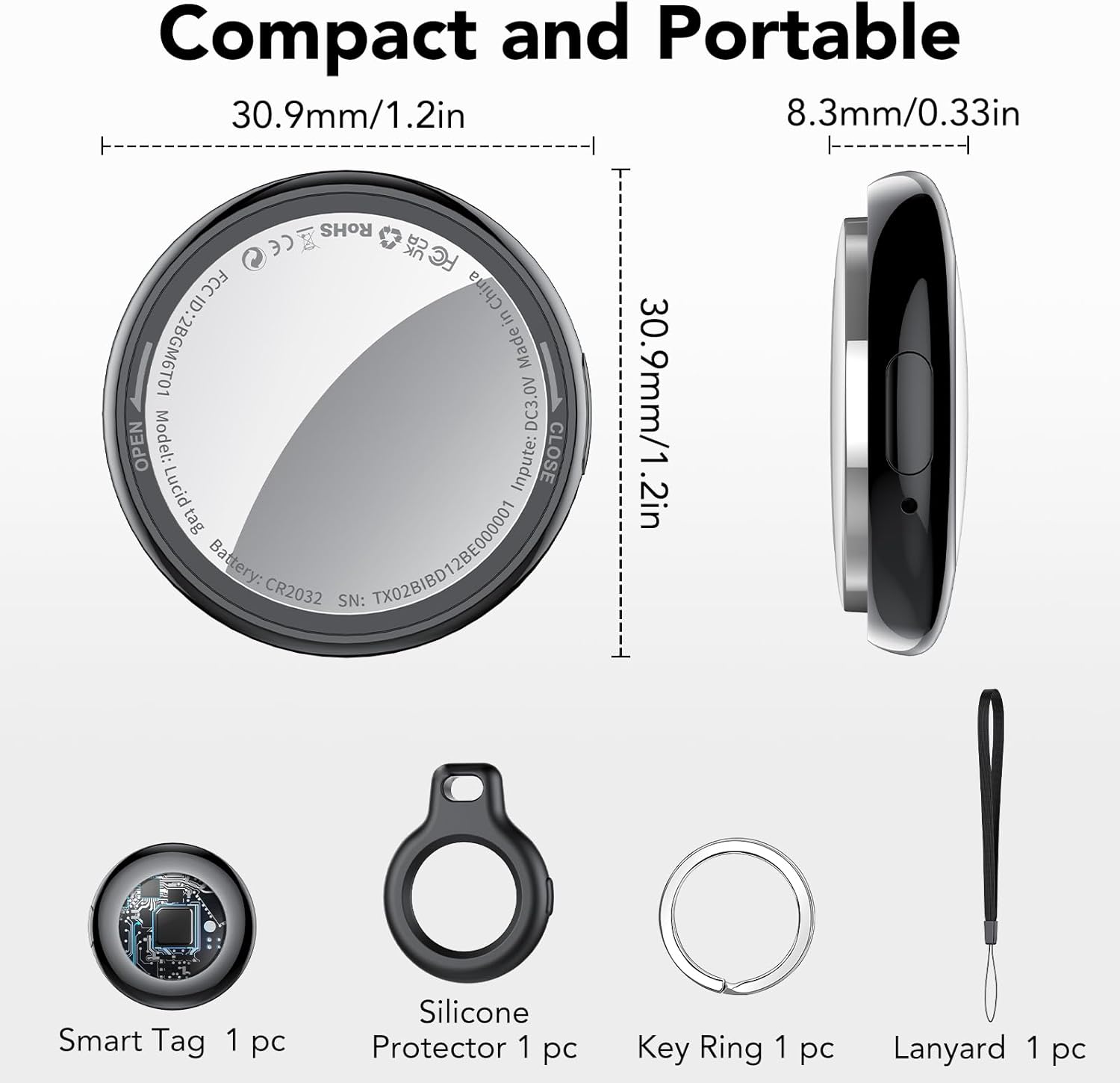
Package Contents
- 1 x Air Tracker Tag
- 1 x Protective Silicone Case
- 1 x Key Ring
- 1 x Lanyard
- 1 x CR2032 Battery (pre-installed)
- 1 x User Manual

Setup Guide
The Tukio Air Tracker Tag is designed for easy integration with your Apple devices. Please ensure your iOS device is updated to iOS 17/iPadOS 17/macOS 14 or above for full functionality, especially for sharing features.
Initial Connection (iOS Only)
- Enable Bluetooth: On your iPhone or iPad, open the "Find My" application and ensure Bluetooth is enabled.
- Add New Item: In the "Find My" app, navigate to the "Items" tab. Tap on "Add New Item" and then select "Other Supported Item". Note: This is not for "Add AirTag".
- Connect: Bring the Tukio Air Tracker Tag close to your iPhone. The app will detect "Lucid tag". Tap "Connect" and follow the on-screen prompts until the setup is complete.

Compatibility Note: This device is only compatible with iOS devices and does not support Android.
Operating Instructions
Tracking Your Items
Once connected, you can track your items using the pre-installed "Find My" app on your iOS device.
- Locate Nearby: When the tracker is within Bluetooth range (less than 200 feet), open the "Find My" app and tap "Play Sound". The tracker will emit an 80-100dB beep to help you pinpoint its location. You can also ask Siri for assistance by saying, for example, "Hey Siri, where are my keys?"
- Locate Far Away: If the item is beyond 200 feet, the "Find My" network, composed of hundreds of millions of Apple devices worldwide, will help you locate it. The app will display the last known location on a map.


Left-Behind Reminders
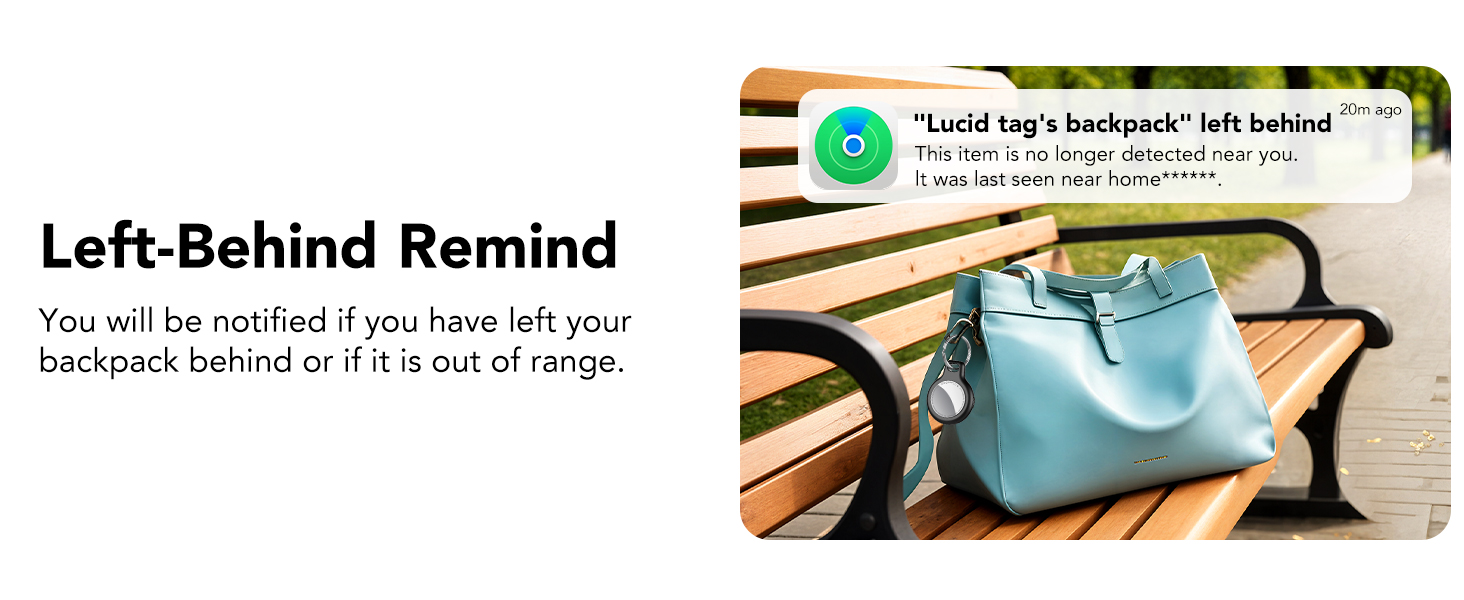
If your Air Tracker Tag goes out of Bluetooth range from your iOS device, you will receive a notification with its last known location. This helps prevent you from leaving important items behind.

Lost Mode
If an item with your tracker is lost, you can activate "Lost Mode" in the Find My app. This allows any nearby Apple device to detect your tracker and securely provide you with its location. You can also include your contact information so that anyone who finds your item can reach you.

Share with Family and Friends
With iOS 17 or later, you can share the location of your Air Tracker Tag with up to 5 other individuals in the "Find My" app. This is ideal for items used by multiple family members or friends, allowing everyone to track its location. Borrowers will not receive tracking notifications when the item moves with them.
Maintenance
Battery Replacement
The Tukio Air Tracker Tag uses a replaceable CR2032 battery, providing up to 1 year of continuous use. The item locator will notify you when the battery is low, prompting you to replace it.
Official video demonstrating the step-by-step process for replacing the battery in your Tukio Air Tracker Tag (Model TX02).
To replace the battery:
- Hold the back cover with both thumbs and turn it to the left to open.
- Carefully remove the old CR2032 battery.
- Insert the new CR2032 battery, ensuring the "+" sign (battery logo) is facing up and aligned with the power port.
- Align the notch on the back cover with the corresponding position on the tag, then press gently and turn the cover to the right to secure it.
Water and Dust Resistance
The Tukio Air Tracker Tag has an IP67 rating, meaning it can withstand immersion in water up to 3 feet (1 meter) for 30 minutes. It is also dustproof, making it suitable for various outdoor activities.
Troubleshooting
If you encounter any issues with your Tukio Air Tracker Tag, please refer to the following common solutions:
- Tracker not connecting: Ensure Bluetooth is enabled on your iOS device and the tracker is within range. Try restarting your iOS device and the tracker.
- No sound from tracker: Check the battery level in the Find My app. If low, replace the battery. Ensure the sound is enabled in the app.
- Inaccurate location: Ensure your iOS device has a stable internet connection (Wi-Fi or cellular data) and location services are enabled for the Find My app.
- Battery draining quickly: Verify that you are using a new, genuine CR2032 battery. Excessive use of the "Play Sound" feature can also consume battery faster.
For further assistance, please contact our customer support team.
Specifications
| Feature | Detail |
|---|---|
| Product Dimensions | 1.22 x 1.22 x 0.35 inches (30.9 x 30.9 x 8.9 mm) |
| Item Weight | 0.247 ounces (7 grams) |
| Model Number | TX02 |
| Battery Type | 1 x CR2032 Lithium Metal (included) |
| Battery Life | Up to 1 year |
| Connectivity | Bluetooth 5.3 |
| Water Resistance | IP67 (up to 3 feet for 30 minutes) |
| Special Features | Alert Notification, Shock Resistant, Battery Life Indicator, Location History, Water Resistant |
| Supported Application | Apple Find My (iOS Only) |

Warranty
The Tukio Air Tracker Tag comes with a 2-year warranty from the date of purchase. This warranty covers defects in materials and workmanship under normal use. Please retain your proof of purchase for warranty claims.
Support
Our dedicated customer service team is available to assist you with any questions or concerns regarding your Tukio Air Tracker Tag.
Contacting Support
For quick assistance, please follow these steps:
- Go to your order page on Amazon.
- Find the order number for your Tukio Air Tracker Tag.
- Use the "Contact Seller" option to reach our support team directly.
We are committed to providing friendly and responsive customer service.


