1. Introduction
This manual provides essential information for setting up, operating, maintaining, and troubleshooting your new Vibox IV-570 Gaming PC. This high-end gaming PC offers exceptional performance for demanding gamers and creative professionals. Featuring a modern multi-core processor, a powerful dedicated graphics card, and ultra-fast memory, it effortlessly handles the latest AAA games at 1440p or 4K with the highest settings. Designed for speed, power, and scalability, it is the ideal setup for intense gaming and computationally intensive tasks.
Your Vibox IV-570 includes an AMD Ryzen 7 5700X processor (8 cores, max speed 4.6 GHz), Nvidia GeForce RTX 5070 Ti graphics card (16 GB GDDR7 RAM / HDMI 2.1 / DisplayPort), 1 TB NVMe SSD for ultra-fast storage, and 32 GB dual-channel DDR4 RAM at 3200 MHz for smooth multitasking and improved system performance. It also comes with a 300 Mbps Wi-Fi adapter and Windows 11 pre-installed.
2. Setup Guide
2.1 Unboxing and Initial Placement
Carefully remove your Vibox IV-570 PC from its packaging. Ensure all accessories are present. Place the PC on a stable, flat surface with adequate ventilation around the chassis. Avoid placing it in enclosed spaces that could restrict airflow.

Image: The Vibox IV-570 PC case with dimensions indicated (42 x 28 x 43.5 cm), illustrating its physical size for placement considerations.
2.2 Connecting Peripherals
Connect your monitor, keyboard, mouse, and other peripherals to the appropriate ports on the rear and front of the PC. Refer to the image below for common front panel connections.
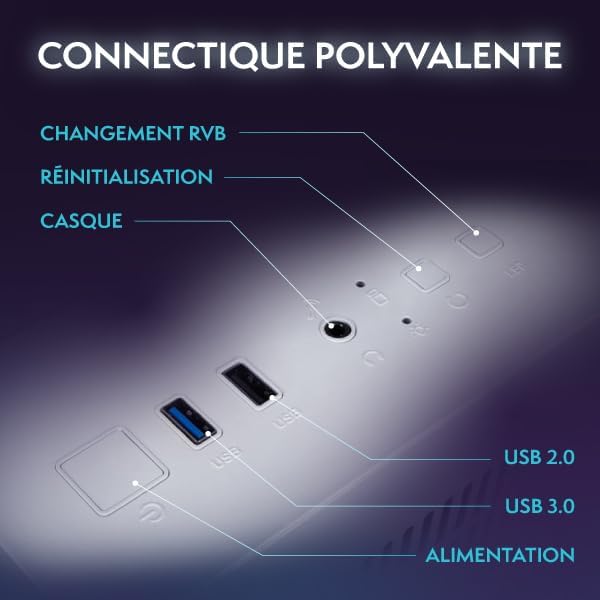
Image: A close-up view of the Vibox IV-570's front panel, showing various ports including USB 2.0, USB 3.0, headphone jack, power button, reset button, and RGB change button.
- Monitor: Connect your monitor using an HDMI or DisplayPort cable to the dedicated graphics card ports.
- Keyboard & Mouse: Use the USB ports for your keyboard and mouse.
- Power: Connect the power cable to the PC and then to a wall outlet. Ensure the power supply switch on the back of the PC is in the 'ON' position.
- Network: For wired internet, connect an Ethernet cable to the LAN port. For wireless, the PC includes a Wi-Fi adapter.
2.3 First Boot
Press the power button on the front of the PC. The system will boot into Windows 11 Home. Follow the on-screen instructions to complete the initial Windows setup, including language, region, network connection, and user account creation.
3. Operating Instructions
3.1 Windows 11 Home
Your Vibox IV-570 comes with Windows 11 Home pre-installed, offering a modern and optimized experience for gaming and productivity.

Image: A graphic highlighting key features of Windows 11 Home relevant to gaming, such as faster loading times with DirectStorage, AutoHDR for improved graphics, seamless Xbox Game Pass integration, and optimized CPU performance.
- DirectStorage: Enables faster loading times for games by allowing the GPU to access storage directly.
- AutoHDR: Automatically enhances game visuals with High Dynamic Range (HDR) on compatible displays.
- Xbox Game Pass Integration: Easy access to a library of games with an Xbox Game Pass subscription.
- Optimized CPU Performance: Windows 11 is designed to efficiently manage CPU resources for gaming.
3.2 Gaming and Applications
The powerful hardware in your Vibox IV-570 is designed to handle demanding games and applications. Ensure your graphics drivers are up to date for the best performance. You can download the latest drivers from the NVIDIA website.
3.3 RGB Lighting Control
Your PC features customizable RGB lighting for fans and internal components. Use the dedicated RGB change button on the front panel or the pre-installed software (if applicable) to adjust lighting effects and colors.

Image: A display of Vibox Hex RGB Infinity 120mm fans, showcasing their customizable lighting options in various colors and RGB modes.
4. Maintenance
4.1 Cleaning
- Exterior: Use a soft, dry cloth to clean the exterior of the PC case. For glass panels, a microfiber cloth and a mild glass cleaner can be used.
- Interior: Periodically, and with the PC powered off and unplugged, use compressed air to remove dust from fans, heatsinks, and other internal components. Pay special attention to the CPU cooler and graphics card fans.
4.2 Software Updates
- Windows Updates: Regularly check for and install Windows updates to ensure system stability and security. Go to Settings > Windows Update.
- Driver Updates: Keep your graphics card drivers updated by downloading the latest versions from the NVIDIA official website. Other component drivers can usually be updated via Windows Update or the manufacturer's website.
4.3 Cooling System
The Vibox IV-570 features an advanced cooling system, including a Vibox AIO 120mm liquid cooler for the CPU and multiple case fans to ensure optimal airflow.

Image: The Vibox AIO 120mm liquid cooler, highlighting its compact design and cooling capabilities for the CPU.
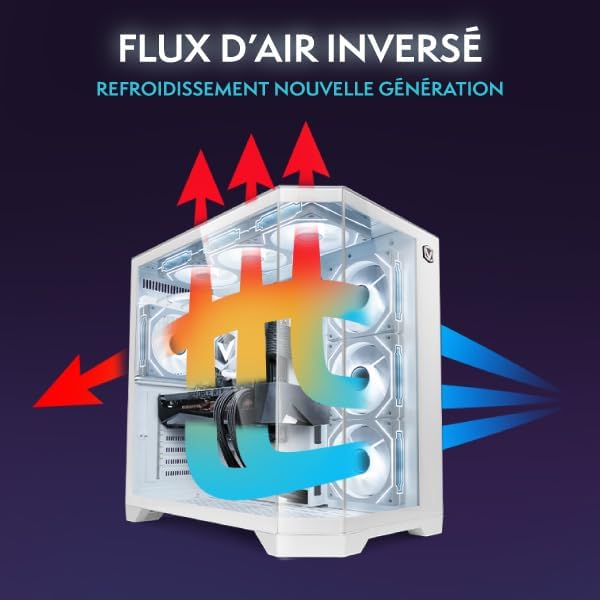
Image: An illustration of the inverse airflow design within the Vibox IV-570 PC case, showing how cool air enters and hot air is expelled for efficient cooling.
Ensure that the PC's vents are not obstructed to maintain proper airflow. Regular cleaning of dust filters (if present) and fan blades will help maintain cooling efficiency.
5. Troubleshooting
- No Power:
- Check if the power cable is securely connected to both the PC and the wall outlet.
- Ensure the power supply switch on the back of the PC is in the 'ON' position.
- Try a different power outlet.
- No Display:
- Verify that the monitor is powered on and correctly connected to the graphics card (not the motherboard's integrated graphics ports, if any).
- Ensure the correct input source is selected on your monitor.
- Try a different display cable or monitor if possible.
- System Freezes or Crashes:
- Ensure all drivers, especially graphics drivers, are up to date.
- Check for adequate ventilation and ensure the PC is not overheating.
- Run a memory diagnostic tool (Windows Memory Diagnostic) to check for RAM issues.
- Poor Gaming Performance:
- Update graphics drivers.
- Close unnecessary background applications.
- Check in-game settings; reduce graphics quality if necessary.
- Monitor CPU and GPU temperatures to ensure they are not throttling due to overheating.
6. Specifications
| Component | Detail |
|---|---|
| Model Number | IV-570 |
| Processor | AMD Ryzen 7 5700X (8 Cores, 3.4 GHz Base, 4.6 GHz Max Boost) |
| Graphics Card | NVIDIA GeForce RTX 5070 Ti (16 GB GDDR7 RAM, HDMI 2.1, DisplayPort) |
| RAM | 32 GB DDR4 SDRAM (3200 MHz, Dual Channel, Max 128 GB) |
| Storage | 1 TB NVMe M.2 SSD |
| Operating System | Windows 11 Home |
| Wireless Connectivity | Wi-Fi (300 Mbps adapter included) |
| Wired Connectivity | Ethernet, HDMI, USB |
| USB Ports | 6 Total (including USB 2.0 and USB 3.0) |
| Video Output | HDMI (1), DisplayPort (2 total output ports) |
| Cooling Method | Water Cooling (AIO 120mm), RGB Fans |
| Case Design | Tempered Glass 3-Panel, White (VTX-7) |
| Dimensions (L x W x H) | 42 x 28 x 43.5 cm |
| Weight | 16.32 kg |
| Power Plug Type | Type C/EF (European/Hybrid FR-DE) |
| Compatible Devices | Headset, Keyboard, Printer, Monitor, Mouse |
7. Warranty and Support
7.1 Warranty Information
Your Vibox IV-570 PC comes with a comprehensive warranty:
- Parts: 2 Years
- Labor: Lifetime
Please retain your proof of purchase for warranty claims. The warranty covers manufacturing defects and component failures under normal use. It does not cover damage caused by misuse, accidents, unauthorized modifications, or improper maintenance.
7.2 Technical Support
For technical assistance, troubleshooting beyond this manual, or warranty inquiries, please contact Vibox customer support. Refer to the official Vibox website for the most up-to-date contact information, including phone numbers, email, and support portals.
Spare parts availability is guaranteed for 2 years from the date of purchase.


