
1. Introduction
This manual provides essential information for setting up, operating, maintaining, and troubleshooting your VIBOX IX-556 PC Gamer. Please read these instructions carefully before using your new computer to ensure optimal performance and longevity.

Image 1.1: The VIBOX IX-556 PC Gamer, showcasing its white chassis and illuminated internal components.
2. Setup
2.1 Unpacking
Carefully remove the PC from its packaging. Inspect for any visible damage. Retain all packaging materials for future transport or warranty claims.
2.2 Connecting Peripherals
Connect your monitor, keyboard, mouse, and other peripherals to the appropriate ports on the rear and front of the PC. Ensure all connections are secure.
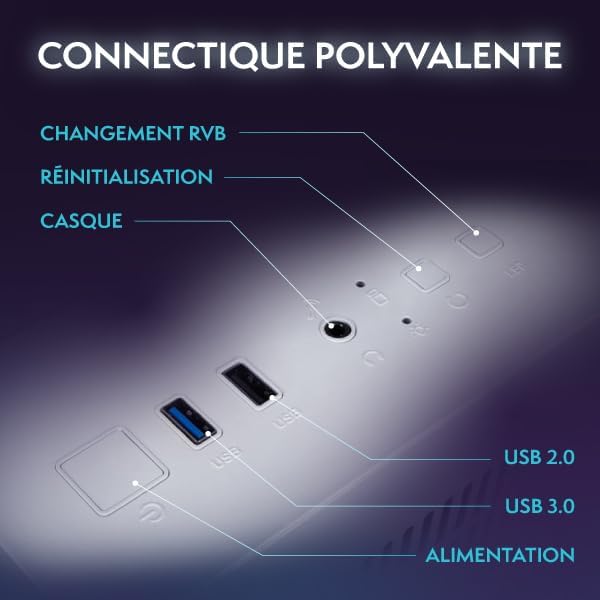
Image 2.1: Front panel connectivity, including USB 2.0, USB 3.0, headphone jack, reset button, and RGB change button.
- Monitor: Use an HDMI or DisplayPort cable to connect your monitor to the graphics card ports (usually located lower on the rear panel).
- Keyboard & Mouse: Connect to any available USB ports.
- Power: Connect the power cable to the PC's power supply unit (PSU) and then to a wall outlet.
- Network: For wired internet, connect an Ethernet cable to the LAN port. For wireless, the included Wi-Fi adapter provides connectivity.
2.3 Initial Power-On
Press the power button on the front of the PC. The system will boot up, and you will be guided through the Windows 11 Home initial setup process.
3. Operating Instructions
3.1 Power On/Off
- To Power On: Press the power button once.
- To Shut Down: Click the Start button in Windows, then select Power > Shut down.
- To Restart: Click the Start button in Windows, then select Power > Restart.
3.2 Windows 11 Home Features
Your VIBOX IX-556 comes pre-installed with Windows 11 Home, optimized for gaming. Key features include:
- DirectStorage: For faster game loading times.
- Auto HDR: Enhances visuals for supported games.
- Xbox Game Pass Integration: Seamless access to a library of games.
- Optimized CPU Performance: Enhanced processing for demanding applications.
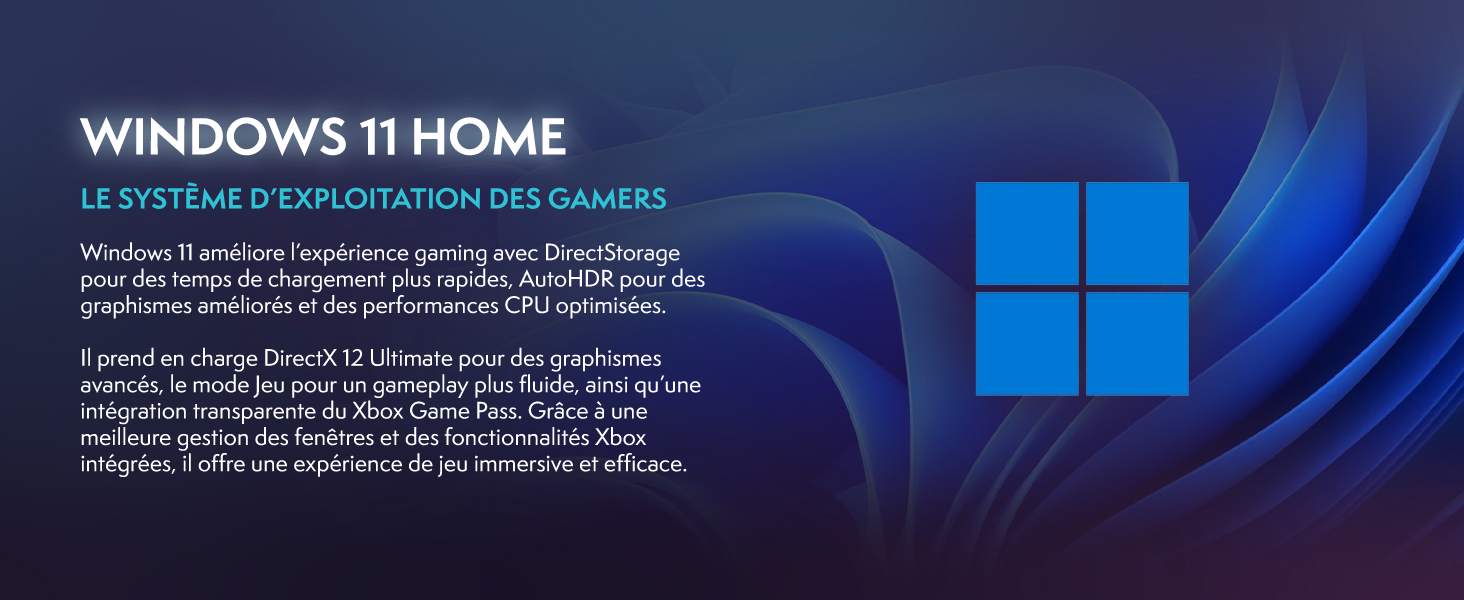
Image 3.1: Windows 11 Home, highlighting features like DirectStorage and Auto HDR for an enhanced gaming experience.
3.3 Gaming Performance
The VIBOX IX-556 is equipped with high-performance components for a fluid gaming experience:
- AMD Ryzen 7 9800X3D Processor: Provides exceptional gaming performance and low latency.
- AMD Radeon RX 9070 XT Graphics Card: Delivers stunning visuals and supports advanced features like Raytracing.
- 32GB DDR5 RAM: Ensures smooth multitasking and efficient system performance.

Image 3.2: Performance comparison chart demonstrating FPS improvements with AMD HYPR-RX and Fluid Motion Frames 2.1 in various games.

Image 3.3: Visual comparison illustrating the enhanced lighting and reflections when Raytracing is enabled.
4. Maintenance
4.1 Cleaning
Regular cleaning helps maintain performance and extends the lifespan of your PC.
- Exterior: Use a soft, damp cloth to clean the exterior surfaces. Avoid harsh chemicals.
- Dust: Periodically use compressed air to clear dust from fan vents and internal components. Ensure the PC is powered off and unplugged before cleaning.
4.2 Software Updates
Keep your operating system and drivers updated to ensure stability and optimal performance.
- Windows Updates: Windows 11 will automatically check for and install updates. You can manually check via Settings > Windows Update.
- Driver Updates: Regularly check the AMD website for the latest graphics card drivers. Motherboard and other component drivers can be found on the respective manufacturer's websites.
4.3 Cooling System
The VIBOX IX-556 features water cooling and multiple RGB fans for efficient thermal management.

Image 4.1: The VIBOX AIO 120mm liquid cooler, designed for compact and efficient CPU temperature management.

Image 4.2: Inverse airflow diagram, showing how the system optimizes air circulation to reduce heat accumulation.

Image 4.3: VIBOX Hex RGB Infinity 120mm fans, offering multiple colors and RGB modes for customization.
Ensure proper airflow by keeping the PC in a well-ventilated area. Avoid blocking air vents. The water cooling system is maintenance-free for typical use, but monitor temperatures using system monitoring software if you notice performance degradation.
5. Troubleshooting
5.1 Common Issues
- No Display: Ensure the monitor is connected to the graphics card (not the motherboard) and is powered on. Try a different cable or monitor if possible.
- PC Not Powering On: Check all power connections, including the wall outlet and the PSU cable. Ensure the PSU switch is in the 'On' position.
- System Freezes/Crashes: Ensure all drivers are up to date. Check system temperatures. If issues persist, consider a clean installation of Windows or contact support.
- Slow Performance: Check for background applications consuming resources. Ensure sufficient free space on the SSD. Run a malware scan.
5.2 Contacting Support
If you encounter issues that cannot be resolved using the troubleshooting steps above, please contact VIBOX Gaming customer support. Provide your product model (IX-556) and a detailed description of the problem.
6. Specifications

Image 6.1: Dimensions of the VIBOX IX-556 PC case: 42cm (height) x 28cm (width) x 43.5cm (depth).
| Component | Detail |
|---|---|
| Model Name | VIBOX IX-556 (VTX-7 White) |
| Processor | AMD Ryzen 7 9800X3D (8 Cores, up to 5.2 GHz Max Boost) |
| Graphics Card | AMD Radeon RX 9070 XT (16GB GDDR6) |
| RAM | 32GB DDR5 5600MHz (Dual Channel) |
| Storage | 1TB SSD |
| Operating System | Windows 11 Home |
| Connectivity | Wi-Fi (300 Mbps adapter included), Ethernet, USB, HDMI, DisplayPort |
| Cooling | Water Cooling, RGB Lighting |
| Case Type | Tower (Tempered Glass 3-Panel Design) |
| Dimensions (L x W x H) | 42 x 28 x 43.5 cm |
| Video Output | HDMI, DisplayPort (Max Resolution: 3840x2160) |
| USB Ports | Multiple (USB 2.0, USB 3.0) |
| Power Plug Type | Type C/EF (2-pin European/Hybrid FR-DE) |
| Compatible Devices | Headset, Keyboard, Printer, Monitor, Mouse |
| Specific Uses | Gaming, Photo Editing, Video Editing |
7. Warranty and Support
7.1 Warranty Information
Your VIBOX IX-556 PC Gamer comes with a comprehensive warranty:
- Parts: 2 Years
- Labor: Lifetime
Please retain your proof of purchase for warranty claims.
7.2 Customer Support
For technical assistance, warranty service, or any questions regarding your VIBOX IX-556 PC Gamer, please contact VIBOX Gaming customer support. Refer to the contact information provided with your purchase or visit the official VIBOX Gaming website.


