1. Introduction
This manual provides detailed instructions for the SANWA Ergonomic Vertical Mouse. Designed with a natural 57-degree vertical angle, this mouse aims to reduce wrist pain and forearm tension, promoting a more comfortable user experience during extended use. It features an intuitive LED screen, a multi-function knob, and versatile connectivity options to enhance productivity across various devices.

Image 1.1: Overview of the SANWA Ergonomic Vertical Mouse and its USB receiver.

Image 1.2: The 57-degree ergonomic design of the mouse, demonstrating how it promotes a natural handshake grip to alleviate discomfort in the wrist, arm, and shoulder.
2. Setup Guide
2.1 Charging the Mouse
Before first use, fully charge the mouse using the provided USB-C cable. The mouse features a built-in 500mAh rechargeable battery.
- Connect the USB-C end of the cable to the mouse's charging port and the USB-A end to a standard 5V 1A USB power adapter or computer USB port.
- Important: Do not use fast charging plugs, as this may damage the battery.
- The LED screen will indicate charging status.
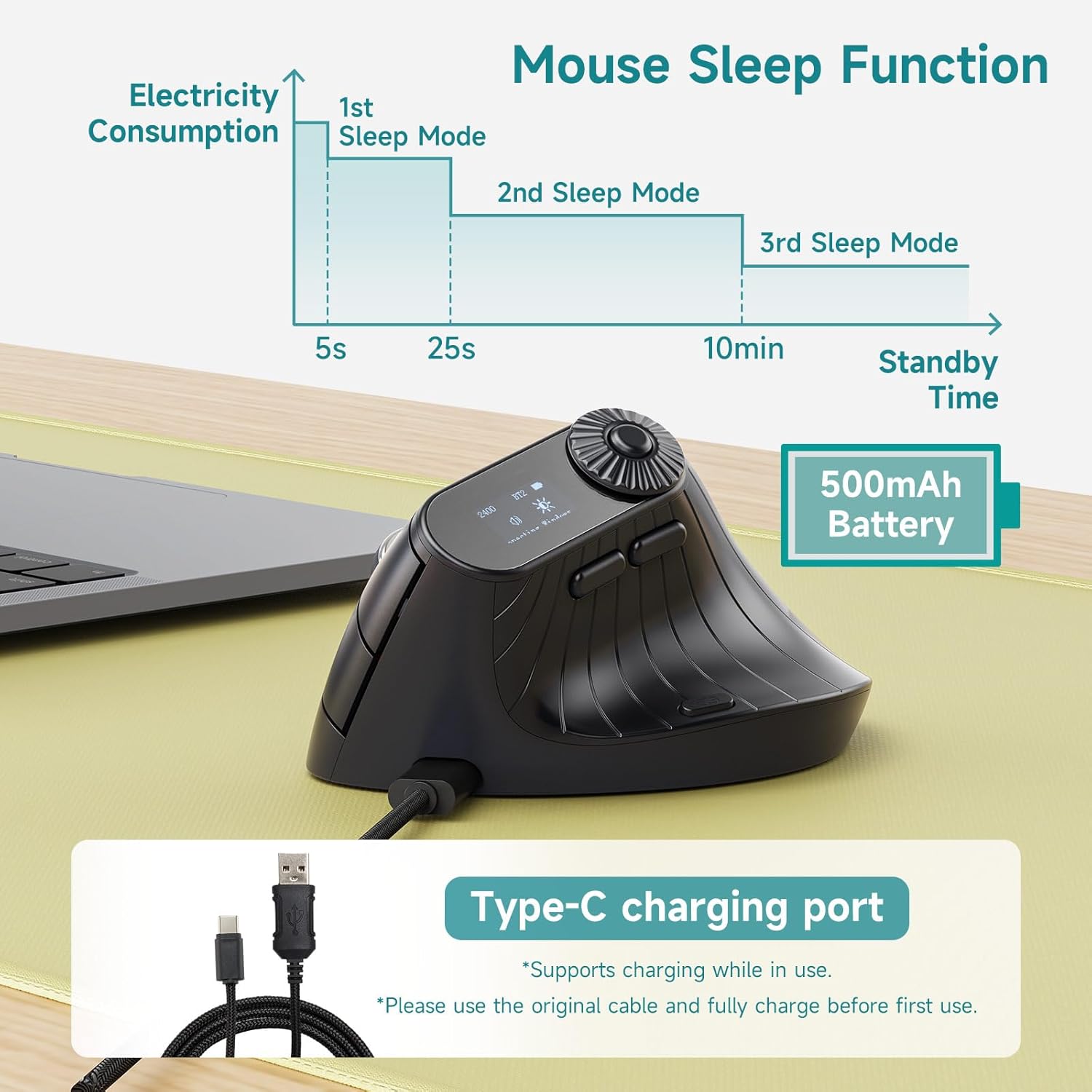
Image 2.1: The mouse's Type-C charging port and an illustration of its power-saving sleep functions.
2.2 Connecting the Mouse
The SANWA Ergonomic Vertical Mouse supports three connection modes: 2.4G Wireless, Bluetooth 5.0 (dual channels), and USB-C Wired.

Image 2.2: Illustration of the mouse's triple-mode connectivity, allowing connection to up to three devices simultaneously.
2.2.1 2.4G Wireless Connection
- Locate the USB-A receiver (usually stored in the mouse's battery compartment or near the charging port).
- Plug the USB-A receiver into an available USB port on your computer.
- Turn on the mouse. The mouse should automatically connect.
2.2.2 Bluetooth 5.0 Connection (BT1 / BT2)
- Turn on the mouse.
- Press the mode switch button (located on the bottom or side of the mouse) to select either BT1 or BT2 channel. The LED screen will display the selected channel.
- Press and hold the mode switch button for 3-5 seconds until the Bluetooth icon on the LED screen starts blinking, indicating pairing mode.
- On your device (laptop, tablet, etc.), go to Bluetooth settings and search for new devices.
- Select "SANWA Mouse" (or similar name) from the list to pair.
- Repeat for the second Bluetooth channel (BT2) if connecting to another device.
2.2.3 USB-C Wired Connection
- Connect the USB-C cable directly from the mouse to your computer's USB port.
- The mouse will function as a wired mouse and will charge simultaneously.
- Note: When connected via wire, the mouse cannot switch between other 2.4G or Bluetooth devices. Switching between devices is only possible in 2.4G or Bluetooth mode.
3. Operating Instructions
3.1 LED Display and Knob Control
The mouse features an LED screen and a rotary knob for various functions and status display.
- Rotary Knob: Used for fine adjustment of selected functions.
- Function Switch Button: Press this button (usually located near the knob) to cycle through different functions.
The LED screen displays the following information:
- DPI Display (e.g., DPI: 2400)
- Connection Channel Display (e.g., 2.4G, BT1, BT2)
- Power Status (battery level)
- Connection Status (e.g., Reconnecting MAC)
- Operating System Display
- Function Selected (e.g., Volume, Brightness, Zoom)

Image 3.1: Breakdown of the mouse's LED display and control elements, showing their respective functions.
3.2 DPI Settings
The mouse offers 4 adjustable DPI (Dots Per Inch) levels to suit different tasks and preferences. The blue LED sensor provides accurate tracking on various surfaces.
- 800 DPI: Suitable for precise tasks like picture design.
- 1200 DPI: Ideal for general office tasks.
- 1600 DPI: Good for web browsing.
- 2400 DPI: Recommended for light gaming.
To change DPI, use the dedicated DPI button or the knob control as indicated on the LED screen.

Image 3.2: The four adjustable DPI settings and their suggested applications.
3.3 Programmable Buttons
The mouse features 5 programmable buttons that can be customized using SANWA's dedicated software. This software is compatible with Windows systems only.
- Buttons: Left/Right Click, Scroll Wheel, Web Page Forward/Backward.
- To customize, scan the QR code provided in the physical user manual or visit the SANWA website to download and install the software.
- Note: The software must remain open for custom button functions to be active.

Image 3.3: The location of the 5 programmable buttons and an example of the customization software interface.
3.4 Mouse Sleep Function
To conserve battery life, the mouse enters various sleep modes after periods of inactivity:
- 1st Sleep Mode: After 5 seconds of inactivity.
- 2nd Sleep Mode: After 25 seconds of inactivity.
- 3rd Sleep Mode: After 10 minutes of inactivity, entering a deeper standby mode.
To wake the mouse, simply move it or click any button.
4. Maintenance
4.1 Charging Guidelines
- Always use the original charging cable or a certified USB-C cable.
- Ensure the charging adapter is 5V 1A. Avoid using fast chargers.
- Charge the mouse when the battery indicator on the LED screen is low.
4.2 Cleaning
- Use a soft, dry cloth to wipe the surface of the mouse.
- For stubborn dirt, slightly dampen the cloth with water or a mild, non-abrasive cleaner.
- Do not use harsh chemicals, solvents, or abrasive materials.
- Avoid getting liquid into the mouse's ports or openings.
4.3 Storage
- Store the mouse in a cool, dry place away from direct sunlight and extreme temperatures.
- If storing for an extended period, ensure the mouse is fully charged before storage and recharge it periodically to maintain battery health.
5. Troubleshooting
| Problem | Possible Cause | Solution |
|---|---|---|
| Mouse not responding | Low battery; Incorrect connection mode; Receiver not plugged in (2.4G); Bluetooth not paired. | Charge the mouse; Switch to the correct connection mode (2.4G, BT1, BT2, Wired); Ensure USB receiver is securely plugged in; Re-pair Bluetooth. |
| Programmable buttons not working | SANWA software not installed or running; Software only works on Windows. | Download and install SANWA software (Windows only); Ensure the software is running in the background. |
| DPI not changing | Incorrect button press; Software interference. | Ensure you are pressing the correct DPI switch button; Check LED screen for DPI display; Restart mouse and computer. |
| Mouse disconnects frequently | Interference; Distance from receiver/device; Low battery. | Reduce distance to receiver/device; Remove sources of interference (other wireless devices); Charge the mouse. |
| Charging is slow or not working | Using fast charger; Faulty cable/port. | Use a standard 5V 1A charger; Try a different USB-C cable or port. |
6. Specifications
- Brand: SANWA
- Model: B0FCSD71GD
- Color: Dark Gray
- Connectivity Technology: Bluetooth 5.0 (BT1, BT2), 2.4G Wireless (USB-A receiver), USB-C Wired
- Movement Detection Technology: Optical (Blue LED Sensor)
- DPI Levels: 800 / 1200 / 1600 / 2400
- Buttons: 5 Programmable Buttons + Rotary Knob + Function Switch Button + Mode Switch Button
- Ergonomic Angle: 57 degrees
- Battery: Built-in 500mAh Rechargeable Battery
- Charging Port: USB-C
- Compatibility: Windows 11/10/8.1/8, Mac OS 12/11/10.14~10.15, Chrome OS, Android 8~12, iPad OS13~16, iOS13~16 (and later versions)
- Mouse Dimensions: Approximately 11.5 x 8.2 x 6.6 cm (4.5 x 3.2 x 2.6 inches)

Image 6.1: Recommended hand size guide for optimal comfort with the mouse.
7. Warranty Information
SANWA products are manufactured to high quality standards. This product is covered by a limited warranty against defects in materials and workmanship from the date of purchase. Please retain your proof of purchase for warranty claims. The warranty does not cover damage caused by misuse, accident, unauthorized modification, or normal wear and tear.
8. Customer Support
For further assistance, technical support, or warranty inquiries, please contact SANWA customer service. Refer to the contact information provided on the product packaging or the official SANWA website.
Website: Visit the SANWA Store on Amazon