1. Introduction
This manual provides essential information for setting up, operating, maintaining, and troubleshooting your new VIBOX V-524 PC Gamer. Please read this manual thoroughly before using your computer to ensure proper functionality and longevity.
The VIBOX V-524 is a high-performance gaming PC designed for an immersive gaming experience and efficient multitasking. It features:
- Nvidia GeForce RTX 4060 (8 GB GDDR6 RAM)
- AMD Ryzen 5 5500 Processor (6 Cores, up to 4.2 GHz)
- 16 GB DDR4 RAM (3200 MHz)
- 1 TB SSD for ultra-fast storage
- Pre-installed Windows 11 Home
- Integrated Wi-Fi connectivity

2. Safety Information
- Electrical Safety: Always connect the PC to a grounded power outlet. Do not overload power strips.
- Ventilation: Ensure adequate airflow around the PC. Do not block ventilation openings.
- Liquid and Moisture: Keep the PC away from liquids and excessive moisture.
- Temperature: Operate the PC in a well-ventilated area within recommended temperature ranges.
- Handling: Handle the PC with care. Avoid dropping or subjecting it to strong impacts.
- Internal Components: Do not open the PC case unless you are qualified to do so, as it may void your warranty and expose you to electrical hazards.
3. Package Contents
Upon unpacking, please verify that all the following items are included:
- VIBOX V-524 PC Gamer Desktop
- Power Cable
- 300 Mbps Wi-Fi Adapter
- Documentation (including this manual)
- Any additional accessories specified at the time of purchase
4. Initial Setup
4.1 Unpacking and Placement
- Carefully remove the PC from its packaging. Retain all packaging materials for future transport or warranty claims.
- Place the PC on a stable, flat surface with sufficient space for ventilation.
- Remove any internal packing materials, such as foam inserts, that may be present inside the PC case to protect components during shipping.
4.2 Connecting Peripherals
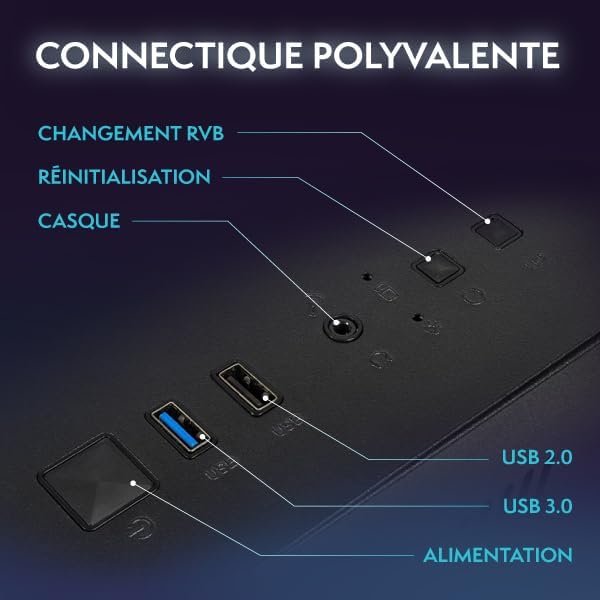
Connect your monitor, keyboard, and mouse to the appropriate ports on the rear of the PC. Refer to Image 4.1 for port identification.
- Monitor: Connect your monitor using an HDMI or DisplayPort cable to the dedicated graphics card ports.
- Keyboard & Mouse: Connect to any available USB ports.
- Wi-Fi Adapter: Plug the included Wi-Fi adapter into an available USB port.
- Ethernet (Optional): For a wired network connection, connect an Ethernet cable to the LAN port.
- Audio: Connect speakers or headphones to the audio output jacks.
4.3 Power Connection and First Boot
- Connect the power cable to the PC's power supply unit (PSU) and then to a grounded electrical outlet.
- Press the power button on the front of the PC.
- Follow the on-screen instructions to complete the initial Windows 11 setup. This may include setting up your user account, language preferences, and network connection.
4.4 Connecting to Wi-Fi
- Once Windows 11 is set up, click on the Wi-Fi icon in the taskbar.
- Select your desired network from the list and enter the password if prompted.
5. Operating Your PC
5.1 Windows 11 Basics
Your VIBOX V-524 comes with Windows 11 Home pre-installed. Familiarize yourself with the operating system's interface, Start Menu, and settings to customize your experience.
5.2 RGB Lighting Control
The PC features customizable RGB lighting for its fans and internal components. Use the dedicated RGB change button on the front panel (as shown in Image 4.1) to cycle through various colors and lighting modes. Refer to your motherboard or case manual for advanced software control options if available.

5.3 Airflow and Cooling
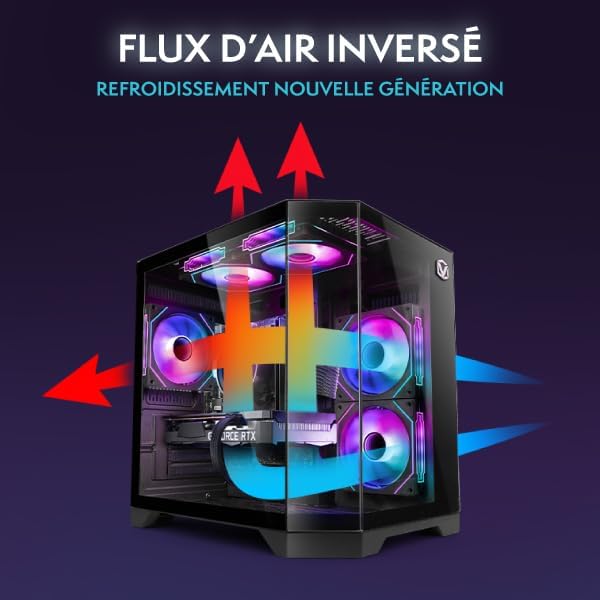
The VIBOX V-524 is designed with optimized airflow for efficient cooling, utilizing an inverse airflow system to reduce heat accumulation and enhance system performance.
6. Maintenance
6.1 Physical Cleaning
- Exterior: Use a soft, damp cloth to clean the exterior of the PC. Avoid abrasive cleaners.
- Dust: Periodically use compressed air to clear dust from ventilation grilles and fan blades. Ensure the PC is powered off and unplugged before cleaning.
6.2 Software Maintenance
- Windows Updates: Regularly check for and install Windows updates to ensure system stability and security.
- Driver Updates: Keep your graphics card drivers (NVIDIA GeForce) and other component drivers updated for optimal performance, especially for gaming.
- Antivirus Software: Install and maintain reputable antivirus software to protect against malware.
7. Troubleshooting
If you encounter issues with your VIBOX V-524 PC Gamer, refer to the following common troubleshooting steps:
| Problem | Possible Solution |
|---|---|
| PC does not power on | Check power cable connections to the PC and wall outlet. Ensure the power switch on the PSU (at the back of the PC) is in the 'On' position. |
| No display on monitor | Ensure the monitor is powered on and connected to the graphics card ports (not the motherboard ports). Try a different cable or monitor if possible. |
| Wi-Fi connectivity issues | Ensure the Wi-Fi adapter is properly inserted. Restart your router and PC. Check Windows network settings. |
| Poor gaming performance | Ensure graphics drivers are up to date. Check game settings and reduce if necessary. Monitor system temperatures to prevent thermal throttling. Close unnecessary background applications. |
| PC freezes or crashes | Ensure all drivers and Windows are updated. Check for overheating. Run a memory diagnostic. |
If these steps do not resolve your issue, please contact VIBOX customer support for further assistance.
8. Technical Specifications
Below are the detailed technical specifications for the VIBOX V-524 PC Gamer:
| Component | Specification |
|---|---|
| Brand | VIBOX |
| Model Number | V-524 |
| Series | VTX-8 |
| Color | VTX-8 Black |
| Operating System | Windows 11 Home |
| Processor Brand | AMD |
| Processor Type | Ryzen 5 |
| Processor Speed | 3.6 GHz (up to 4.2 GHz boost) |
| Number of Cores | 6 |
| Maximum Memory | 128 GB |
| Hard Drive Technology | SSD |
| Hard Drive Interface | SSD |
| Graphics Card | NVIDIA GeForce RTX 4060 |
| Graphics Card RAM | 8 GB GDDR6 |
| Resolution (Max) | 7680x4320 |
| Connectivity Type | Wi-Fi, Ethernet |
| Hardware Interface | Ethernet, HDMI, DisplayPort, USB |
| Number of HDMI Ports | 1 |
| Number of USB 2.0 Ports | 3 |
| Number of USB 3.0 Ports | 3 |
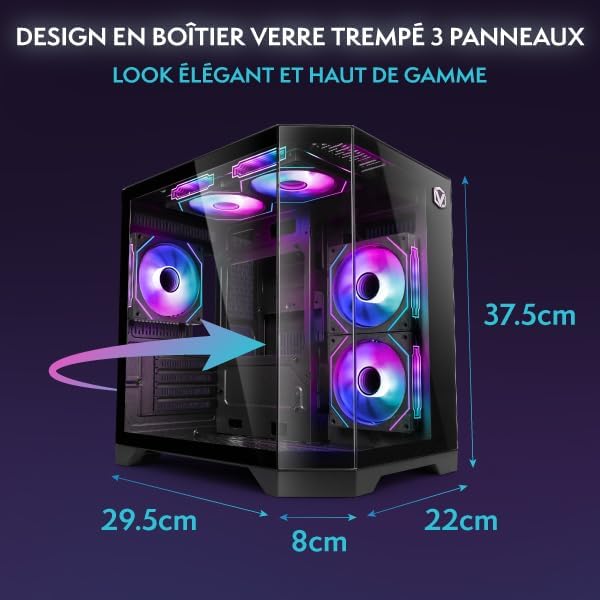
| Item Dimensions (L x W x H) | 35 x 28 x 38 centimeters |
| Specific Uses For Product | Gaming, Photo Editing, Video Editing |
9. Warranty and Support
9.1 Manufacturer Warranty
Your VIBOX V-524 PC Gamer comes with a manufacturer's warranty of 2 years for parts and lifetime labor. Please retain your proof of purchase for warranty claims.
9.2 Customer Support
For technical assistance, warranty inquiries, or any other support needs, please contact VIBOX customer service. Refer to the VIBOX official website or your purchase documentation for the most current contact information.


