
1. Introduction
This manual provides comprehensive instructions for the VIBOX I-506 Gaming PC. It covers initial setup, operating procedures, maintenance tips, and troubleshooting common issues. Please read this manual carefully before using your new PC to ensure optimal performance and longevity.
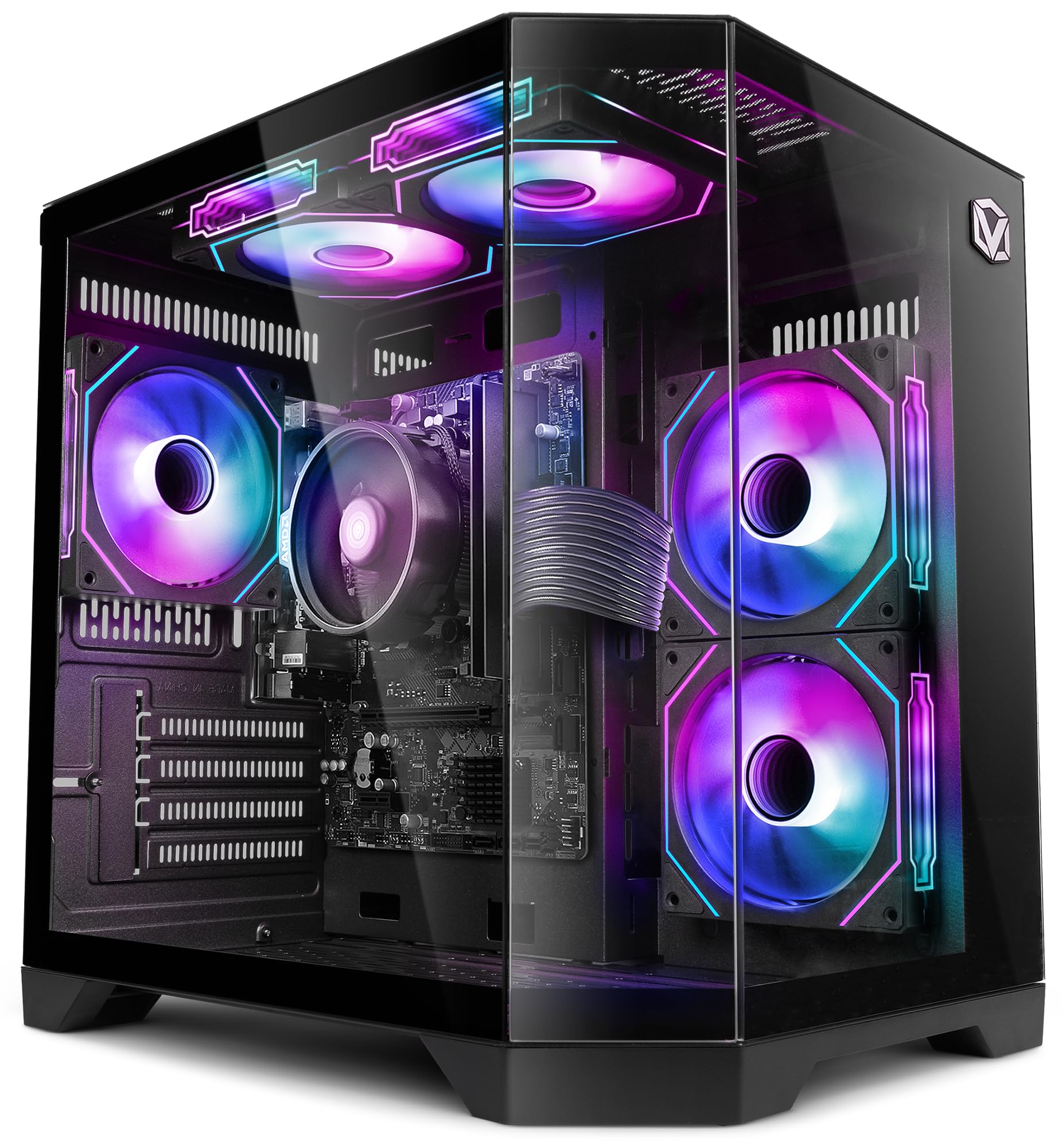
Image 1.1: The VIBOX I-506 Gaming PC, showcasing its internal components and vibrant RGB lighting through a transparent side panel.
2. Setup
2.1 Unboxing and Component Check
Carefully remove the PC from its packaging. Ensure all accessories are present, including the power cable, any included documentation, and peripherals (if part of your package). Inspect the PC for any visible damage before proceeding.

Image 2.1: An exterior view of the VIBOX I-506 Gaming PC, highlighting its sleek black chassis and transparent side panel.
2.2 Connecting Peripherals
Connect your monitor, keyboard, mouse, and other peripherals to the appropriate ports on the back and front of the PC. Refer to the image below for common port locations.
- Monitor: Use an HDMI or DisplayPort cable to connect your monitor to the graphics output port.
- Keyboard & Mouse: Connect to any available USB ports.
- Network: For wired internet, connect an Ethernet cable to the LAN port. For wireless, ensure the Wi-Fi antenna (if provided) is attached.
- Audio: Connect speakers or headphones to the audio output jacks.
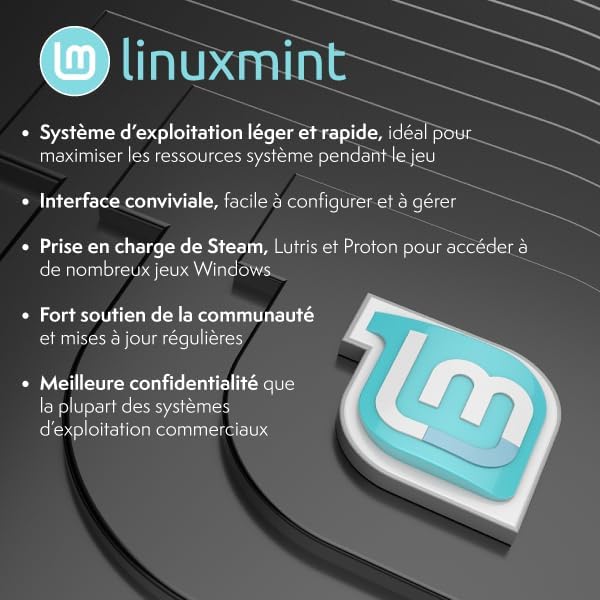
Image 2.2: A detailed view of the VIBOX I-506 PC's front panel, showing USB 2.0, USB 3.0, headphone jack, reset button, RGB change button, and power button.
2.3 Power Connection and Initial Boot-up
Connect the power cable to the PC and then to a wall outlet. Press the power button on the front panel. The system will begin to boot. Follow any on-screen prompts for initial operating system setup.
3. Operating Instructions
3.1 Operating System: Linux Mint
Your VIBOX I-506 PC comes with Linux Mint pre-installed. Linux Mint is a user-friendly, lightweight, and fast operating system, ideal for maximizing system resources during gaming sessions. It offers a comfortable interface and strong community support with regular updates.

Image 3.1: The Linux Mint logo alongside a list of its key features, emphasizing its lightweight nature, user-friendly interface, and support for gaming platforms like Steam, Lutris, and Proton.
3.2 Installing Software and Games
Linux Mint supports various platforms for gaming and software. You can install applications through the Software Manager or by downloading packages. For gaming, Steam, Lutris, and Proton are supported, allowing access to a wide range of Windows games.
3.3 Network Connectivity
To connect to a wireless network, click the network icon in the system tray and select your Wi-Fi network. Enter the password if prompted. For wired connections, ensure the Ethernet cable is securely plugged in.
4. Maintenance
4.1 Cleaning Your PC
Regular cleaning helps maintain performance and extends the lifespan of your PC. Use a soft, dry cloth to wipe down the exterior. For internal components, use compressed air to remove dust from fans and heatsinks. Ensure the PC is powered off and unplugged before cleaning.
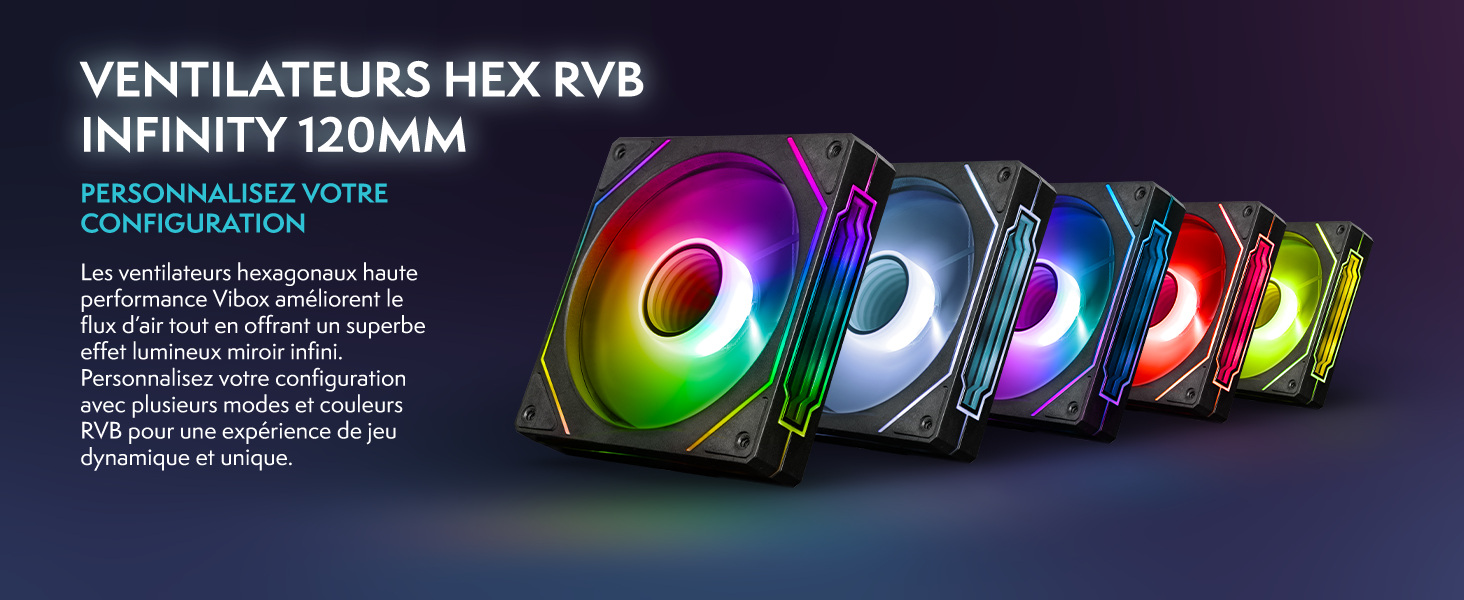
Image 4.1: A display of five Hex RGB 120mm fans, illustrating the cooling components within the PC. Regular cleaning of these fans is crucial for optimal airflow.
4.2 Software Updates
Keep your Linux Mint operating system and installed applications updated to ensure security and optimal performance. Use the Update Manager in Linux Mint to check for and install available updates regularly.
4.3 Airflow Management
The VIBOX I-506 features an inverted airflow design for efficient cooling. Ensure the PC is placed in a well-ventilated area and that air vents are not obstructed. This helps reduce heat accumulation and maintains system stability.
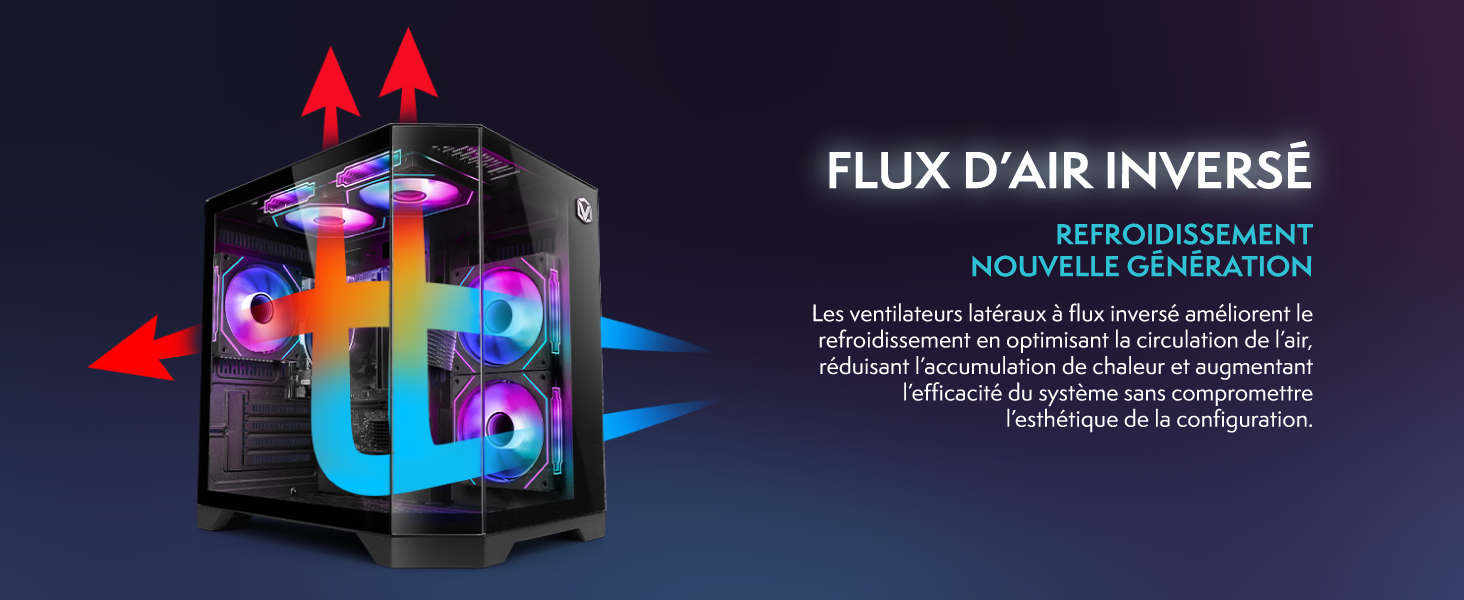
Image 4.2: A diagram showing the inverted airflow path within the PC case, with red arrows indicating hot air exhaust and blue arrows indicating cool air intake, optimizing cooling performance.
5. Troubleshooting
- No Display Output:
- Ensure the monitor is powered on and connected to the correct port on the PC (usually the graphics card output, not the motherboard's integrated graphics port).
- Check that all cables are securely connected.
- Try a different monitor or cable if available.
- System Not Booting:
- Verify the power cable is firmly connected to both the PC and the wall outlet.
- Ensure the power supply switch (if present on the back of the PC) is in the 'ON' position.
- Fans Running Constantly/Loudly:
- This can indicate high system load or insufficient cooling. Check for dust buildup in fans and vents (refer to Maintenance section).
- Ensure the PC is in a well-ventilated area.
- Monitor CPU/GPU temperatures using system tools.
- Network Connectivity Issues:
- For Wi-Fi, ensure the antenna is properly attached and you are connected to the correct network with the right password.
- For Ethernet, check the cable connection and router status.
- Restart your router and PC.
If issues persist, please contact VIBOX customer support for further assistance.
6. Specifications
| Component | Specification |
|---|---|
| Brand | VIBOX |
| Model Number | I-506 |
| Operating System | Linux Mint |
| CPU Model | AMD Ryzen 3 3200G |
| CPU Speed | 4 GHz (Max) |
| CPU Cores | 4 |
| Graphics Coprocessor | Radeon Vega 8 (Integrated) |
| RAM Size | 16 GB DDR4 |
| RAM Speed | 3200 MHz |
| Storage Capacity | 1 TB SSD |
| Connectivity | Ethernet, HDMI, USB, WiFi |
| Total USB Ports | 4 |
| Max Display Resolution | 3840x2160 |
| Item Dimensions (LxWxH) | 35 x 28 x 38 cm |
| Color | Black |
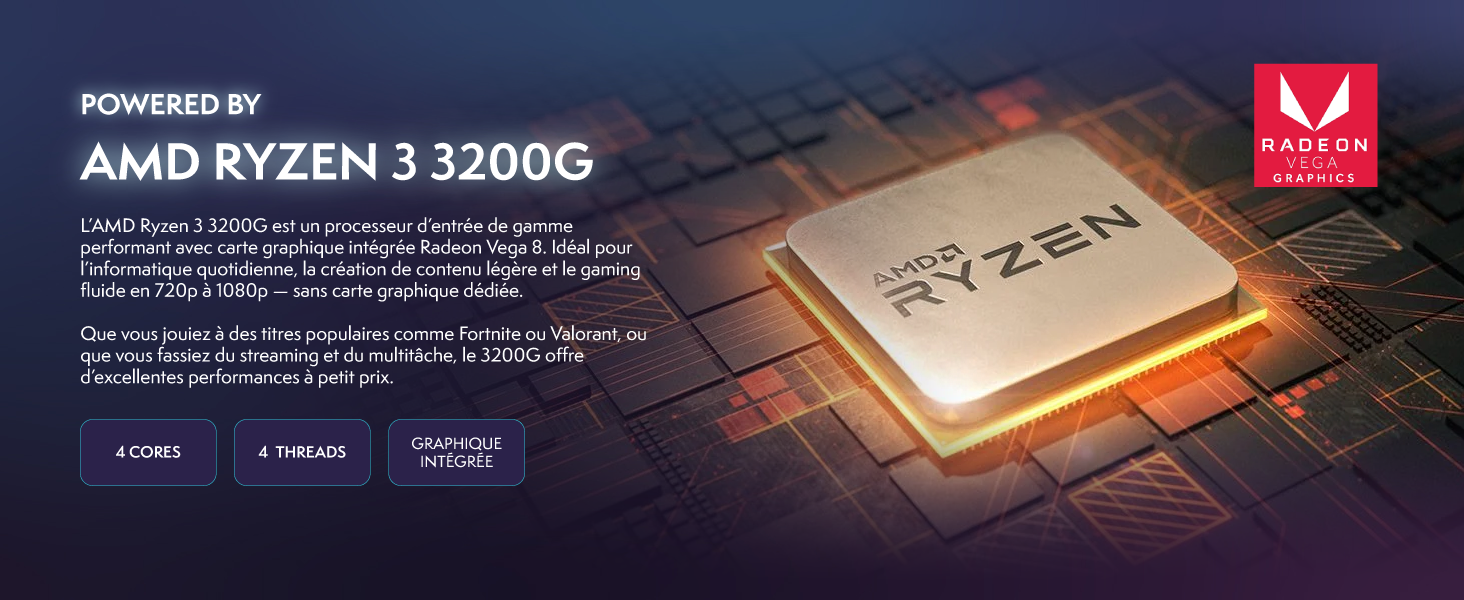
Image 6.1: A close-up of the AMD Ryzen 3 3200G processor, highlighting its integrated Radeon Vega 8 graphics, 4 cores, and 4 threads.

Image 6.2: Two 16GB DDR4 RAM modules, illustrating the high-speed memory components that ensure fluid multitasking and system performance.
7. Warranty and Support
VIBOX is committed to providing high-quality gaming PCs. Your VIBOX I-506 PC comes with a standard manufacturer's warranty. Please refer to the warranty card included with your product for specific terms and conditions.
VIBOX offers dedicated support and has over 15 years of experience in the PC gaming industry. Our team of passionate PC gamers designs and assembles systems with components from leading brands to ensure optimal quality.
For technical assistance, warranty claims, or any other inquiries, please visit the official VIBOX website or contact our customer support team through the contact information provided on our website.
Image 7.1: The VIBOX Gaming logo, accompanied by a French flag emblem and the text "Conçu par des gamers pour des gamers" (Designed by gamers for gamers), emphasizing local expertise and dedication.


