1. Product Overview
This manual provides instructions for the Biorunn 9-inch IPS Touch Screen Stereo Head Unit, designed to upgrade the in-dash entertainment and navigation system in compatible vehicles. This unit features an Android operating system, wireless CarPlay, Android Auto, Bluetooth 5.0, GPS navigation, FM RDS radio, and split-screen functionality.
1.1. Compatibility
This car stereo is specifically designed for the Chrysler 300 models from 2015 to 2020. Please verify your vehicle's model year and dashboard configuration before installation. If you are uncertain about compatibility, consult with a professional installer or the manufacturer.
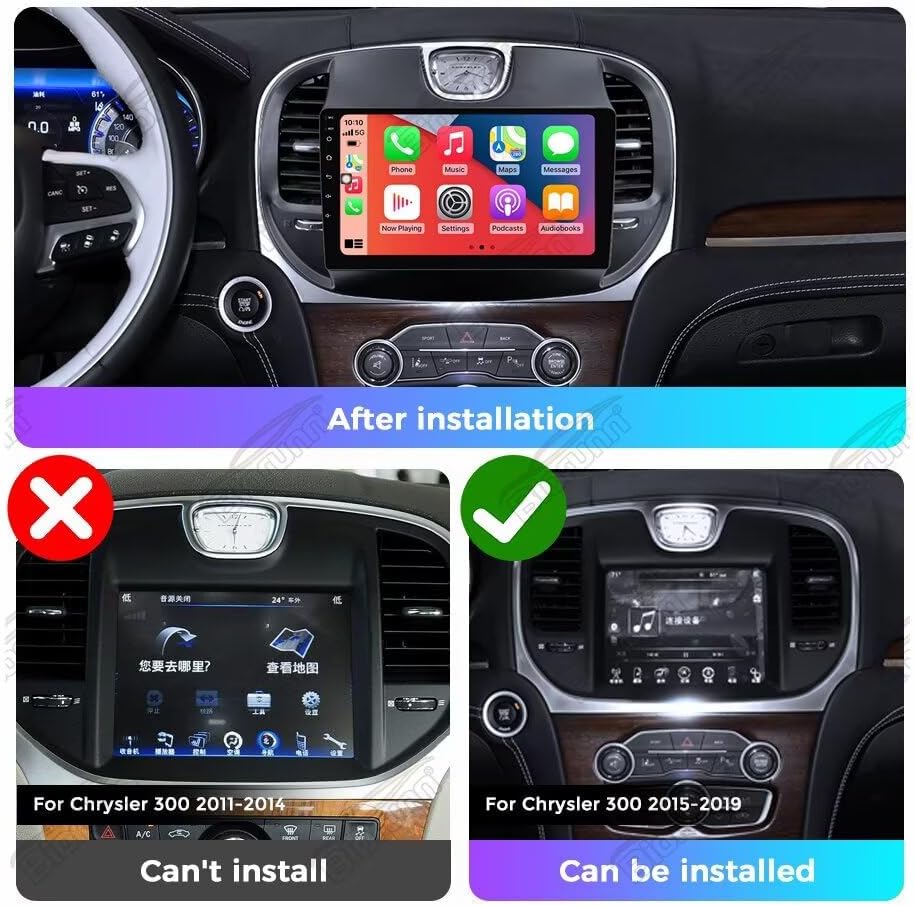
Image 1.1: Dashboard compatibility for Chrysler 300. The unit is compatible with 2015-2020 models, not 2011-2014 models.
2. What's in the Box
Upon unpacking, ensure all components are present:
- 1 x Biorunn 9-Inch IPS Touch Screen Stereo Head Unit (GPS Navigation System)
- Necessary wiring harnesses
- GPS antenna
- USB cables
- User Manual (this document)
- Mounting accessories (if applicable)
3. Setup and Installation
Installation of this head unit requires technical knowledge and experience with car audio systems. It is highly recommended to have the unit installed by a qualified professional to ensure proper functionality and to avoid damage to your vehicle or the product.
3.1. Pre-Installation Checklist
- Verify vehicle compatibility (Chrysler 300, 2015-2020).
- Ensure all components listed in 'What's in the Box' are present.
- Disconnect the vehicle's battery before starting any electrical work.
- Gather necessary tools (e.g., trim removal tools, screwdrivers, wire strippers).
3.2. Installation Steps (Professional Installation Recommended)
- Carefully remove the existing factory radio and dashboard trim.
- Connect the provided wiring harnesses to the vehicle's wiring and the new head unit. Ensure all connections are secure.
- Connect the GPS antenna and route it to a location with a clear view of the sky (e.g., under the dashboard, near the windshield).
- Connect any additional accessories such as USB cables, external microphones, or reversing cameras (camera not included).
- Mount the Biorunn head unit into the dashboard opening.
- Reconnect the vehicle's battery and perform initial power-on tests.
- Reassemble the dashboard trim.
Video 3.1: Installation guide for a car radio upgrade in a Chrysler 300. This video demonstrates the general process of replacing the factory unit with an aftermarket stereo.
4. Operating Instructions
4.1. Basic Operation
- Power On/Off: Press and hold the power button (usually located on the front panel) to turn the unit on or off. A short press may mute/unmute audio.
- Touch Screen: The 9-inch IPS display is a capacitive multi-touch screen. Use finger gestures for navigation, selection, and control.
- Volume Control: Adjust volume using the physical knob or on-screen controls.
4.2. Wireless CarPlay and Android Auto
The unit supports both wireless and wired CarPlay/Android Auto, allowing seamless integration with your smartphone for navigation, music, calls, and messages.
- Ensure your phone's Bluetooth and Wi-Fi are enabled.
- Pair your phone with the head unit via Bluetooth.
- Once paired, the system should automatically prompt to connect to CarPlay or Android Auto. Follow the on-screen instructions.
- For wired connection, connect your phone via a USB cable to the unit's USB port.

Image 4.1: Android Auto and CarPlay interface displaying common applications.
Video 4.2: Instructions on how to connect Bluetooth, CarPlay, and Wi-Fi to the head unit.
4.3. Bluetooth Functionality
The unit features Bluetooth 5.0 for hands-free calling and audio streaming.
- Pairing: Go to the Bluetooth settings on the head unit and your phone. Search for available devices and select the head unit's name to pair.
- Hands-Free Calling: Once paired, you can make and receive calls directly from the head unit. The phone book can be downloaded for easy access.
- Music Streaming: Play audio from your phone through the car's speakers via Bluetooth.
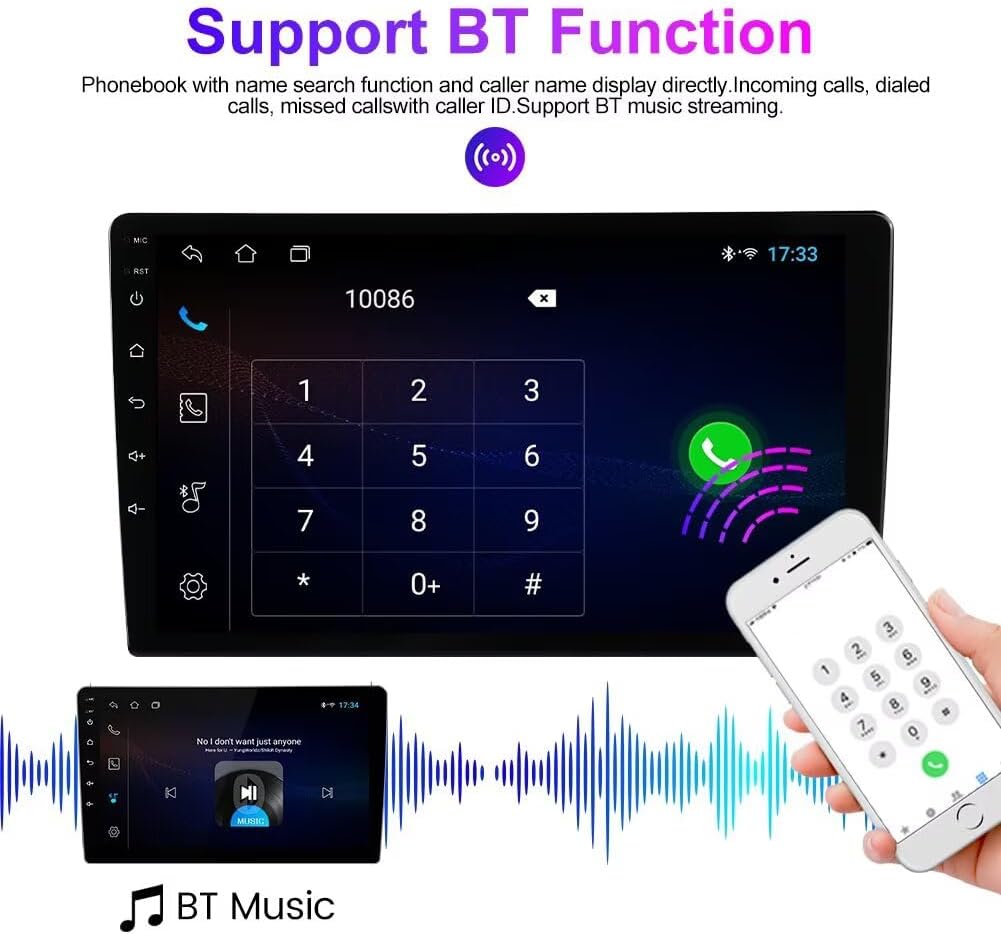
Image 4.3: Bluetooth phone and music streaming interface.
4.4. FM RDS Radio
Access local radio stations with the built-in FM RDS tuner.
- Automatic Search: Use the auto-search function to find and store available stations.
- Manual Tuning: Manually tune to specific frequencies.
- Presets: Save your favorite stations to the 18 available preset slots for quick access.
- RDS (Radio Data System): Displays station information such as song title, artist, or program type where available.

Image 4.4: FM RDS Radio interface.
4.5. GPS Navigation
The unit includes a built-in global positioning system for navigation.
- Access the navigation application from the main menu.
- Enter your destination using the on-screen keyboard.
- Follow voice prompts and on-screen directions to reach your destination.
4.6. Multimedia Playback
The unit supports various audio and video formats via USB inputs.
- Audio Formats: MP3, WMA, AAC, RM, FALC, etc.
- Video Formats: MPEG-1/2/4, H264, H263, VC1, RV, RMVB, DivX, Sorenson SparK, Spark, VP8, AVS Stream. Supports 1080P full format.
- Photo Formats: JPG/BMP/JEPG/GIF/PNG.
- Connect USB drives to the USB1 or USB2 ports to access media files.
4.7. Steering Wheel Control
The unit supports original steering wheel controls, allowing you to manage music playback and hands-free calling without taking your hands off the wheel. This feature enhances driving safety.
4.8. Split Screen Functionality
The split-screen feature allows two applications to be displayed simultaneously on the screen, such as navigation and music playback, for enhanced convenience.

Image 4.5: Split screen functionality displaying two applications concurrently.
4.9. Reversing Video Input
The unit supports a reversing camera input (camera not included). When a compatible camera is connected and the vehicle is in reverse gear, the screen will automatically display the rear view.

Image 4.6: Reversing video display with parking assistance lines.
4.10. App Downloads
As an Android-based system, you can download and install various applications from compatible app stores, expanding the functionality of your head unit.
5. Maintenance
- Screen Cleaning: Use a soft, lint-free cloth to clean the touch screen. For stubborn smudges, lightly dampen the cloth with water or a screen-safe cleaner. Avoid harsh chemicals.
- Software Updates: Periodically check for software updates to ensure optimal performance and access to new features. Follow the on-screen instructions for any available updates.
- General Care: Avoid exposing the unit to extreme temperatures, direct sunlight for prolonged periods, or excessive moisture.
6. Troubleshooting
If you encounter issues with your Biorunn head unit, refer to the following common troubleshooting steps:
- No Power: Check all power connections and ensure the vehicle's battery is properly connected and charged. Verify fuses.
- No Audio: Check volume settings, ensure speakers are properly connected, and verify audio source selection.
- GPS Signal Loss: Ensure the GPS antenna has a clear view of the sky and is securely connected.
- Bluetooth Connection Issues: Ensure Bluetooth is enabled on both the head unit and your phone. Try unpairing and re-pairing the devices.
- CarPlay/Android Auto Not Connecting: Verify your phone's settings for CarPlay/Android Auto are enabled. Ensure a stable Bluetooth connection. For wired connections, try a different USB cable.
- Unit Freezes/Unresponsive: Try restarting the unit by pressing and holding the power button. If the issue persists, a factory reset may be necessary (note: this will erase all user data).
For persistent issues, contact Biorunn customer support or consult a professional installer.
7. Specifications
| Feature | Specification |
|---|---|
| Operating System | Android |
| Core | 4 Core |
| Screen Size | 9 Inches |
| Display Resolution | 1280 x 720 (IPS Touch Screen) |
| RAM | 2GB |
| ROM | 64GB |
| CarPlay / Android Auto | Built-in Wireless/Wired |
| Bluetooth | Bluetooth 5.0 |
| Wi-Fi | Supported |
| GPS Navigation | Built-in Global Positioning System |
| FM Radio | FM RDS with 18 preset stations |
| USB Ports | USB1; USB2 |
| Audio Formats | MP3, WMA, AAC, RM, FALC, etc. |
| Video Formats | MPEG-1/2/4, H264, H263, VC1, RV, RMVB, DivX, Sorenson SparK, Spark, VP8, AVS Stream (1080P support) |
| Photo Formats | JPG/BMP/JEPG/GIF/PNG |
| Special Features | Split Screen, Steering Wheel Control, Multi-language Support |
8. Warranty and Support
For warranty information, please refer to the documentation provided with your purchase or contact the retailer. For technical support, product inquiries, or assistance with troubleshooting, please visit the official Biorunn website or contact their customer service department.
You can also refer to the Biorunn Store on Amazon for additional resources and contact information.


