
1. Introduction
This manual provides detailed instructions for the assembly, operation, and maintenance of your KEDIERS C570 ATX Mid Tower PC Case. Please read this manual thoroughly before beginning installation to ensure proper setup and safe usage. This open-frame case is designed for optimal airflow and aesthetic appeal, featuring tempered glass panels and pre-installed PWM ARGB fans.
2. Product Features
- Powerful Cooling: Pre-installed with 5 PWM ARGB fans for efficient heat dissipation and low GPU temperatures.
- Tempered Glass Panels: Equipped with 2 x 4mm thick tempered glass panels to showcase internal components and RGB lighting.
- Synchronized RGB Lighting: ARGB fans can be controlled via motherboard software using a +5V ARGB header, eliminating the need for an external controller.
- Remarkable Expansion: Supports ATX, Micro-ATX, and Mini-ITX motherboards.
- Convenient I/O Panel: Features 1 x Type-C Port, 2 x USB 3.0 Ports, and 1 x HD Audio jack for easy connectivity.
3. Safety Information
- Always disconnect the power supply from the wall outlet before installing or removing any components.
- Handle tempered glass panels with care to prevent breakage.
- Wear anti-static wrist straps or frequently touch a grounded metal object to prevent electrostatic discharge (ESD) damage to components.
- Keep small parts and screws away from children.
- Ensure all cables are properly routed and secured to avoid interference with fans or other moving parts.
4. Setup & Installation
4.1. Unboxing and Initial Inspection
Carefully remove the PC case from its packaging. Inspect the case for any signs of damage during transit. Ensure all accessories, including screws, cable ties, and the user manual, are present.
Video: Unboxing and initial overview of a computer gaming case.
4.2. Panel Removal
The KEDIERS C570 features tool-free removable tempered glass side panels. Gently pull the panels to detach them from the chassis. This provides easy access to the interior for component installation.
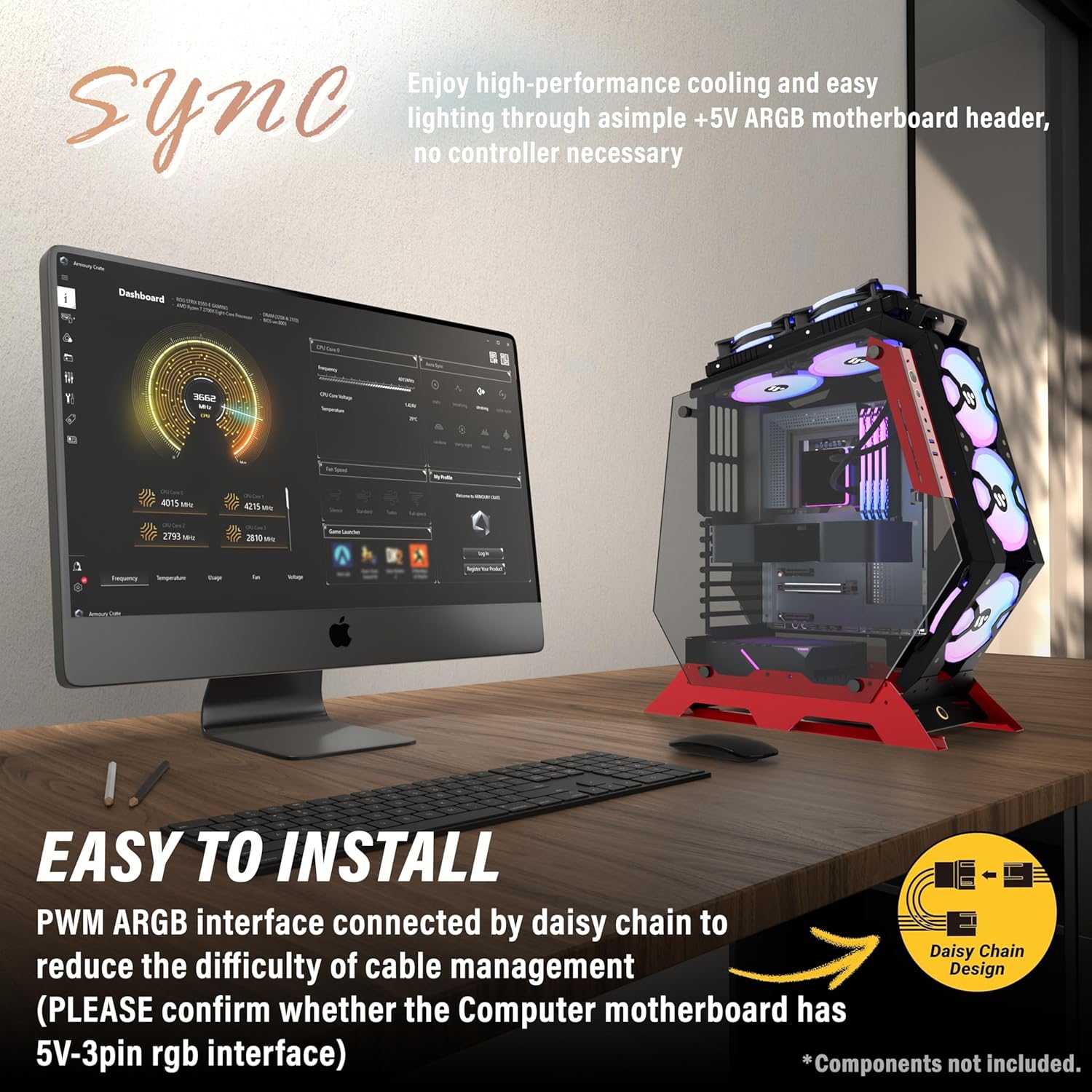
Image: KEDIERS C570 PC Case with a side panel removed, revealing the interior.
4.3. Motherboard Installation
- Align your ATX, Micro-ATX, or Mini-ITX motherboard with the pre-installed standoffs inside the case.
- Secure the motherboard using the provided screws. Ensure not to overtighten.
Video: Demonstrates the installation of a motherboard and other components in a KEDIERS PC case.
4.4. Storage Device Installation
The C570 case supports 2.5-inch SSDs and 3.5-inch HDDs. Locate the designated mounting points for your storage devices and secure them with the appropriate screws.
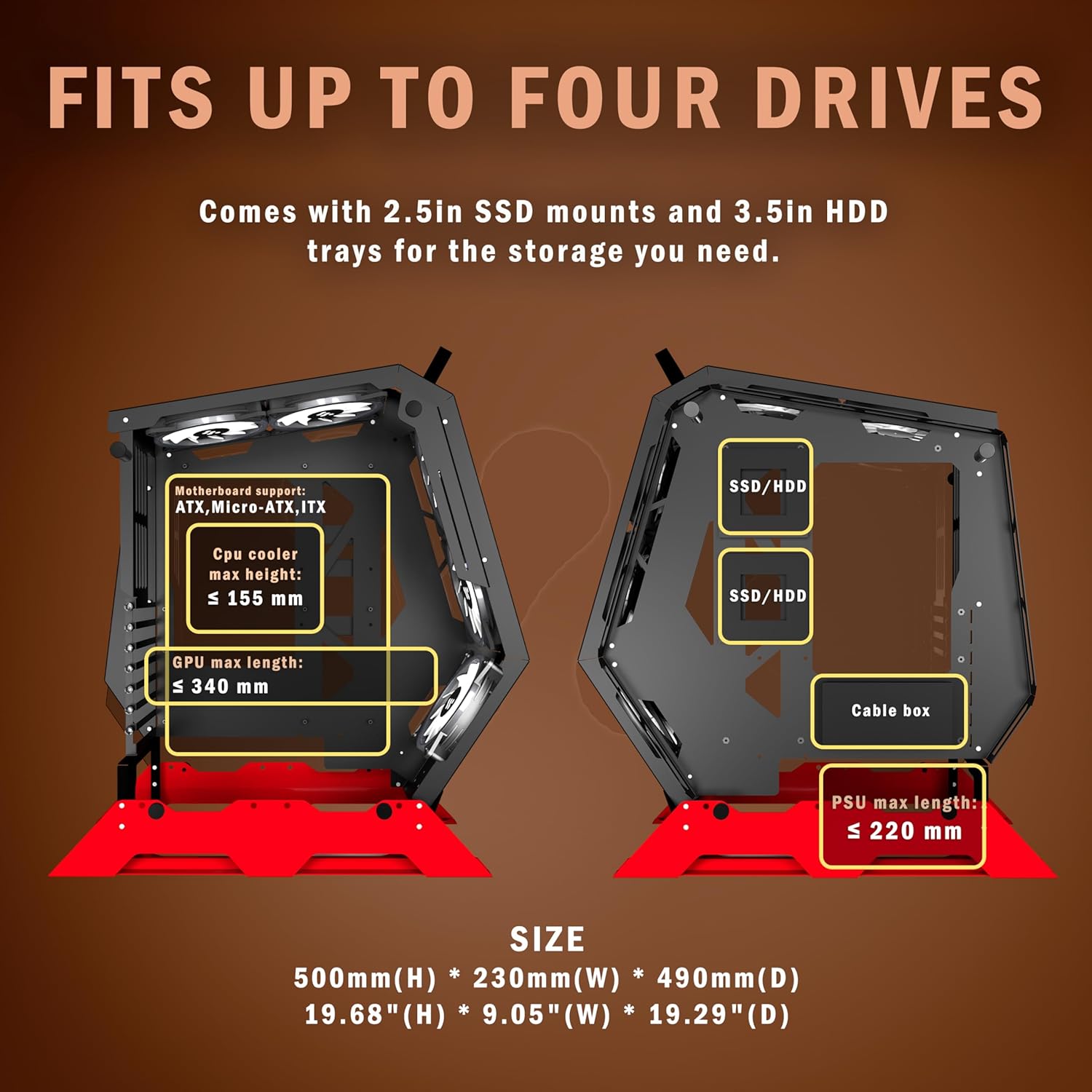
Image: Internal layout of the KEDIERS C570 PC Case, highlighting areas for SSD/HDD installation and component dimensions.
4.5. Power Supply Installation
Install your power supply unit (PSU) into its designated compartment. Ensure proper orientation for airflow and secure it with screws. Route the necessary power cables through the cable management cutouts.
Video: Guide on installing a power supply unit (PSU) in a PC case, including cable routing tips.
4.6. Cooling System Installation (Fans & Radiators)
The C570 comes with 5 PWM ARGB fans pre-installed. For additional cooling, the case supports various fan and radiator configurations. Refer to the specifications section for maximum supported sizes.

Image: KEDIERS C570 PC Case illustrating optimal airflow paths and fan placement.
4.7. Graphics Card Installation
Insert your graphics card into the appropriate PCIe slot on your motherboard. Secure it to the case using the provided screws or retention mechanism.
Video: Assembly guide for an open frame mid-tower computer case, demonstrating component installation.
4.8. Cable Management
Utilize the cable routing channels and tie-down points behind the motherboard tray to organize and secure cables. Proper cable management improves airflow and aesthetics.
5. Operating Instructions
5.1. ARGB Fan Control
The pre-installed PWM ARGB fans can be controlled via your motherboard's ARGB software. Connect the fan's ARGB cable to a +5V ARGB header on your motherboard. Consult your motherboard manual for specific software instructions.
5.2. I/O Panel Usage
The top-mounted I/O panel provides convenient access to:
- Power Button: To turn the system on/off.
- Reset Button: To restart the system.
- USB 3.0 Ports (x2): For high-speed data transfer.
- Type-C Port (x1): For modern device connectivity.
- HD Audio Jacks (x1): For headphone and microphone connections.
Note: USB ports are primarily for data transfer and are not recommended for power charging, as most motherboards' USB ports support a maximum voltage of 5V.
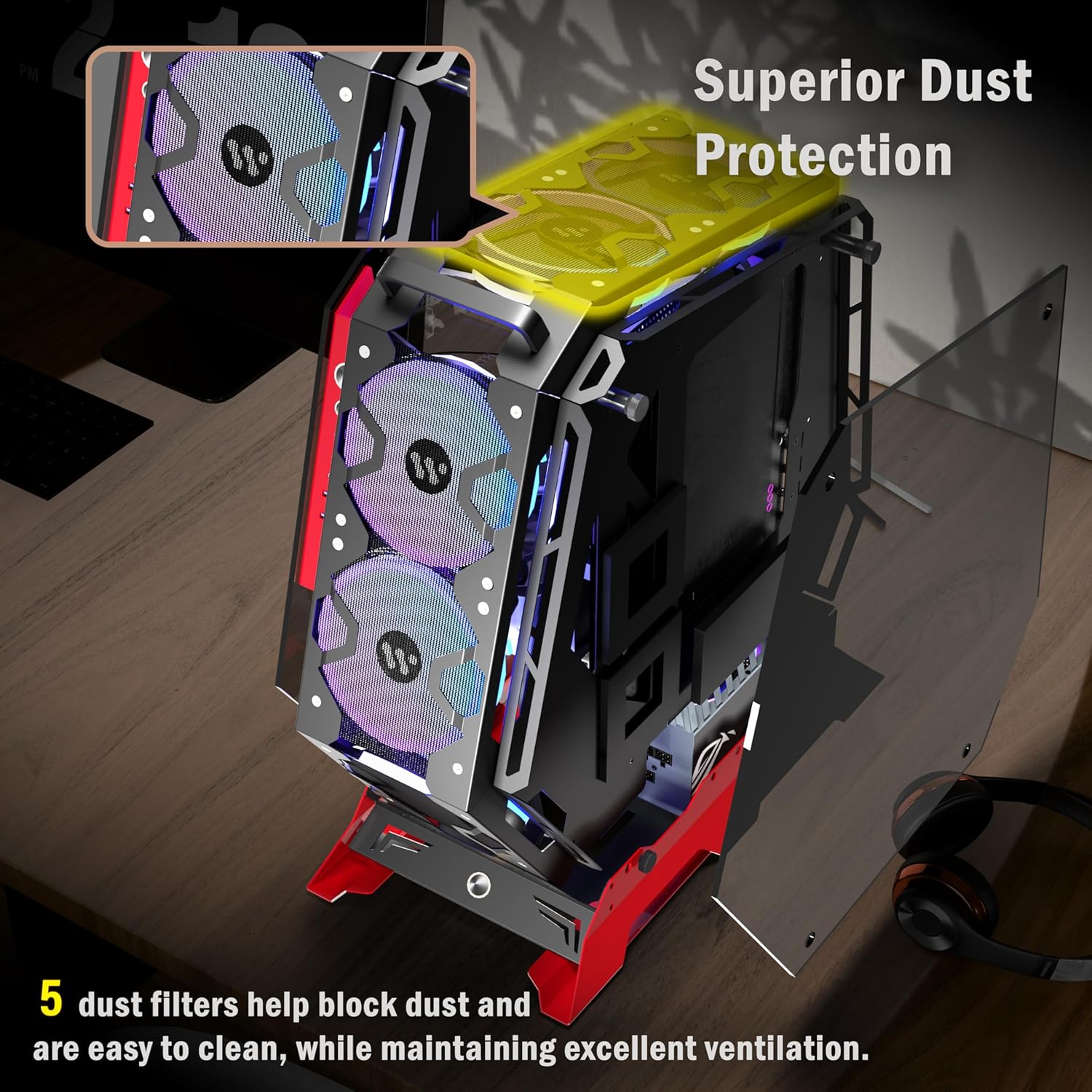
Image: Close-up of the KEDIERS C570 PC Case's I/O panel and internal component layout.
6. Maintenance
6.1. Dust Filter Cleaning
The KEDIERS C570 includes 5 dust filters to help prevent dust buildup. Regularly clean these filters to maintain optimal airflow and cooling performance. Gently remove the filters and clean them with compressed air or a soft brush.

Image: KEDIERS C570 PC Case highlighting the location and function of its dust filters.
6.2. General Cleaning
Use a soft, damp cloth to wipe down the exterior of the case. Avoid abrasive cleaners or solvents that could damage the finish or tempered glass.
7. Troubleshooting
- System Not Powering On: Double-check all power connections, including the 24-pin ATX, 8-pin CPU, and GPU power cables. Ensure the power supply switch is in the 'ON' position.
- Fans Not Spinning/RGB Not Working: Verify that all fan power cables and ARGB cables are securely connected to the motherboard or fan controller. Check motherboard software for ARGB settings.
- Overheating: Ensure proper fan orientation for optimal airflow. Clean dust filters regularly. Confirm CPU cooler and GPU fans are functioning correctly.
- Loose Panels: Ensure tempered glass panels are properly seated and secured.
8. Specifications
| Feature | Detail |
|---|---|
| Brand | KEDIERS |
| Model Name | C570 |
| Case Type | Mid Tower |
| Motherboard Support | ATX / Micro-ATX / Mini-ITX |
| Material | Tempered Glass |
| Pre-installed Fans | 5 x PWM ARGB Fans |
| I/O Panel | 1 x Type-C, 2 x USB 3.0, 1 x HD Audio |
| Cooling Method | Air |
| Special Features | Built-In Fan, Dust Filter, RGB Lighting |
| Item Weight | 13.2 pounds (6 kg) |
| Package Dimensions | 23.4 x 21.5 x 12 inches |
9. Warranty and Support
KEDIERS products come with a standard manufacturer's warranty. For detailed warranty information, technical support, or service inquiries, please refer to the warranty card included with your product or visit the official KEDIERS website. Keep your proof of purchase for warranty claims.


