
ZDK GC06
ZDK Native 1080P Projector User Manual
Model: GC06 | Brand: ZDK
Introduction
This manual provides comprehensive instructions for the setup, operation, and maintenance of your ZDK Native 1080P Projector. Designed for both indoor and outdoor use, this projector offers a native 1920x1080 resolution, dual-band WiFi (2.4G/5G), and Bluetooth 5.1 connectivity for an immersive viewing experience. Please read this manual thoroughly before using the product to ensure proper function and longevity.
What's in the Box
- AV Cable
- HDMI Cable
- Power Cord
- Remote Control
- User Manual
Setup
1. Powering On
Connect the power cord to the projector and a power outlet. Press the power button on the projector or the remote control to turn it on. The projector will display the startup screen.

Image: The ZDK Native 1080P Projector with its remote control, showcasing its compact design and the projected screen in the background.
2. Placement and Focus
Place the projector on a stable surface. Adjust the focus ring on the lens until the projected image is clear and sharp. The projector supports various installation methods including desktop, tripod, wall, and ceiling mounting.

Image: Diagram illustrating various installation options for the projector, including ceiling mount, tripod mount, and table placement, demonstrating its versatility for different environments.
3. Keystone Correction
If the projected image appears trapezoidal, use the keystone correction dial on the projector to adjust it to a rectangular shape. The projector supports ±15° keystone correction.
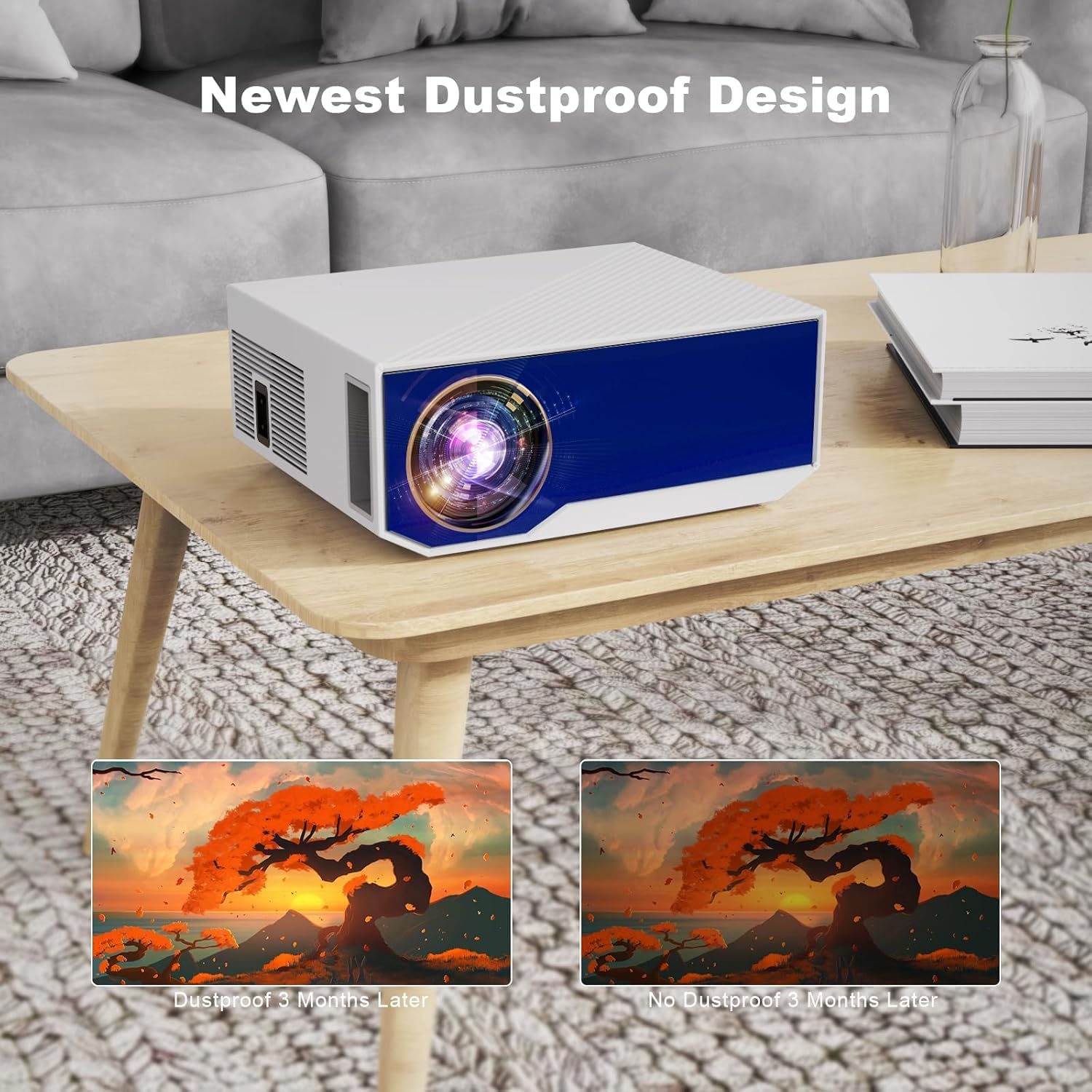
Image: A close-up of the projector on a table, highlighting its dustproof design and the comparison of image clarity over time with and without dust protection.
Operating Instructions
1. Connectivity Options
The ZDK projector offers multiple connectivity options:
- HDMI: Connect devices like TV sticks, laptops, gaming consoles (PS5, Switch), and Blu-ray players.
- USB: Play media directly from USB drives.
- AV: Connect older devices using the included AV cable.
- Wireless (WiFi): Connect to your home network for screen mirroring from smartphones and tablets.
- Bluetooth: Connect external Bluetooth speakers, headphones, or soundbars for enhanced audio.
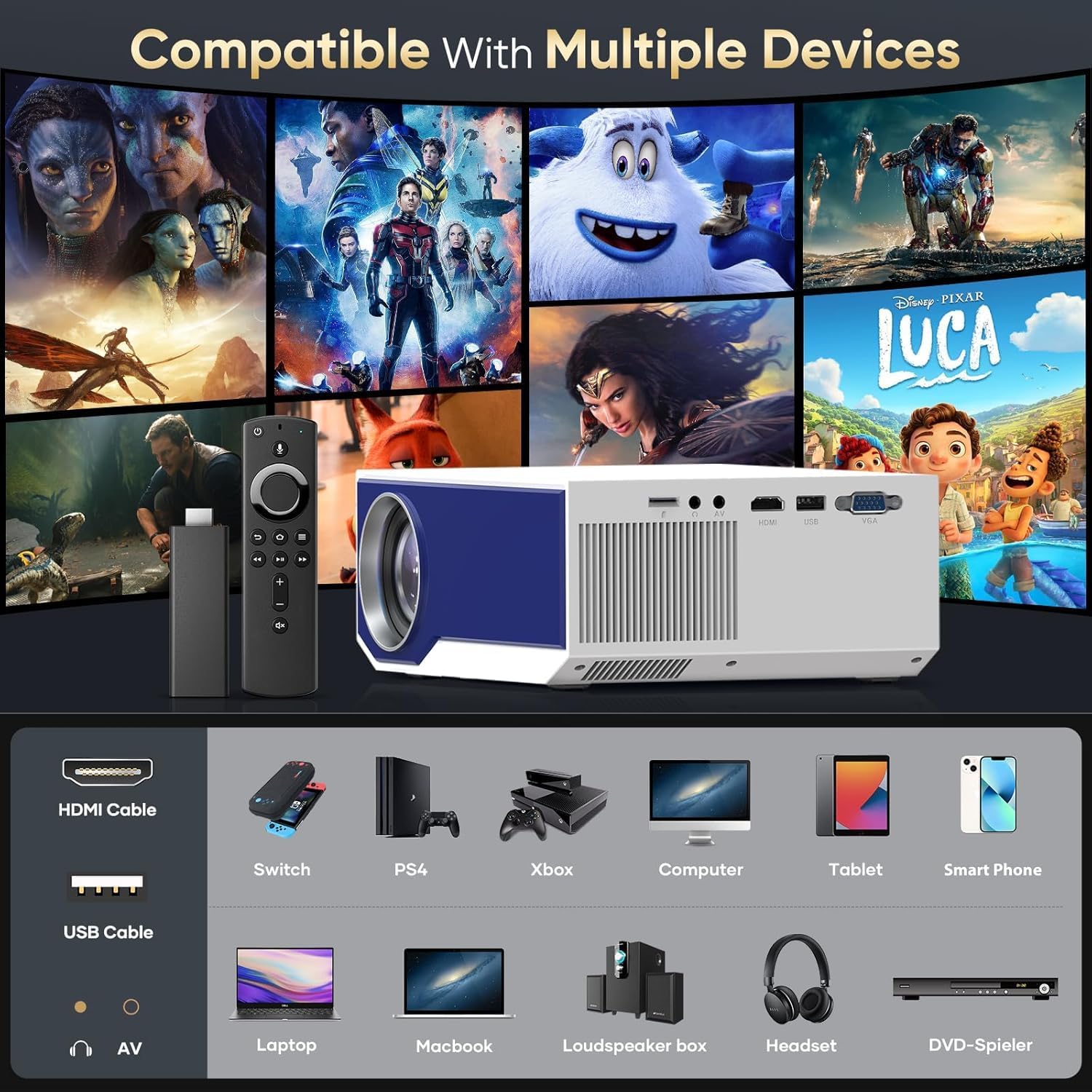
Image: An illustration showing the projector's various input ports (HDMI, USB, AV) and a wide range of compatible devices, including TV sticks, gaming consoles, laptops, and smartphones.
2. WiFi Screen Mirroring (iOS/Android)
To mirror your smartphone or tablet screen:
- Ensure your projector and mobile device are connected to the same WiFi network (supports 2.4G and 5G).
- Select the "Screen Mirroring" option on the projector's interface.
- For iOS devices, open Control Center and tap "Screen Mirroring" or "AirPlay Mirroring" and select your projector.
- For Android devices, use the "Wireless Projection" or "Smart View" feature (name may vary by device) and select your projector.

Image: A person playing a video game projected onto a large screen, demonstrating the ultra-fast 5G WiFi screen mirroring capability from a smartphone to the ZDK projector.
Video: A demonstration of the ZDK projector's setup, showing how to power it on, connect devices, and use screen mirroring for a home theater experience. This video highlights the ease of use and various features.
3. Bluetooth Audio Connection
To connect external Bluetooth speakers or headphones:
- Go to the Bluetooth settings on your projector.
- Ensure your Bluetooth audio device is in pairing mode.
- Select your device from the list of available devices to pair.

Image: Two people enjoying a movie outdoors with the projector, emphasizing the upgraded Bluetooth 5.0 for enhanced audio experience with deep bass.
Maintenance
Regular maintenance ensures optimal performance and extends the lifespan of your projector.
- Cleaning the Lens: Use a soft, lint-free cloth specifically designed for optical lenses. Do not use abrasive cleaners.
- Cleaning the Exterior: Wipe the projector's exterior with a soft, dry cloth. Avoid using liquid cleaners directly on the device.
- Dust Prevention: The projector features a dustproof design. However, for best results, keep the projector in a clean environment and cover it when not in use.
- Ventilation: Ensure the ventilation vents are not blocked to prevent overheating.
Troubleshooting
| Problem | Possible Cause | Solution |
|---|---|---|
| No image projected | Power not connected, input source incorrect, lens cap on. | Check power connection, select correct input source (HDMI, USB, etc.), remove lens cap. |
| Image blurry | Out of focus, incorrect projection distance. | Adjust focus ring, move projector closer or further from screen. |
| No sound | Volume too low, external audio device not connected, incorrect audio output setting. | Increase volume, ensure Bluetooth speaker is paired or HDMI audio is selected, check audio settings. |
| Screen mirroring issues | WiFi connection unstable, device compatibility. | Ensure both devices are on the same stable WiFi network, restart projector and device, check device's mirroring compatibility. |
Specifications
| Feature | Detail |
|---|---|
| Brand | ZDK |
| Model Number | GC06 |
| Native Resolution | 1920 x 1080 (1080P Full HD) |
| Supported Resolution | Up to 4K |
| Brightness | 18000 Lumen |
| Connectivity | Dual-band 5G/2.4G WiFi, Bluetooth 5.1, HDMI, USB, AV |
| Keystone Correction | ±15° Manual |
| Projection Size | Up to 300 inches |
| Item Weight | 3.94 pounds |
| Product Dimensions | 7 x 5 x 2 inches |
| Color | White&blue |
| Recommended Use | Indoor/Outdoor Home Theater, Gaming, Meetings |
Warranty and Support
ZDK offers a 2-year warranty for this projector, ensuring customer satisfaction. If you encounter any issues or have questions regarding your projector, please do not hesitate to contact ZDK customer support. We are committed to providing prompt assistance and will reply within 12 hours.
For support, please refer to the contact information provided on the product packaging or the official ZDK website.
Related documentsGC06


Ask a question about this manual
Ask about setup, troubleshooting, compatibility, parts, safety, or missing instructions. Manuals+ will review the question and use this page’s manual context to help answer it.