1. Introduction
This manual provides essential information for the setup, operation, and maintenance of your Vibox IV-524 Gaming PC. This mid-range gaming PC offers a balance of performance and value, suitable for smooth gameplay at 1080p and 1440p resolutions. Equipped with a powerful multi-core processor and a dedicated graphics card, it efficiently runs popular games and provides room for future upgrades.
2. Safety Information
- Power Supply: Use only the provided power cable and connect it to a grounded outlet. Ensure the power supply voltage matches your local electrical standards.
- Ventilation: Do not block ventilation openings. Ensure adequate airflow around the PC to prevent overheating.
- Liquid and Moisture: Keep the PC away from liquids and excessive moisture. Do not operate the PC with wet hands.
- Placement: Place the PC on a stable, flat surface. Avoid placing it in direct sunlight or near heat sources.
- Servicing: Do not attempt to open or repair the PC yourself. Refer all servicing to qualified personnel.
3. Package Contents
Verify that all items are present in your package:
- Vibox IV-524 Gaming PC Tower
- Power Cable
- 300 Mbps Wi-Fi Adapter
- Documentation (Quick Start Guide, Warranty Information)
- RGB Lighting Controller (if applicable)
4. Setup
4.1 Unpacking
Carefully remove the PC from its packaging. Inspect for any visible damage. Retain the original packaging for future transport or servicing.

Image: The Vibox IV-524 Gaming PC Tower, showcasing its white chassis and internal components.
4.2 Connecting Peripherals
- Monitor: Connect your monitor to the graphics card (NVIDIA GeForce RTX 5060) using an HDMI or DisplayPort cable. Ensure the cable is securely fastened.
- Keyboard and Mouse: Connect your keyboard and mouse to the available USB ports on the rear or front of the PC.
- Power: Connect the power cable to the PC's power supply unit and then to a wall outlet.
- Network: For wired internet, connect an Ethernet cable to the LAN port. For wireless internet, install the provided Wi-Fi adapter into an available USB port.

Image: Close-up of the Vibox IV-524 PC's front panel, highlighting USB 2.0, USB 3.0, headphone, and microphone ports, along with power and LED control buttons.
4.3 Initial Boot and Windows Setup
- Press the power button on the front of the PC.
- The PC will boot into Windows 11 Home. Follow the on-screen instructions to complete the initial Windows setup, including language, region, network connection, and user account creation.
- Ensure all drivers are installed. Your system typically comes with pre-installed drivers. If any issues arise, visit the Vibox support website for the latest drivers.

Image: Visual representation of Windows 11 Home features, including faster loading times with DirectStorage, AutoHDR for enhanced graphics, seamless Xbox Game Pass integration, and optimized CPU performance.
5. Operating
5.1 Power On/Off and Restart
- Power On: Press the power button on the front panel.
- Shut Down: Click the Start button in Windows, then select Power > Shut down.
- Restart: Click the Start button in Windows, then select Power > Restart.
5.2 Connecting to Wi-Fi
- Ensure the Wi-Fi adapter is connected to a USB port.
- In Windows, click the Network icon in the taskbar.
- Select your desired Wi-Fi network from the list and click 'Connect'.
- Enter the network security key (password) if prompted.
5.3 RGB Lighting Control
Your PC features customizable RGB lighting. If an RGB controller or remote was included, refer to its specific instructions for changing colors and effects. Otherwise, lighting may be controlled via pre-installed software or motherboard utilities.
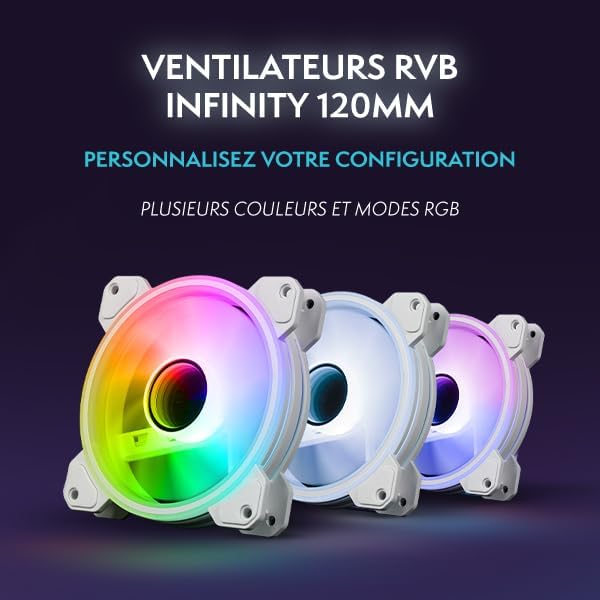
Image: An internal view of the Vibox IV-524 PC, showcasing the illuminated RGB fans and components within the white chassis.
6. Maintenance
6.1 Cleaning
- Exterior: Use a soft, damp cloth to clean the exterior surfaces. Avoid harsh chemicals.
- Dust: Periodically clean dust from the ventilation grilles and internal components using compressed air. Ensure the PC is powered off and unplugged before cleaning.
6.2 Software Updates
Regularly update your Windows operating system, graphics drivers, and other software to ensure optimal performance and security. Windows Update can be accessed via Settings > Windows Update.
7. Troubleshooting
- No Power: Ensure the power cable is securely connected to both the PC and the wall outlet. Check if the wall outlet is functional.
- No Display: Verify that the monitor cable is correctly connected to the graphics card and the monitor is powered on and set to the correct input source.
- No Internet Connection: For Wi-Fi, ensure the adapter is installed and drivers are up to date. For wired, check the Ethernet cable connection. Restart your router/modem.
- System Slowdown: Check for background applications consuming resources. Ensure sufficient free space on the SSD. Run a malware scan.
- Overheating: Ensure ventilation openings are clear. Clean dust from inside the PC.
For further assistance, refer to the Vibox support website or contact customer service.
8. Specifications
| Component | Detail |
|---|---|
| Brand | Vibox |
| Model Number | IV-524 |
| Processor | AMD Ryzen 7 5700X (8 Cores, Max 4.6 GHz) |
| Graphics Card | NVIDIA GeForce RTX 5060 (8 GB GDDR7, HDMI 2.1, DisplayPort) |
| RAM | 16 GB DDR4 3200 MHz (Dual Channel) |
| Storage | 1 TB SSD (Solid State) |
| Operating System | Windows 11 Home |
| Connectivity | Wi-Fi (300 Mbps adapter included) |
| USB Ports | 3x USB 2.0, 3x USB 3.0 |
| HDMI Ports | 1 |
| Dimensions (L x W x H) | 37 x 20 x 46 cm |
| Weight | 12 kg |

Image: Diagram illustrating the dimensions of the Vibox IV-524 PC tower: 38cm (depth), 20cm (width), and 46cm (height).
9. Warranty and Support
Your Vibox IV-524 Gaming PC comes with a manufacturer's warranty. Please refer to the warranty documentation included in your package for specific terms and conditions. For technical support, driver downloads, or further assistance, please visit the official Vibox support website or contact their customer service department.
Vibox Support: Visit the Vibox Store on Amazon


