
1. Introduction
Thank you for choosing the eSynic Mini Portable Thermal Printer ESY337. This compact and inkless thermal printer is designed for convenience, allowing you to print photos, labels, notes, and more directly from your mobile device. This manual provides essential information for setup, operation, maintenance, and troubleshooting to ensure optimal performance.

Figure 1: The eSynic Mini Portable Thermal Printer in its compact pink design.
2. What's in the Box
Upon unpacking, please ensure all the following items are included:
- eSynic Mini Portable Thermal Printer (ESY337)
- 5 x Rolls of Standard Thermal Paper
- 5 x Rolls of Adhesive Thermal Paper
- USB Charging Cable
- User Manual
- Decorative Stickers

Figure 2: The complete package includes the mini portable printer, 5 rolls of thermal paper, 5 rolls of adhesive thermal paper, a USB charging cable, and decorative stickers.
3. Setup Guide
3.1. Loading Thermal Paper
Follow these steps to correctly load the thermal paper into your printer:
- Open the Printer Cover: Gently slide or lift the cover of the printer to access the paper compartment.
- Insert Paper Roll: Place the thermal paper roll into the compartment. Ensure the smooth, printable side of the paper faces downwards.
- Feed Paper: Pull approximately 1 cm (0.4 inches) of paper out of the printer slot.
- Close Cover: Securely close the printer cover until it clicks into place.
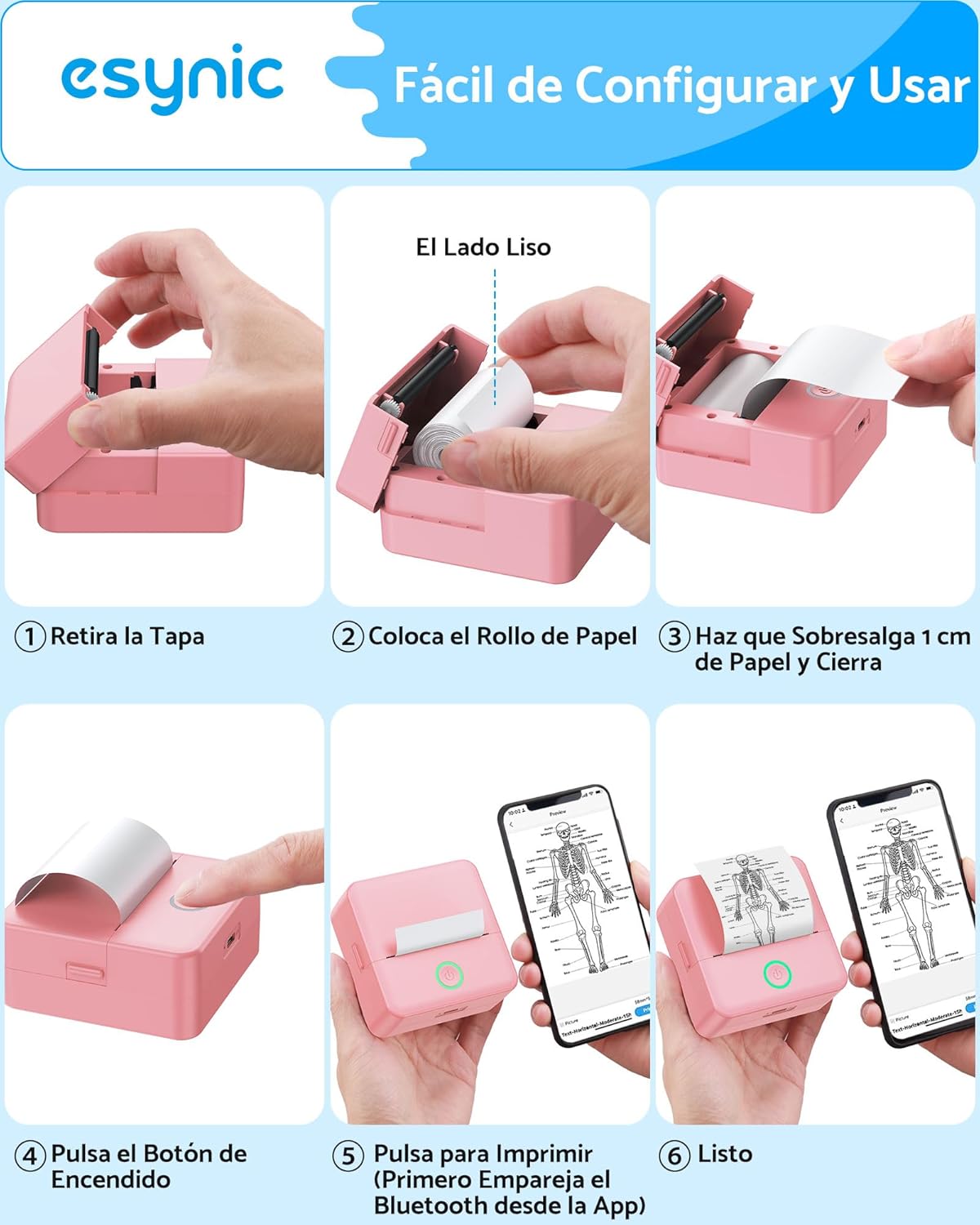
Figure 3: Visual instructions for loading paper: 1. Remove the cover. 2. Place the paper roll with the smooth side facing down. 3. Pull out about 1 cm of paper and close the cover. 4. Press the power button. 5. Connect via the "Tiny" app. 6. Ready to print.
3.2. Connecting via Bluetooth
The printer connects wirelessly to your smartphone or tablet:
- Charge the Printer: Before first use, fully charge the printer using the provided USB cable.
- Power On: Press and hold the power button on the printer until the indicator light turns on.
- Download App: Download the "Tiny" app from your device's app store (available for iOS and Android).
- Open App & Connect: Open the "Tiny" app, enable Bluetooth on your device, and follow the in-app instructions to connect to the printer. The connection typically takes about 2 seconds.

Figure 4: The printer connects quickly via Bluetooth 4.0 to both iOS and Android devices using the "Tiny" app, allowing instant printing of various documents like grocery lists.
4. Operating Instructions
4.1. Basic Printing
Once connected, you can print various content:
- Select Content: Within the "Tiny" app, choose what you want to print (e.g., photo, text, label, note).
- Adjust Settings: You can adjust print depth (intensity) and other settings as needed. The printer supports monochrome (black and white) output only.
- Print: Tap the print button in the app. The printer will quickly produce your output.
4.2. Advanced App Features
The "Tiny" app offers a range of creative and functional features:
- AI Functions: Explore AI-powered tools for cartoonish portraits, line art, and various scene creations.
- Graphic Editing: Utilize graphic editing tools for artistic photos and creative painting.
- Templates: Access free materials and templates for labels, notes, to-do lists, and more.
- Text Recognition: Convert printed text into editable digital text.
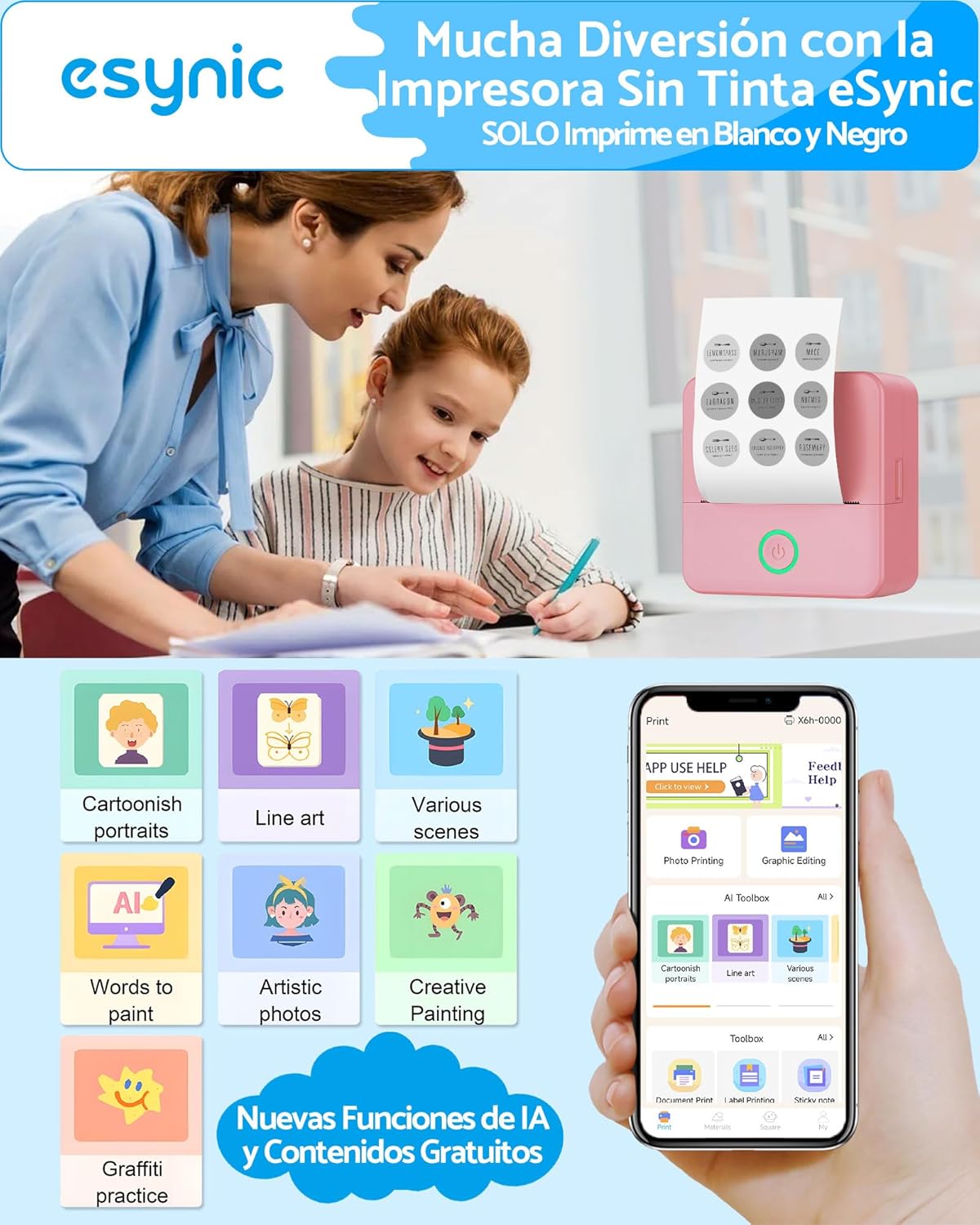
Figure 5: The "Tiny" app offers advanced features including AI functions for cartoonish portraits, line art, various scenes, text-to-paint, artistic photos, creative painting, and graffiti practice.
4.3. Creating Adhesive Labels
Use the included adhesive thermal paper to create custom stickers and labels:
- Load an adhesive paper roll as described in Section 3.1.
- Design your label in the "Tiny" app.
- Print the label.
- Carefully peel off the backing and apply the sticker to your desired surface.
5. Maintenance
To ensure the longevity and optimal performance of your eSynic Mini Portable Thermal Printer, follow these maintenance guidelines:
- Cleaning the Print Head: Periodically clean the thermal print head with a soft, lint-free cloth lightly dampened with isopropyl alcohol. Ensure the printer is off and completely dry before use.
- Exterior Cleaning: Wipe the exterior of the printer with a soft, dry cloth. Avoid using harsh chemicals or abrasive materials.
- Paper Storage: Store thermal paper in a cool, dry place away from direct sunlight and heat to prevent premature fading or damage.
- Battery Care: If the printer will not be used for an extended period, charge it periodically to maintain battery health.
6. Troubleshooting
If you encounter issues with your printer, refer to the following common problems and solutions:
| Problem | Possible Cause | Solution |
|---|---|---|
| Printer does not turn on | Low battery; Power button not pressed correctly | Charge the printer; Press and hold the power button for a few seconds. |
| Cannot connect via Bluetooth | Bluetooth off; App not detecting printer; Printer too far | Ensure Bluetooth is enabled on your device; Restart the app and printer; Move printer closer to device (within 10m). |
| Poor print quality / Faint prints | Print head dirty; Paper loaded incorrectly; Low print depth setting | Clean the print head (see Maintenance); Ensure smooth side of paper faces down; Increase print depth in the app. |
| Paper jam | Paper loaded incorrectly; Foreign object in paper path | Open cover, remove paper, re-load correctly; Carefully check for and remove any obstructions. |
| Printer not responding | System error; App crash | Restart the printer and the "Tiny" app. If issue persists, contact support. |
7. Specifications
| Feature | Detail |
|---|---|
| Model Number | ESY337 |
| Brand | eSynic |
| Product Dimensions | 8.5 x 4.5 x 4.5 cm |
| Product Weight | 485 Grams |
| Connectivity Technology | Bluetooth |
| Printing Technology | Thermal |
| Printer Output | Monochrome (Black & White) |
| Max Print Resolution B/W | 200 dpi |
| Compatible Print Media | Labels, Thermal Paper |
| Max Paper Width | 57 mm |
| Duplex Printing | No (Simplex) |
| Power Source | 1 D battery (included) / USB-C Charging |
| Specific Uses | School, Home, Office |

Figure 6: The printer's compact dimensions (8.5cm x 8.5cm x 4.0cm) highlight its portability, easily fitting into a backpack for on-the-go use.
8. Product Video Guide
Watch this video for a visual demonstration of the eSynic Mini Portable Thermal Printer's features and operation:
Video 1: This video provides a visual guide on how to unbox the eSynic Mini Portable Thermal Printer, load the thermal paper, connect it to your smartphone via the "Tiny" app, print an image, and apply a printed sticker.
9. Warranty and Support
The eSynic Mini Portable Thermal Printer ESY337 comes with an 18-month product warranty from the date of purchase. For technical support, warranty claims, or any inquiries, please refer to the contact information provided in the packaging or visit the official eSynic website.