
1. Introduction
The NGTeco TC5 is a cloud-based face recognition time clock designed for efficient employee attendance management in small businesses. This device integrates advanced facial recognition technology with a robust cloud platform, allowing for seamless remote control and real-time data access via 2.4G WiFi. It supports both mobile and web applications, providing a flexible and secure solution for tracking employee clock-ins and clock-outs without recurring monthly fees for core features.
This manual provides detailed instructions for setting up, operating, and maintaining your NGTeco TC5 time clock, ensuring optimal performance and a smooth user experience.

Image: The NGTeco TC5 device, a white rectangular unit with a screen showing a face and a circular sensor, alongside a smartphone displaying the NGTeco Office application login interface.
2. Key Features
The NGTeco TC5 time clock offers a range of features designed to streamline attendance tracking and management:
- Cloud-Based Remote Control: Manage attendance data from anywhere using the NGTeco Office Cloud via mobile or web. Features include real-time check-in/check-out data, multi-device synchronization, and instant report generation.
- Advanced Customization Rules: Supports various scheduling needs, including fixed shifts, flexible scheduling, night shifts, and configurable breaks and meal times.
- Lightning-Fast Facial Recognition: High-speed face detection (≤0.3 seconds) with anti-spoofing technology. Reliable in diverse lighting and angles, detecting faces within a 0.3-2 meter range, even with slight head tilts (±15°).
- 100% Data Security: Data is securely stored on AWS Cloud (US servers) with enterprise-grade encryption, ensuring privacy protection and zero data loss during power or network outages.
- User-Friendly Interface & Support: Mobile app and PC software support multiple languages (8 languages). Includes a 1-year warranty and free lifetime U.S.-based service.

Image: An illustration showing a person using a smartphone to manage employee attendance data, with icons representing mobile and web access, multi-device synchronization, and live attendance reports.
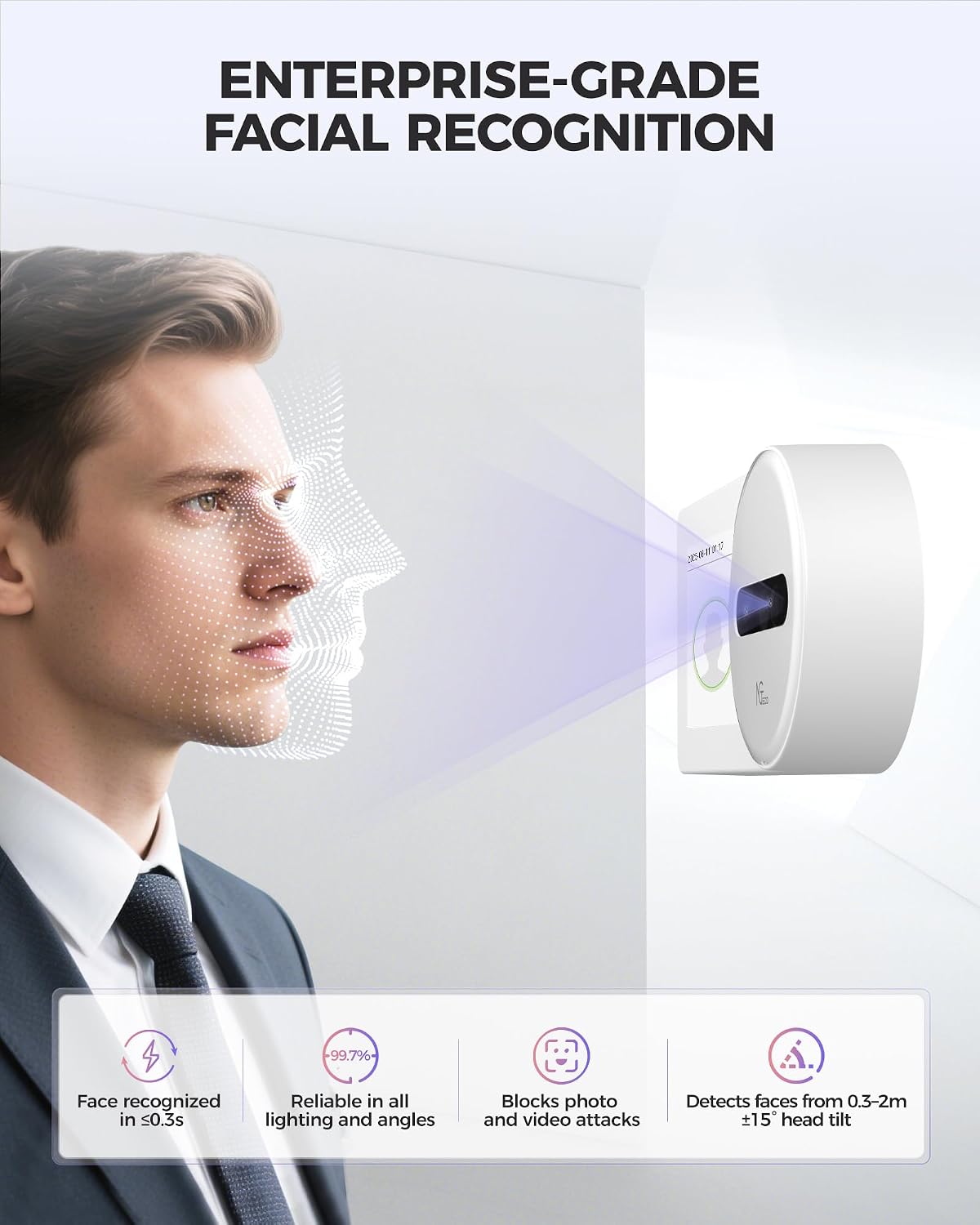
Image: A visual representation of the facial recognition system, highlighting its speed, reliability in various conditions, anti-spoofing capabilities, and detection range.
3. Setup Guide
Follow these steps to set up your NGTeco TC5 time clock and begin managing attendance:
- Unpack and Mount: Carefully remove the TC5 device from its packaging. Choose a suitable location for installation, either wall-mounted or tabletop, ensuring it is within range of your 2.4G WiFi network.
- Power Connection: Connect the provided power adapter to the TC5 device and plug it into a power outlet. The device will power on automatically.
- Network Configuration: On the device screen, follow the prompts to connect to your 2.4G WiFi network. Ensure a stable internet connection for cloud synchronization.
- Download NGTeco Office App/Software: Download the NGTeco Office mobile app from your device's app store (iOS/Android) or the PC software from the official NGTeco website.
- Create Account and Register Device: Open the NGTeco Office app or software. Create a new administrator account if you don't have one. Follow the in-app instructions to register your TC5 device to your account. This typically involves scanning a QR code or entering a device ID.
- Add Employees: Once the device is registered, you can start adding employee profiles. This includes their name, ID, and facial data for recognition.
- Configure Shifts and Rules: Set up attendance rules, shift schedules (fixed, flexible, night shifts), break times, and overtime policies within the NGTeco Office platform.
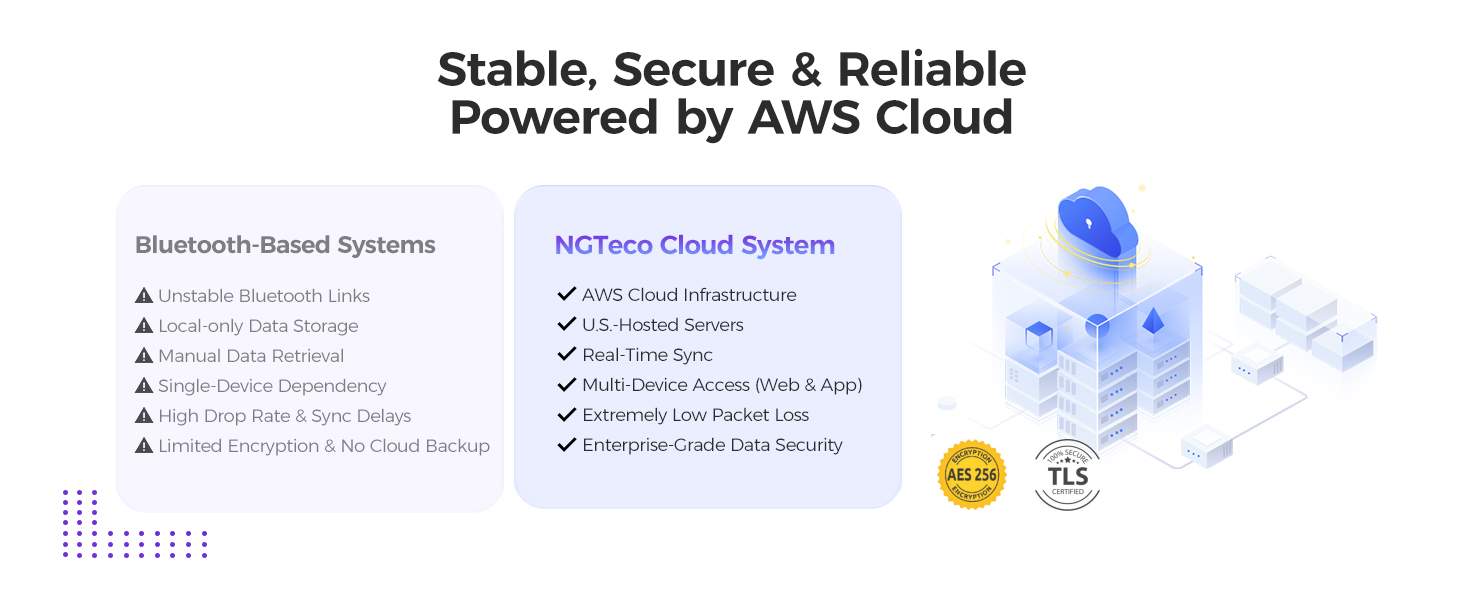
Image: A series of five mobile app screenshots illustrating the quick setup process: Add Site, Create Device, Add Employee, Add Timesheet, and Add Schedule.
4. Operation
4.1 Employee Clock-In/Out
Employees can clock in or out using facial recognition:
- Approach the TC5 device.
- Ensure your face is clearly visible within the recognition area.
- The device will quickly recognize your face and record your attendance. A confirmation message will be displayed.
4.2 Administrator Management via NGTeco Office
Administrators can manage the system using the NGTeco Office mobile app or web software:
- Real-time Monitoring: View live attendance data, including who is currently clocked in or out.
- Employee Management: Add, edit, or remove employee profiles, including their facial data and assigned shifts.
- Shift Scheduling: Adjust and create new shift schedules, assign employees to specific shifts, and manage break rules.
- Report Generation: Generate various attendance reports, such as daily, weekly, or monthly summaries, overtime reports, and exception reports. Reports can be exported for payroll processing.
- System Settings: Configure device settings, network parameters, and security options.
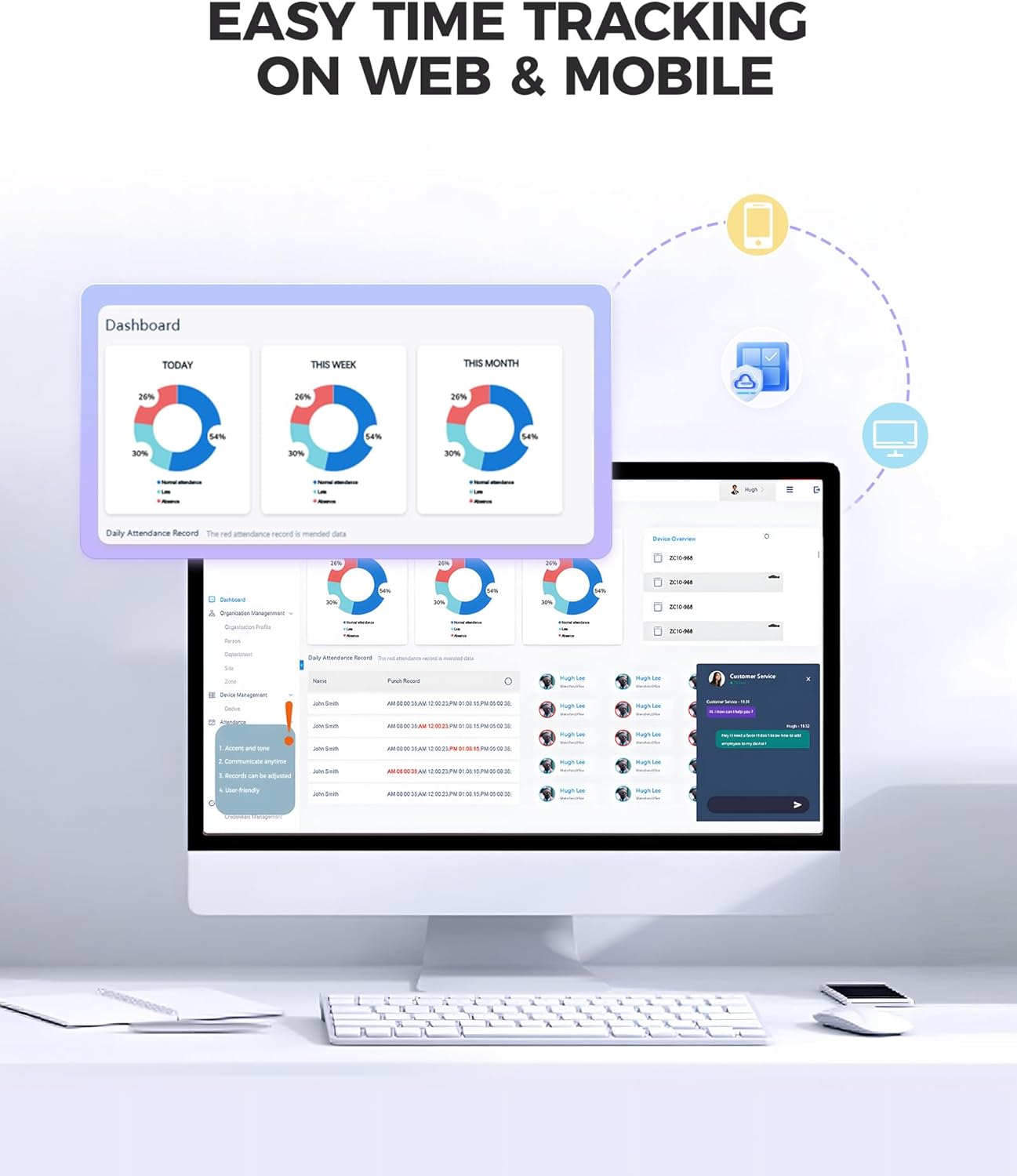
Image: A desktop computer and a smartphone displaying the NGTeco Office dashboard, illustrating easy time tracking and management across web and mobile platforms.
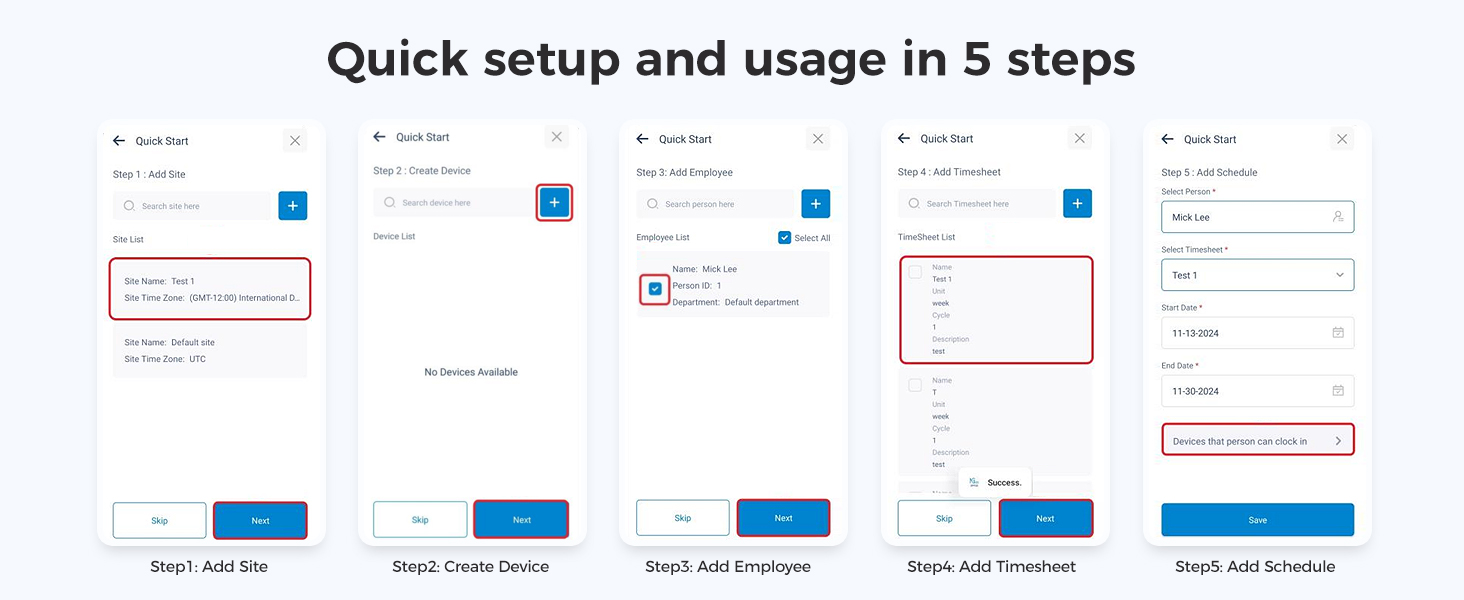
Image: A detailed view of the NGTeco Office software interface, showcasing comprehensive attendance reports and management options for various shift types.

Image: A graphic depicting a laptop and smartphone connected via WiFi, demonstrating the automatic report sending feature of the NGTeco Office system, eliminating manual work.
5. Maintenance
To ensure the longevity and optimal performance of your NGTeco TC5 time clock, follow these maintenance guidelines:
- Cleaning: Regularly wipe the device's screen and sensor area with a soft, dry, lint-free cloth. Avoid using abrasive cleaners or solvents that could damage the surface.
- Software Updates: Periodically check for and install software updates for both the TC5 device and the NGTeco Office app/software. Updates often include performance improvements, new features, and security enhancements.
- Network Stability: Ensure a stable 2.4G WiFi connection to prevent data synchronization issues. If connectivity problems arise, troubleshoot your network or reposition the device.
- Data Backup: While data is stored on AWS Cloud, it is good practice to regularly export and back up important attendance reports locally.
6. Troubleshooting
This section addresses common issues you might encounter with your NGTeco TC5 time clock:
| Problem | Possible Cause | Solution |
|---|---|---|
| Device not powering on | Power adapter disconnected or faulty. | Check power connections. Ensure the adapter is securely plugged into the device and a working power outlet. Try a different outlet. |
| Facial recognition failure | Poor lighting, face not centered, or facial data not enrolled. | Ensure adequate lighting. Position face directly in front of the sensor. Verify employee's facial data is correctly enrolled in the system. Clean the sensor area. |
| No WiFi connection | Incorrect password, out of range, or router issue. | Verify WiFi password. Move the device closer to the router. Restart your WiFi router. Ensure the network is 2.4Ghz. |
| Data not syncing to cloud | No internet connection or cloud service issue. | Check WiFi connection. Ensure the device is registered to your NGTeco Office account. Contact NGTeco support if the issue persists. |
| App/Software not responding | Software glitch or outdated version. | Restart the app/software. Check for and install any available updates. Clear app cache if on mobile. |
If you encounter issues not listed here or require further assistance, please refer to the Warranty & Support section for contact information.

Image: An infographic titled 'Struggling with Attendance?' outlining common problems like confusing setup, missing punch data, payroll disputes, and expensive support, indicating that many small businesses face these issues.
7. Specifications
Below are the technical specifications for the NGTeco TC5 Face Recognition Time Clock:
| Feature | Detail |
|---|---|
| Brand | NGTeco |
| Model Number | TC5 |
| Color | White |
| Display Type | Digital |
| Special Feature | Cloud-Based Time Clock, Face Recognition |
| Product Dimensions | 5.9"W x 2.5"H (5.9*2.5*0.9 IN) |
| Item Weight | 1.1 pounds |
| Power Source | Corded Electric |
| Material | Acrylonitrile Butadiene Styrene (ABS) |
| Frame Material | Premium ABS Plastic |
| Mounting Type | Wall Mount & Tabletop |
| Batteries Required | 1 Nonstandard Battery (not included) |
| Indoor/Outdoor Usage | Indoor |
8. Warranty and Support
8.1 Product Warranty
The NGTeco TC5 Face Recognition Time Clock comes with a 1-year limited warranty from the date of purchase. This warranty covers manufacturing defects and malfunctions under normal use. Please retain your proof of purchase for warranty claims.
8.2 Customer Support
NGTeco provides free lifetime U.S.-based customer service for the TC5 device. Our support team is available to assist with setup, troubleshooting, and any questions you may have.
- Availability: Monday – Friday, 6 AM – 6 PM EST.
- Contact: Please refer to the contact information provided on the NGTeco official website or your product packaging for the most up-to-date support channels (e.g., phone, email, live chat).
- Online Resources: Visit the NGTeco support page for FAQs, video tutorials, and additional resources.

Image: An infographic highlighting NGTeco's support services, including pre-sales consultation, fast response, free troubleshooting, one-on-one support, tailored setup advice, and no fees or appointments.


