1. Introduction
Thank you for choosing the LEFFOT H618 Plus 4K UHD Streaming Device. This device transforms your television into a smart entertainment hub, offering access to a vast array of streaming content, applications, and multimedia features. Powered by Android 14.0, it delivers stunning 4K UHD visuals, robust performance, and versatile connectivity options for an enhanced home entertainment experience.

Image: Overview of the LEFFOT H618 Plus 4K Android TV Box, highlighting its key features such as Android 14, H618 processor, 8K UHD decoding, WiFi 6, Bluetooth 5.4, and voice control capabilities.
2. Safety Information
- Ensure the device is placed on a stable, flat surface to prevent accidental falls.
- Do not expose the device to water, moisture, or extreme temperatures.
- Use only the provided power adapter to avoid damage.
- Keep ventilation openings clear to prevent overheating.
- Do not attempt to open or repair the device yourself. Contact qualified service personnel.
3. Package Contents
Verify that all items are present in the package:
- LEFFOT H618 Plus Streaming Device
- Remote Control (with voice assistant)
- Power Adapter
- HDMI Cable
- User Manual

Image: All items included in the LEFFOT H618 Plus product box, neatly arranged.
4. Product Overview
The LEFFOT H618 Plus is equipped with advanced hardware for optimal performance:
- Processor: Allwinner H618 Quad-Core ARM Cortex A53
- GPU: Mali-G31 MP2
- Memory: 4GB RAM
- Storage: 128GB ROM
- Operating System: Android 14.0
- Connectivity: Dual-band WiFi 6 (2.4G/5G), Bluetooth 5.4, 100M Ethernet

Image: Internal components and wireless capabilities of the LEFFOT H618 Plus, including the Allwinner H618 processor, Bluetooth 5.4, and screen mirroring options.
Ports and Interfaces
The device features various ports for connecting to your TV and other peripherals:
- DC: Power input
- AV: Analog video/audio output
- ETHERNET: Wired network connection
- HD (HDMI): High-definition video/audio output (HDMI 2.0a)
- USB1, USB2: USB 2.0 ports for external storage or peripherals
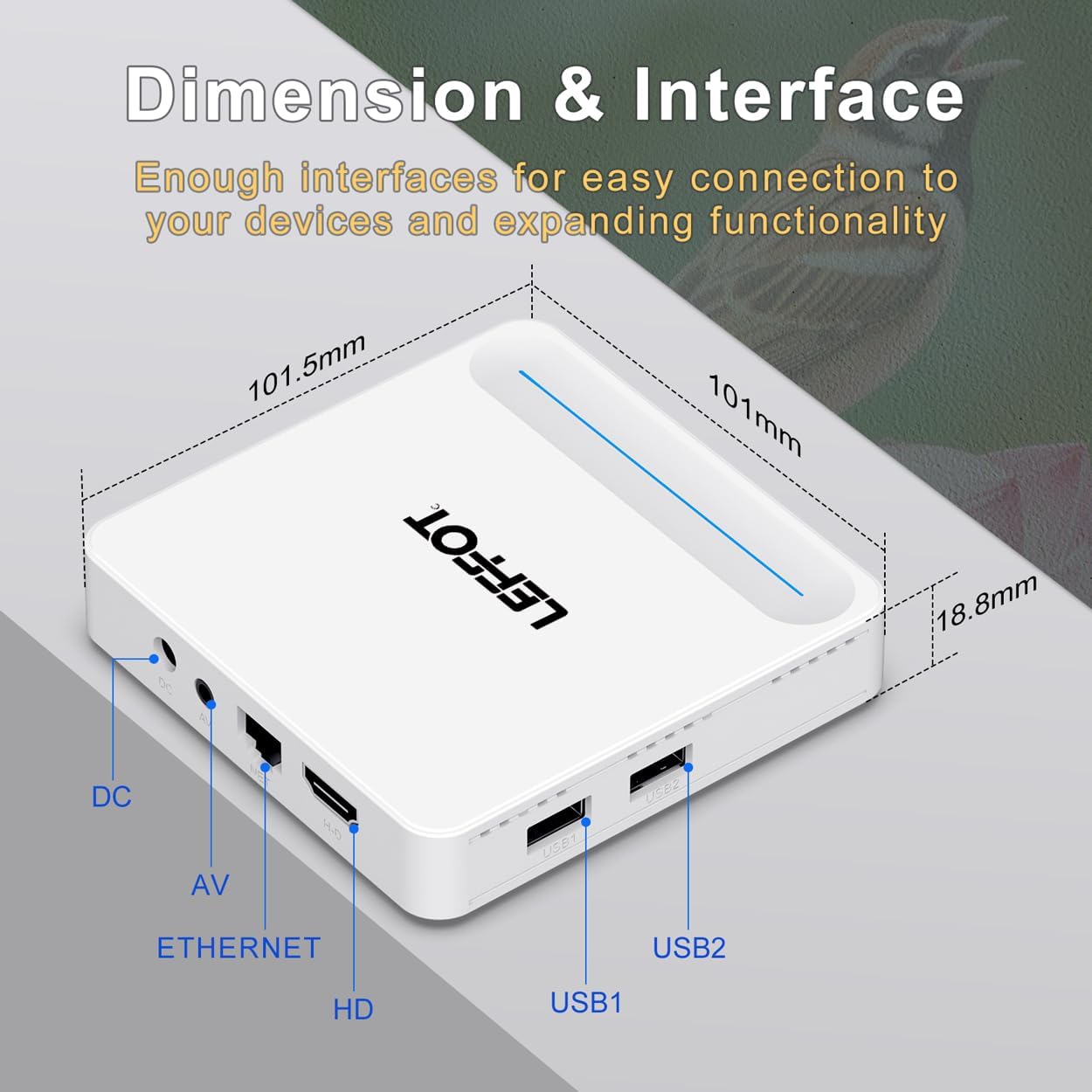
Image: Detailed view of the LEFFOT H618 Plus device, showing its dimensions and the location of all input/output ports.
5. Setup Guide
Follow these steps to set up your LEFFOT H618 Plus device:
5.1. Connect to TV
- Connect one end of the HDMI cable to the HD port on the LEFFOT H618 Plus.
- Connect the other end of the HDMI cable to an available HDMI input port on your television.
- Turn on your TV and select the corresponding HDMI input source.
5.2. Connect to Power
- Plug the power adapter into the DC port on the device.
- Plug the other end of the power adapter into a wall outlet. The device will automatically power on.
5.3. Connect to Internet
You can connect to the internet via Wi-Fi or Ethernet.
- Wi-Fi: During initial setup, select your Wi-Fi network from the list and enter the password. The device supports dual-band Wi-Fi 6 (2.4G/5G) for stable connections.
- Ethernet: Connect an Ethernet cable from your router to the ETHERNET port on the device. The connection will be established automatically.

Image: Visual representation of the device's advanced Wi-Fi 6 and Ethernet connectivity for high-speed internet access.
5.4. Initial Setup Wizard
After connecting power and turning on your TV, the device will guide you through an initial setup process:
- Select your preferred language.
- Connect to your Wi-Fi network (if not using Ethernet).
- Sign in with your Google account to access Google Play Store and other Google services.
- Follow on-screen prompts to complete the setup.

Image: A visual guide demonstrating the simple three-step process to connect the device to your TV, internet, and start streaming.
6. Operating Instructions
6.1. Remote Control Usage
The included Bluetooth 5.4 remote control features Google Assistant for convenient voice commands.
- Navigation: Use the directional pad to move through menus and select items.
- Voice Assistant: Press the Google Assistant button and speak into the remote to search for content, launch apps, adjust volume, or control smart home devices.
- Volume Control: Use the dedicated volume buttons.
- Home/Back: Navigate back to the home screen or previous menu.

Image: The Bluetooth voice remote control, illustrating its integration with Google Assistant for hands-free operation.
6.2. Navigating the Android 14 Interface
The LEFFOT H618 Plus runs on Android 14.0, providing a user-friendly interface:
- Home Screen: Displays your favorite apps, recommended content, and quick access to settings.
- Google Play Store: Access over 5000+ applications, including popular streaming services, games, and utilities.
- Settings: Customize network, display, sound, and other device preferences.
6.3. Streaming Content
Enjoy high-quality streaming with support for advanced video technologies:
- 4K UHD & 8K Decoding: Experience crystal-clear visuals with support for 4K@60FPS playback and 8K@22FPS video decoding.
- HDR10: Benefit from enhanced contrast and vibrant colors with HDR10 compliance, bringing your content to life.

Image: Visual comparison highlighting the superior detail and color reproduction offered by 8K Ultra HD decoding and HDR10 technology.
6.4. Screen Casting
Share content from your mobile devices to your TV:
- Airplay: Stream content wirelessly from Apple devices.
- Miracast: Mirror your Android device's screen to the TV.
7. Maintenance
To ensure the longevity and optimal performance of your device:
- Cleaning: Use a soft, dry cloth to clean the device. Avoid liquid cleaners or abrasive materials.
- Software Updates: Periodically check for and install system updates to ensure you have the latest features and security patches. Navigate to Settings > About > System Update.
- Ventilation: Ensure the device has adequate airflow and is not covered, to prevent overheating.
8. Troubleshooting
If you encounter issues with your LEFFOT H618 Plus, refer to the following common solutions:
- No Power:
- Check if the power adapter is securely connected to the device and the wall outlet.
- Ensure the wall outlet is functional.
- No Signal on TV:
- Verify the HDMI cable is securely connected to both the device and the TV.
- Ensure your TV is set to the correct HDMI input source.
- Wi-Fi Connection Issues:
- Restart your Wi-Fi router and the streaming device.
- Ensure the Wi-Fi password is entered correctly.
- Move the device closer to the router or use an Ethernet cable for a more stable connection.
- Slow Performance/Buffering:
- Check your internet speed. A stable broadband connection is required for 4K streaming.
- Close unused applications running in the background.
- Clear cache for frequently used apps via Settings > Apps > [App Name] > Clear Cache.
- Consider a factory reset if issues persist (Settings > System > Reset options > Erase all data - this will delete all data).
- Remote Control Not Responding:
- Ensure the remote has fresh batteries.
- Re-pair the Bluetooth remote if necessary (refer to device settings for Bluetooth pairing).
9. Specifications
| Brand | LEFFOT |
| Model Name | H618 Plus |
| Operating System | Android 14.0 |
| Processor | Allwinner H618 Quad-Core ARM Cortex A53 |
| GPU | Mali-G31 MP2 |
| RAM | 4GB |
| ROM | 128GB |
| Resolution Support | 8K (decoding), 4K@60FPS (playback) |
| HDR Support | HDR10 |
| Wi-Fi | Dual-band Wi-Fi 6 (2.4G & 5G) |
| Bluetooth | BT 5.4 |
| Ethernet | 100M |
| Ports | HDMI 2.0a, 2x USB 2.0, AV, DC, Ethernet |
| Special Features | Google Assistant Voice Remote, Airplay, Miracast |
| Product Dimensions | 3.2 x 3.2 x 0.67 inches |
| Item Weight | 4.1 ounces |
10. Warranty and Support
For warranty information and technical support, please refer to the warranty card included in your package or visit the official LEFFOT website. Our customer service team is available to assist you with any questions or issues you may encounter.


