
1. Introduction
This manual provides essential instructions for setting up, operating, and maintaining your LEFFOT H618 Plus 4K Ultra HD Streaming Device. Please read this guide thoroughly before use to ensure proper functionality and to maximize your entertainment experience.
2. Safety Information
- Ensure the device is placed on a stable, flat surface to prevent accidental falls.
- Do not expose the device to water, moisture, or extreme temperatures.
- Avoid blocking ventilation openings to prevent overheating.
- Use only the provided power adapter to prevent damage.
- Keep the device and accessories out of reach of children.
- Do not attempt to disassemble or repair the device yourself. Contact qualified service personnel for assistance.
3. Package Contents
Verify that all items are present in the package:
- LEFFOT H618 Plus Streaming Device
- Voice Remote Control
- Power Adapter
- HDMI Cable
- User Manual

Figure 3.1: Package Contents
4. Setup Instructions
4.1 Connecting the Device
- Connect to TV: Plug one end of the HDMI cable into the HDMI port on the LEFFOT H618 Plus device and the other end into an available HDMI input on your television.
- Connect Power: Connect the power adapter to the DC port on the device and then plug the adapter into a wall outlet.
- Power On: The device should power on automatically. If not, press the power button on the remote control.

Figure 4.1: Connection Overview
4.2 Remote Control Setup
- Insert Batteries: Open the battery compartment on the back of the voice remote control and insert two AAA batteries (included), ensuring correct polarity.
- Pairing: The remote control should automatically pair with the device upon first use. If not, follow the on-screen instructions or press and hold the pairing button (usually located inside the battery compartment or on the side of the remote) until the indicator light flashes.
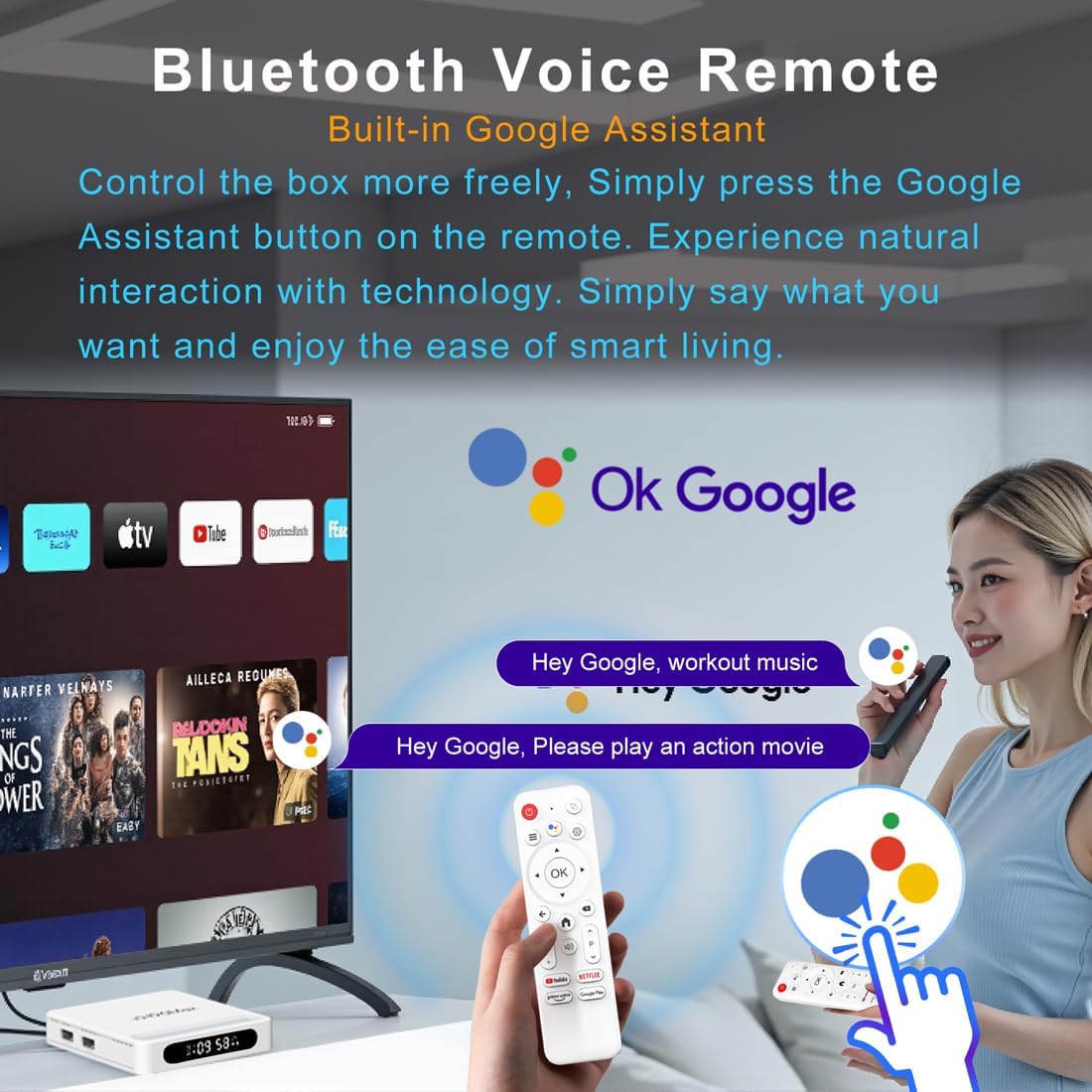
Figure 4.2: Voice Remote Control
4.3 Initial Device Configuration
Follow the on-screen prompts to complete the initial setup, which typically includes:
- Language selection.
- Connecting to a Wi-Fi network or Ethernet.
- Signing in with your Google account.
- Installing essential applications.
5. Operating Instructions
5.1 Navigation and Interface
Use the directional pad (D-pad) on your remote to navigate through the Android TV interface. The 'OK' button confirms selections, 'Back' returns to the previous screen, and 'Home' takes you to the main screen.
5.2 Voice Remote with Google Assistant
Press the Google Assistant button on your remote and speak your commands. You can search for content, open apps, control playback, and more using your voice.
5.3 Accessing Applications
The device comes pre-loaded with Google Play, allowing access to over 5000+ applications. Navigate to the 'Apps' section on the home screen to browse, download, and manage your applications.

Figure 5.1: Accessing Apps via Google Play
5.4 4K UHD Playback and HDR10
The LEFFOT H618 Plus supports 8K@22fps decoding and 4K@60fps playback with HDR10. Ensure your television is 4K HDR compatible and that you are streaming 4K HDR content for the best visual experience.

Figure 5.2: 4K UHD and HDR10 Visuals
5.5 Screen Casting
Utilize the built-in Airplay and Miracast features to cast content from your smartphone or tablet directly to your TV screen.
6. Specifications
| Feature | Description |
|---|---|
| Brand | LEFFOT |
| Model Name | H618 Plus |
| Operating System | Android 14 |
| CPU | Allwinner H618 Quad-Core ARM Cortex A53 |
| GPU | Mali-G31 MP2 |
| RAM | 2GB |
| ROM | 16GB |
| Video Decoding | 8K@22fps, 4K@60fps with HDR10 |
| Connectivity | Dual-band WiFi 6 (2.4G/5G), 100M Ethernet, Bluetooth 5.4 |
| Ports | HDMI 2.0a, USB 2.0 (x2), AV, DC |
| Special Features | Voice Remote with Google Assistant, Airplay, Miracast |
| Dimensions | 3.2 x 3.2 x 0.67 inches |
| Weight | 4.1 ounces |

Figure 6.1: Key Features Overview
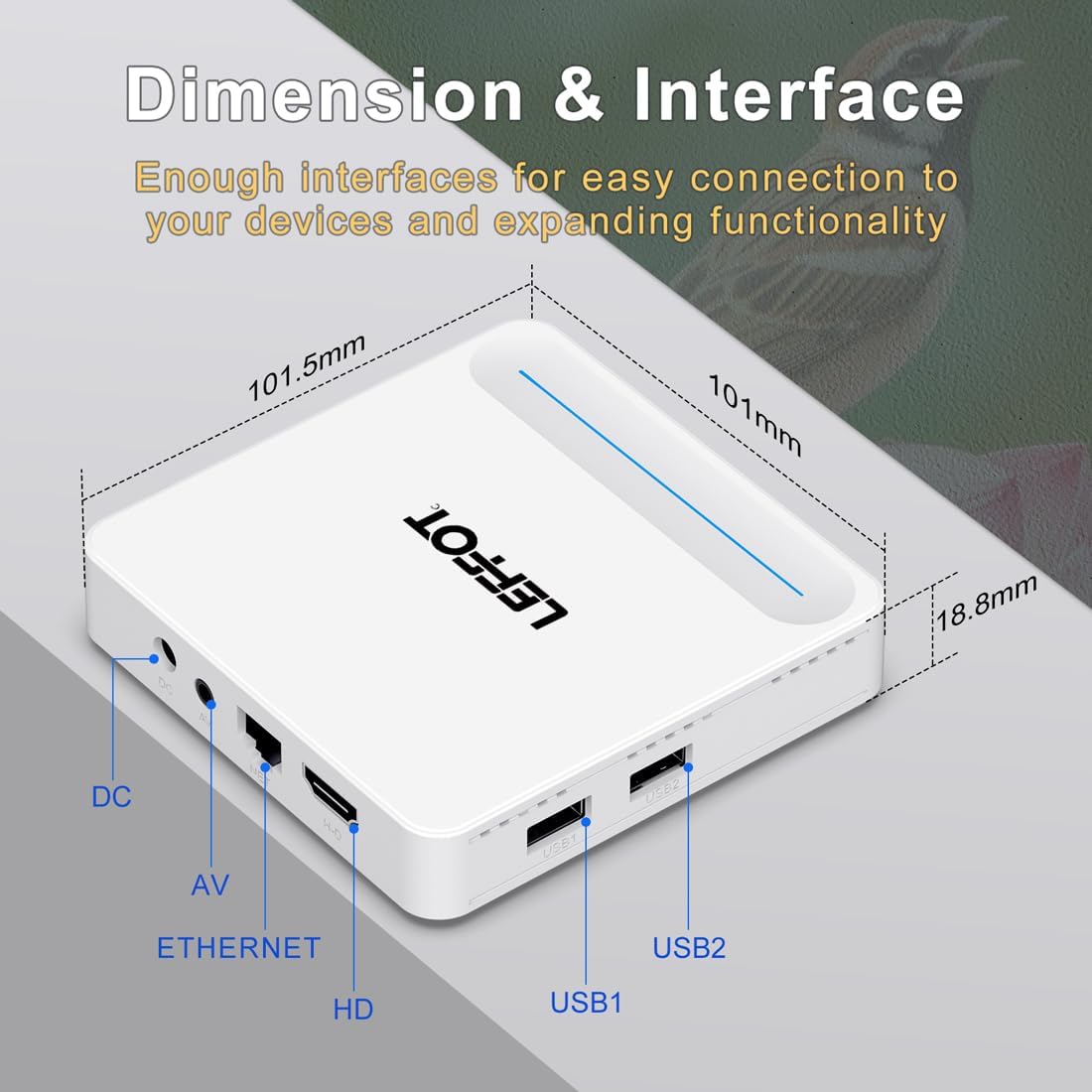
Figure 6.2: Device Dimensions and Interface
7. Troubleshooting
7.1 No Power / Device Not Turning On
- Check if the power adapter is securely connected to the device and the power outlet.
- Ensure the power outlet is functional. Try plugging another device into the same outlet.
- Press the power button on the remote control or the device itself.
7.2 No Signal on TV Screen
- Verify that the HDMI cable is securely connected to both the device and the TV.
- Ensure your TV is set to the correct HDMI input source.
- Try using a different HDMI cable or a different HDMI port on your TV.
- Restart the streaming device and your TV.
7.3 Remote Control Not Responding
- Check and replace the batteries in the remote control.
- Ensure there are no obstructions between the remote and the device.
- Re-pair the remote control with the device by following the instructions in Section 4.2.
7.4 Buffering or Slow Performance
- Check your internet connection speed. A stable and fast connection is crucial for streaming 4K content.
- If using Wi-Fi, try moving the device closer to your router or connecting via an Ethernet cable for a more stable connection.
- Close any unused applications running in the background on the device.
- Clear the cache of streaming applications.
- Restart your router, modem, and the streaming device.
8. Maintenance
- Clean the device regularly with a soft, dry cloth. Do not use liquid cleaners or aerosols.
- Keep the device free from dust and debris, especially around ventilation areas.
- Store the device in a cool, dry place when not in use for extended periods.
9. Warranty and Support
For warranty information and technical support, please refer to the documentation included with your purchase or visit the official LEFFOT website. Keep your proof of purchase for warranty claims.

