Introduction
This manual provides detailed instructions for the setup, operation, and maintenance of your ATTACK SHARK X85PRO 75% Wireless Mechanical Keyboard. Please read this manual thoroughly before using the product to ensure optimal performance and longevity.

Image: The ATTACK SHARK X85PRO keyboard showcasing its 75% layout and RGB lighting.
Package Contents
Verify that all items listed below are included in your package:
- X85PRO Keyboard x1
- 2.4G Receiver x1
- Switch x2 (extra switches)
- 2-in-1 Key Puller x1
- Type-C Cable x1 (Pro Coiled Keyboard Cable)
- Manual x1
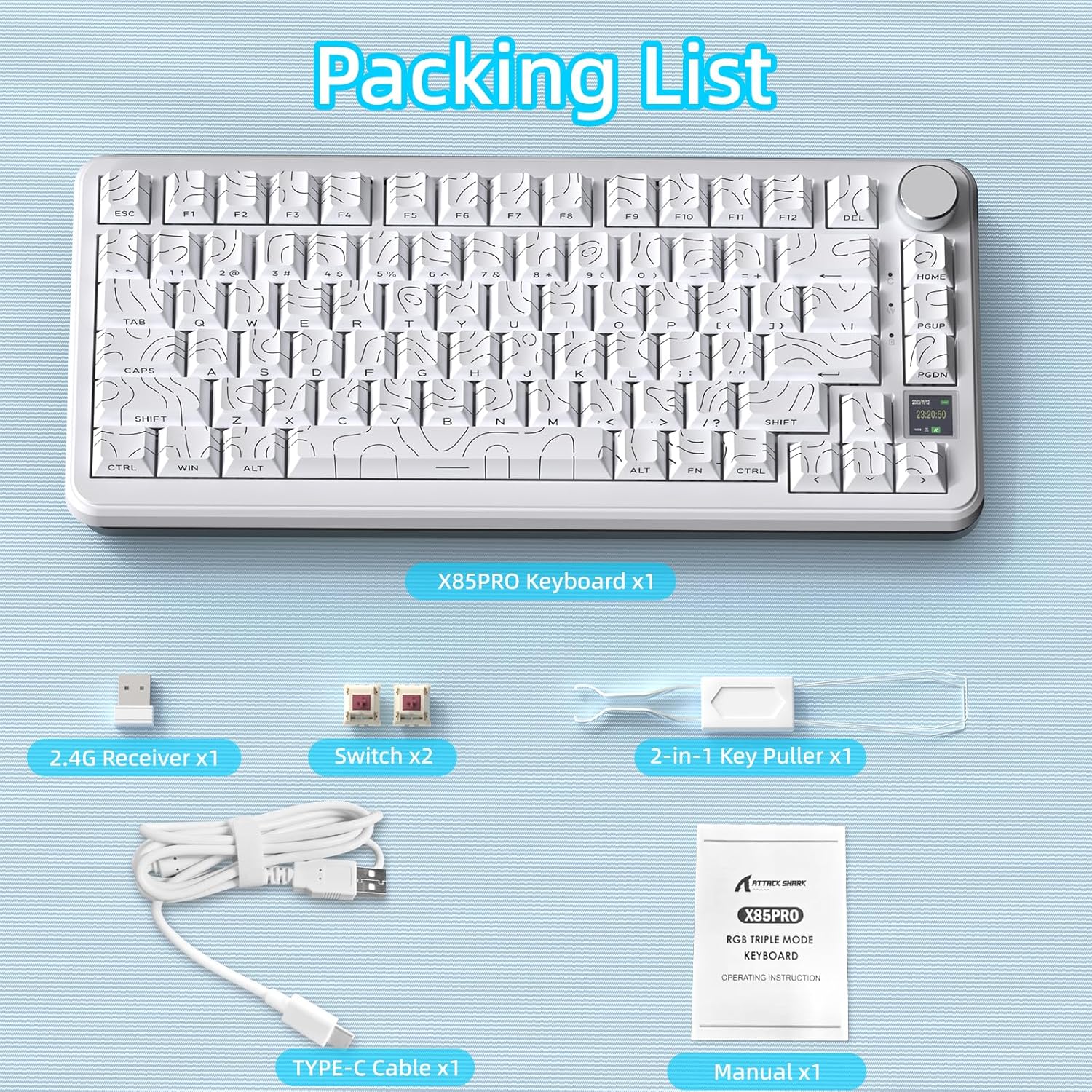
Image: Contents of the ATTACK SHARK X85PRO package, including the keyboard, USB receiver, extra switches, key puller, USB-C cable, and manual.
Product Overview
The ATTACK SHARK X85PRO is a 75% wireless mechanical keyboard designed for gaming and productivity. It features a compact layout, a multi-function TFT smart display, and a CNC knob for enhanced control.
- 75% ANSI Layout: 81-key compact design saves desk space.
- Upgraded Gasket-Mount: 5-layer padding for reduced noise and a smooth typing feel.
- TFT Smart Display & CNC Knob: 1.14-inch color screen displays battery, time, connection mode, and OS status. The knob allows customization of GIFs, language, volume, RGB settings, and macros.
- Triple Mode Connectivity: Supports Bluetooth 5.0 (3 channels), 2.4GHz wireless, and USB-C wired connections.
- Hot-Swappable Switches: Compatible with 3-pin/5-pin switches, equipped with pre-lubed Blueberry linear switches.
- Programmable RGB: South-facing LEDs with customizable lighting effects via QMK cloud driver or Fn+ shortcut keys.
- 4000mAh Battery: Provides extended usage time.
- Contour Side Print Shine-through PBT Keycaps: Durable keycaps with gradient side printing for enhanced aesthetics and light transmission.
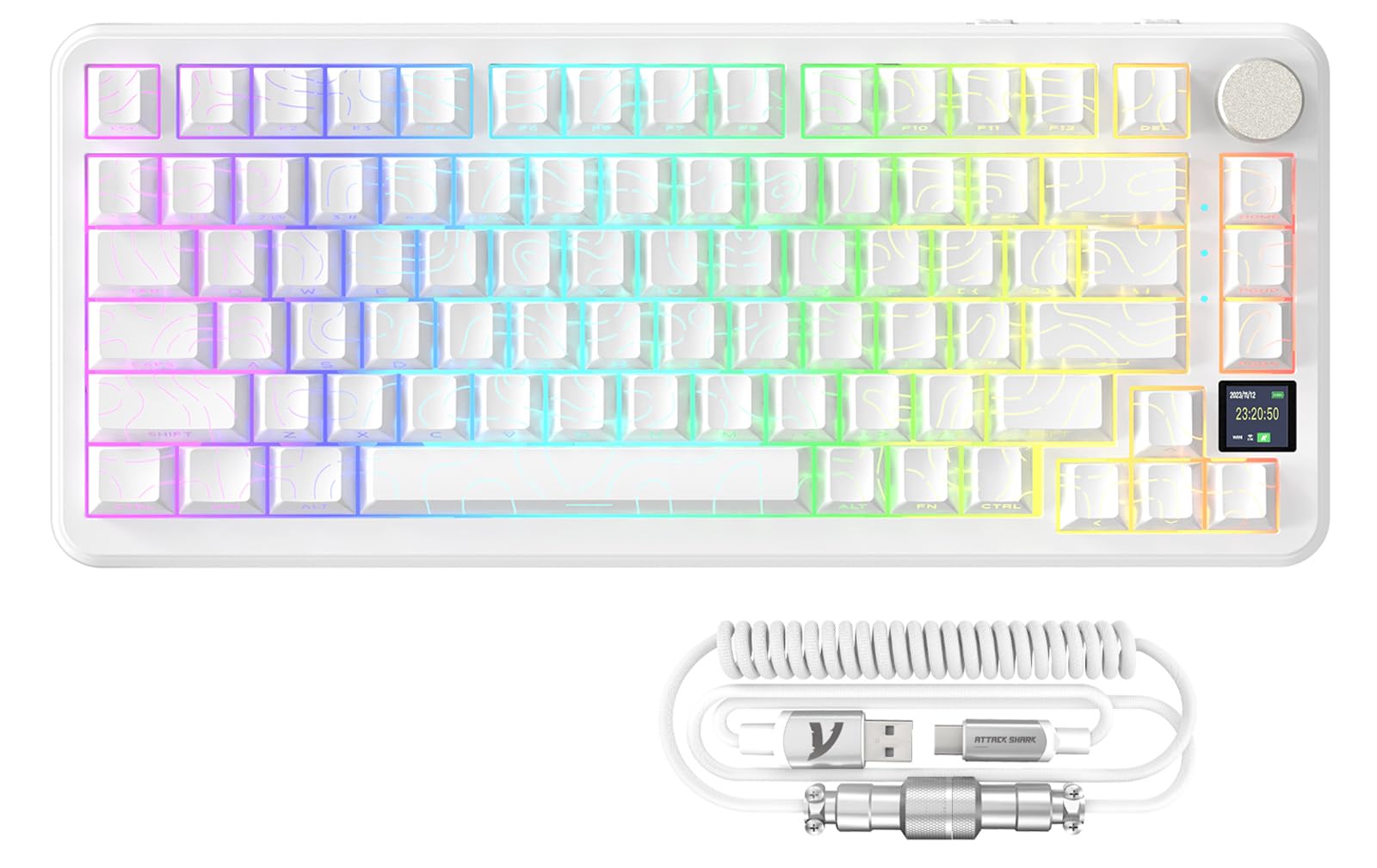
Image: Overview of the ATTACK SHARK X85PRO keyboard, highlighting its 75% layout, multi-mode connectivity, RGB backlight, hot-swappable design, 4000mAh battery, gasket structure, custom driver support, Win/Mac compatibility, full keys anti-ghosting, and TFT screen.
Gasket Structure Explained
The X85PRO features an advanced 5-layer gasket-mount design. This structure incorporates sound-absorbing foam layers between the top case, switches, PCB, and base. This design minimizes acoustic resonance and provides a softer, more consistent typing feel, often described as "creamy" or "thocky."
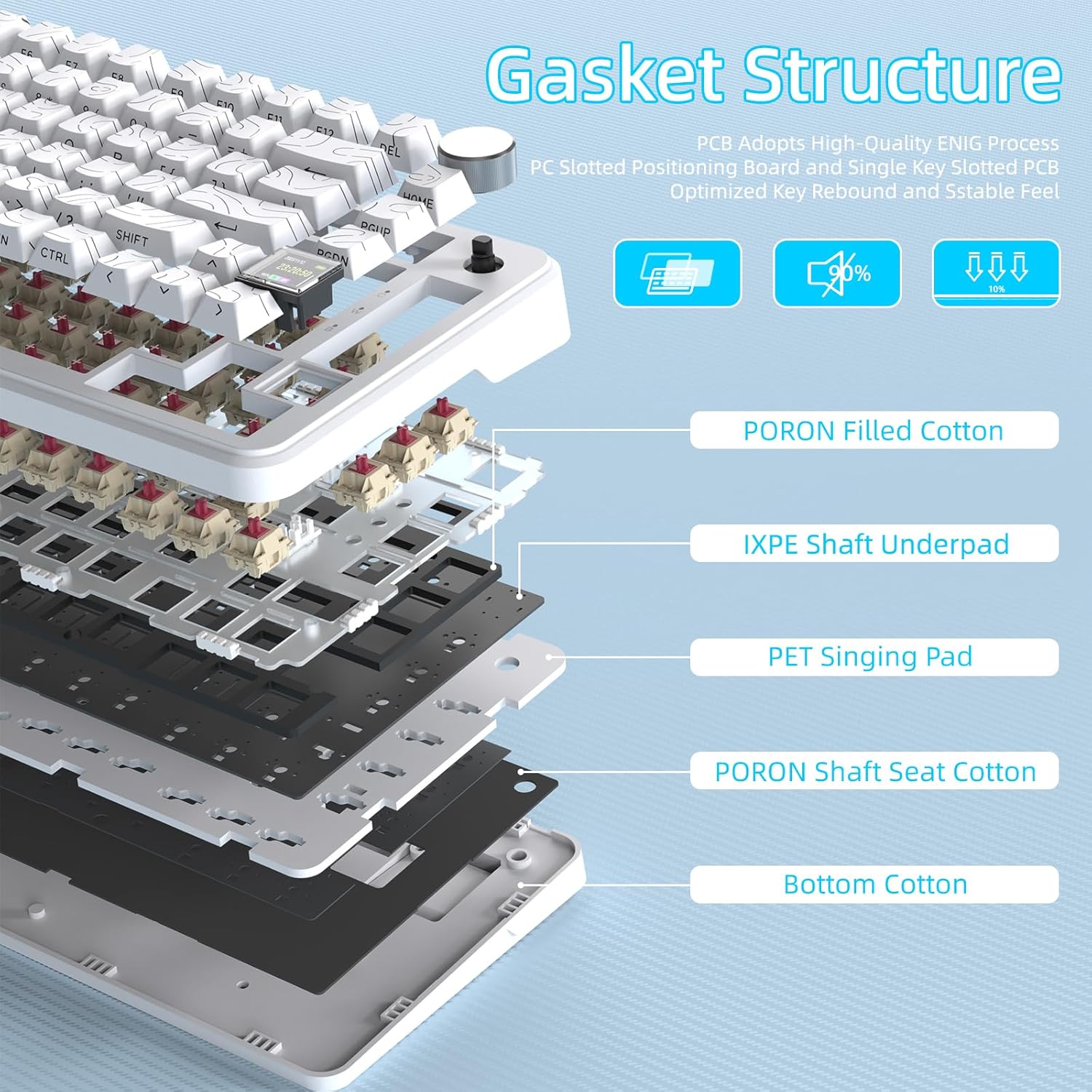
Image: A cutaway diagram showing the internal 5-layer gasket structure of the ATTACK SHARK X85PRO keyboard, including PORON filled cotton, IXPE shaft underpad, PET singing pad, PORON shaft seat cotton, and bottom cotton, designed for optimized key rebound and stable feel.
Setup
Connecting Your Keyboard
The X85PRO keyboard supports three connection modes: Wired (USB-C), 2.4GHz Wireless, and Bluetooth.
1. Wired Connection (USB-C)
- Connect the provided USB-C cable to the keyboard's USB-C port.
- Connect the other end of the cable to an available USB-A port on your computer.
- The keyboard will automatically be recognized and ready for use. This mode also charges the keyboard battery.
2. 2.4GHz Wireless Connection
- Locate the 2.4G USB receiver included in the package.
- Plug the 2.4G receiver into an available USB-A port on your computer.
- Turn on the keyboard using the physical switch located on the top edge.
- Switch the keyboard to 2.4GHz mode using the mode selection knob or key combination (refer to the Operating Instructions section for details). The TFT display will indicate the 2.4G connection status.
3. Bluetooth Connection
- Turn on the keyboard using the physical switch.
- Switch the keyboard to Bluetooth mode using the mode selection knob or key combination. The keyboard supports up to three Bluetooth channels (BT1, BT2, BT3).
- To pair, press and hold the desired Bluetooth channel key (e.g., Fn + 1 for BT1) until the indicator light flashes rapidly, indicating pairing mode.
- On your computer or device, open Bluetooth settings and search for "ATTACK SHARK X85PRO" (or similar).
- Select the keyboard to pair. Once connected, the indicator light will stop flashing.
- Repeat for additional Bluetooth channels if connecting to multiple devices.

Image: The ATTACK SHARK X85PRO keyboard demonstrating its tri-mode connection capabilities (Type-C, 2.4GHz, Bluetooth) with a laptop and smartphone.
Operating Instructions
TFT Smart Display & Knob Functions
The 1.14-inch TFT color screen provides real-time information and allows for quick adjustments using the CNC knob.
- Home Screen: Displays date, time, power, system (Win/Mac), connection mode, and Lock WIN/Uppercase/Lowercase status.
- Clickable Scroll Wheel: Rotate the knob to navigate menus or adjust values (e.g., volume, RGB brightness). Press the knob to confirm selections.
- Customization: Through the OMK Cloud Driver, you can customize GIFs, language, volume, RGB brightness/effects/speed, and macros.

Image: Detailed view of the ATTACK SHARK X85PRO's multi-function knob and TFT display, showing options for connected mode, lighting effects, language choice, and light color.
RGB Lighting Control
The keyboard features programmable RGB lighting with south-facing LEDs. You can customize lighting effects using the knob, Fn+ shortcut keys, or the QMK cloud driver.
- Brightness Adjustment: Use the knob or specific Fn+ keys to increase or decrease RGB brightness.
- Effect Selection: Cycle through eight monochrome backlights, one full-color backlight, and eighteen light flow effects.
- Speed Adjustment: Modify the speed of dynamic lighting effects.
Hot-Swappable Switches
The X85PRO is equipped with a 3/5-pin hot-swappable PCB, allowing you to easily change switches without soldering. This enables customization of typing feel and sound.
- Use the included 2-in-1 key puller to carefully remove the keycap from the desired switch.
- Use the switch puller end of the tool to gently grip and pull the switch vertically out of the PCB.
- Align the pins of the new switch with the holes on the PCB and press firmly until it clicks into place. Ensure pins are not bent.
- Replace the keycap.

Image: Illustration of the hot-swappable feature of the ATTACK SHARK X85PRO keyboard, showing keycaps and switches being removed and replaced, along with details of the Blueberry linear switch.
QMK Cloud Driver Customization
For advanced customization, download and install the QMK cloud driver (or OMK Cloud Driver as mentioned in feature bullets) from the official ATTACK SHARK website. This software allows you to:
- Edit macros for complex key sequences.
- Fine-tune RGB effects and create custom lighting profiles.
- Set custom GIFs for the TFT display.
- Remap keys and customize button functions.

Image: A computer screen displaying the QMK software interface, illustrating options for macro editing, RGB effect customization, custom button assignments, and GIF settings for the ATTACK SHARK X85PRO keyboard.
Maintenance
- Cleaning: Use a soft, dry cloth to wipe the keyboard surface. For deeper cleaning, remove keycaps using the provided puller and use compressed air to clear debris from between switches.
- Battery Care: To prolong battery life, avoid fully discharging the keyboard frequently. Charge the keyboard using the provided USB-C cable.
- Storage: Store the keyboard in a cool, dry place away from direct sunlight and extreme temperatures.
- Cable Management: The included coiled cable is designed for durability. Avoid excessive stretching or sharp bends to prevent damage.

Image: An infographic detailing the long-lasting 4000mAh battery life of the ATTACK SHARK X85PRO keyboard, showing estimated usage times with and without RGB lighting, and indicating wired connection for charging.
Troubleshooting
| Problem | Possible Cause | Solution |
|---|---|---|
| Keyboard not responding (Wired) | Loose cable connection, faulty USB port, driver issue. | Ensure USB-C cable is securely connected. Try a different USB port or computer. Reinstall keyboard drivers if necessary. |
| 2.4GHz wireless not connecting | Receiver not plugged in, keyboard not in 2.4GHz mode, low battery. | Plug in the 2.4G receiver. Switch keyboard to 2.4GHz mode. Charge the keyboard. |
| Bluetooth pairing failure | Keyboard not in pairing mode, device Bluetooth off, interference. | Ensure keyboard is in Bluetooth pairing mode (flashing indicator). Check device Bluetooth settings. Move closer to the device. |
| RGB lighting not working/customizing | RGB turned off, incorrect settings, software issue. | Adjust brightness/effects using knob or Fn+ keys. Check QMK driver settings. Ensure keyboard is charged. |
| TFT display not showing information | Display off, low battery, software glitch. | Ensure keyboard is powered on and charged. Restart the keyboard. Check QMK driver settings for display options. |
Specifications
| Feature | Detail |
|---|---|
| Model | X85PRO |
| Layout | 75% ANSI (81 keys) |
| Connectivity | Bluetooth 5.0 (3 channels), 2.4GHz Wireless, USB-C Wired |
| Switches | Pre-lubed Blueberry Linear (Hot-swappable 3/5-pin) |
| Keycaps | OEM Profile PBT, Contour Side-Print Shine-through |
| Battery Capacity | 4000mAh |
| Display | 1.14-inch TFT Color Screen |
| RGB Lighting | Programmable, South-Facing LEDs |
| Compatibility | Windows, macOS, Laptop, PC, Tablet |
| Dimensions | 13.98 x 7.24 x 1.97 inches (Package) |
| Item Weight | 3.54 pounds |
| Manufacturer | ATTACK SHARK |
| Brand | MAGIC-REFINER |
| UPC | 752010613540 |
Warranty & Support
For warranty information and technical support, please refer to the official MAGIC-REFINER website or contact their customer service directly. Keep your purchase receipt for warranty claims.
Online Resources:
- Visit the MAGIC-REFINER Store on Amazon for product updates and additional information.
Product Video
Watch this official product video for a visual overview of the ATTACK SHARK X85PRO 75% Wireless Mechanical Keyboard's features and design.
Video: An official video showcasing the ATTACK SHARK X85PRO 75% Wireless Mechanical Keyboard, highlighting its design, RGB lighting, and overall aesthetic.


