
1. Introduction
The Tiqvi 10-inch Digital Photo Frame is designed to help you easily store and share your most cherished memories. Featuring a vibrant IPS touch screen and seamless WiFi connectivity, this frame allows you to receive photos and videos directly from family and friends via the Frameo app. With ample internal storage and a rechargeable battery, it offers a convenient and elegant way to display your digital photos.
Key Features:
- WiFi & Frameo App Compatibility: Effortlessly share photos and videos through the Frameo application, supporting up to 500 users.
- Large Storage Capacity: Equipped with expandable internal memory, capable of storing thousands of photos and videos.
- Clear and Bright Display: The IPS screen delivers vivid colors and sharp details for a beautiful viewing experience of your memories.
- Intuitive Touch Control: Provides easy and intuitive navigation for all users.
- Elegant and Practical Design: Includes a stand, offers wall-mounting options, and features an energy-efficient design.
2. What's in the Box
Please check the package contents to ensure all items are present:
- Tiqvi 10-inch Digital Photo Frame (with WiFi and Frameo App)
- Power Adapter
- Desktop Stand
- User Manual (this document)
3. Product Overview
Familiarize yourself with the components of your digital photo frame.
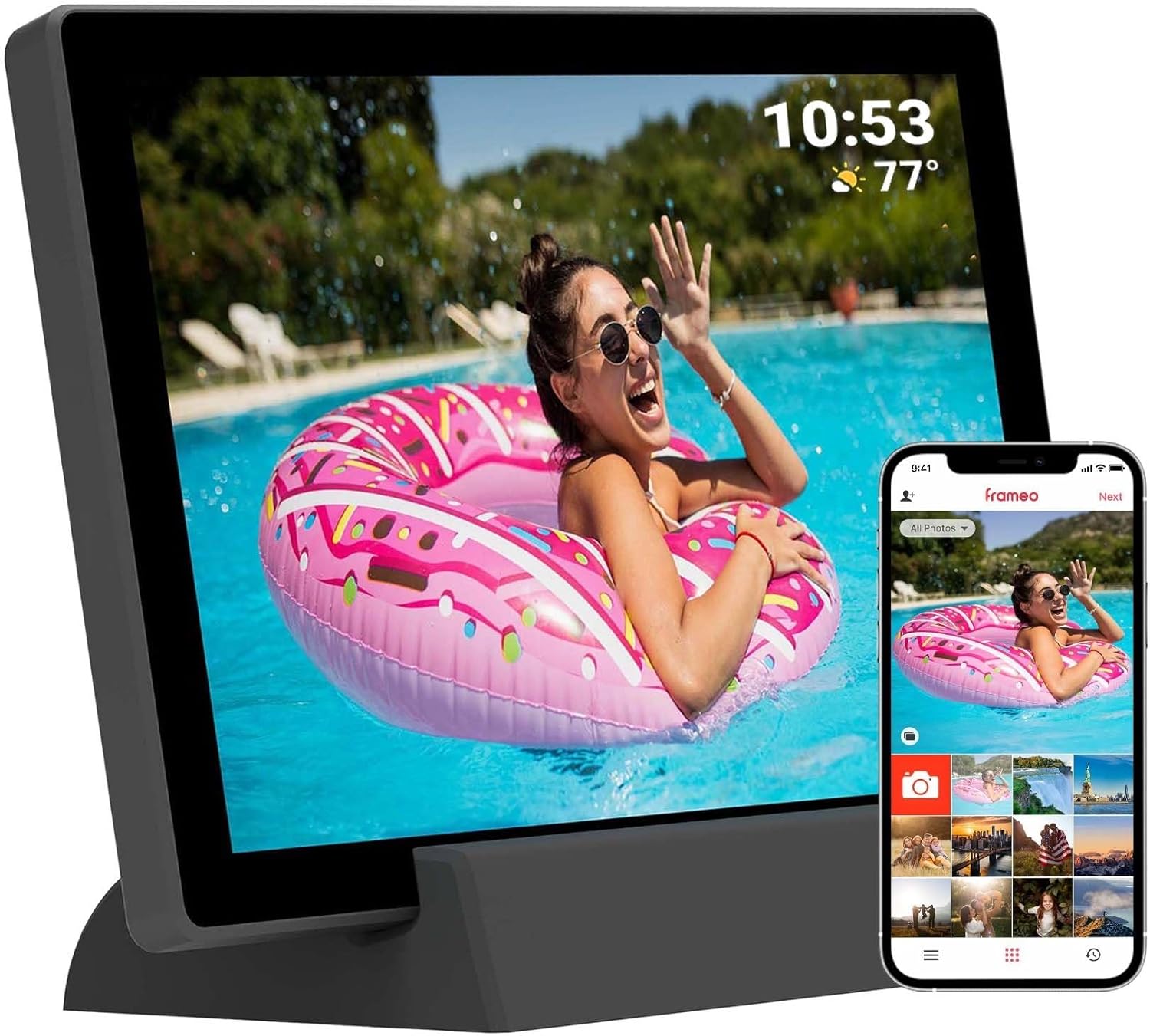
Figure 3.1: Front view of the Tiqvi 10-inch Digital Photo Frame, showcasing its display and the accompanying Frameo app on a smartphone. The frame is designed for easy photo sharing and display.

Figure 3.2: The Tiqvi 10-inch Digital Photo Frame positioned on a surface, illustrating its dimensions and how it fits into a home environment. A "10"" label indicates its screen size.
Physical Components:
- 10-inch IPS Touch Screen: Main display for photos and videos, with touch functionality for navigation.
- Power Button: Located on the back or side, used to turn the frame on/off or put it to sleep.
- Power Port: For connecting the power adapter.
- MicroSD Card Slot: For expanding storage or importing photos directly.
- Reset Hole: A small pinhole for factory reset.
- Built-in Stand/Mounting Holes: For desktop placement or wall mounting.
4. Setup
4.1 Initial Power On and Basic Settings
- Charge the Frame: Before first use, connect the power adapter to the frame's power port and plug it into a wall outlet. Allow the frame to charge fully. The frame has a 3000mAh rechargeable battery.
- Power On: Press and hold the power button on the back of the frame for a few seconds until the screen lights up.
- Language Selection: Follow the on-screen prompts to select your preferred language.
- Time Zone and Date: Set the correct time zone, date, and time.
4.2 Connecting to Wi-Fi
- From the initial setup wizard or the settings menu, select "Wi-Fi".
- The frame will scan for available Wi-Fi networks. Select your network from the list.
- Enter your Wi-Fi password using the on-screen keyboard and tap "Connect".
- Once connected, a Wi-Fi icon will appear on the status bar.
4.3 Setting Up the Frameo App
The Frameo app is essential for sending photos and videos to your digital frame.
- Download the App: On your smartphone or tablet, download the "Frameo" app from the App Store (iOS) or Google Play Store (Android).
- Create an Account: Open the Frameo app and follow the instructions to create a new account or log in if you already have one.
- Connect to Your Frame:
- On your Tiqvi frame, go to "Add Friend" or "Connect to App" in the settings.
- A unique code will be displayed on the frame's screen.
- In the Frameo app on your phone, enter this code to link your device to the frame.
- Add Users/Friends: You can invite family and friends to send photos to your frame by sharing the unique code with them. The frame supports adding up to 500 users.
5. Operating Instructions
5.1 Navigating the Touch Screen
The Tiqvi frame features an intuitive touch screen interface:
- Tap: To select an item or open a menu.
- Swipe: To scroll through photos or menu options.
- Pinch-to-Zoom: To zoom in or out on a photo (if supported by software).
5.2 Adding Photos and Videos
There are two primary ways to add media to your frame:
- Via Frameo App (Recommended):
- Open the Frameo app on your smartphone.
- Select the photos or videos you wish to send.
- Choose the recipient frame(s) and tap "Send". The media will appear on your frame once downloaded.
- Via MicroSD Card:
- Insert a MicroSD card containing your photos/videos into the frame's MicroSD card slot.
- The frame will prompt you to import the media. Follow the on-screen instructions to transfer files to the frame's internal memory.
- The frame has 32GB internal memory and supports expansion via microSD.
5.3 Managing Photos and Settings
Access the frame's settings by tapping the gear icon (⚙️) on the home screen or during a slideshow.
- My Photos: View all photos stored on the frame. You can delete individual photos or select multiple for deletion.
- Friends: Manage connected users and add new ones.
- Settings:
- Display: Adjust brightness, sleep mode, and slideshow interval.
- Slideshow: Customize transition effects and display order.
- Wi-Fi: Change or reconnect to Wi-Fi networks.
- Storage: View storage usage and manage imported media.
- About: Check firmware version and device information.
- Automatic Rotation: The frame supports automatic rotation, adjusting the display orientation based on how it's positioned.
6. Maintenance
Proper care will extend the life of your digital photo frame.
- Cleaning the Screen: Use a soft, lint-free cloth (e.g., microfiber cloth) to gently wipe the screen. For stubborn smudges, slightly dampen the cloth with water or a screen-cleaning solution. Do not spray liquids directly onto the screen.
- General Cleaning: Wipe the frame's body with a dry, soft cloth. Avoid abrasive cleaners or solvents.
- Software Updates: Periodically check for software updates in the frame's settings menu (if available). Updates can improve performance and add new features.
- Battery Care (for Rechargeable Model): To prolong battery life, avoid fully discharging the battery frequently. If storing the frame for an extended period, charge it to about 50% before storage and recharge every few months.
- Environmental Conditions: Keep the frame away from extreme temperatures, direct sunlight, and high humidity. Ensure proper ventilation.
7. Troubleshooting
If you encounter issues with your Tiqvi digital photo frame, refer to the following common problems and solutions:
| Problem | Possible Cause | Solution |
|---|---|---|
| Frame does not turn on. | Low battery or power adapter issue. | Ensure the power adapter is securely connected and plugged into a working outlet. Allow the frame to charge for at least 30 minutes before attempting to power on again. |
| Cannot connect to Wi-Fi. | Incorrect password, weak signal, or router issue. | Double-check the Wi-Fi password. Move the frame closer to the Wi-Fi router. Restart your router and the frame. Ensure your Wi-Fi network is 2.4GHz (most frames do not support 5GHz). |
| Photos are not appearing on the frame. | Not sent correctly via app, or storage issues. | Verify that photos were successfully sent from the Frameo app. Check the frame's storage capacity in settings. Ensure the frame is connected to Wi-Fi to receive new photos. |
| Touch screen is unresponsive. | Temporary software glitch. | Restart the frame by holding the power button until it turns off, then power it back on. If the issue persists, perform a factory reset (refer to the manual for specific instructions, usually involves a pinhole reset button). |
| Battery not charging. | Faulty adapter or cable, or battery issue. | Ensure the power adapter and cable are not damaged. Try a different power outlet. If the issue persists, contact customer support. |
If the problem persists after trying these solutions, please contact Tiqvi customer support for further assistance.
8. Specifications
| Feature | Detail |
|---|---|
| Model Number | TVH10009 |
| Screen Size | 10 Inches |
| Display Type | IPS Touch Screen |
| Internal Storage | 32GB (stores up to 80,000 photos) |
| Expandable Storage | MicroSD Card Slot |
| Connectivity | WiFi (Frameo App compatible) |
| Battery | 3000mAh Rechargeable Battery |
| Dimensions | 29 x 19 x 2.51 cm |
| Weight | 7.1 g |
| Color | Black |
| Country of Origin | China |
9. Warranty and Support
Warranty Information: This product comes with a standard manufacturer's warranty. Please refer to the purchase documentation or contact your retailer for specific warranty terms and conditions. Keep your proof of purchase for warranty claims.
Customer Support: For technical assistance, troubleshooting beyond this manual, or warranty inquiries, please contact Tiqvi customer support. Contact information can typically be found on the product packaging, the manufacturer's official website, or through your point of purchase.
We recommend visiting the official Frameo website for app-specific support and updates: https://frameo.net/


