
Introduction
This manual provides essential information for the setup, operation, and maintenance of your Minifire MFG27C1 27-inch Curved Gaming Monitor. Please read this manual thoroughly before using the product and retain it for future reference.
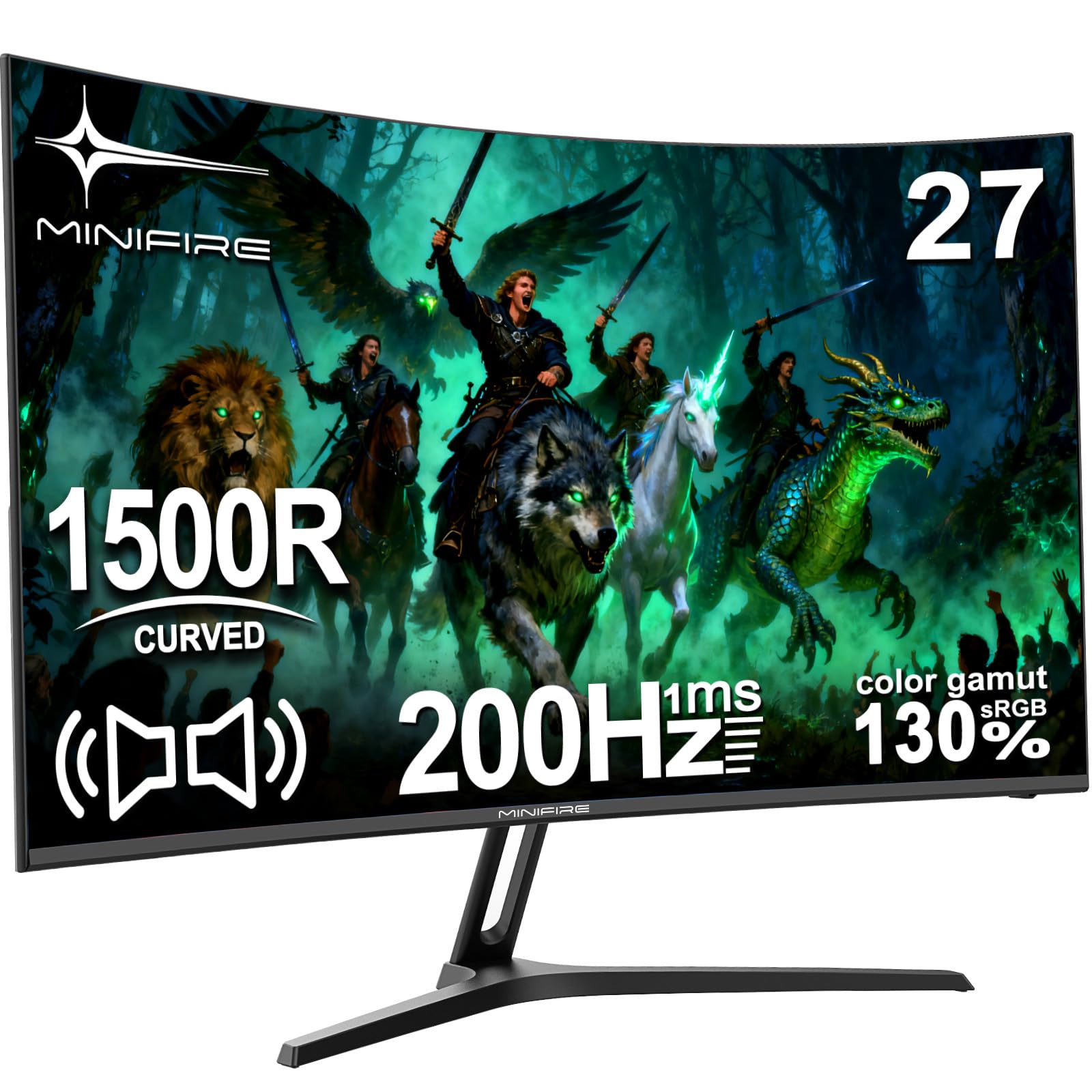
Image: The Minifire MFG27C1 27-inch Curved Gaming Monitor, showcasing its sleek design and curved screen.
Package Contents
Verify that all items listed below are present in your product packaging:
- Minifire MFG27C1 27-inch Curved Gaming Monitor
- HDMI Cable
- Power Adapter/Charger
- Monitor Stand components
- User Manual (this document)
Safety Information
To ensure safe operation and prevent damage, please observe the following safety precautions:
- Do not expose the monitor to rain or moisture to prevent fire or electric shock.
- Do not open the monitor casing. There are no user-serviceable parts inside. Refer all servicing to qualified personnel.
- Place the monitor on a stable, flat surface to prevent it from falling.
- Ensure proper ventilation around the monitor. Do not block ventilation openings.
- Use only the power adapter supplied with the monitor.
- Disconnect the power cable during lightning storms or when unused for long periods.
- Avoid placing heavy objects on the power cord.
- Keep the monitor away from direct sunlight, heat sources, and extreme temperatures.
Setup
1. Assembling the Stand
Attach the stand base to the stand neck, then secure the assembled stand to the back of the monitor. Ensure all screws are tightened securely.
2. Connecting Cables
Connect the provided HDMI cable from your computer's graphics card to the HDMI 2.0 port on the monitor. For power, connect the power adapter to the DC input port on the monitor, then plug the adapter into a power outlet.
The monitor also features a DisplayPort 1.4 for alternative video input and a 3.5mm audio output for external speakers or headphones.

Image: A detailed view of the monitor's rear panel, highlighting the HDMI 2.0, DisplayPort 1.4, 3.5mm audio output, and DC power input ports, along with the joystick control button.
3. Initial Power On
Press the power button located on the back of the monitor to turn it on. The monitor will automatically detect the active input source. If no signal is detected, ensure your computer is powered on and the video cable is securely connected.
Operating Instructions
1. Power On/Off
Press the joystick button (power button) on the back of the monitor to turn it on. Press and hold the joystick button for a few seconds to turn it off.
2. OSD Menu Navigation
The monitor's On-Screen Display (OSD) menu is controlled using the joystick button on the back.
- Push the joystick button: Enters the OSD menu or confirms a selection.
- Move joystick Up/Down: Navigates through menu options or adjusts brightness/volume.
- Move joystick Left/Right: Navigates through menu options or adjusts contrast/input source.
Image: A diagram illustrating the joystick button functions for menu navigation, brightness, contrast, and input source selection.
3. Adjusting Display Settings
Access the OSD menu to adjust various display settings:
- Brightness/Contrast: Adjust these settings to your preference for optimal viewing.
- Color Settings: Modify color temperature, gamma, and other color-related parameters.
- Picture Mode: Select from predefined modes (e.g., Standard, Game, Movie) or customize your own.
- Input Source: Manually select between HDMI and DisplayPort inputs if auto-detection fails.
- Refresh Rate: Ensure your graphics card settings match the monitor's 200Hz refresh rate for the smoothest experience.
- FreeSync: Enable FreeSync in the OSD menu and your graphics card control panel for tear-free gaming.
4. Audio Output
The monitor includes built-in speakers. You can also connect external speakers or headphones to the 3.5mm audio output port for enhanced audio.
Key Features
1. Immersive Curved Display
The Minifire MFG27C1 features a 27-inch VA panel with a 1500R curvature, designed to provide an immersive viewing experience, especially for gaming. This curvature helps reduce eye strain and enhances peripheral vision.

Image: The monitor displaying a vibrant gaming scene, emphasizing its 1500R curvature for an immersive experience.
2. High Refresh Rate and Fast Response Time
Experience smooth, fluid visuals with a 200Hz refresh rate and a rapid 1ms (MPRT) response time. This combination minimizes motion blur and ghosting, crucial for fast-paced gaming.

Image: A graphic highlighting the monitor's 200Hz refresh rate and 1ms MPRT response time, with a racing car visual.
3. Vibrant Color Reproduction
The VA panel offers a 130% sRGB color gamut, delivering rich, accurate colors and deep blacks for a high contrast ratio (2000:1). This enhances visual fidelity for both gaming and multimedia content.

Image: The monitor showcasing a colorful image, demonstrating its ability to display vivid details and a wide color spectrum.
4. AMD FreeSync Technology
With AMD FreeSync technology, the monitor synchronizes its refresh rate with your graphics card's frame rate, eliminating screen tearing and stuttering for a smoother gaming experience.

Image: A visual comparison demonstrating the benefits of FreeSync technology, showing a smooth image with FreeSync enabled versus stuttering and ghosting when disabled.
5. Eye Care Features
The monitor incorporates features to protect your eyes during extended use, including anti-flicker technology, an anti-glare screen surface, and a low blue light mode to reduce eye strain.

Image: A graphic explaining the monitor's eye care features, including anti-flicker, anti-glare, and low blue light, with visual examples of their effects.
6. Game Assist Functions
Enhance your gaming performance with built-in game assist features such as Black Level Adjustment for improved visibility in dark scenes, Pinpoint Strike for aiming assistance, and an on-screen Timer.
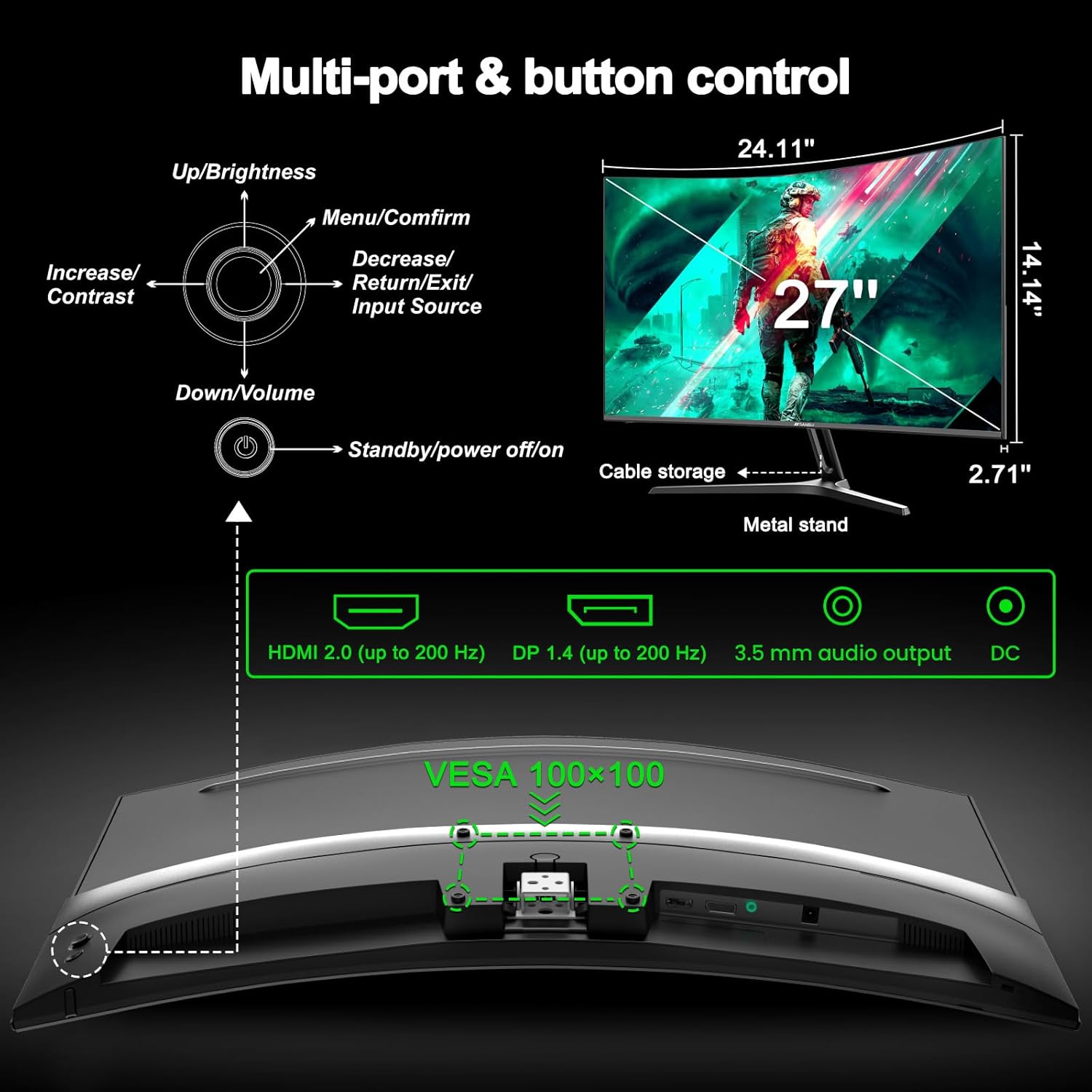
Image: A graphic detailing the monitor's game assist features, including Black Level Adjustment, Pinpoint aiming, and an on-screen Timer, shown in a first-person shooter context.
Maintenance
Cleaning the Monitor
To clean the monitor screen, gently wipe it with a soft, lint-free cloth. For stubborn marks, dampen the cloth slightly with water or a non-abrasive screen cleaner. Do not spray cleaner directly onto the screen.
For the monitor casing, use a soft, dry cloth. Avoid using harsh chemicals or abrasive materials.
Storage
If storing the monitor for an extended period, disconnect all cables and pack it in its original packaging if possible. Store in a cool, dry place away from direct sunlight and extreme temperatures.
Troubleshooting
If you encounter issues with your Minifire MFG27C1 monitor, refer to the following common problems and solutions:
No Power
- Ensure the power cable is securely connected to both the monitor and a working power outlet.
- Verify the power adapter is functioning correctly.
- Press the power button firmly.
No Signal
- Check that the HDMI or DisplayPort cable is securely connected to both the monitor and your computer.
- Ensure your computer is powered on and not in sleep mode.
- Select the correct input source using the OSD menu.
- Try a different video cable or port if available.
Image Flickering or Tearing
- Ensure AMD FreeSync is enabled in both the monitor's OSD menu and your graphics card settings.
- Verify that your graphics card drivers are up to date.
- Check the refresh rate setting in your operating system's display settings; it should be set to 200Hz.
No Sound from Built-in Speakers
- Check the volume level in the monitor's OSD menu and your computer's sound settings.
- Ensure the correct audio output device is selected in your computer's sound settings.
- If using HDMI/DisplayPort, ensure your graphics card is sending audio.
- If using the 3.5mm audio output, ensure external speakers/headphones are properly connected and powered.
Buttons Not Responding
- Unplug the monitor's power cable, wait 30 seconds, then plug it back in to reset the monitor.
- Ensure no objects are obstructing the buttons.
Specifications
| Feature | Specification |
|---|---|
| Brand | Minifire |
| Model Number | MFG27C1-200 |
| Screen Size | 27 Inches |
| Resolution | FHD 1080p (1920 x 1080) |
| Aspect Ratio | 16:9 |
| Panel Type | VA |
| Screen Surface | Matte |
| Curvature | 1500R |
| Refresh Rate | 200 Hz |
| Response Time | 1 millisecond (MPRT) |
| Contrast Ratio | 2000:1 |
| Color Gamut Value | 130% sRGB |
| Adaptive Sync Technology | FreeSync |
| Connectivity | HDMI 2.0 (up to 200 Hz), DisplayPort 1.4 (up to 200 Hz), 3.5mm Audio Output |
| Built-in Speakers | Yes |
| Power Voltage | 240 Volts |
| Item Dimensions (D x W x H) | 68.5 x 43.5 x 12.6 centimeters |
| Item Weight | 3.3 Kilograms |
| Color | Black |
For more detailed energy information, please refer to the EU EPREL database: https://eprel.ec.europa.eu/qr/2074259
Warranty and Support
Minifire is committed to providing high-quality products and customer satisfaction. Your Minifire MFG27C1 monitor comes with the following:
- 24 Months Warranty: Enjoy peace of mind with a comprehensive 24-month warranty covering manufacturing defects.
- 14-Day Money-Back or Return Guarantee: If you are not satisfied with your purchase, you may be eligible for a return or refund within 14 days.
- Professional Customer Service: Our dedicated support team is available to assist you with any product-related inquiries.
- Lifetime Free Technical Support: Benefit from complimentary technical assistance for the lifetime of your product.
For further assistance, please visit the official Minifire website or contact our customer support team.

Image: An infographic detailing the warranty and support services offered by Minifire, including a 24-month warranty and lifetime technical support.