
SatelliteSale SS-RC-NOTUS-M2
SatelliteSale Notus M2 Remote Control User Manual
Model: SS-RC-NOTUS-M2 | Brand: SatelliteSale
1. Introduction
This manual provides detailed instructions for the SatelliteSale Notus M2 Remote Control, a voice-activated Bluetooth replacement designed for Optimum Stream Devices. It covers setup, operation, maintenance, and troubleshooting to ensure optimal performance and user experience.

Image: Front view of the SatelliteSale Notus M2 Remote Control.
2. Package Contents
Verify that all items are present in the package:
- 1 x SatelliteSale Notus M2 Remote Control
- 2 x AAA Batteries (pre-installed or included separately)
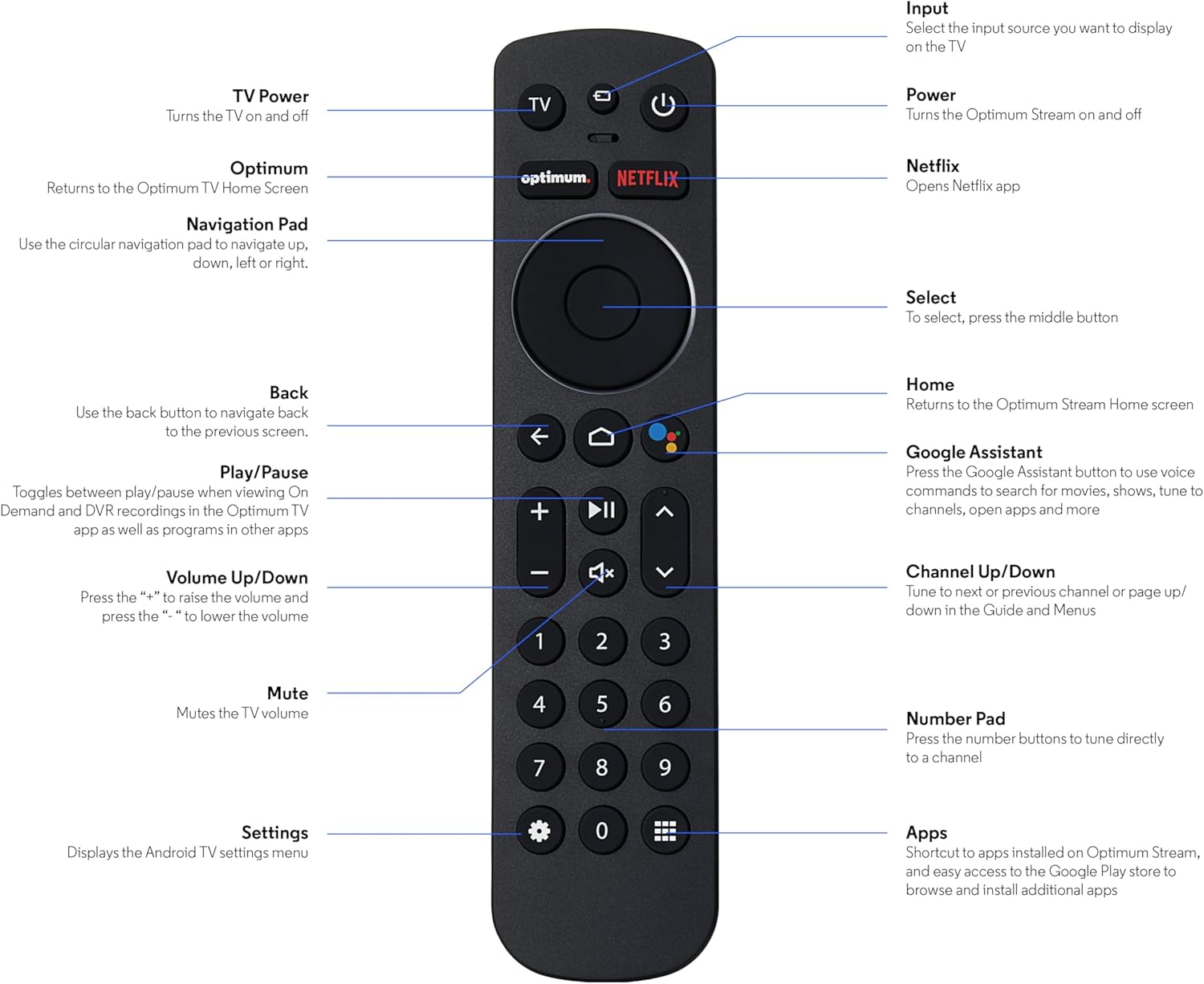
Image: The SatelliteSale Notus M2 Remote Control shown alongside two AAA batteries.
3. Remote Control Layout and Functions
Familiarize yourself with the buttons and their functions on your SatelliteSale Notus M2 Remote Control.

Image: Detailed diagram of the SatelliteSale Notus M2 Remote Control with labels for each button and its corresponding function.
- TV Power: Turns the TV on and off.
- Input: Selects the input source to display on the TV.
- Power: Turns the Optimum Stream device on and off.
- Optimum: Returns to the Optimum TV Home Screen.
- Netflix: Opens the Netflix application directly.
- Navigation Pad (Circular): Use to navigate up, down, left, or right within menus.
- Select (Middle Button of Nav Pad): Confirms a selection.
- Back: Returns to the previous screen.
- Home: Returns to the Optimum Stream Home screen.
- Google Assistant (Microphone Icon): Activates voice commands for search, playback control, and hands-free assistance.
- Play/Pause: Toggles between play and pause for content.
- Volume Up/Down (+/-): Adjusts the TV volume.
- Mute: Mutes the TV volume.
- Channel Up/Down (Arrows): Tunes to the next or previous channel, or navigates pages in guides and menus.
- Number Pad (0-9): Directly tunes to a channel or enters numerical input.
- Settings (Gear Icon): Displays the Android TV settings menu.
- Apps (Grid Icon): Provides shortcuts to installed apps on Optimum Stream and access to the Google Play Store.
4. Setup
4.1 Battery Installation
The remote requires two AAA batteries. Ensure correct polarity when inserting.
- Locate the battery compartment on the back of the remote control.
- Slide the battery cover downwards to open.
- Insert two AAA batteries, matching the (+) and (-) terminals as indicated inside the compartment.
- Replace the battery cover by sliding it back into place until it clicks.

Image: View of the remote control with the battery compartment open, showing the correct orientation for AAA battery insertion.
4.2 Pairing Your Remote with Optimum Stream Device
Your remote is designed to be paired with your Optimum Stream device for full functionality, including Bluetooth connectivity and voice control. If your remote becomes unpaired or if you are setting up a new remote, follow these steps:

Image: An illustration explaining the importance of direct line of sight for initial pairing and the flexibility of remote placement after pairing.
Important Note: For initial pairing, the Optimum Stream box needs to be in direct line of sight of the remote. If your box is behind a TV or in a cabinet, you may need to temporarily relocate it so the remote can be directly pointed at the Stream box. Once pairing is complete, the Stream box can be moved out of sight as the remote uses Bluetooth.
- Ensure batteries are correctly installed in your remote.
- Turn on your TV and your Optimum Stream cable box.
- Press any button on the Stream remote to ensure you are on the Home Screen.
- From the Home Screen, select Settings (gear icon).
- Select Device and Remote Settings > Remotes & Accessories.
- Select Add Stream Remote.
- Follow the on-screen instructions to complete the pairing process.
- You will see an on-screen confirmation once the remote is successfully paired.

Image: Visual representation of pairing steps 1 through 5, showing the remote and on-screen prompts.

Image: Visual representation of pairing steps 6 through 9, detailing the final stages of the pairing process.
5. Operating Instructions
5.1 Voice Control
The SatelliteSale Notus M2 remote features voice control for convenient operation. Press the microphone button (Google Assistant icon) and speak your command clearly. You can use voice commands to:
- Search for content (movies, TV shows, actors).
- Control playback (play, pause, fast forward, rewind).
- Open applications.
- Tune to specific channels.
- Get information (weather, sports scores).

Image: A person using the voice control feature of the remote, with sound waves emanating from the remote towards the TV screen.

Image: An example of a voice command, "Hey Google, turn on the Spider-Man movie," displayed on screen with the remote.
5.2 Bluetooth Wireless Connectivity
Once paired, the remote utilizes Bluetooth for communication with your Optimum Stream device. This means you do not need a direct line of sight to operate the device, allowing for greater flexibility in remote usage and device placement.
5.3 Dedicated Streaming App Buttons
The remote includes dedicated buttons for popular streaming applications, such as Netflix. Pressing these buttons provides one-touch access to your favorite entertainment platforms.
6. Maintenance
- Cleaning: Use a soft, dry cloth to clean the remote. Do not use liquid cleaners or aerosols.
- Battery Replacement: Replace batteries when the remote's response becomes sluggish or it stops functioning. Always replace both batteries at the same time with new AAA batteries.
- Storage: Store the remote in a cool, dry place away from direct sunlight and extreme temperatures.
7. Troubleshooting
| Problem | Possible Cause | Solution |
|---|---|---|
| Remote is unresponsive. | Dead or low batteries. | Replace both AAA batteries with new ones. |
| Remote not controlling Optimum Stream device. | Remote is unpaired or pairing failed. | Follow the pairing instructions in Section 4.2. Ensure direct line of sight during initial pairing. |
| Voice control not working. | Remote not paired via Bluetooth, or microphone issue. | Ensure the remote is properly paired via Bluetooth (Section 4.2). Speak clearly and close to the microphone. |
| Buttons are sticky or unresponsive. | Dirt or debris under buttons. | Clean the remote with a soft, dry cloth. Avoid spills. |
8. Specifications
| Feature | Detail |
|---|---|
| Model Number | SS-RC-NOTUS-M2 |
| Connectivity | Bluetooth Wireless |
| Special Features | Voice Activated (Google Assistant), Dedicated App Buttons, Ergonomic Design |
| Compatible Devices | Optimum Stream Box (powered by Android TV) |
| Power Source | 2 x AAA Batteries (included) |
| Color | Matte Black |
| Item Weight | 3.66 ounces |
| Package Dimensions | 7.28 x 1.89 x 1.22 inches |
9. Warranty and Support
For warranty information or technical support, please refer to the official SatelliteSale website or contact their customer service directly. Keep your purchase receipt for warranty claims.
Manufacturer: SatelliteSale
Ask a question about this manual
Ask about setup, troubleshooting, compatibility, parts, safety, or missing instructions. Manuals+ will review the question and use this page’s manual context to help answer it.