
Introduction
The POCO F7 Ai 5G is a high-performance smartphone designed for an immersive user experience. Featuring a flagship Snapdragon® 8s Gen 4 Mobile Platform, a massive 6500mAh battery with 90W HyperCharge, and a vibrant 6.83-inch 1.5K 120Hz AMOLED display, this device is built for speed and efficiency. It also includes a 50MP Sony camera with OIS and IP68 dust and water resistance for enhanced durability.
This manual provides essential information for setting up, operating, maintaining, and troubleshooting your POCO F7 Ai 5G smartphone.
What's in the Box
Upon opening your POCO F7 Ai 5G package, you should find the following items:
- POCO F7 Ai 5G Smartphone
- Fast Car Charger
- USB Cable
- Phone Case
- Manuals (including Quick Start Guide and Warranty Card)
- SIM Eject Tool
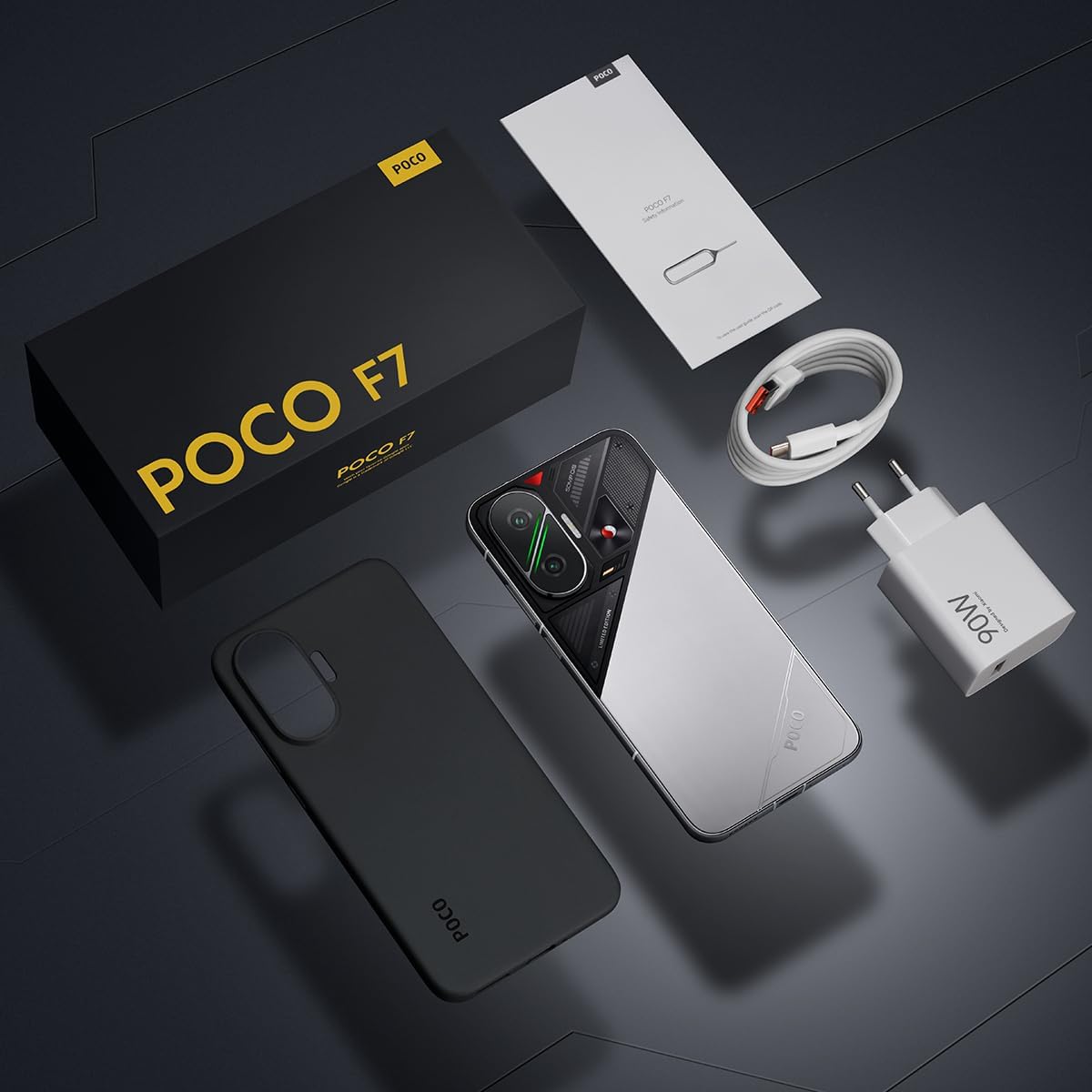
Image: All items included in the POCO F7 Ai 5G retail box, including the smartphone, charger, USB cable, phone case, and documentation.
Setup
1. Inserting the SIM Card
The POCO F7 Ai 5G supports dual Nano SIM cards. Ensure your SIM card is already activated for use on T-Mobile, Mint, Tello, or any network under the T-Mobile network in the USA. For use outside the USA, it works with any GSM carrier SIM.
- Locate the SIM card tray on the side of the device.
- Insert the provided SIM eject tool into the small hole next to the tray and press firmly until the tray pops out.
- Place your Nano SIM card(s) into the tray with the gold contacts facing down. Ensure proper orientation as indicated on the tray.
- Gently push the SIM tray back into the slot until it is flush with the device.
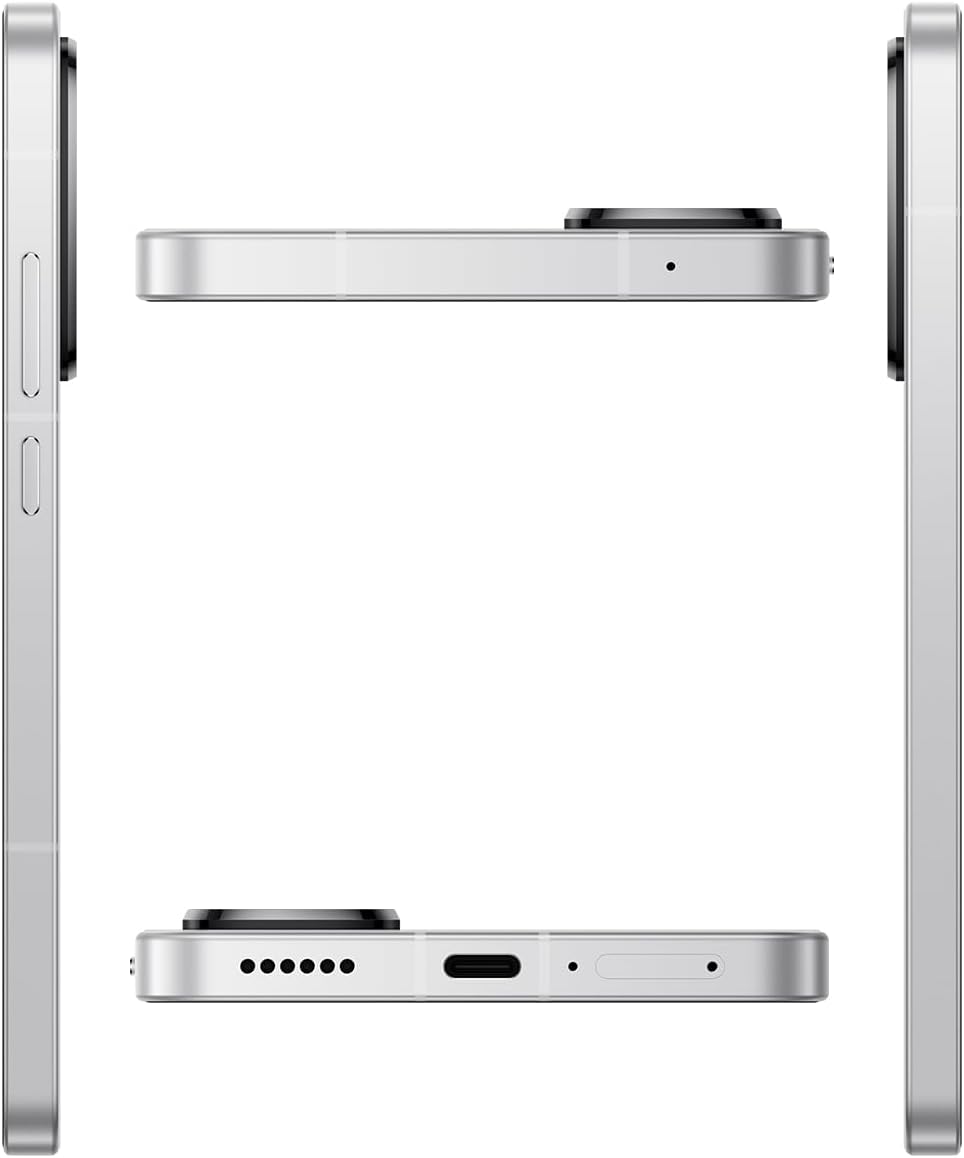
Image: Side profile of the POCO F7 Ai 5G, highlighting the location of the SIM card tray and buttons.
2. Initial Power On and Setup
To power on your device for the first time:
- Press and hold the Power button (located on the side) until the POCO logo appears on the screen.
- Follow the on-screen prompts to complete the initial setup, including language selection, Wi-Fi connection, Google account sign-in, and security settings (fingerprint, face unlock, PIN/pattern).
3. Charging the Device
Your POCO F7 Ai 5G comes with a 90W HyperCharge fast car charger and a USB Type-C cable. For optimal charging, use the provided accessories.
- Connect the USB Type-C cable to the charging port at the bottom of the phone.
- Connect the other end of the USB cable to the fast car charger.
- Plug the charger into a compatible power source.
The device supports up to 22.5W reverse charging, allowing you to charge other compatible devices using your phone (requires a compatible cable, sold separately).
Operating Your POCO F7 Ai 5G
Display and Navigation
The POCO F7 Ai 5G features a 6.83-inch 1.5K 120Hz AMOLED display with ultra-slim bezels for an immersive viewing experience. It boasts a peak brightness of 3200 nits and a contrast ratio of 8,000,000:1, ensuring vibrant and clear visuals. The display also supports a touch sampling rate of up to 480Hz, with an instant touch sampling rate of 2560Hz activated under Game Turbo Mode for highly responsive gaming.
- Power Button: Press to wake/sleep the screen. Press and hold to power off or restart.
- Volume Buttons: Adjust media volume, call volume, or notification volume.
- In-screen Fingerprint Sensor: For secure and quick unlocking.
- AI Face Unlock: Alternative biometric security feature.
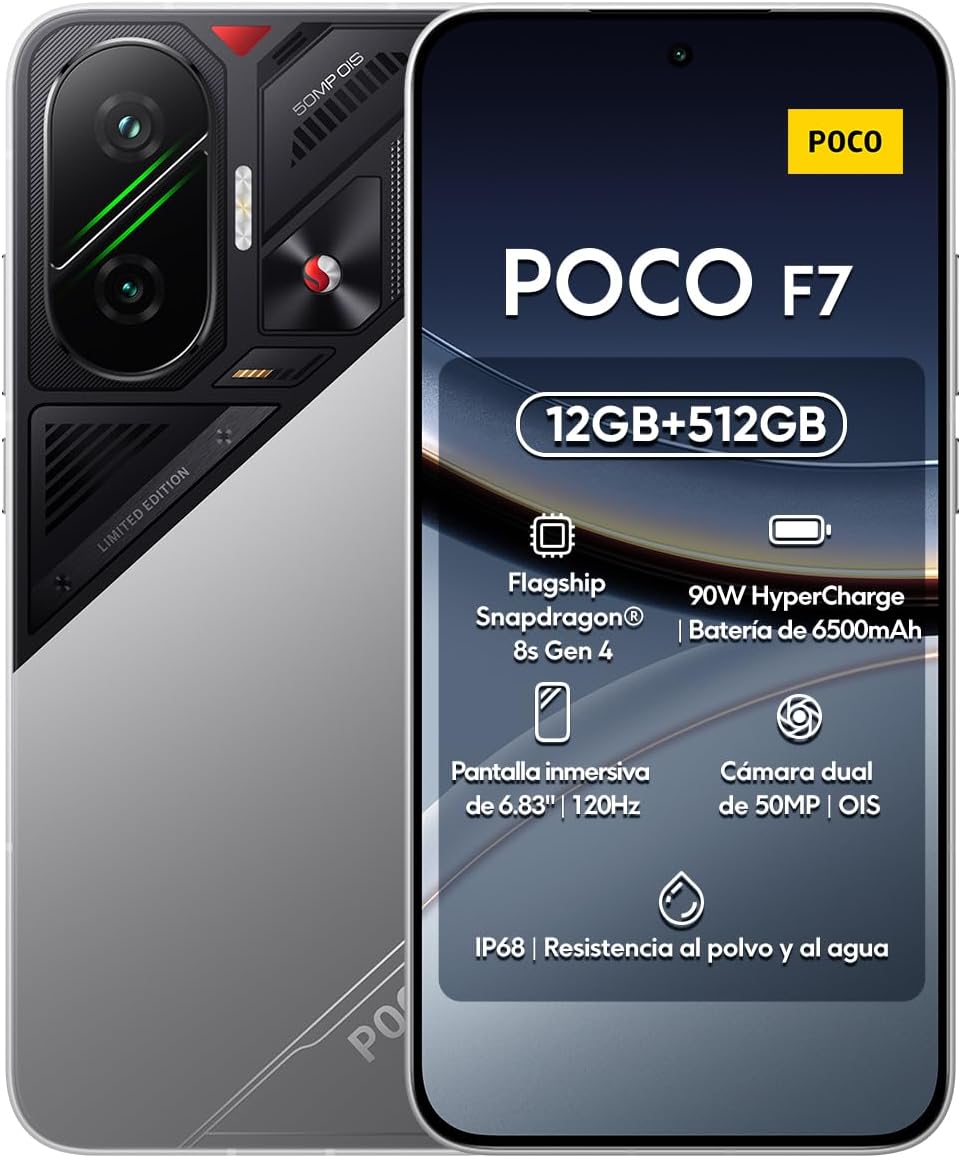
Image: The POCO F7 Ai 5G smartphone, showcasing its front display and rear camera module.
Camera Features
The device is equipped with a versatile camera system:
- Main Camera: 50MP Sony IMX882 sensor with f/1.5 aperture and Optical Image Stabilization (OIS). Features include Dynamic shot, Motion capture, Documents mode, Motion tracking focus, Portrait mode, Timed burst, Pro mode, 50MP mode, Panorama, Burst shot mode, Long exposure, and HDR.
- Ultra-wide Camera: 8MP OV08F.
- Front Camera: 20MP for high-quality selfies and video calls.
Video Recording: Supports 4K video shooting at 30fps/60fps, 1080p at 30fps/60fps, and slow-motion video at various frame rates (120fps, 240fps, 960fps for 1080p/720p). Video features include Slow motion, Video teleprompter, Time-lapse, ShootSteady, and Motion tracking focus.
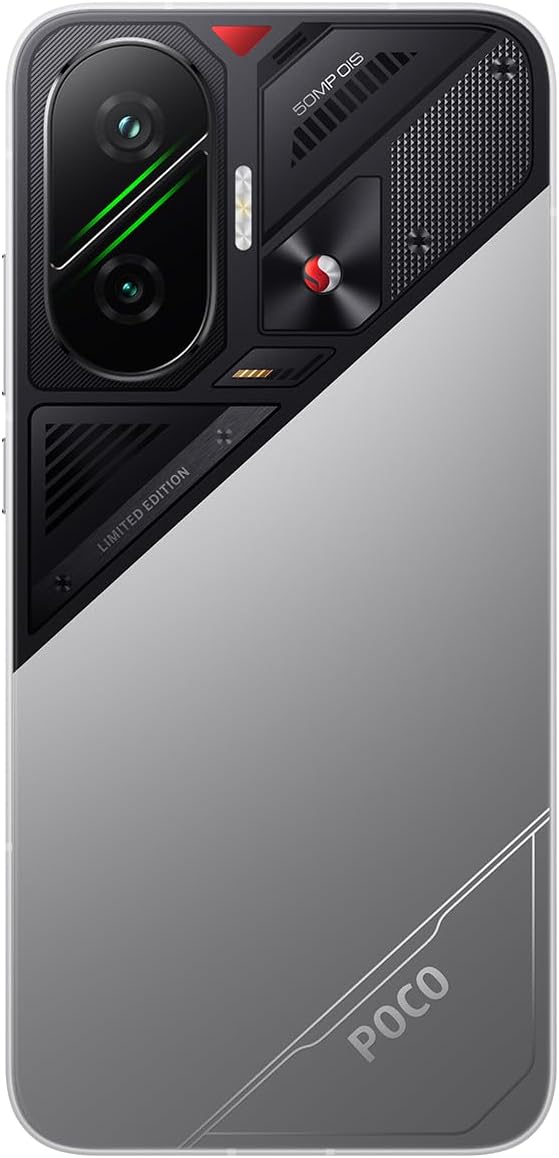
Image: The back of the POCO F7 Ai 5G, highlighting the prominent camera module.
Maintenance
Cleaning Your Device
To maintain the appearance and functionality of your POCO F7 Ai 5G:
- Use a soft, lint-free cloth to wipe the screen and back panel.
- Avoid using harsh chemicals, abrasive cleaners, or compressed air.
- For stubborn smudges, slightly dampen the cloth with water or a screen cleaner specifically designed for electronics.
Water and Dust Resistance (IP68)
The POCO F7 Ai 5G is IP68 rated for dust and water resistance. This means it can withstand immersion in up to 1.5 meters of fresh water for up to 30 minutes. However, it is important to note:
- This rating is based on specific laboratory conditions and does not guarantee protection under all circumstances.
- Avoid exposing the device to saltwater, chlorinated water, or other liquids.
- Do not charge the device if it is wet.
- Ingress protection might deteriorate due to wear and tear, physical damage, or disassembly.
The warranty does not cover liquid damage caused by conditions other than test conditions. For more information, please visit the official Xiaomi website.
Troubleshooting
Common Issues and Solutions
| Issue | Possible Solution |
|---|---|
| Device not turning on | Ensure the battery is charged. Connect to the charger for at least 15 minutes, then try powering on. If unresponsive, perform a forced restart by holding the Power button for 10-15 seconds. |
| Apps crashing or freezing | Clear the app's cache and data in Settings > Apps. If the issue persists, uninstall and reinstall the app. Ensure your HyperOS is updated. |
| Poor battery life | Check battery usage in Settings to identify power-hungry apps. Reduce screen brightness, disable unnecessary features (GPS, Bluetooth, Wi-Fi when not in use), and close background apps. |
| Fingerprint sensor not working | Ensure your finger is clean and dry. Re-register your fingerprints. Note: Using a third-party protective film or tempered glass screen protector could seriously affect your ability to unlock the screen using the fingerprint sensor. |
| Network connectivity issues | Toggle Airplane Mode on and off. Restart the device. Check SIM card insertion. Verify network settings and contact your carrier if the problem persists. |
Specifications
| Feature | Detail |
|---|---|
| Model Name | Poco F7 (Model 25053PC47G) |
| Operating System | HyperOS 2 Android 15 |
| Processor | Flagship Snapdragon® 8s Gen 4 Mobile Platform (Octa-core, up to 3.21GHz) |
| Display | 6.83 inches, 1.5K (2772x1280) AMOLED, 120Hz Refresh Rate, 3200 nits Peak Brightness, Corning Gorilla Glass 7i |
| RAM | 12 GB |
| Storage | 512 GB |
| Rear Camera | 50MP Main (Sony IMX882, OIS), 8MP Ultra-wide |
| Front Camera | 20MP |
| Battery Capacity | 6500 mAh (typical) |
| Charging | 90W HyperCharge (wired), 22.5W Reverse Charging |
| Connectivity | 5G, Bluetooth 5.4, Wi-Fi (802.11a/b/g/n/ac/ax), NFC |
| Water & Dust Resistance | IP68 |
| Dimensions | 7.36 x 3.74 x 2.32 inches (Package) |
| Weight | 1.21 pounds |
| Sensors | Proximity, Ambient light, Accelerometer, Electronic compass, IR blaster, Gyroscope, Flicker sensor, X-axis linear vibration motor |
| Navigation | GPS (L1+L5), Beidou (B1I+B1C+B2a), Galileo (E1+E5a), GLONASS (G1), QZSS (L1+L5), NavIC (L5) |
Warranty and Support
For detailed warranty information and support, please refer to the "POCO Quick Start Guide and Warranty Card" included in your product packaging. You can also visit the official Xiaomi website for comprehensive support resources, FAQs, and service center locations.
The warranty typically covers manufacturing defects but does not cover damage caused by misuse, accidents, unauthorized repairs, or liquid damage (unless explicitly stated for specific conditions like IP68, which has limitations).
For technical assistance or service requests, please contact Xiaomi customer support through their official channels.


