
1. Introduction
This manual provides essential information for setting up, operating, maintaining, and troubleshooting your Lenovo V14 Gen 4 Business Laptop. Designed for productivity, this laptop features a 13th Gen Intel Core i7 processor, ample RAM, and a fast SSD, bundled with an external ADATA 512GB SSD for expanded storage.
Please read this manual thoroughly to ensure proper use and to maximize the lifespan of your device.

Figure 1: Lenovo V14 Gen 4 Business Laptop with included ADATA 512GB External SSD.

Figure 2: Overview of key features including up to 40GB DDR4 RAM, up to 2TB PCIe M.2 SSD, Intel Core i7-1355U processor, Wi-Fi 6, Windows 11 Pro, 180° flexible flip, and various ports.
2. Setup
2.1 Initial Power On
- Unpack the laptop and all accessories from the box.
- Connect the power adapter to the laptop's power connector and then to a power outlet.
- Open the laptop lid. The laptop may power on automatically, or you may need to press the power button (typically located on the side or keyboard deck).
- Follow the on-screen instructions to complete the initial Windows 11 Pro setup, including language, region, network connection, and user account creation.
2.2 Connecting Peripherals
Your Lenovo V14 Gen 4 laptop offers a variety of ports for connecting external devices. Refer to the port diagram below for locations.

Figure 3: Port and Slot Layout. Key ports include Ethernet (RJ-45), USB 3.0, Kensington Nano Security Slot, Power connector, USB 3.2 Gen 1, HDMI, USB-C 3.2 Gen 1, and Headphone/microphone combo jack (3.5mm).
- External ADATA 512GB SSD: Connect the external SSD to any available USB-A 3.2 Gen 1 port or USB-C 3.2 Gen 1 port using the appropriate cable. The drive is plug-and-play and should be recognized automatically by Windows.
- External Display: Use the HDMI port to connect an external monitor or projector.
- USB Devices: Connect USB flash drives, external keyboards, mice, or other USB devices to the USB-A or USB-C ports.
- Network Cable: For a wired internet connection, plug an Ethernet cable into the RJ45 port.
3. Operating Instructions
3.1 Basic Operation
- Power On/Off: Press the power button to turn on the laptop. To shut down, click the Start button, then Power, and select "Shut down."
- Keyboard and Touchpad: Utilize the integrated keyboard for typing and the precision touchpad for navigation. The touchpad supports multi-touch gestures for enhanced control.
- Webcam with Privacy Shutter: The integrated webcam includes a physical privacy shutter. Slide the shutter to cover or uncover the camera lens as needed for privacy.
3.2 Display Features
The laptop features a 14-inch Full HD (1920x1080) Anti-Glare display, providing clear visuals and reducing reflections.

Figure 4: The 14" FHD (1920*1080) Anti-Glare display with Wi-Fi 6 capability.
The display also supports a 180° flexible flip, allowing the screen to lay completely flat, which is useful for presentations or collaborative work.

Figure 5: The 180° flexible flip feature, enhancing versatility for sharing and creation.
3.3 Wireless Connectivity
The laptop is equipped with Wi-Fi 6 for fast and reliable wireless internet access and Bluetooth for connecting wireless peripherals like headphones or mice.
- Connecting to Wi-Fi: Click the Wi-Fi icon in the taskbar, select your desired network, enter the password if prompted, and click "Connect."
- Pairing Bluetooth Devices: Go to Windows Settings > Bluetooth & devices, turn on Bluetooth, and select "Add device" to pair new devices.
3.4 Using the External ADATA SSD
The bundled ADATA 512GB External SSD provides additional high-speed storage. It is ideal for backing up important files, transferring large documents, or expanding your laptop's storage capacity.
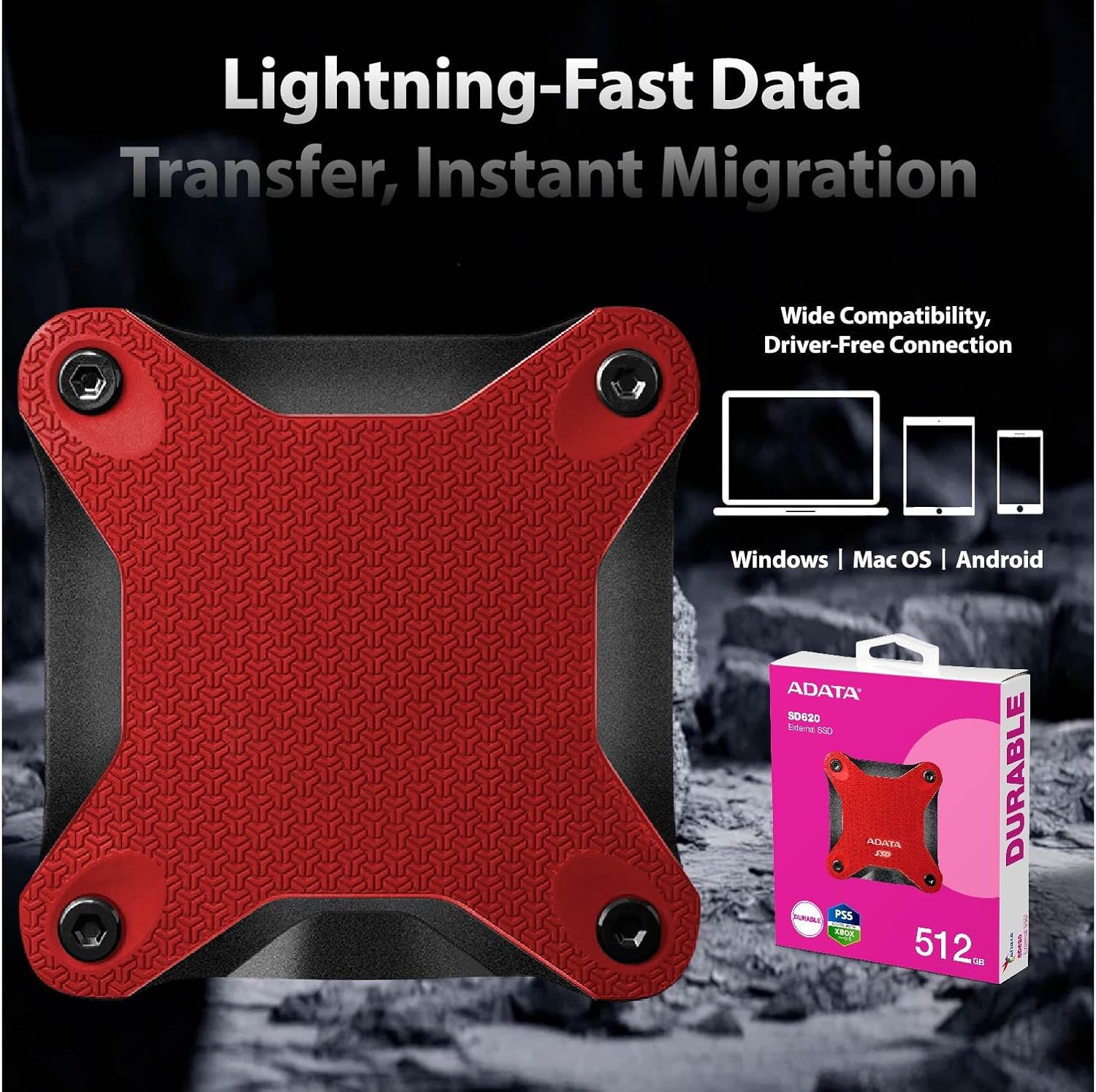
Figure 6: The ADATA SD620 external SSD, designed for lightning-fast data transfer and instant migration, compatible with Windows, Mac OS, and Android.
- Connection: Plug the SSD into a USB port on your laptop.
- Accessing Files: The drive will appear as a removable disk in "This PC" (or "My Computer"). You can drag and drop files to and from the drive.
- Safe Removal: Always safely eject the external SSD before unplugging it to prevent data corruption. Right-click the drive icon in the taskbar or "This PC" and select "Eject."
4. Maintenance
4.1 Cleaning Your Laptop
- Screen: Use a soft, lint-free cloth lightly dampened with water or a screen cleaner. Do not spray liquid directly onto the screen.
- Keyboard and Chassis: Use a soft, dry cloth. For stubborn dirt, a slightly damp cloth with mild soap solution can be used, ensuring no liquid enters openings.
- Ports: Use compressed air to gently clear dust from ports.
4.2 Battery Care
- Avoid extreme temperatures.
- Do not fully discharge the battery frequently. It is best to keep the charge between 20% and 80% for optimal battery longevity.
- If storing the laptop for an extended period, ensure the battery is charged to about 50%.
4.3 Software Updates
Regularly update your Windows operating system and drivers to ensure optimal performance, security, and compatibility.
- Windows Updates: Go to Settings > Windows Update and check for updates.
- Driver Updates: Visit the official Lenovo support website for your model to download the latest drivers.
5. Troubleshooting
5.1 Common Issues and Solutions
| Issue | Possible Solution |
|---|---|
| Laptop does not power on. | Ensure the power adapter is securely connected and the outlet is working. Try a different power outlet. |
| Screen is blank or black. | Check display brightness settings. Connect to an external monitor to verify if the laptop is outputting video. Restart the laptop. |
| Wi-Fi connection issues. | Restart your router and modem. Ensure Wi-Fi is enabled on the laptop. Update Wi-Fi drivers. |
| External SSD not recognized. | Try a different USB port. Ensure the cable is not damaged. Check Disk Management in Windows to see if the drive is listed. |
| Slow performance. | Close unnecessary applications. Check Task Manager for high resource usage. Run a disk cleanup. Ensure Windows and drivers are updated. |
If issues persist, consider performing a system restore or contacting Lenovo support.
6. Specifications
Below are the detailed technical specifications for the Lenovo V14 Gen 4 Business Laptop (Model: Lenovo V14 G4 IRU).

Figure 7: Details of the Intel Core i7-1355U processor, featuring 10 Cores, 12 Threads, 12 MB L3 cache, and up to 5 GHz Turbo frequency.
| Feature | Detail |
|---|---|
| Processor | Intel Core i7-1355U (10 Cores, 12 Threads, up to 5.0 GHz) |
| Graphics | Intel UHD Graphics (Integrated) |
| Display | 14" FHD (1920x1080) Anti-Glare, 60Hz |
| RAM | 40 GB DDR4 SDRAM (3200 MHz) |
| Internal Storage | 1 TB PCIe NVMe M.2 SSD |
| External Storage (Bundled) | ADATA 512GB External SSD |
| Operating System | Windows 11 Pro |
| Wireless Connectivity | Wi-Fi 6 (802.11ax), Bluetooth |
| Ports | 1x USB-C 3.2 Gen 1, 2x USB-A 3.2 Gen 1, 1x HDMI, 1x Ethernet (RJ45), 1x Headphone/mic combo, 1x Kensington Nano Security Slot |
| Webcam | Integrated, with Privacy Shutter |
| Dimensions (LxWxH) | 8.47 x 12.67 x 0.78 inches |
| Weight | 3.15 lbs (Laptop only), 6 pounds (Item Weight including packaging/accessories) |
| Color | Black |
| Durability | MIL-STD-810H military test passed |

Figure 8: The laptop has passed MIL-STD-810H military standard tests, indicating robust durability.
7. Warranty and Support
7.1 Warranty Information
Your Lenovo V14 Gen 4 Business Laptop comes with a 1-Year Manufacturer Warranty on original components. Additionally, any upgraded RAM/SSD/HDD components are covered by a 1-Year Warranty from PCOnline Us.
Please retain your proof of purchase for warranty claims.
7.2 Technical Support
For technical assistance, driver downloads, or further support, please visit the official Lenovo support website or contact their customer service. For issues related to the upgraded components, contact PCOnline Us directly.
For general inquiries or to explore more Lenovo products, visit the Lenovo Store on Amazon.