Introduction
This manual provides instructions for the NIMO 17.3" IPS FHD-Laptop, model Nimo N171. It covers initial setup, operation, maintenance, troubleshooting, and product specifications to ensure proper use and care of your device.
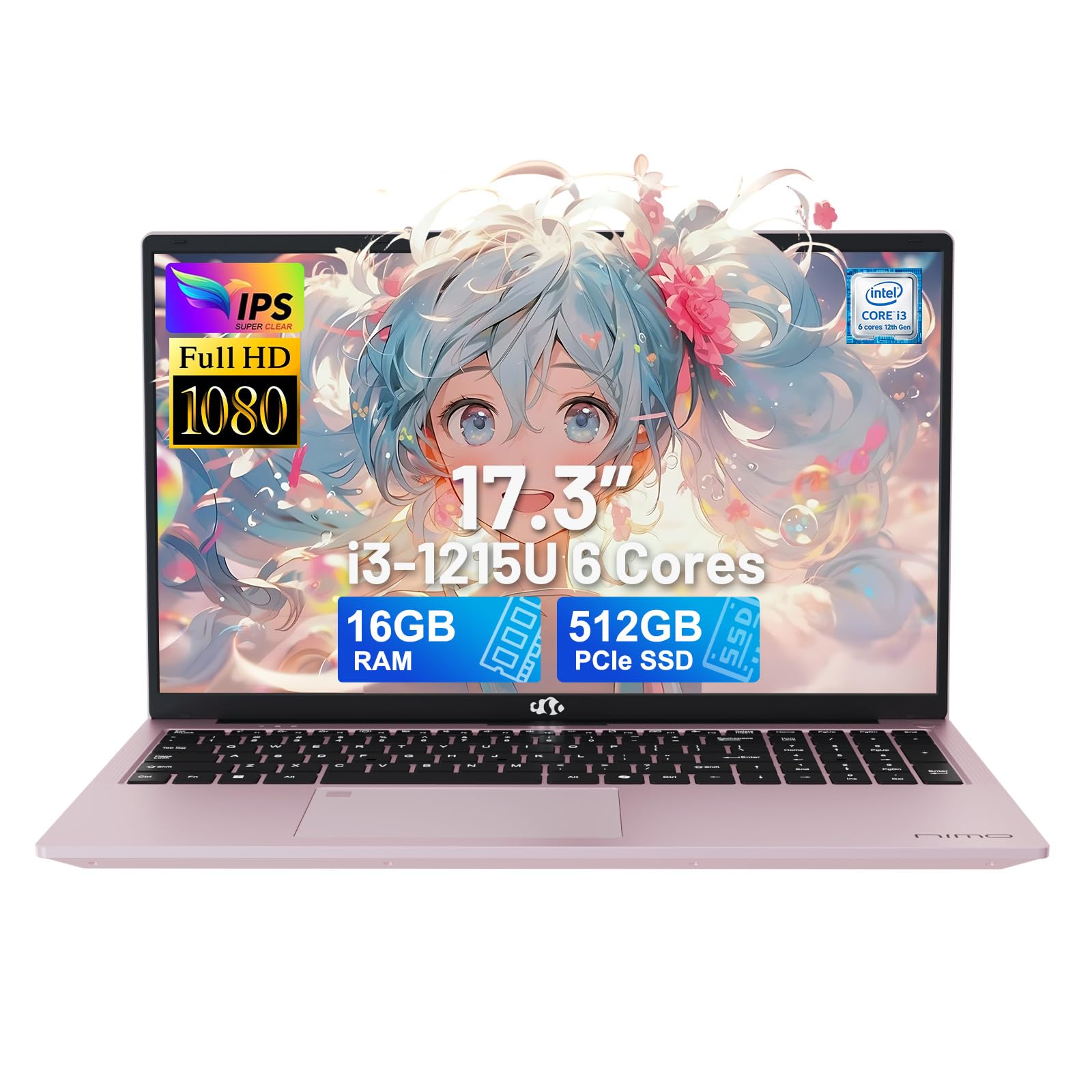
Image: The NIMO 17.3-inch FHD Laptop, showcasing its sleek design.
Setup
1. Unpacking and Initial Inspection
Carefully remove the laptop and all accessories from the packaging. Verify that all components listed in the 'What's in the Box' section are present and undamaged.
- 1 x Nimo N171 Laptop
- 1 x Type-C 65W PD Fast Charger
- 1 x User Manual
- Windows 11 Home (pre-installed)
2. Charging the Laptop
Before first use, fully charge the laptop. Connect the 65W Type-C PD Fast Charger to the laptop's Type-C charging port and to a power outlet. The charging indicator light will show the charging status.

Image: The 65W Type-C PD charger, compatible with various devices, and an illustration of its compact design compared to multiple traditional chargers.
3. Powering On and Initial Configuration
Press the power button to turn on the laptop. Follow the on-screen instructions to complete the initial setup of Windows 11 Home, including language selection, network connection, and user account creation.
4. Fingerprint Reader Setup
The laptop features a built-in fingerprint sensor for secure login. During the initial Windows setup or later via Windows Settings, configure your fingerprint for quick and secure access.

Image: A close-up of the laptop's backlit keyboard and the integrated fingerprint reader on the touchpad.
Operating Instructions
1. Keyboard and Touchpad
The laptop is equipped with a full-size backlit keyboard and a multi-touch touchpad. Use the function keys (Fn) in combination with other keys to control features like screen brightness, volume, and keyboard backlight.
- Backlit Keyboard: Press Fn + [Key] to adjust or toggle the keyboard backlight.
- Touchpad: Supports multi-finger gestures for scrolling, zooming, and other functions.
2. Display Features
The 17.3-inch FHD (1920x1080) IPS anti-glare display provides clear visuals. Adjust display settings through Windows Settings for optimal viewing.

Image: The laptop's 17.3-inch Full HD IPS display, highlighting its immersive visual experience with narrow bezels.
3. Privacy Webcam
The integrated 2MP webcam includes a physical privacy switch. Slide the switch to cover or uncover the camera lens for enhanced privacy.

Image: Illustration of the privacy webcam, showing the physical switch in both open and closed positions.
4. Connectivity
The laptop supports Wi-Fi 6 (802.11a/b/g/n/ac) and Bluetooth 5.2 for wireless connections. It also features multiple ports for external devices:
- 1 x USB 2.0 Port
- 3 x USB 3.0 Ports (including USB 3.2 Gen1)
- 1 x USB Type-C 3.2 Gen1 Port
- 1 x USB Type-C Gen1 (Charge Only) Port
- 1 x Standard HDMI 1.4 Port
- 1 x Micro SD Card Slot
- 1 x Audio Jack (Headphone Combo)
- 1 x Kensington Lock Slot

Image: Diagram illustrating the various ports available on the sides of the NIMO laptop, including USB, HDMI, Type-C, and audio jack.
Maintenance
1. Cleaning the Laptop
- Screen: Use a soft, lint-free cloth lightly dampened with water or a screen cleaner. Avoid harsh chemicals.
- Keyboard and Chassis: Use a soft, dry cloth. A can of compressed air can remove dust from between keys.
- Ensure the laptop is powered off and unplugged before cleaning.
2. Battery Care
The laptop is equipped with a 54Wh Lithium Polymer battery. To prolong battery life:
- Avoid extreme temperatures.
- Do not fully discharge the battery regularly.
- Store the laptop with a partial charge (around 50%) if not used for extended periods.
3. Storage and Memory Upgrades
The laptop comes with 16GB DDR4 RAM and a 512GB PCIe SSD. Both the RAM and SSD are upgradeable. Consult a qualified technician for upgrades to avoid damaging the device and to maintain warranty validity.

Image: An illustration highlighting the laptop's 16GB DDR4 RAM and 512GB PCIe 4.0 SSD, with an indication of dual RAM channels for expansion.
Troubleshooting
If you encounter issues with your NIMO laptop, refer to the following common solutions:
| Problem | Possible Solution |
|---|---|
| Laptop does not power on. | Ensure the charger is properly connected and the laptop has sufficient battery charge. Try a different power outlet. |
| Screen is blank or flickering. | Adjust screen brightness using function keys. Connect an external monitor to check if the issue is with the laptop's display. Restart the laptop. |
| Wi-Fi connection issues. | Check if Wi-Fi is enabled in Windows settings. Restart your router and the laptop. Ensure drivers are up to date. |
| Fingerprint reader not working. | Ensure your finger is clean and dry. Re-register your fingerprint in Windows Settings. |
| Slow performance. | Close unnecessary applications. Check for background processes. Ensure sufficient free storage space. Run a system scan for malware. |
If the problem persists, please contact NIMO customer support for assistance.
Specifications
| Feature | Detail |
|---|---|
| Model Name | Nimo N171 |
| Display Size | 17.3 Inches |
| Screen Resolution | 1920 x 1080 Pixels (FHD IPS) |
| Processor | Intel Core i3-1215U (6-core, 8-thread, up to 4.4GHz) |
| RAM | 16 GB DDR4 (3200 MHz) |
| Storage | 512 GB PCIe SSD |
| Graphics | Integrated Intel Graphics |
| Operating System | Windows 11 Home |
| Wireless Connectivity | Wi-Fi 6 (802.11a/b/g/n/ac), Bluetooth 5.2 |
| Ports | 1x USB 2.0, 3x USB 3.0, 1x USB Type-C 3.2 Gen1, 1x USB Type-C (Charge Only), 1x HDMI 1.4, 1x Micro SD, 1x Audio Jack |
| Webcam | 2 MP (with privacy switch) |
| Battery | 54Wh Lithium Polymer (up to 5 hours average use) |
| Charger | 65W Type-C PD GaN Charger |
| Dimensions (LxWxH) | 15.66 x 9.99 x 0.74 inches |
| Item Weight | 3.84 pounds |
| Color | Rose Gold |
| Special Features | Fingerprint Reader, Backlit Keyboard, HD Audio, Memory Card Slot, Numeric Keypad |
Warranty and Support
Warranty Information
The NIMO N171 laptop comes with a 2-Year Manufacturer's Warranty from Nimo Direct Inc. This warranty covers defects in materials and workmanship under normal use. Please retain your proof of purchase for warranty claims.
Additionally, Nimo Direct Inc. offers a 90-Day Hassle-Free Return Policy from the date of purchase.
Customer Support
For technical assistance, warranty claims, or any questions regarding your NIMO laptop, please contact NIMO Direct Inc. customer support. Contact details can typically be found on the NIMO official website or within your product packaging.
When contacting support, please have your laptop's model number (Nimo N171) and serial number ready.


