
Basike V97 Pro
Basike Boombox V97 Pro Portable Bluetooth Speaker User Manual
Model: V97 Pro (Ba-RAD180)
1. Introduction
Thank you for choosing the Basike Boombox V97 Pro Portable Bluetooth Speaker. This device offers powerful audio, versatile connectivity, and a durable design for various environments. Please read this manual carefully to ensure proper use and maintenance of your speaker.

Image: Basike Boombox V97 Pro showcasing 360 spatial audio.
2. Important Safety Information
- Water Exposure: WARNING: Despite IPX6 water resistance, NEVER expose the speaker to liquids, use it in rain, or in very humid environments like bathrooms. NEVER submerge the device in water.
- Heat Sources: Keep the speaker away from intense heat sources (stoves, heaters) and prolonged direct sunlight.
- Cleaning: Clean only with a dry cloth or a cloth lightly dampened with water. NEVER use solvents or abrasive products.
- Charging: Use only compatible chargers (5V/3A recommended).

Image: Basike Boombox V97 Pro with water droplets, illustrating its IPX6 water resistance. Avoid submerging the device.
3. Setup
3.1. Charging the Speaker
Before first use, fully charge the speaker.
- Connect a compatible 5V/3A charger to the Type-C charging port on the speaker.
- The red indicator light will illuminate during charging.
- Charging takes approximately 4 hours for a full charge. The red indicator light will turn off once charging is complete.
When the battery is low (≤20%), the red indicator will flash, and an audible warning will sound. Connect the charger as soon as possible. The product will automatically power off if the charge drops below 10%.
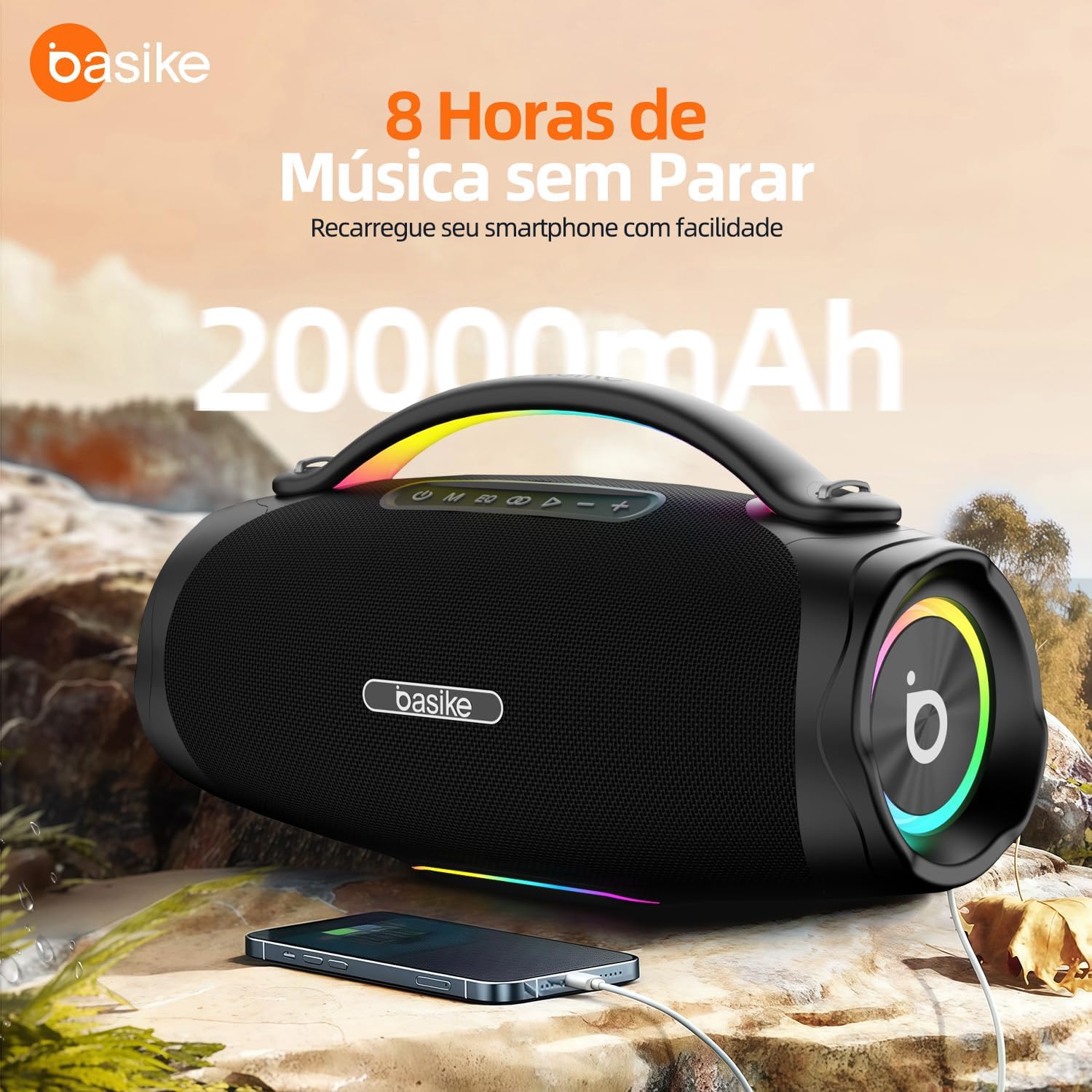
Image: Basike Boombox V97 Pro connected to a smartphone for charging, highlighting its 20000mAh battery and power bank function.
3.2. Power On/Off
- To power on, press and hold the Power button.
- To power off, press and hold the Power button again.
4. Operating Instructions
4.1. Controls and Ports Overview
The speaker features an intuitive control panel and multiple input/output ports.
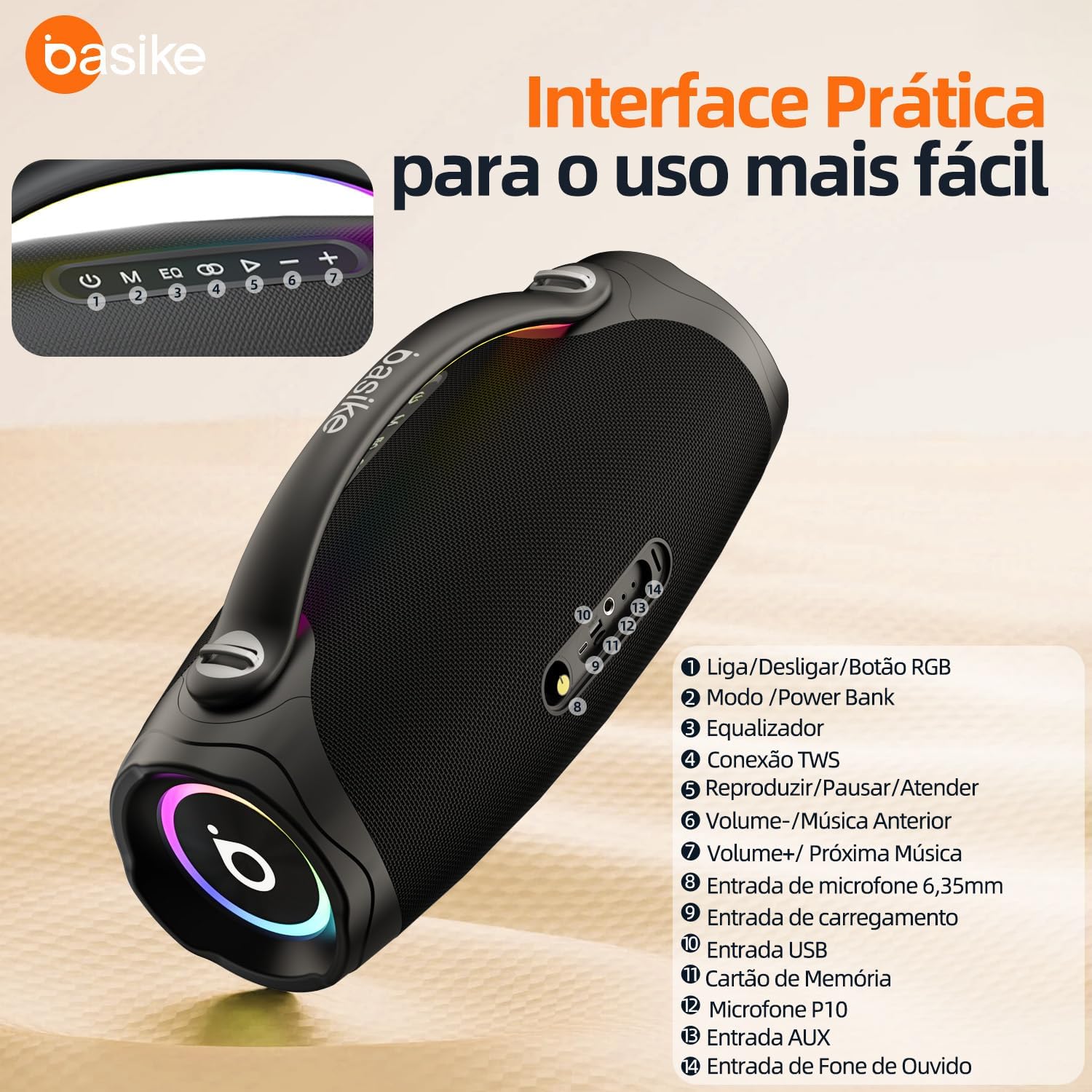
Image: Detailed view of the Basike Boombox V97 Pro's control buttons and rear ports, including Type-C, USB, AUX, TF Card, and MIC inputs.
- Power Button: Power On/Off.
- Mode (M) Button: Switch between Bluetooth, USB, TF Card, and AUX input modes.
- EQ Button: Cycle through equalizer presets.
- TWS Button: Initiate or exit True Wireless Stereo pairing.
- Play/Pause Button: Play or pause audio. Answer/End calls.
- Volume - / Previous Track: Decrease volume (short press), go to previous track (long press).
- Volume + / Next Track: Increase volume (short press), go to next track (long press).
- Ports: Type-C (charging), USB (playback/power bank), TF Card slot, AUX (3.5mm) input, MIC (6.35mm) input.
4.2. Bluetooth Connection
The speaker uses Bluetooth 5.3 for stable and fast connections.
- Power on the speaker. It will automatically enter Bluetooth pairing mode.
- On your smartphone or tablet (iOS/Android), enable Bluetooth and search for available devices.
- Select "Basike V97 Pro" from the list to connect. A successful connection will be confirmed by an audible prompt.
- The connection range is up to 15 meters in open areas.
Video: Demonstrates Bluetooth connection, power bank function, IPX6 water resistance, and RGB lighting of the Basike Boombox V97 Pro speaker.
4.3. True Wireless Stereo (TWS) Pairing
Pair two V97 Pro speakers for an immersive stereo or surround sound experience.
- Ensure both speakers are powered on.
- On the speaker designated as the "Host" (Master), quickly press the TWS button twice. The yellow indicator will flash.
- On the other speaker ("Slave"), simply power it on normally.
- The speakers will automatically connect within 180 seconds. The yellow indicator on both speakers will become solid when connected.
- To exit TWS mode, quickly press the TWS button twice on either speaker.
Note: Keep speakers within 1 meter during initial pairing. TWS range is up to 15 meters in open areas.

Image: Two Basike Boombox V97 Pro speakers paired using TWS technology for a stereo sound experience.
4.4. Using Other Inputs (USB, TF Card, AUX)
The speaker supports playback from various sources:
- USB Drive: Insert a USB flash drive into the USB port. The speaker will automatically switch to USB mode and begin playback.
- TF Card (MicroSD): Insert a TF card into the TF card slot. The speaker will automatically switch to TF card mode and begin playback.
- AUX Input: Connect an external audio source (e.g., MP3 player) using a 3.5mm audio cable to the AUX port. Press the Mode (M) button to switch to AUX mode.
4.5. RGB Lights
The speaker features intelligent RGB LED lights with multiple effects (rhythm, animation, spectrum).
- To cycle through light modes or turn them off, refer to the specific button on the control panel (often integrated with the Power or Mode button, or a dedicated light button if available).

Image: Basike Boombox V97 Pro displaying its intelligent RGB lighting effects while playing music.
4.6. Power Bank Function
The speaker can charge other devices using its built-in power bank function.
- Ensure the speaker is powered on.
- Connect your smartphone or other USB device to the USB output port (5V/1A) on the speaker using a compatible charging cable.
- The speaker will begin charging your device. This function is ideal for emergency charging.
5. Maintenance
- Cleaning: Use a soft, dry cloth to clean the speaker's exterior. For stubborn dirt, lightly dampen the cloth with water. Do not use chemical cleaners, solvents, or abrasive materials.
- Storage: When not in use for extended periods, store the speaker in a cool, dry place, away from direct sunlight and extreme temperatures.
- Battery Care: To prolong battery life, avoid fully discharging the speaker frequently. Recharge it when the low battery warning appears.
6. Troubleshooting
| Problem | Possible Cause | Solution |
|---|---|---|
| Speaker does not power on. | Low battery. | Charge the speaker fully. |
| Cannot connect via Bluetooth. | Bluetooth not enabled on device; speaker not in pairing mode; too far from speaker. | Ensure Bluetooth is on and search for "Basike V97 Pro". Make sure the speaker is in Bluetooth mode. Move closer to the speaker. |
| TWS pairing fails. | Incorrect pairing steps; speakers too far apart during initial pairing. | Follow TWS pairing instructions carefully (Section 4.3). Ensure speakers are within 1 meter during initial pairing. |
| No sound from USB/TF/AUX. | Incorrect mode selected; file format not supported; cable not fully inserted. | Press the Mode (M) button to select the correct input. Ensure audio files are in a supported format. Check cable connections. |
| RGB lights not working. | Lights turned off or in a static mode. | Cycle through light modes using the dedicated button or refer to the manual for light control. |
7. Specifications
| Feature | Detail |
|---|---|
| Model | V97 Pro (Ba-RAD180) |
| Type | Portable Bluetooth Stereo Speaker with Karaoke |
| Max Power Output | 200W |
| Battery | 20000mAh Lithium-Ion |
| Playback Time | Up to 8 hours (at 50% volume), 4 hours (at max volume) |
| Charging Time | Approx. 4 hours (with 5V/3A charger) |
| Bluetooth Version | 5.3 (A2DP, AVRCP, HFP) |
| Bluetooth Range | ≥15m (open area) |
| TWS Range | ≥15m (open area) |
| Connectivity | Bluetooth, USB, TF Card, AUX (3.5mm), MIC (6.35mm) |
| Power Bank Output | 5V/1A (via USB port) |
| Water Resistance | IPX6 (splash-proof, not submersible) |
| Dimensions (LxHxD) | 447.38mm x 238mm x 187.95mm (approx. 44.7 x 23.8 x 18.8 cm) |
| Weight | Approx. 4176g (4.176 kg) |
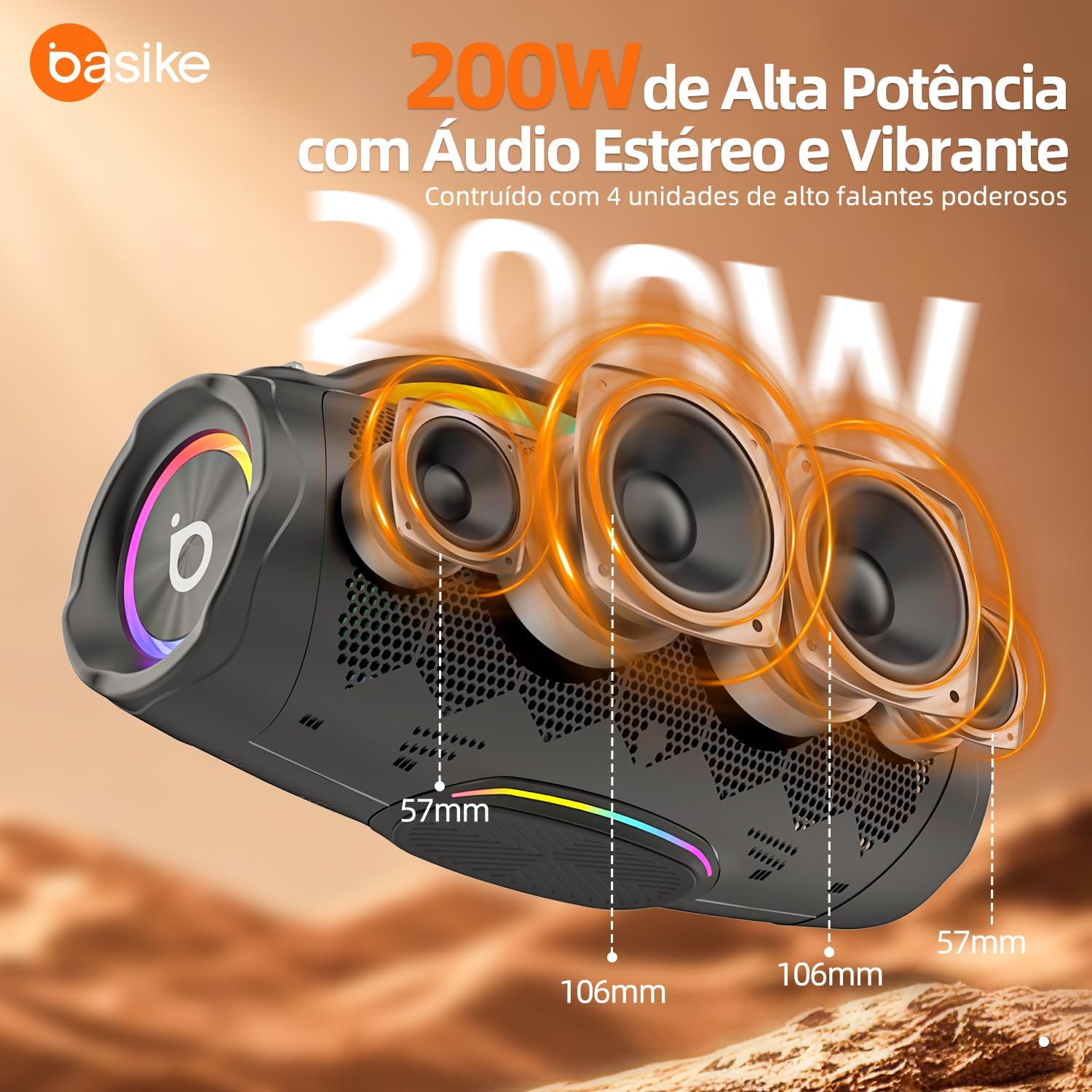
Image: Internal view of the Basike Boombox V97 Pro highlighting its speaker units and dimensions.
8. Warranty Information
The Basike Boombox V97 Pro comes with a 1-year warranty from the date of purchase. This warranty covers manufacturing defects. It does not cover damage caused by misuse, accidents, unauthorized modifications, or failure to follow the instructions in this manual. Please retain your proof of purchase for warranty claims.
9. Support
For further assistance, technical support, or warranty inquiries, please visit the official Basike website or contact their customer service.
Ask a question about this manual
Ask about setup, troubleshooting, compatibility, parts, safety, or missing instructions. Manuals+ will review the question and use this page’s manual context to help answer it.