
1. Introduction
This manual provides detailed instructions for the setup, operation, and maintenance of your Acer OMW317 Wired Gaming Mouse. Please read this manual thoroughly to ensure proper use and to maximize your gaming and productivity experience.

Figure 1: Acer OMW317 Wired Gaming Mouse
2. Package Contents
- Acer Gaming Mouse x 1
- User Manual x 1 (This Document)
- Product Warranty Card x 1
3. Setup
3.1 Connecting the Mouse
- Locate an available USB-A port on your computer (desktop or laptop).
- Plug the USB-A connector of the Acer OMW317 Gaming Mouse into the USB-A port.
- The mouse is plug-and-play and does not require additional drivers for basic functionality on Windows, Linux, and macOS platforms.
- For advanced features and customization, proceed to section 4.4 for software installation.
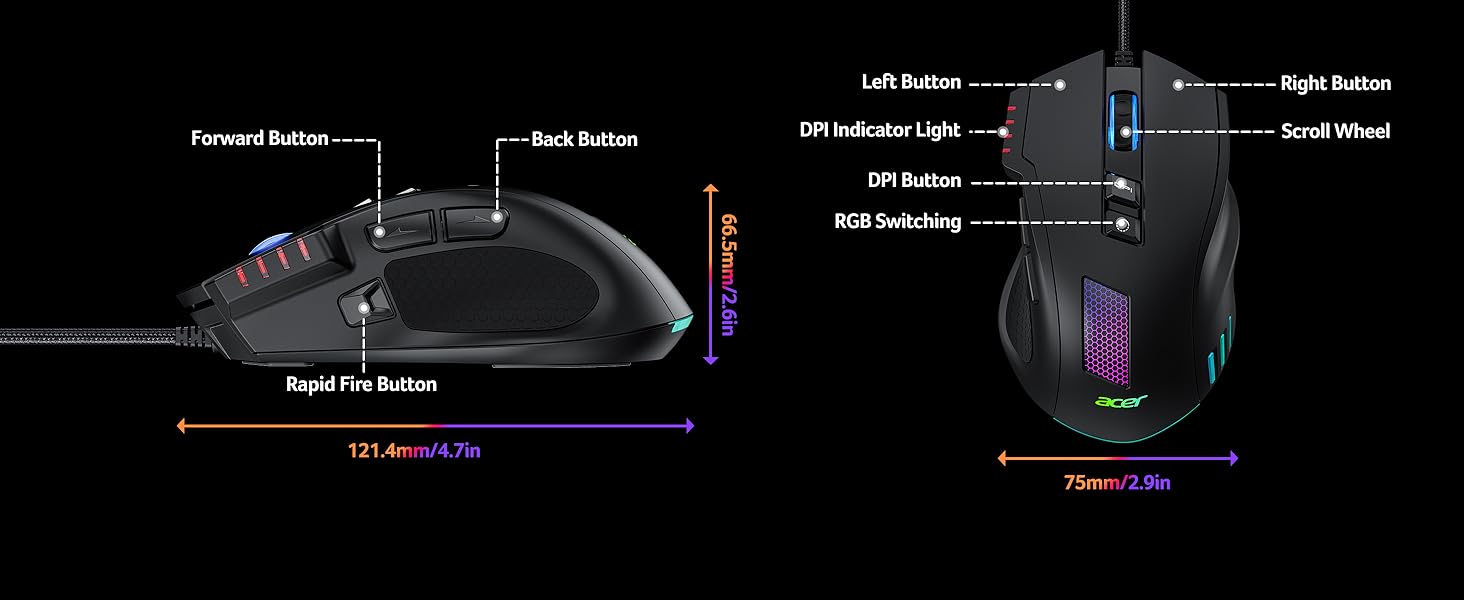
Figure 2: USB-A Compatibility with Various Systems
4. Operating Instructions
4.1 Button Functions
The Acer OMW317 Gaming Mouse features 8 programmable buttons. Refer to the diagram below for default button assignments:

Figure 3: Button Description
- Left Button: Standard left-click function.
- Right Button: Standard right-click function.
- Scroll Wheel: Scrolls content up/down. Can also be pressed for middle-click function.
- DPI Button: Cycles through preset DPI levels.
- RGB Switching Button: Cycles through various RGB lighting effects.
- DPI Indicator Light: Displays the current DPI setting.
- Rapid Fire Button: Executes multiple clicks with a single press.
- Forward Button: Navigates forward in web browsers or file explorers.
- Back Button: Navigates backward in web browsers or file explorers.
4.2 DPI Adjustment
The mouse supports adjustable DPI settings from 200 to 12,800 DPI. By default, the mouse comes with 4 preset DPI levels:
- 1200 DPI
- 2400 DPI (Default)
- 3200 DPI
- 6400 DPI
Press the DPI Button (Button 4 in Figure 3) to cycle through these preset levels. The DPI Indicator Light (Button 6) will change to reflect the current setting.
For custom DPI settings up to 12,800 DPI, use the driver software (see section 4.4).

Figure 4: Adjustable DPI Levels

Figure 5: DPI and Polling Rate Settings
4.3 RGB Lighting Effects
The Acer OMW317 mouse features 12 dynamic RGB lighting modes. Press the RGB Switching Button (Button 5 in Figure 3) to cycle through these effects. To toggle the lights on or off, hold the DPI switch button for 3 seconds.
Further customization of RGB effects, including synchronization with music, is available through the driver software.

Figure 6: Dynamic Colorful RGB Lighting
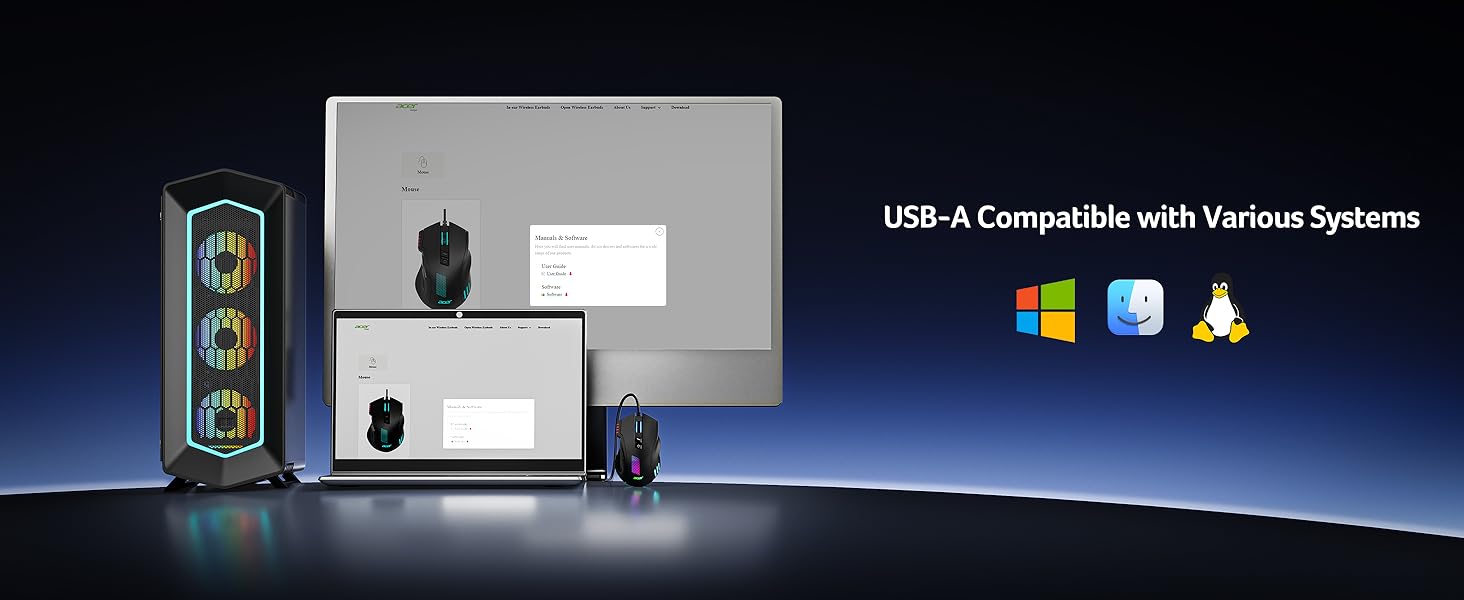
Figure 7: 12 Dynamic RGB Schemes
4.4 Programmable Features and Software
To unlock the full potential of your Acer OMW317 Gaming Mouse, including remapping buttons, assigning macros, fine-tuning DPI, and customizing RGB effects, you need to install the dedicated driver software.
- Software Download: Please visit the official Acer website to download the latest driver software for the OMW317 model.
- Installation: Follow the on-screen instructions to install the software.
- Customization: Once installed, launch the software to access settings for:
- Button remapping
- Macro editing
- DPI adjustment (up to 12,800 DPI)
- RGB lighting customization
- Polling rate adjustment (125Hz, 250Hz, 500Hz, 1000Hz)

Figure 8: Customized Drivers for Higher Demands
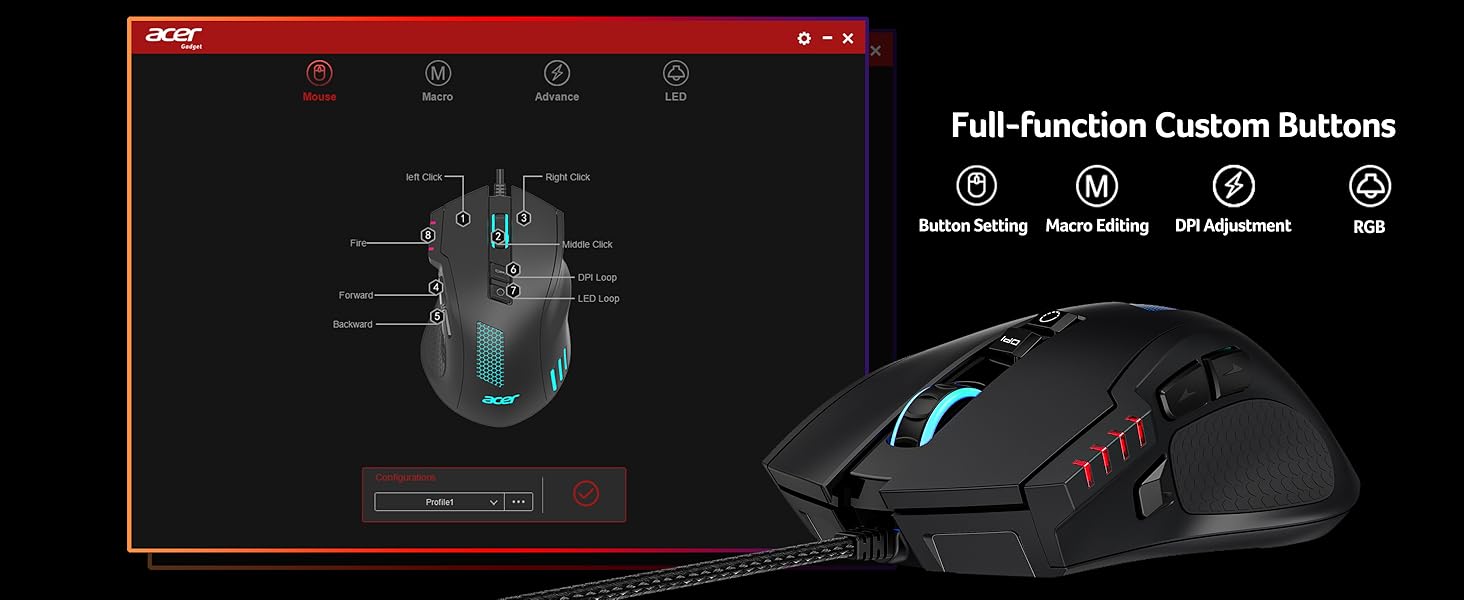
Figure 9: Full-Function Custom Buttons via Software
4.5 Rapid Fire Function
The dedicated Rapid Fire Button (Button 7 in Figure 3) allows for quick, multiple clicks with a single press. The interval of these multiple clicks can be adjusted via the driver software to suit your preferences.

Figure 10: Instant Multi-Shot at Fingertips
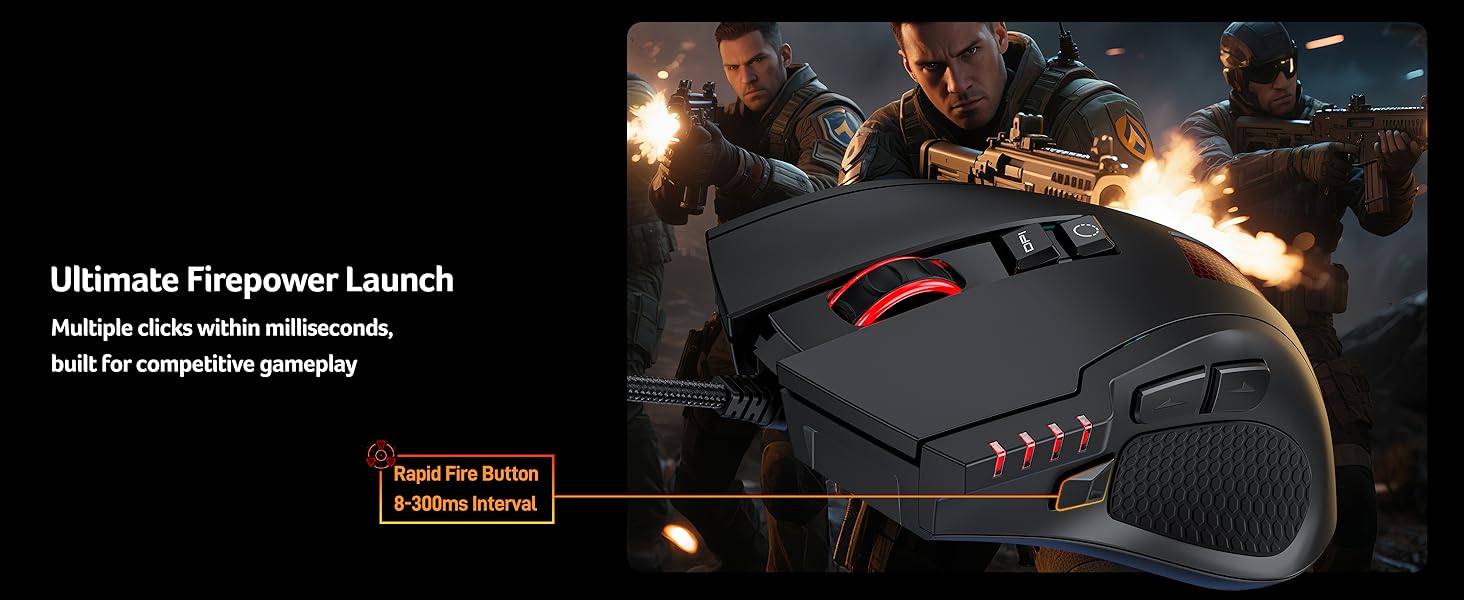
Figure 11: Ultimate Firepower Launch
5. Maintenance
5.1 Cleaning
- Disconnect the mouse from your computer before cleaning.
- Use a soft, dry cloth to wipe the surface of the mouse.
- For stubborn dirt, lightly dampen the cloth with water or a mild cleaning solution. Avoid harsh chemicals.
- Use a cotton swab or compressed air to clean around buttons and the optical sensor.
5.2 Storage
When not in use for extended periods, store the mouse in a clean, dry environment away from direct sunlight and extreme temperatures.
5.3 Cable Care
The mouse features a durable braided cable. To prolong its lifespan, avoid sharp bends, twists, or excessive pulling on the cable.
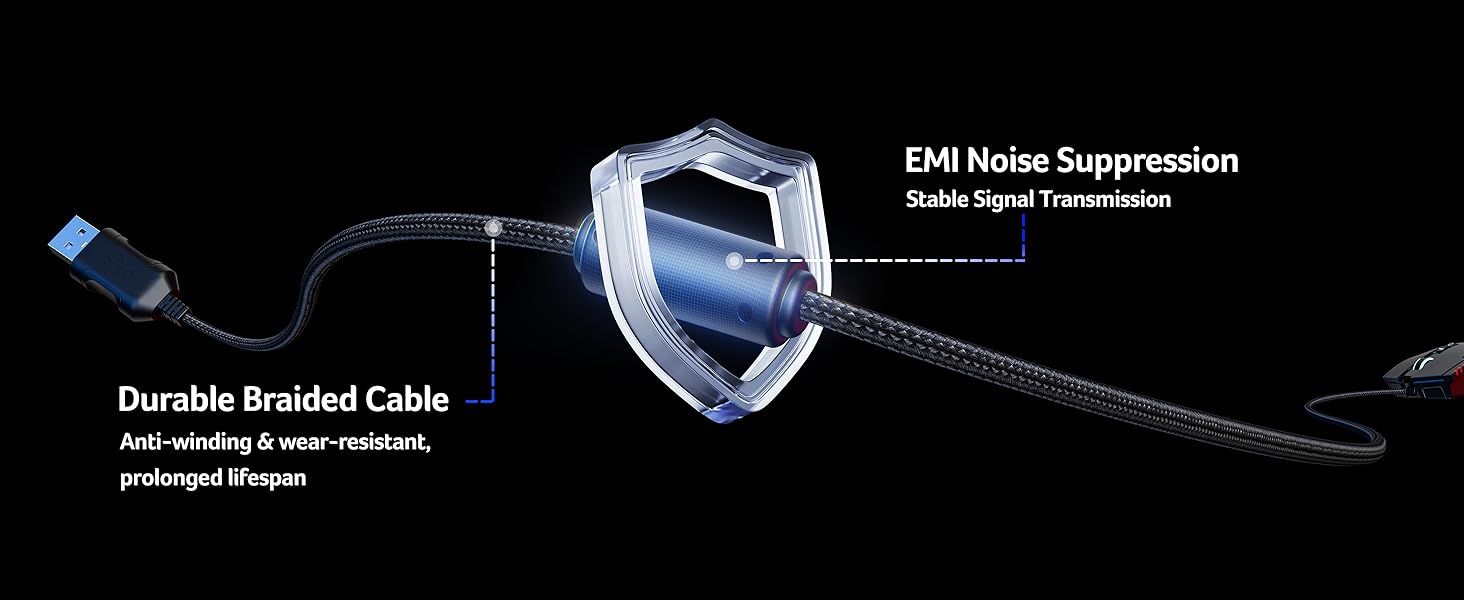
Figure 12: Durable Braided Cable with EMI Noise Suppression
6. Troubleshooting
6.1 Mouse Not Responding
- Ensure the USB cable is securely plugged into a working USB-A port on your computer.
- Try plugging the mouse into a different USB-A port.
- Test the mouse on another computer to determine if the issue is with the mouse or the computer.
- Restart your computer.
6.2 Cursor Movement is Erratic or Jumpy
- Clean the optical sensor on the bottom of the mouse using a cotton swab.
- Ensure you are using the mouse on a suitable surface (e.g., a mouse pad). Avoid highly reflective or transparent surfaces.
- Check for any debris obstructing the optical sensor.
6.3 RGB Lights Not Working
- Press the RGB Switching Button (Button 5) to cycle through modes.
- Hold the DPI switch button for 3 seconds to toggle the lights on/off.
- Check the RGB settings within the driver software to ensure they are enabled and configured correctly.
6.4 Programmable Buttons Not Functioning
- Ensure the driver software is installed and running.
- Verify that the buttons have been correctly assigned functions within the software.
- Save any changes made in the software and restart the application or your computer if necessary.
7. Specifications
The following table outlines the technical specifications for the Acer OMW317 Wired Gaming Mouse:
| Feature | Specification |
|---|---|
| Model Number | OMW317 |
| Connectivity Technology | USB-A Wired |
| Movement Detection Technology | Optical |
| DPI Range | 200 - 12,800 DPI (Software Adjustable) |
| Default DPI Presets | 1200, 2400, 3200, 6400 |
| Polling Rate | Up to 1000Hz |
| Acceleration | 20G |
| Buttons | 8 Programmable Buttons |
| RGB Lighting | 12 Dynamic Modes |
| Product Dimensions | 5.91 x 3.86 x 0.1 inches |
| Item Weight | 6.7 ounces |
| Cable Length | 3 ft (approx.) |
| Compatibility | Windows, Linux, macOS |

Figure 13: Optical Sensor and Key Specifications
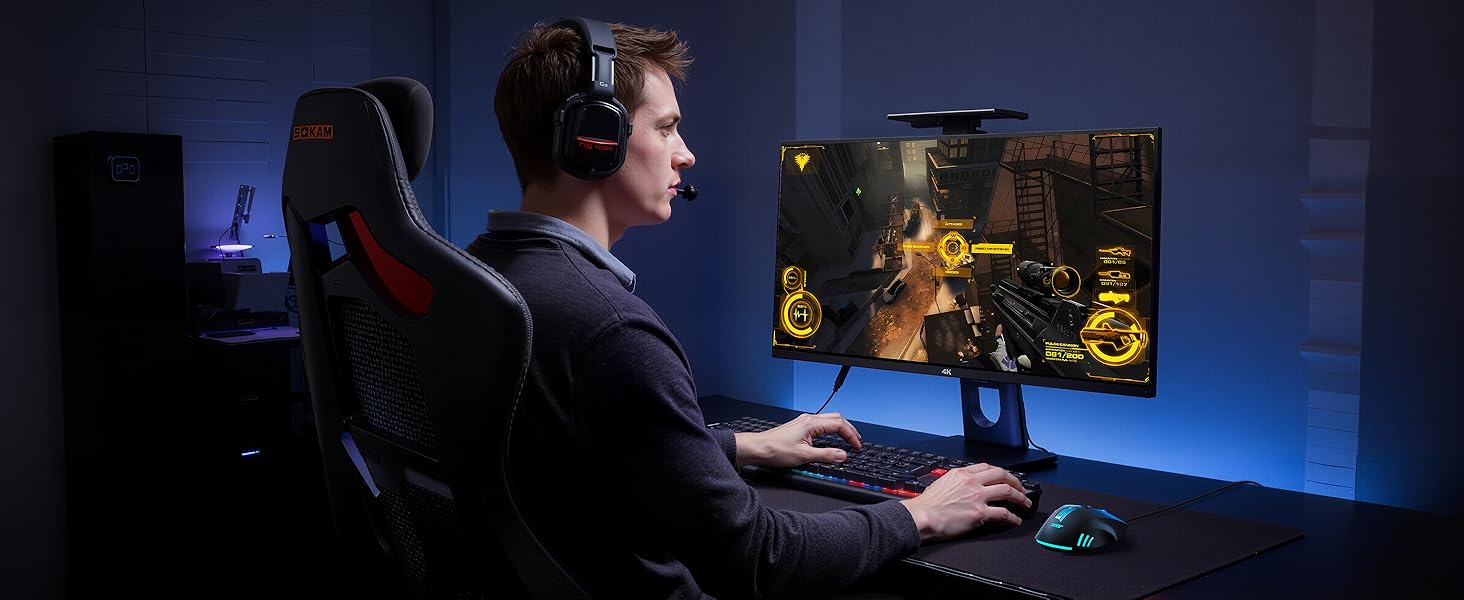
Figure 14: Mouse Dimensions and Button Layout
8. Warranty and Support
8.1 Product Warranty
Your Acer OMW317 Wired Gaming Mouse comes with a Product Warranty Card. Please refer to this card for detailed information regarding warranty coverage, terms, and conditions. Keep your proof of purchase for warranty claims.
8.2 Customer Support
For technical assistance, troubleshooting beyond this manual, or warranty inquiries, please visit the official Acer support website or contact Acer customer service. Contact information can typically be found on the Acer website or on your warranty card.
You can also visit the Acer Store on Amazon for additional product information and resources.


