
ARNSSIEN Y5
ARNSSIEN Y5 4K 48MP Dual Screen Digital Camera User Manual
Model: Y5
Introduction
This manual provides detailed instructions for the ARNSSIEN Y5 4K 48MP Digital Camera. Please read it thoroughly before using the camera to ensure proper operation and to maximize its features. This camera is designed for ease of use, making it suitable for beginners, children, and teenagers.

Image: The ARNSSIEN Y5 Digital Camera, showcasing its dual screen feature and compact design.
Package Contents
Verify that all items are present in your package:
- 1x Digital Camera
- 1x 32GB Memory Card
- 1x Type-C Cable
- 1x Card Reader
- 1x Protective Pouch
- 1x Lanyard
- 1x User Manual
- 1x Gift Box

Image: All items included in the ARNSSIEN Y5 Digital Camera package, neatly arranged.
Camera Overview
Familiarize yourself with the camera's components and controls.
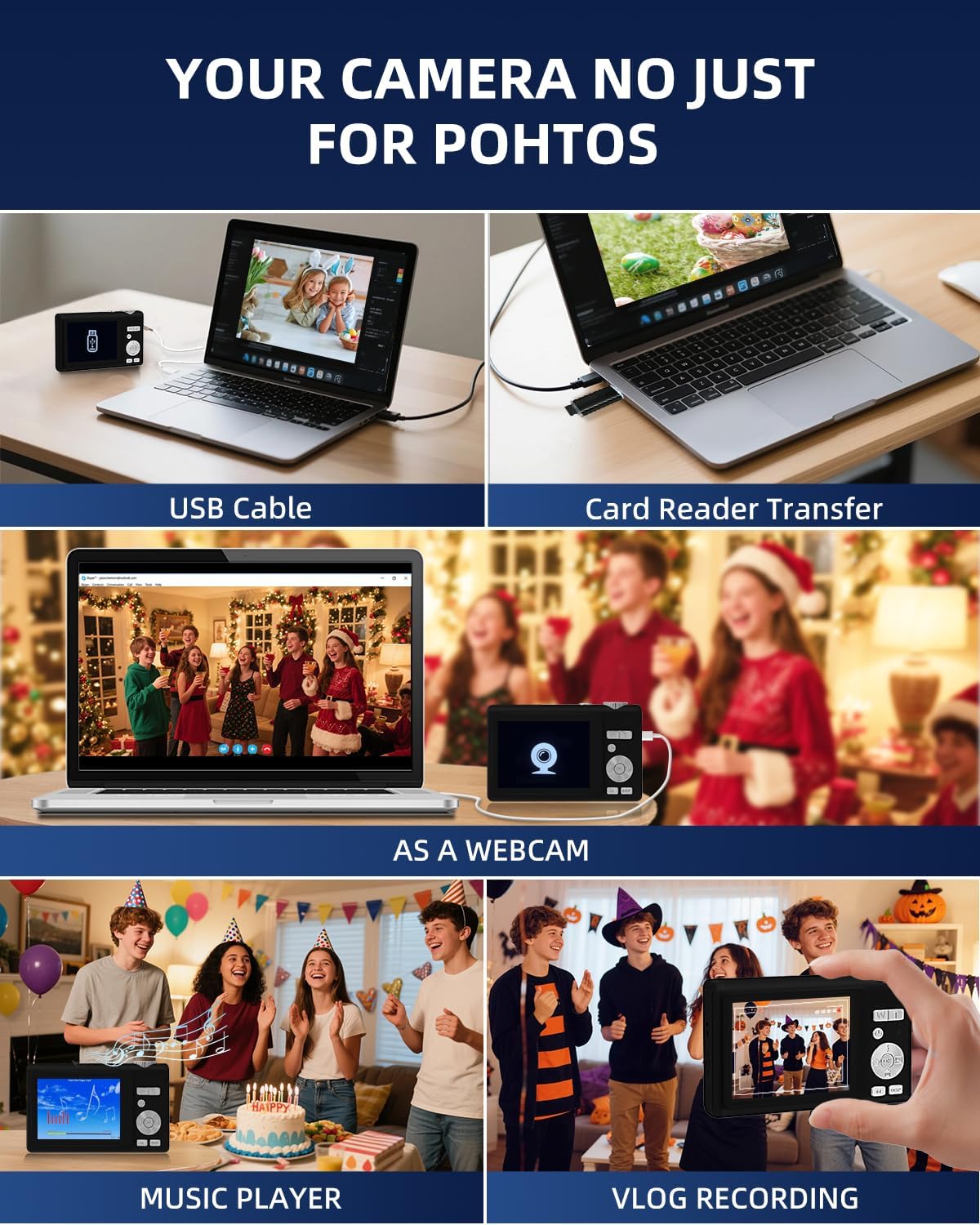
Image: Detailed diagram showing the camera's front, top, and rear views with labels for all buttons, ports, and screens.
- Mode Rotation Key: For selecting different camera modes.
- Shutter Button: To take photos or start/stop video recording.
- Flash Light: Integrated flash for low-light conditions.
- Charging Port (Type-C): For charging the camera and data transfer.
- Charge Lamp: Indicates charging status.
- TF Card Port: Slot for the microSD card.
- Selfie Display: The smaller front screen for self-portraits.
- Zoom Key (W/T): To zoom in (T) or zoom out (W).
- Power Button: To turn the camera on or off.
- Status Indicator Light: Shows camera's operational status.
- Up Button (Flash): Controls flash settings.
- Right Button: Navigation or specific function button.
- OK Button: Confirms selections or accesses special effects (1-15 types).
- Down Button: Navigation or specific function button.
- DISP Key: Switches to the selfie screen.
- Mode Switch: Toggles between photo and video modes.
- Left Button: Navigation or specific function button.
- Hang Rope Hole: For attaching the lanyard.
- Loudspeaker: For audio playback.
Setup
1. Charging the Battery
Before first use, fully charge the camera. Connect the camera to a power source using the provided Type-C cable. The Charge Lamp will indicate the charging status.
Note: The camera uses a built-in Lithium-polymer battery. No battery swaps are needed; simply charge and go.
2. Inserting the Memory Card
The camera supports microSD cards up to 128GB. A 32GB memory card is included. Insert the memory card into the TF Card Port until it clicks into place.
Important: For optimal performance, format the SD card within the camera before its first use.
3. Powering On/Off
Press and hold the Power Button to turn the camera on or off.
Operating Instructions
1. Basic Photography and Videography
- Taking Photos: In photo mode, press the Shutter Button to capture a 48MP image. The camera features autofocus for clear shots.
- Recording Videos: Switch to video mode using the Mode Switch, then press the Shutter Button to start/stop 4K video recording.
- Zoom: Use the Zoom Key (W/T) to adjust the 16x digital zoom.
- Dual Screen Function: The camera has a 2.8" main screen and a 1.4" selfie screen. Press the DISP Key to switch to the selfie screen for easy self-portraits.
2. Camera Settings and Modes
The camera offers various settings and modes for enhanced creativity and control. Access these through the menu system or dedicated buttons.

Image: On-screen display of photo mode settings including flash, anti-shake, burst, time-lapse, music player, photo size, white balance, exposure, ISO, scene, sharpness, quality, and general settings.

Image: On-screen display of video mode settings including audio recording, flash, video bitrate, motion detection, loop recording, music player, white balance, exposure, ISO, scene, sharpness, quality, and general settings.
- ISO: Adjusts light sensitivity.
- EV (Exposure Value): Controls image brightness.
- WB (White Balance): Corrects color cast based on lighting.
- WDR (Wide Dynamic Range): Improves detail in both bright and dark areas.
- Flash: Use the Up Button to cycle through flash modes (e.g., Auto, Fill-flash).
- Sharpness: Adjusts image clarity.
- Filters: Apply 15 different filter effects for creative shots.
- Beauty Mode: Enhances facial features in portraits.
- Burst Shot: Captures multiple photos in quick succession.
- Slow Motion: Records video at a slower playback speed.
- Time-Lapse: Captures images at set intervals to create a sped-up video.
- Stabilization (Anti-Shake): Reduces blur caused by camera movement.
- Motion Detection: Camera starts recording when motion is detected.
- Composition Aid: Assists in framing your shots.

Image: A visual comparison demonstrating the effect of Beauty Mode when activated and deactivated on a group photo.

Image: A sequence of three images showing a snowboarder in mid-air, illustrating the continuous shooting feature.

Image: A four-panel sequence showing a person blowing bubbles, demonstrating the time-lapse feature with timestamps.

Image: A visual comparison showing the difference in image stability with Anti-Shake mode activated versus deactivated, illustrated with a skier.

Image: A multi-panel comparison demonstrating the effects of different sharpness levels, white balance modes, ISO settings, filter effects, and exposure values on an image.
3. Additional Functions
- Music Player: The camera includes a built-in music player.
- Webcam Function: Connect the camera to a computer via USB-C to use it as a webcam.
- File Transfer: Transfer photos and videos to a computer using the Type-C cable or the included card reader.

Image: Illustration of two methods for transferring files: directly via USB cable to a laptop, and using a card reader for the memory card.
Maintenance
- Cleaning: Use a soft, dry cloth to clean the camera body. For the lens and screens, use a specialized lens cleaning cloth and solution. Avoid abrasive materials.
- Battery Care: To prolong battery life, avoid fully discharging the battery frequently. Charge the camera regularly, especially if not used for extended periods. Store the camera in a cool, dry place.
- Storage: When not in use, store the camera in its protective pouch to prevent scratches and dust accumulation.
Troubleshooting
| Problem | Possible Cause | Solution |
|---|---|---|
| Camera does not turn on. | Low battery. | Charge the camera fully using the provided Type-C cable. |
| Cannot take photos/videos. | Memory card full or not inserted correctly. | Check memory card insertion. Delete unnecessary files or replace the card. Ensure the card is formatted. |
| Images are blurry. | Anti-shake feature off, camera movement, or focus issue. | Ensure Anti-Shake is enabled. Hold the camera steady. For autofocus, hold down the shutter button halfway to lock focus before fully pressing. |
| Camera freezes or crashes. | Software glitch or memory card issue. | Turn off the camera and restart. If the problem persists, remove and reinsert the memory card. |
If you encounter issues not listed here, please refer to the "Warranty & Support" section for assistance.
Specifications
| Feature | Detail |
|---|---|
| Model Number | Y5 |
| Effective Capture Resolution | 48 Megapixels |
| Video Capture Resolution | 2160p (4K UHD) |
| Optical Zoom | 16x |
| Digital Zoom | 16x |
| Image Stabilization | Optical |
| Autofocus | Yes |
| Display Type | LCD |
| Main Screen Size | 2.8 Inches |
| Selfie Screen Size | 1.4 Inches |
| Memory Card Type | microSD (TF Card) |
| Max Supported Memory Card | 128 GB |
| Included Memory Card | 32 GB |
| Battery Type | Lithium-polymer |
| Average Battery Life | 2 hours |
| Connectivity Technology | Micro USB (Type-C) |
| Dimensions (L x W x H) | 2.54 x 5.08 x 3.81 cm |
| Weight | 250 grams |
| Skill Level | Beginner |
| Supported File Formats | JPEG, MP4 |
| Flash | Integrated, Fill-flash automatic |
| Water Resistance Level | Not waterproof |
Warranty & Support
- Warranty: This product comes with a 30-day warranty from the date of purchase. Please retain your proof of purchase.
- Customer Support: For any questions, technical assistance, or warranty claims, please contact ARNSSIEN customer support. 24-hour assistance is available. Refer to the contact information provided with your purchase or on the official ARNSSIEN website.
Ask a question about this manual
Ask about setup, troubleshooting, compatibility, parts, safety, or missing instructions. Manuals+ will review the question and use this page’s manual context to help answer it.