
1. Introduction
Thank you for choosing the AULA SC680 Wireless Gaming Mouse. This manual provides detailed instructions to help you set up, operate, and maintain your device for optimal performance. The SC680 features tri-mode connectivity, a high-performance PAW3395 sensor, and customizable options designed for both gaming and professional use.

Image: Top view of the AULA SC680 Wireless Gaming Mouse in black, showcasing its ergonomic design and primary buttons.
2. Key Features
- Tri-Mode Connectivity: Supports USB-C wired, 2.4GHz wireless, and Bluetooth 5.2 connections for versatile use across multiple devices and operating systems (Windows 7/8/10, Vista, XP, Mac, Windows 2000, Linux).
- High-Performance PAW3395 Sensor: Delivers precise tracking with up to 26000 programmable DPI, 650 IPS speed, 50g acceleration, and an 8000Hz polling rate.
- Durable & Responsive Buttons: Equipped with switches rated for up to 80 million clicks, ensuring longevity and quick response.
- Ultra-Lightweight Design: Weighs only 58g for comfortable, extended use, reducing hand fatigue. Includes anti-slip and sweat-proof stickers for enhanced grip.
- Long Battery Life: Built-in 500mAh rechargeable battery provides up to 75 hours of continuous use.
- Customizable Software: Allows users to personalize DPI settings, button functions, macro files, and polling rates (Windows systems only for driver functionality).

Image: Diagram illustrating the PAW3395 flagship sensor and its performance specifications including DPI adjustment, IPS, and accelerated speed.
3. Package Contents
Please check the package for the following items:
- AULA SC680 Wireless Gaming Mouse
- USB-C Charging/Data Cable
- 2.4GHz USB Receiver
- Anti-slip Stickers (optional application)
- Spare Foot Pads
- User Manual (this document)
4. Setup and Connection
4.1 Charging the Mouse
Before first use, it is recommended to fully charge the mouse. Connect the provided USB-C cable to the mouse's front port and the other end to a USB power source (e.g., computer USB port, USB wall adapter). The indicator light on the mouse will blink red while charging and turn solid when fully charged. A full charge provides up to 75 hours of battery life.

Image: The AULA SC680 mouse connected via USB-C cable for charging, highlighting its 500mAh battery and up to 75 hours of battery life.
4.2 Connecting the Mouse (Tri-Mode)
The AULA SC680 offers three connection modes: 2.4GHz Wireless, Bluetooth 5.2, and USB-C Wired.
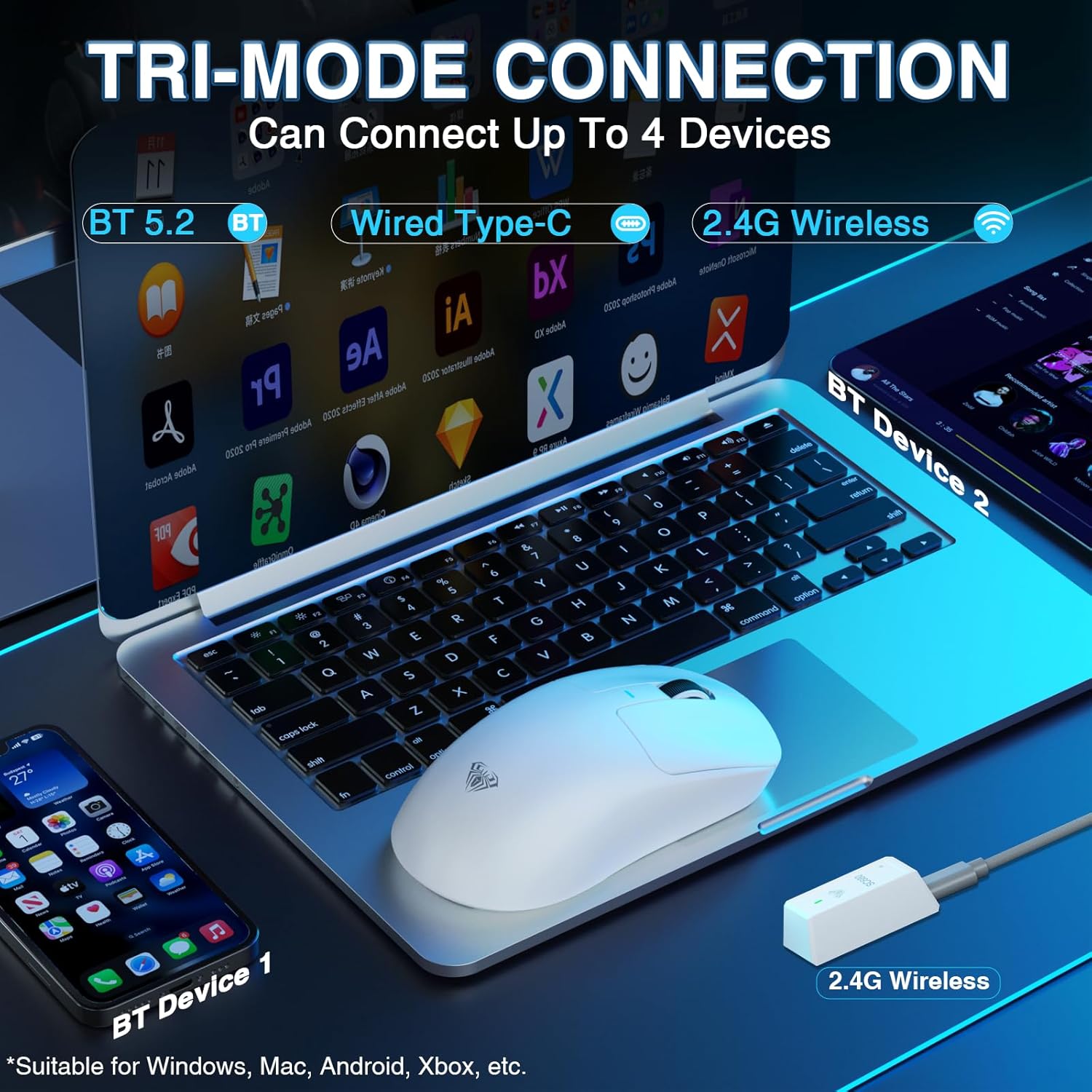
Image: The AULA SC680 mouse demonstrating its tri-mode connection capabilities, including Bluetooth, wired USB-C, and 2.4GHz wireless with a receiver.
- 2.4GHz Wireless Mode:
- Locate the 2.4GHz USB receiver (often stored in a compartment on the bottom of the mouse).
- Plug the receiver into an available USB port on your computer.
- Slide the switch on the bottom of the mouse to the "2.4G" position. The mouse should connect automatically.
- Bluetooth 5.2 Mode:
- Slide the switch on the bottom of the mouse to the "BT" position.
- On your device (PC, laptop, Mac, PS5), go to Bluetooth settings and search for new devices.
- Select "AULA-SC680" from the list to pair. The mouse supports two Bluetooth connections (BT1 and BT2).
- For BT1: Hold down the DPI key for 5 seconds; the blue light will flash.
- For BT2: Hold down the middle key + back key for 5 seconds; the green light will flash.
- To switch between BT1 and BT2: Hold down the middle key + forward key for 5 seconds.
- USB-C Wired Mode:
- Connect the provided USB-C cable to the mouse and to your computer's USB port.
- The mouse will function as a wired mouse and charge simultaneously.
Video: An official product video demonstrating the AULA SC680 Tri-Mode Wireless Gaming Mouse, highlighting its features and connectivity options.
5. Operating Instructions
5.1 Button Functions
The AULA SC680 mouse features several programmable buttons:
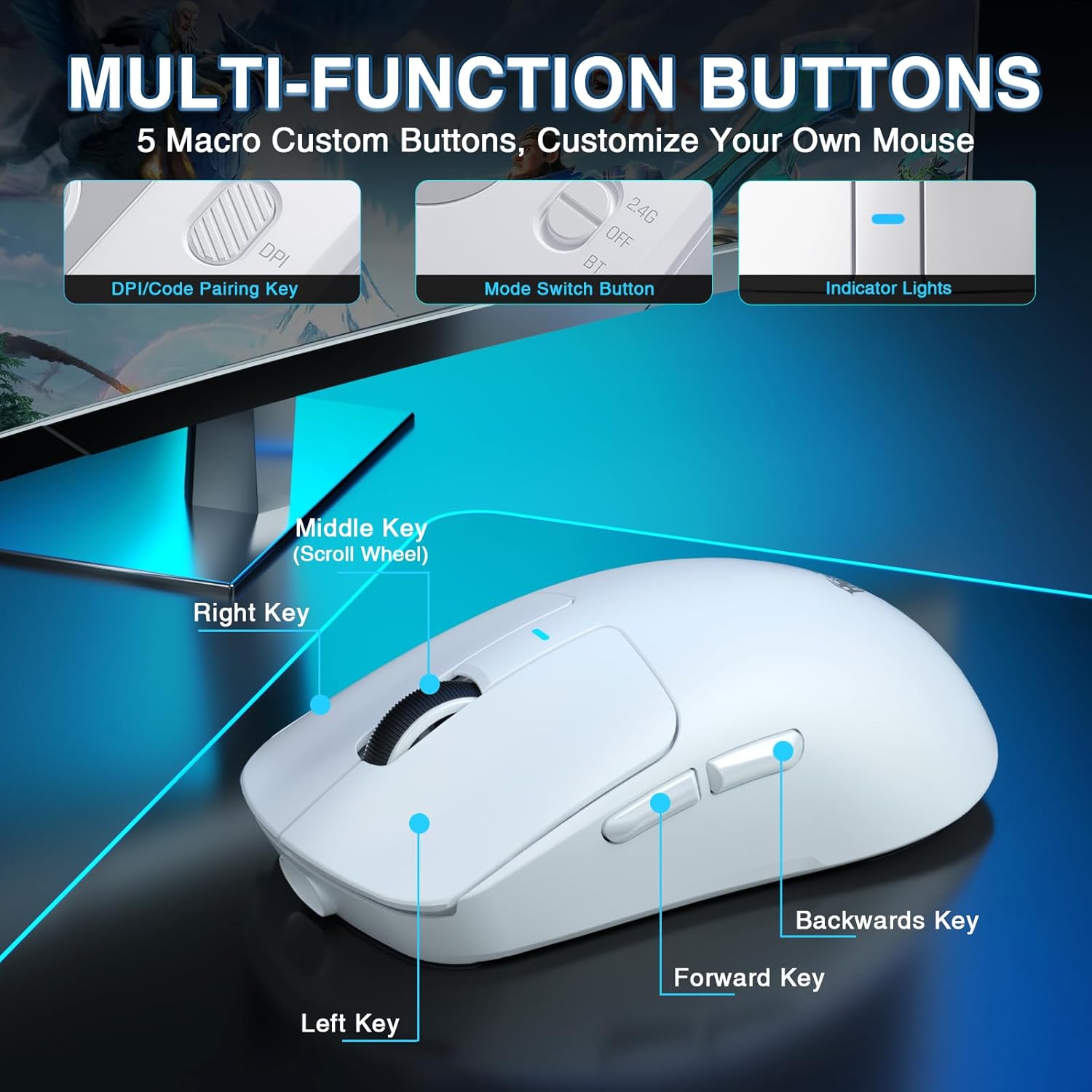
Image: A detailed diagram labeling the multi-function buttons on the AULA SC680 mouse, including Left Key, Right Key, Middle Key (Scroll Wheel), Forward Key, Backwards Key, DPI/Code Pairing Key, Mode Switch Button, and Indicator Lights.
- Left Click: Standard primary click.
- Right Click: Standard secondary click.
- Middle Key (Scroll Wheel): Scroll up/down, click for middle button function.
- Forward Key: Navigates forward in web browsers or file explorers.
- Backwards Key: Navigates backward in web browsers or file explorers.
- DPI/Code Pairing Key (Bottom): Cycles through DPI settings and initiates Bluetooth pairing.
- Mode Switch Button (Bottom): Toggles between 2.4G, OFF, and BT modes.
5.2 DPI Adjustment
The mouse supports up to 26000 programmable DPI. You can cycle through preset DPI levels using the DPI button on the bottom of the mouse. The indicator light on the mouse will change color to indicate the current DPI setting. Default levels are typically 400-800-1600-3200-6400.
5.3 Customizable Software
For advanced customization, including precise DPI settings, macro programming, and button remapping, download the official AULA driver software.
- Driver Download: Visit bit.ly/m/AULA
- Compatibility Note: The gaming driver is compatible only with Windows systems and supports 2.4GHz wireless mode and USB-C wired mode. For Bluetooth connection mode, Windows 10 or higher is required.
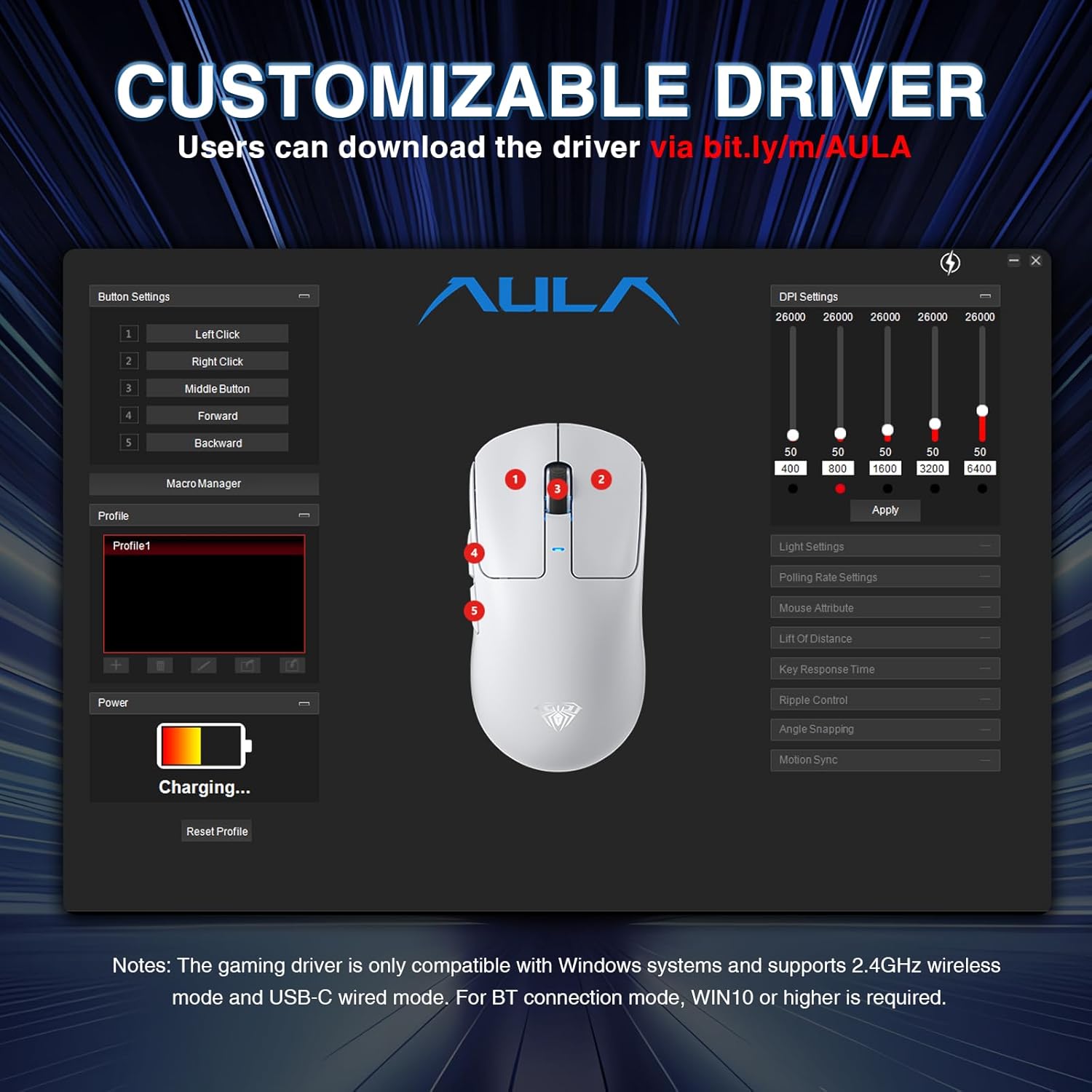
Image: A screenshot of the AULA customizable driver software, showing options for button settings, DPI adjustments, polling rate, and other mouse attributes.
6. Maintenance
To ensure the longevity and optimal performance of your AULA SC680 mouse, follow these maintenance guidelines:
- Cleaning: Use a soft, dry cloth to wipe the mouse surface. For stubborn dirt, a slightly damp cloth can be used, but ensure no moisture enters the internal components. Avoid harsh chemicals or abrasive cleaners.
- Storage: When not in use for extended periods, store the mouse in a cool, dry place.
- Battery Care: Avoid fully discharging the battery frequently. Charge the mouse when the battery indicator is low.
- Cable Care: Do not sharply bend or pull the USB-C cable to prevent damage.
- Foot Pads: The mouse comes with spare foot pads. Replace them if the original pads show significant wear to maintain smooth gliding.
- Anti-slip Stickers: Apply the included anti-slip stickers for improved grip and a personalized aesthetic. Ensure the mouse surface is clean and dry before application.

Image: The AULA SC680 mouse with colorful anti-slip stickers applied, demonstrating the customizable grip and aesthetic options.
7. Troubleshooting
If you encounter issues with your AULA SC680 mouse, please refer to the following common solutions:
- Mouse Not Responding:
- Ensure the mouse is charged. Connect it via USB-C cable to charge and check if it works in wired mode.
- Verify the connection mode switch (2.4G/OFF/BT) on the bottom of the mouse is set correctly for your desired connection type.
- For 2.4GHz: Ensure the USB receiver is securely plugged into a working USB port. Try a different USB port.
- For Bluetooth: Ensure Bluetooth is enabled on your device and the mouse is paired correctly. Re-initiate pairing if necessary (refer to Section 4.2).
- Restart your computer or device.
- Lag or Intermittent Connection:
- Move the mouse closer to the 2.4GHz receiver or Bluetooth device to reduce interference.
- Ensure there are no large metal objects or other wireless devices causing interference between the mouse and receiver/device.
- Check battery level; low battery can affect wireless performance.
- Update mouse drivers (if applicable, via customizable software).
- DPI Settings Not Changing:
- Ensure you are pressing the correct DPI button on the bottom of the mouse.
- If using customizable software, ensure the settings are applied and the mouse is in a compatible mode (2.4GHz or wired).
- Buttons Not Functioning:
- Check if the buttons are remapped in the customizable software. Reset to default if unsure.
- Ensure the mouse is clean and there's no debris obstructing the buttons.
8. Specifications
| Feature | Detail |
|---|---|
| Brand | AULA |
| Model | SC680 |
| Connectivity Technology | 2.4GHz Wireless, Bluetooth 5.2, USB-C Wired |
| Sensor | PAW3395 Optical Sensor |
| DPI (Dots Per Inch) | Up to 26000 (Programmable), Default: 400-800-1600-3200-6400 |
| IPS (Inches Per Second) | 650 |
| Acceleration | 50g |
| Polling Rate | 8000Hz |
| Button Lifespan | 80 Million Clicks |
| Battery Type | Lithium Ion (Included) |
| Battery Capacity | 500mAh |
| Battery Life | Up to 75 hours |
| Item Weight | 58g (Ultra-Lightweight) |
| Special Features | Ergonomic Design, Lightweight, Programmable Buttons, Rechargeable |
| Compatibility | Windows 7/8/10, Vista, XP, Mac, Windows 2000, Linux (BT requires WIN10+) |
9. Warranty and Support
For warranty information and technical support, please refer to the official AULA website or contact your retailer. Keep your purchase receipt for warranty claims.
For further assistance or to download the latest drivers and software, please visit the AULA official support page.


