
AULA SC900 Pro
AULA SC900 Pro Wireless Gaming Mouse User Manual
Model: SC900 Pro
1. Introduction
The AULA SC900 Pro is a high-performance wireless gaming mouse designed for precision and versatility. It features a flagship PAW3395 sensor, multiple connectivity options, and a lightweight design for extended comfort. This manual provides detailed instructions for setting up, operating, and maintaining your SC900 Pro mouse.

Image 1.1: Top view of the AULA SC900 Pro Wireless Gaming Mouse in red.
Video 1.1: This video provides a visual overview of the AULA SC900 Pro Wireless Gaming Mouse, showcasing its design, connectivity options, and key functionalities.
2. Package Contents
Please verify that all items are present in your package:
- AULA SC900 Pro Wireless Gaming Mouse
- 2 x 400mAh Replaceable Lithium-Ion Batteries
- USB-C to USB-A Charging/Data Cable
- 2.4G Wireless Receiver (USB-C type)
3. Product Overview
Familiarize yourself with the various components and buttons of your AULA SC900 Pro mouse.

Image 3.1: Labeled diagram of the AULA SC900 Pro mouse components.
- Left Key: Standard left-click function.
- Right Key: Standard right-click function.
- Middle Key (Scroll Wheel): Scroll function and middle-click.
- Forward Key: Navigates forward in web browsers or applications.
- Back Key: Navigates backward in web browsers or applications.
- DPI Button: Cycles through DPI settings.
- Indicator Lights: Displays DPI, charging status, and connection mode.
- Type-C Charging Port: For wired connection and charging.
- Power/Mode Switch: Selects 2.4G, OFF, or BT connection modes.
- Battery Cover: Access to the replaceable batteries.
- Receiver Type-C Port: Connects the 2.4G receiver.
- Receiver: USB-C dongle for 2.4G wireless connection.
4. Setup
4.1 Battery Installation and Charging
The AULA SC900 Pro mouse comes with two replaceable 400mAh batteries. One battery can be used while the other is charging, ensuring continuous operation.
- Open the battery cover located on the underside of the mouse.
- Insert one of the provided 400mAh Lithium-Ion batteries into the compartment, ensuring correct polarity.
- Close the battery cover.
- To charge, connect the mouse to a computer's USB port using the provided USB-C cable. The indicator light will show charging status. It is recommended to use the original mouse cable and a standard computer USB port for charging. Avoid using fast-charging phone chargers or wall chargers for direct charging.
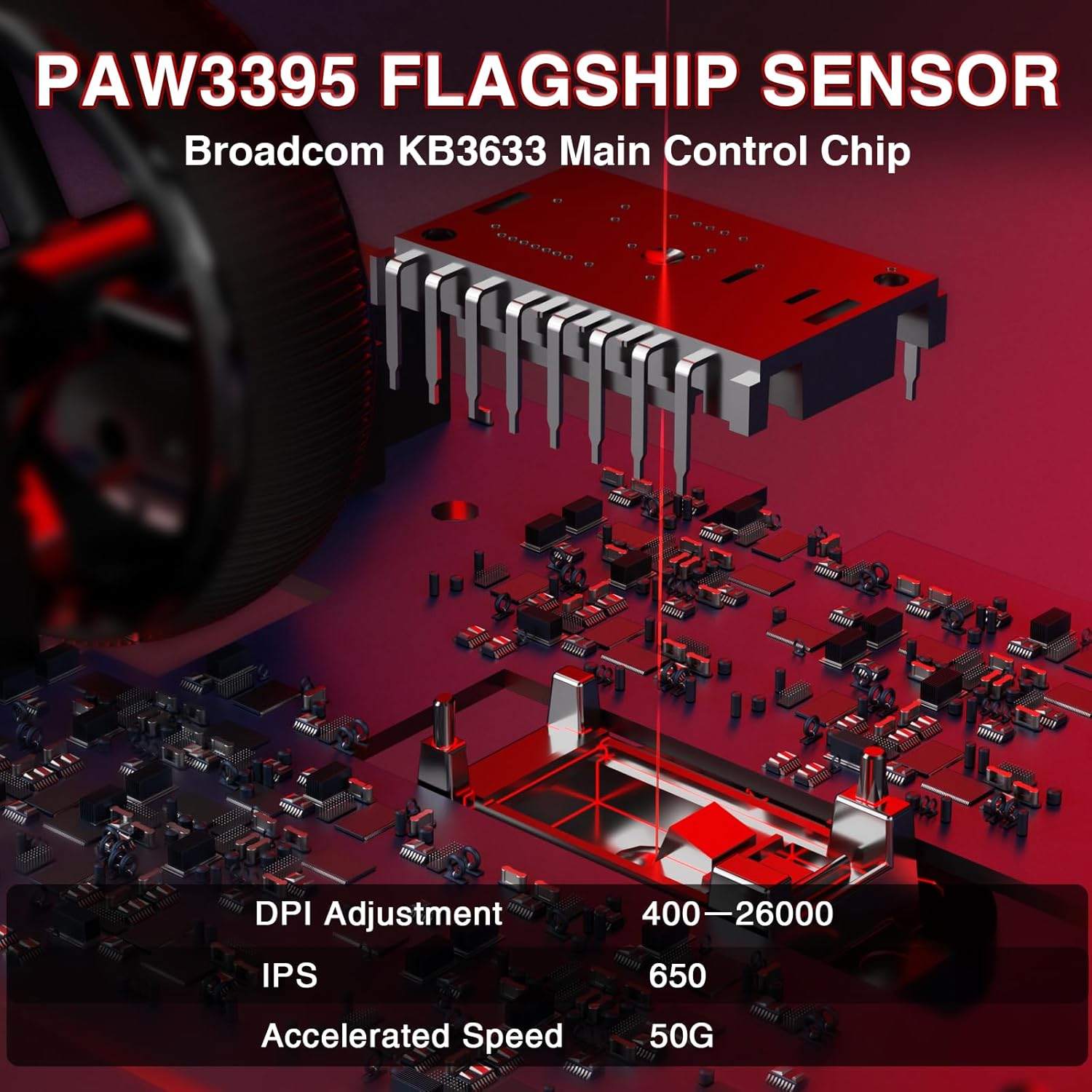
Image 4.1: Battery compartment with replaceable batteries.
4.2 Connecting the Mouse
The SC900 Pro supports three connection modes: 2.4G Wireless, Bluetooth 5.0, and Wired Type-C.
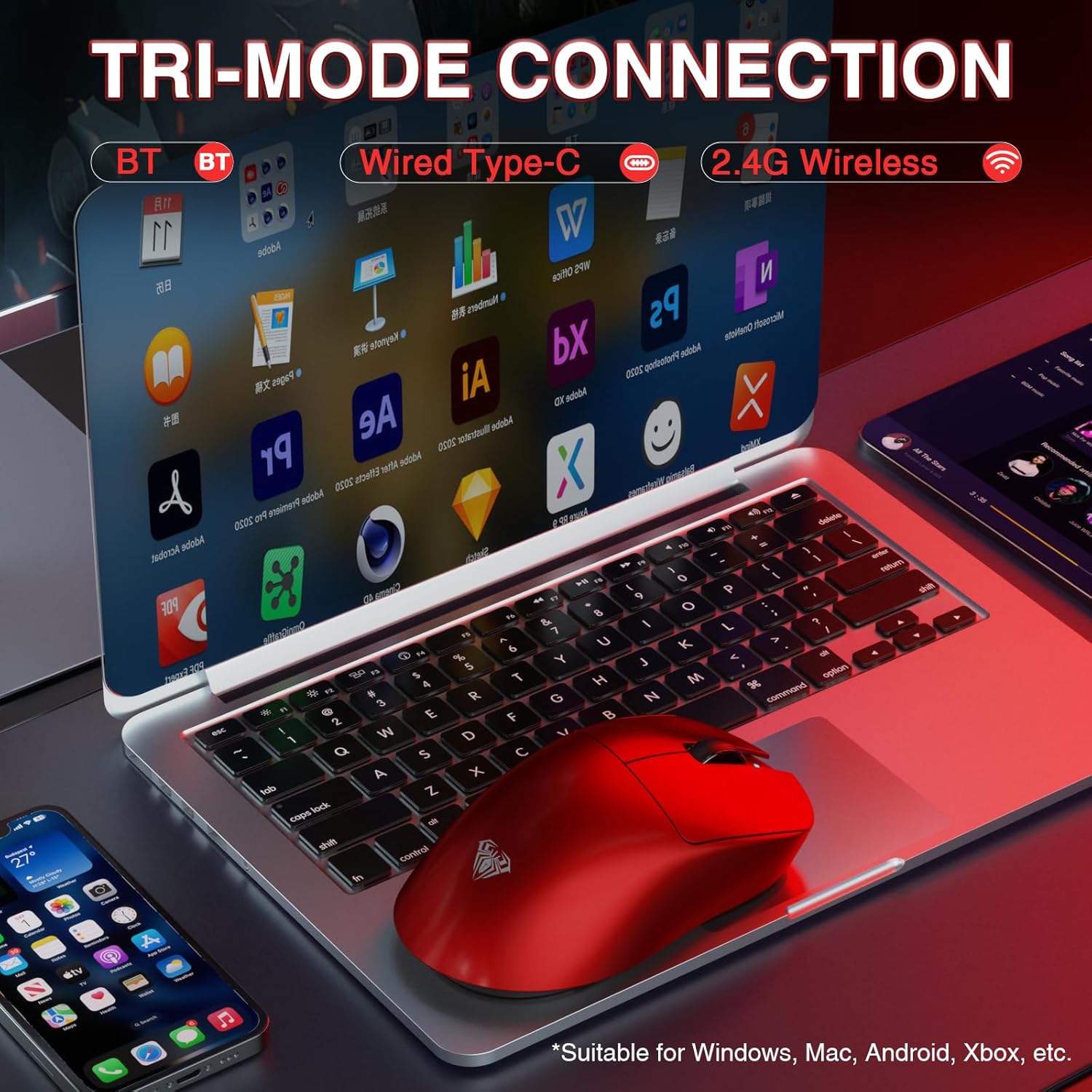
Image 4.2: Tri-mode connection options.
2.4G Wireless Mode:
- Locate the 2.4G wireless receiver.
- Connect the receiver to an available USB-A port on your computer.
- Slide the power/mode switch on the underside of the mouse to the "2.4G" position.
- The mouse should automatically connect to your computer.
Bluetooth 5.0 Mode:
- Slide the power/mode switch on the underside of the mouse to the "BT" position.
- Press and hold the left, middle (scroll wheel), and right buttons simultaneously for approximately 3 seconds. The blue indicator light on the mouse will flash rapidly, indicating it is in pairing mode.
- On your computer or device, navigate to Bluetooth settings and search for new devices.
- Select "SC900Pro BT" from the list of available devices to connect.
Wired Type-C Mode:
- Connect one end of the USB-C cable to the mouse's Type-C charging port.
- Connect the other end of the USB-C cable to an available USB-A port on your computer.
- The mouse will function as a wired device and charge simultaneously.
5. Operating Instructions
5.1 DPI Adjustment
The AULA SC900 Pro features a 6-speed adjustable DPI setting. Press the DPI button on the top of the mouse to cycle through the following sensitivity levels:
- 400 DPI
- 800 DPI
- 1600 DPI
- 3200 DPI
- 6400 DPI
- 26000 DPI (Maximum)
The indicator lights will change to reflect the current DPI setting.

Image 5.1: PAW3395 Sensor and DPI adjustment range.
5.2 Polling Rate
The mouse supports a dual 8000Hz polling rate when operating in 2.4G wireless or wired mode. This high polling rate ensures lower latency and precise tracking, enhancing your gaming experience.

Image 5.2: Dual 8KHz Polling Rate feature.
5.3 Customization Software
The AULA SC900 Pro features 5 programmable buttons. Users can configure mouse buttons, DPI settings, lighting effects, and report rates through the dedicated software.
- Driver Download: The driver can be downloaded from bit.ly/m/AULA.
- Compatibility: The driver is only compatible with Windows systems.
- Mode Limitation: Customization features are only available when the mouse is used in 2.4GHz wireless or USB-C wired modes. Bluetooth mode does not support driver customization.

Image 5.3: AULA SC900 Pro customization software interface.
6. Maintenance
6.1 Battery Care
- Always use the provided USB-C cable and a standard computer USB port for charging to prevent damage to the batteries or mouse.
- Avoid exposing batteries to extreme temperatures.
- If the mouse will not be used for an extended period, it is recommended to switch it off to preserve battery life.
6.2 Cleaning
- Use a soft, dry cloth to clean the surface of the mouse.
- For stubborn dirt, slightly dampen the cloth with water or a mild cleaning solution. Avoid harsh chemicals.
- Do not allow liquids to enter the mouse's internal components.
7. Troubleshooting
If you encounter issues with your AULA SC900 Pro mouse, please refer to the following common solutions:
| Problem | Possible Cause | Solution |
|---|---|---|
| Mouse not responding | Low battery; Incorrect connection mode; Receiver not connected (2.4G); Bluetooth not paired. | Charge the battery; Ensure the mode switch is set correctly (2.4G/BT); Reconnect the 2.4G receiver; Re-pair Bluetooth. |
| Lag or intermittent connection | Interference; Distance from receiver/device; Low battery. | Move closer to the receiver/device; Remove sources of interference; Charge the battery; Try a different USB port. |
| DPI not changing | DPI button not pressed firmly; Software conflict. | Ensure the DPI button is pressed correctly; Restart the mouse and computer; Check for software updates. |
| Customization software not working | Incorrect connection mode; Not on Windows OS; Driver not installed correctly. | Ensure mouse is in 2.4G wireless or wired mode; Verify operating system is Windows; Reinstall the driver from bit.ly/m/AULA. |
8. Specifications
| Feature | Detail |
|---|---|
| Model Number | SC900 Pro |
| Connectivity Technology | 2.4G Wireless, Bluetooth 5.0, USB-C Wired |
| Sensor | PAW3395 Optical Sensor |
| DPI Settings | 400 / 800 / 1600 / 3200 / 6400 / 26000 |
| IPS (Inches Per Second) | 650 |
| Acceleration | 50G |
| Polling Rate | Dual 8000Hz (2.4G Wireless & Wired Modes) |
| Switches | TTC Optical Microswitches (100 million click lifespan) |
| Programmable Buttons | 5 |
| Battery Type | 2 x 400mAh Replaceable Lithium-Ion Batteries |
| Item Weight | 62g (approx. 2.19 ounces) |
| Product Dimensions | 4.92 x 2.36 x 0.04 inches |
| Compatibility | PC, Mac, Linux (Driver for Windows only) |
9. Warranty and Support
AULA products are designed for reliability and performance. For warranty information, technical support, or customer service inquiries, please refer to the official AULA website or contact your retailer. Keep your proof of purchase for warranty claims.
Official AULA Website: AULA Store on Amazon
Related documentsSC900 Pro


Ask a question about this manual
Ask about setup, troubleshooting, compatibility, parts, safety, or missing instructions. Manuals+ will review the question and use this page’s manual context to help answer it.