Introduction
This manual provides comprehensive instructions for the setup, operation, maintenance, and troubleshooting of your Redragon K743 PRO GB 80% Gasket RGB Gaming Keyboard. Please read this guide thoroughly to ensure optimal performance and longevity of your device.
Setup
1. Unboxing and Components
Upon opening the package, you will find the Redragon K743 PRO GB keyboard along with essential accessories. These include a USB-C to USB-A cable, a keycap and switch puller, and a set of extra switches. A user manual and Redragon stickers are also included.

Image: Redragon K743 PRO GB 80% Gasket RGB Gaming Keyboard.
This image displays the full keyboard with its RGB lighting active, showcasing the 84-key layout and integrated knob and TFT screen.

Image: Key features of the Redragon K743 PRO GB Keyboard.
This image highlights the main features of the keyboard, including 80% TKL Gasket Design, 5-Layer Noise Dampening, LCD Smart Screen, Dedicated Knob, Tri-Mode Connection, South-Facing LED, Hot-Swap Custom Switch, and Gradient Side Printed Keycaps.
2. Connectivity Options
The K743 PRO GB keyboard supports three connection modes: USB-C wired, 2.4GHz wireless, and Bluetooth (BT 3.0/5.0). A switch located on the side of the keyboard allows you to select your preferred mode.
- Wired Connection: Connect the keyboard directly to your computer using the provided USB-C cable.
- 2.4GHz Wireless Connection: Plug the 2.4GHz USB receiver (dongle) into your computer. The keyboard will automatically connect.
- Bluetooth Connection: Switch the mode to BT. The keyboard will enter pairing mode, allowing you to connect it to your device via Bluetooth settings.
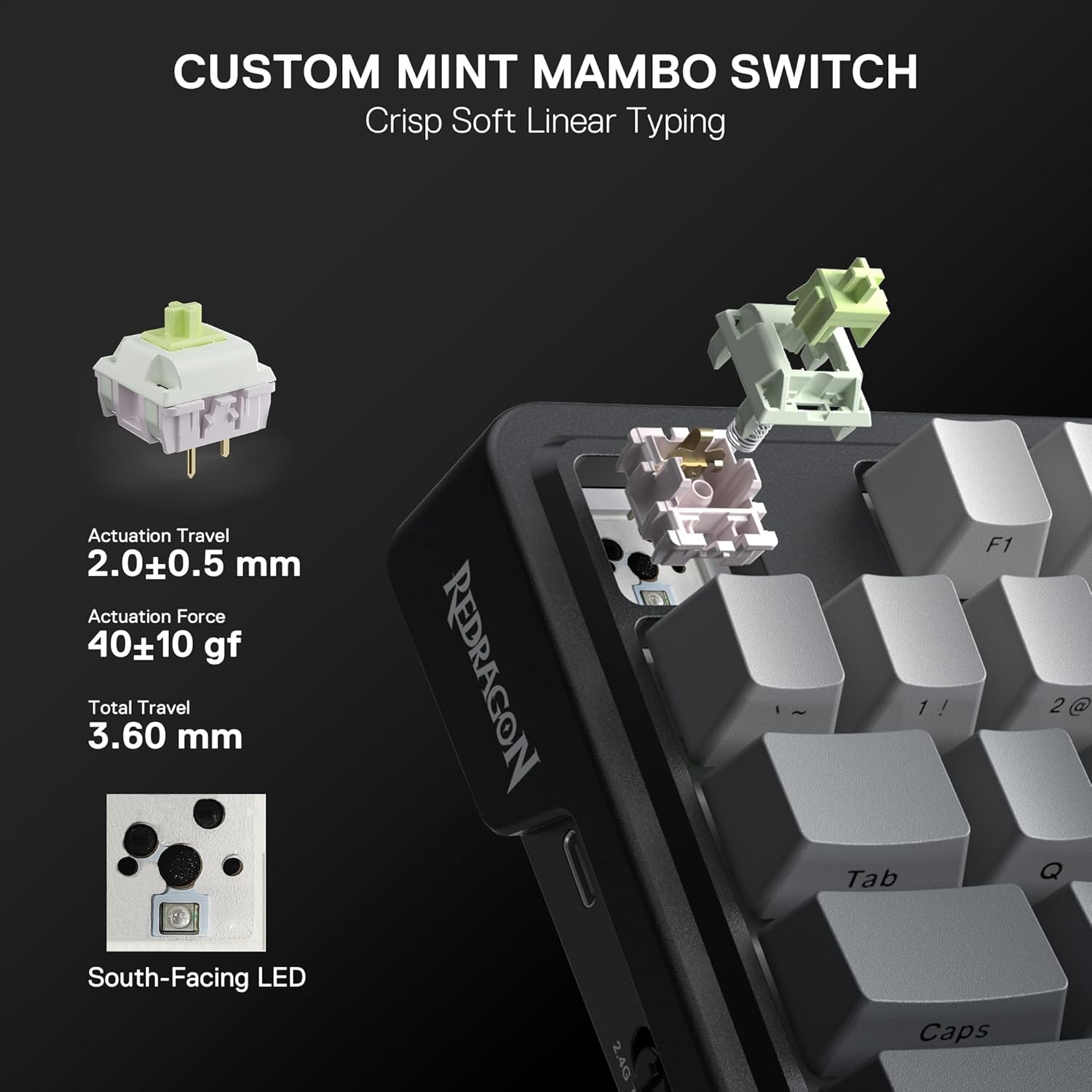
Image: Side view of the Redragon K743 PRO GB Keyboard showing connectivity switches and USB-C port.
This image displays the left side of the keyboard, highlighting the USB-C port, the 2.4G/OFF/BT mode switch, and the MAC/WIN operating system switch.
3. Initial Charging
The keyboard is equipped with a 3000 mAh battery. For optimal performance, ensure the keyboard is fully charged before its first wireless use. Connect the USB-C cable to the keyboard and a power source. The LED indicator will show charging status.
Operating Instructions
1. Key Layout and Function Keys
The K743 PRO GB features an 84-key TKL layout, providing a compact design while retaining essential functionality. Specific key combinations with the Fn key allow access to various functions for both Windows and Mac operating systems.
- Fn+F1: Screen brightness -
- Fn+F2: Screen brightness +
- Fn+F3: Multiple windows
- Fn+F4: Speech recognition (Win10 or newer)
- Fn+F5: Show desktop
- Fn+F6: Search
- Fn+F7: Pre track
- Fn+F8: Play/Pause
- Fn+F9: Next track
- Fn+F10: Mute
- Fn+F11: Volume down
- Fn+F12: Volume up
- Fn+Win: Lock/Unlock Win key
- Fn+ESC (hold 3s): Restore factory settings
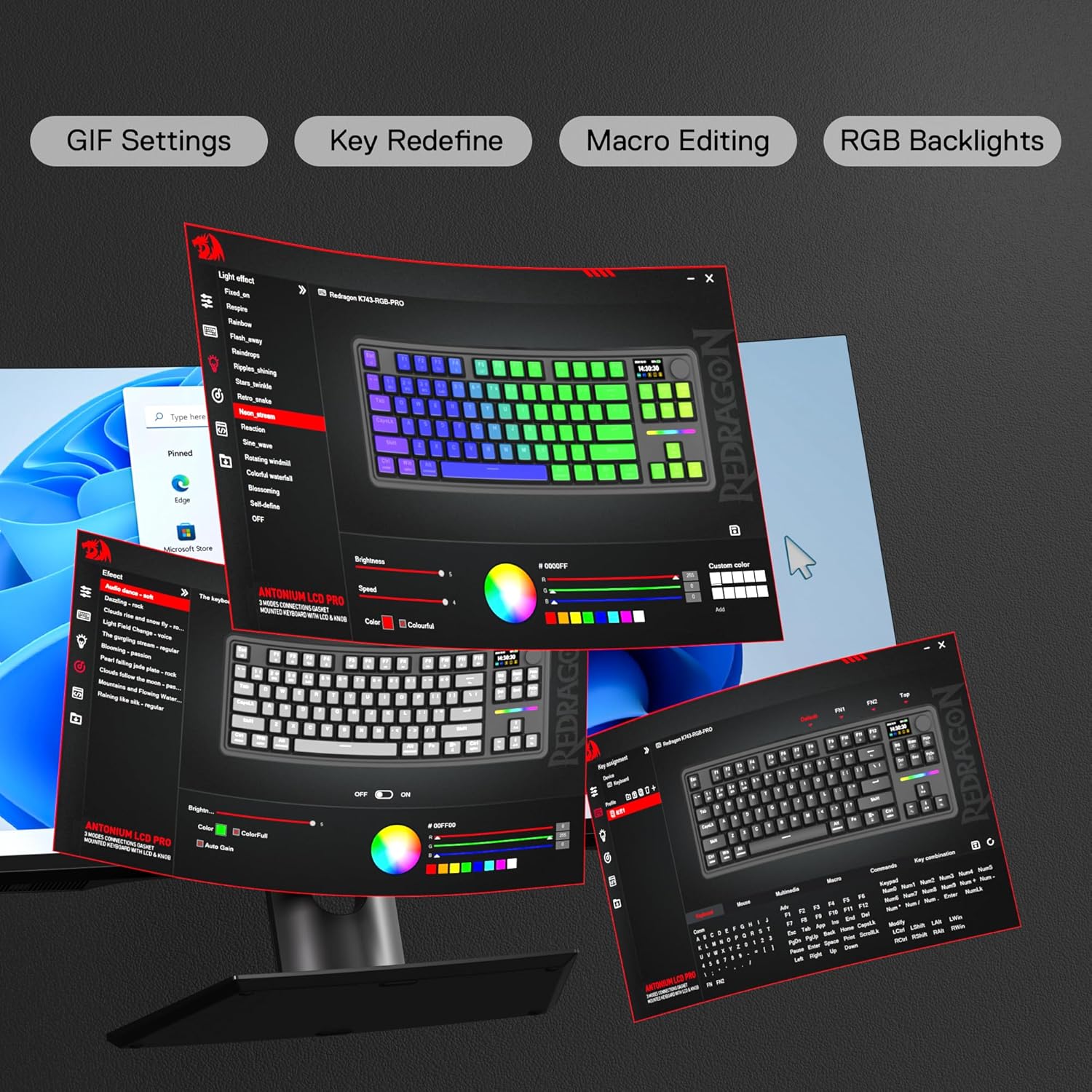
Image: Redragon K743 PRO GB Keyboard TKL Layout and Gasket Design.
This image illustrates the compact 80% TKL layout of the keyboard, comparing it to a full-size keyboard and highlighting the cushioned soft feedback provided by the gasket design.
2. LCD Smart Screen and Control Knob
The 1.41-inch TFT screen provides real-time information such as connection mode, battery level, and typing status. The multi-functional metal knob allows for easy navigation through screen menus, volume control, and RGB brightness adjustments.
- Rotate Knob: Adjust volume (default) or RGB brightness (after switching mode).
- Press Knob (short): Mute/Unmute audio.
- Press Knob (hold 3s): Switch between volume control and RGB brightness adjustment modes.
- Screen Navigation: Use the knob to navigate through the LCD screen's menus for GIF/Image Display, RGB Modes & Colors, RGB Speed & Brightness, and On-Board Time Setting.

Image: Interactive LCD screen interface on the Redragon K743 PRO GB Keyboard.
This image shows the 1.41-inch TFT screen displaying keyboard information like date, time, battery level, and connection status. It also illustrates the menu options accessible via the control knob, including GIF/Image Display, RGB Modes & Colors, RGB Speed & Brightness, and On-Board Time Setting.

Image: All-in-one control knob functions on the Redragon K743 PRO GB Keyboard.
This image details the functions of the metal control knob, including backlight adjustment, volume control, and screen operation.
3. RGB Lighting Customization
The keyboard features vibrant RGB backlighting with 16 different modes. You can cycle through these modes directly from the keyboard using Fn+Insert. Adjust brightness with Fn+Up/Down arrow keys and animation speed with Fn+Left/Right arrow keys. The south-facing LEDs enhance the visual appeal of the gradient PBT keycaps.
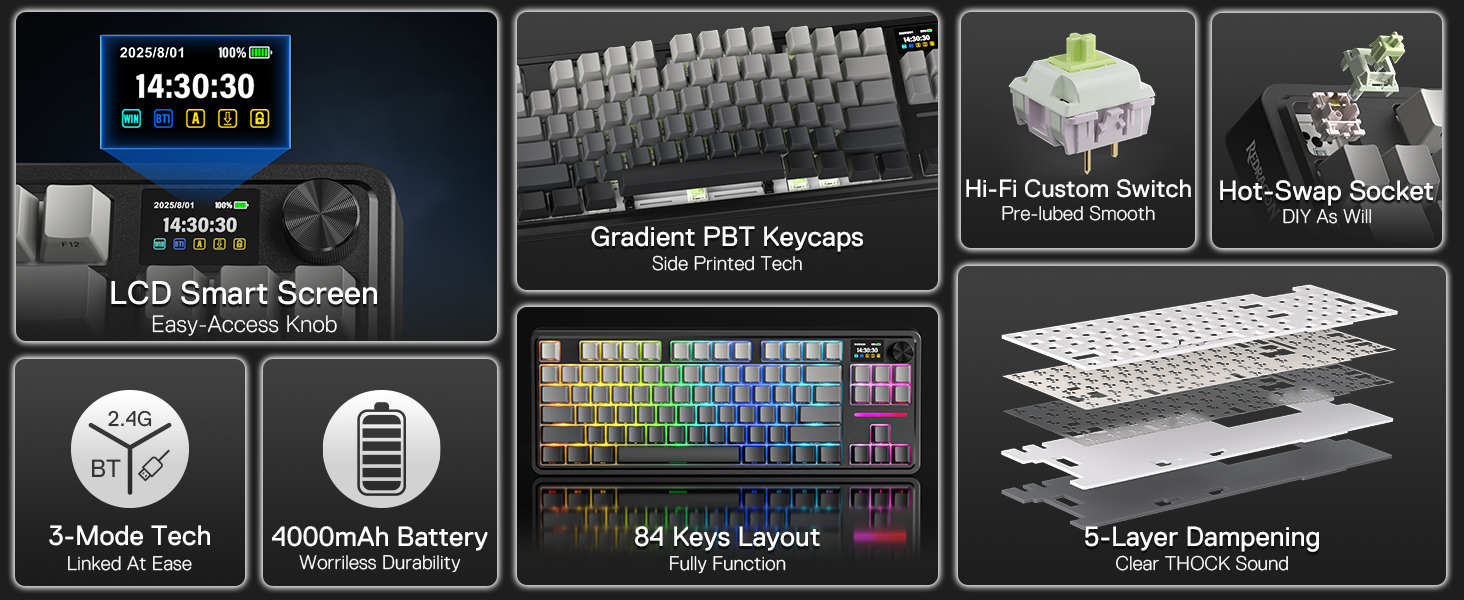
Image: Redragon K743 PRO GB Keyboard showcasing 18 backlight modes.
This image displays the keyboard with various RGB backlight patterns and instructions for adjusting brightness (Fn+Up/Down) and speed (Fn+Left/Right).
4. Pro Software Support
For advanced customization, download the Redragon Pro software from the official Redragon website. The software allows you to:
- Design custom RGB modes and effects.
- Create and assign macros with different keybindings.
- Redefine key functions.
- Upload custom GIFs or images to the TFT screen.
- Adjust debounce settings and sleep timers for wireless modes.
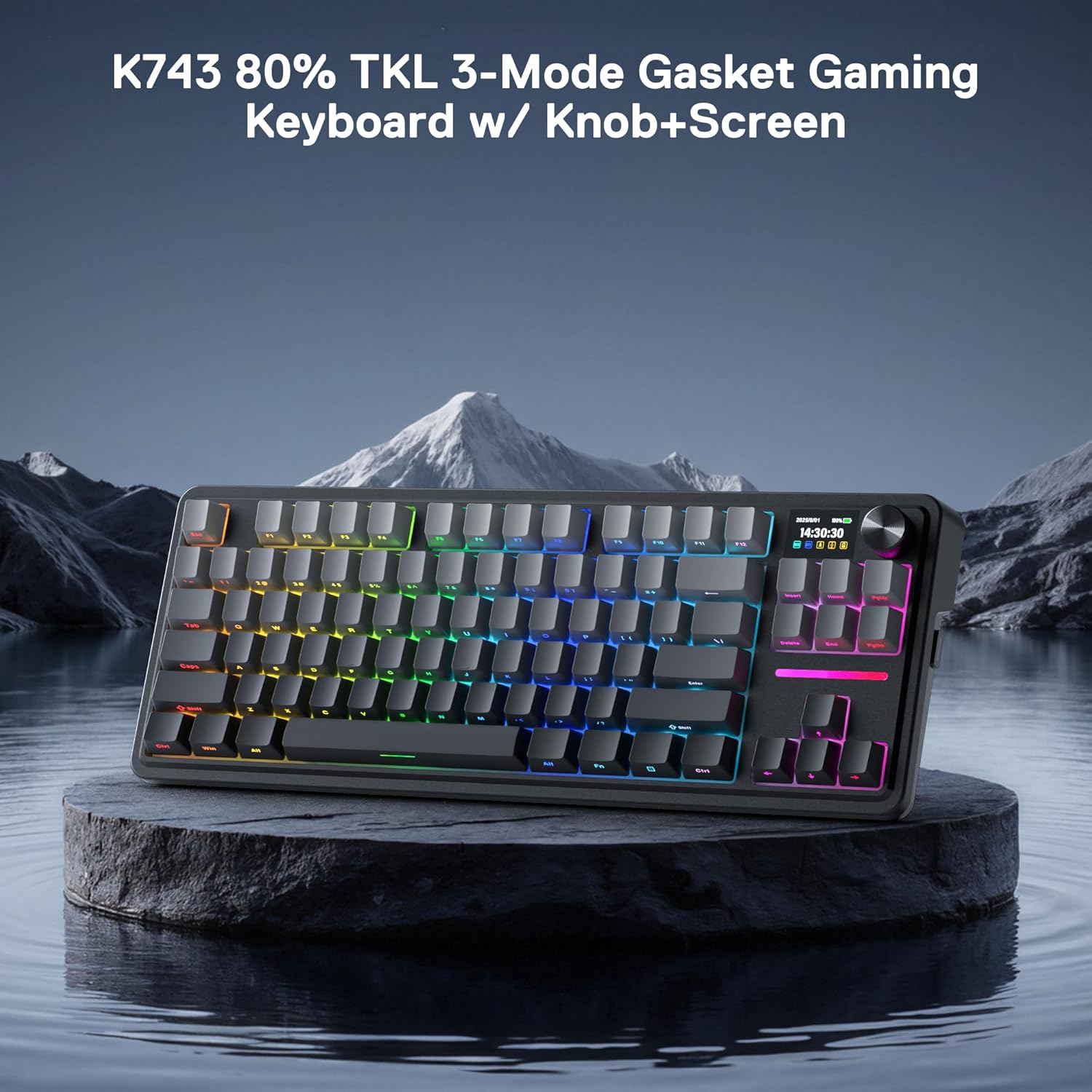
Image: Redragon K743 PRO GB Keyboard software interface.
This image shows the software interface with options for GIF Settings, Key Redefine, Macro Editing, and RGB Backlights, demonstrating the extensive customization possibilities.
Video: Redragon K719 PRO Wireless Gasket Gaming Keyboard Anime Ver.
This video, provided by Redragon Shop, showcases the K719 PRO keyboard, which shares similar software features for customization as the K743 PRO GB model. It demonstrates various RGB lighting effects and software functionalities.
Maintenance
1. Hot-Swappable Switches and Keycaps
The K743 PRO GB features hot-swappable sockets compatible with nearly all 3/5-pin switches, allowing you to easily change switches without soldering. The included keycap and switch puller facilitate easy removal and replacement of components.

Image: Custom Mint Mambo Switch and South-Facing LED on the Redragon K743 PRO GB Keyboard.
This image provides a close-up of the custom Mint Mambo linear switches, detailing their actuation travel, force, and total travel. It also shows the south-facing LED for enhanced RGB illumination.
2. Cleaning
To clean the keyboard, unplug it from the power source. Use a soft, dry cloth to wipe down the keycaps and chassis. For deeper cleaning, remove keycaps and use compressed air to clear debris from beneath the switches. Avoid using liquid cleaners directly on the switches.
Troubleshooting
- Keyboard not responding: Check if the USB cable is correctly inserted or if the wireless receiver is properly connected. Ensure the keyboard is in the correct connection mode (2.4G, BT, or Wired).
- Spill liquid on the keyboard: Immediately unplug the keyboard. Wipe off excess liquid and place the keyboard in a dry, well-ventilated area to dry naturally before next use.
- Battery issues: If the battery is low, the backlight will turn off. The power LED will blink red slowly when pressed a key. Connect the keyboard with computer for charging.
- Restore factory settings: Press and hold Fn + ESC for 3 seconds.
Specifications
| Brand | Redragon |
| Model Name | Antonium PRO (K743 PRO GB) |
| Connectivity Technology | 2.4Ghz, BT, USB-C |
| Keyboard Description | 80% TKL Wireless Gasket Gaming Keyboard |
| Special Feature | 3-Mode Gasket, 5-Layer Noise Dampening, Custom Mambo Switch, Hype Display & Knob |
| Color | Concrete Jungle (LCD Screen) |
| Material | Plastic with PBT keycaps |
| Item Weight | 2.75 pounds |
| Batteries | 1 Lithium Polymer batteries required. |
| Included Components | Keyboard |
Warranty and Support
For warranty information and technical support, please refer to the official Redragon website or contact Redragon customer service directly. Keep your purchase receipt as proof of purchase.


