
ORICO AP42P
ORICO Magnetic M.2 2230/2242 NVMe SSD External Enclosure AP42P User Manual
Model: AP42P
1. Introduction
This manual provides instructions for the installation, operation, maintenance, and troubleshooting of the ORICO Magnetic M.2 2230/2242 NVMe SSD External Enclosure (Model AP42P). Please read this manual thoroughly before using the product to ensure proper functionality and to prevent damage.
The ORICO AP42P enclosure is designed for high-speed data transfer and is compatible with M.2 NVMe SSDs of sizes 2230 and 2242. It features a magnetic attachment system and a PD100W charging port, making it suitable for use with various devices, including iPhone 15/16/17 series for 4K ProRes video recording.
2. Package Contents
Verify that all items listed below are included in your package. If any items are missing or damaged, please contact customer support.
- Magnetic M.2 2230/2242 NVMe SSD Enclosure (AP42P)
- 0.3m USB-C to USB-C Cable (10Gbps)
- Magnetic Ring (for non-MagSafe compatible devices)
- Thermal Pad
- Screws
- Screwdriver
- User Manual

Figure 2.1: Package Contents of the ORICO AP42P Enclosure.
3. Setup: SSD Installation
The ORICO AP42P enclosure requires a separate M.2 NVMe SSD (2230 or 2242 size, M Key only) to function. Follow these steps to install your SSD:
- Open the Enclosure: Unscrew and carefully remove the bottom cover of the enclosure using the provided screwdriver.
- Install the Hard Drive: Insert your M.2 NVMe SSD into the slot at a 30-degree angle. Gently push down the other end and tighten the rear screw to secure the drive in place.
- Apply Thermal Pad: Place the thermal pad on top of the installed SSD. This aids in heat dissipation.
- Complete Installation: Close the bottom cover and tighten the screws to secure it.

Figure 3.1: SSD Installation Steps.
3.1 Initial Connection
After installing the SSD, connect the enclosure to your device using the provided USB-C cable. The enclosure is plug-and-play and should be recognized automatically by most operating systems.
4. Operating Instructions
4.1 Device Compatibility and Connection
The ORICO AP42P enclosure is compatible with a wide range of devices that support USB-C connectivity, including:
- iPhone 15/16/17 Pro/Pro Max series
- iPad Pro
- MacBook and other laptops
- Android phones and tablets
- Desktop computers
Supported operating systems include Mac OS, iOS, Windows, Linux, and Android.

Figure 4.1: Extensive Device and System Compatibility.
4.2 High-Speed Data Transfer
Utilizing USB 3.2 Gen2 technology, the enclosure supports data transfer speeds up to 10Gbps (1000MB/s). This allows for rapid transfer of large files, such as 1GB in approximately 1 second. Actual performance may vary based on the host device, cable quality, and SSD performance.

Figure 4.2: 10Gbps High-Speed Data Transfer Capabilities.
4.3 4K ProRes Recording (iPhone Specific)
The ORICO AP42P enclosure is compatible with iPhone 15/16/17 Pro/Pro Max series for direct 4K ProRes video recording to the external SSD. This feature helps manage phone storage limitations during extensive video capture.
- ProRes 4K/60fps is supported on iPhone 15/16/17 Pro/Pro Max.
- ProRes HDR 4K/120fps requires iPhone 16/17 Pro/Pro Max.
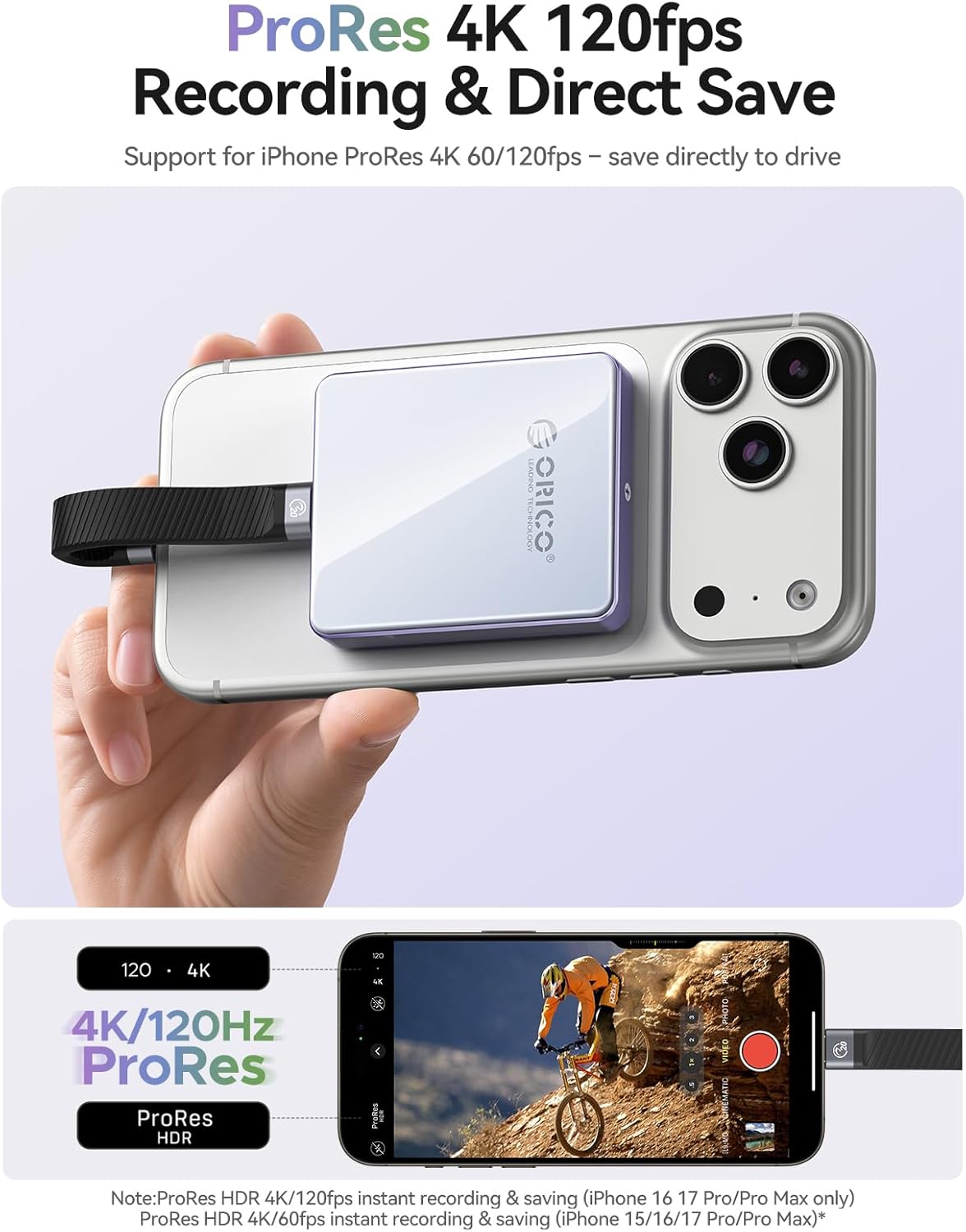
Figure 4.3: iPhone 4K ProRes Direct Recording.
4.4 PD 100W Charging Port
The enclosure includes a PD 100W charging port, allowing for simultaneous high-speed data transfer and device charging. When connected to a PD power source, it can provide up to 85W output to your connected device. This is beneficial for prolonged video recording or other power-intensive tasks.
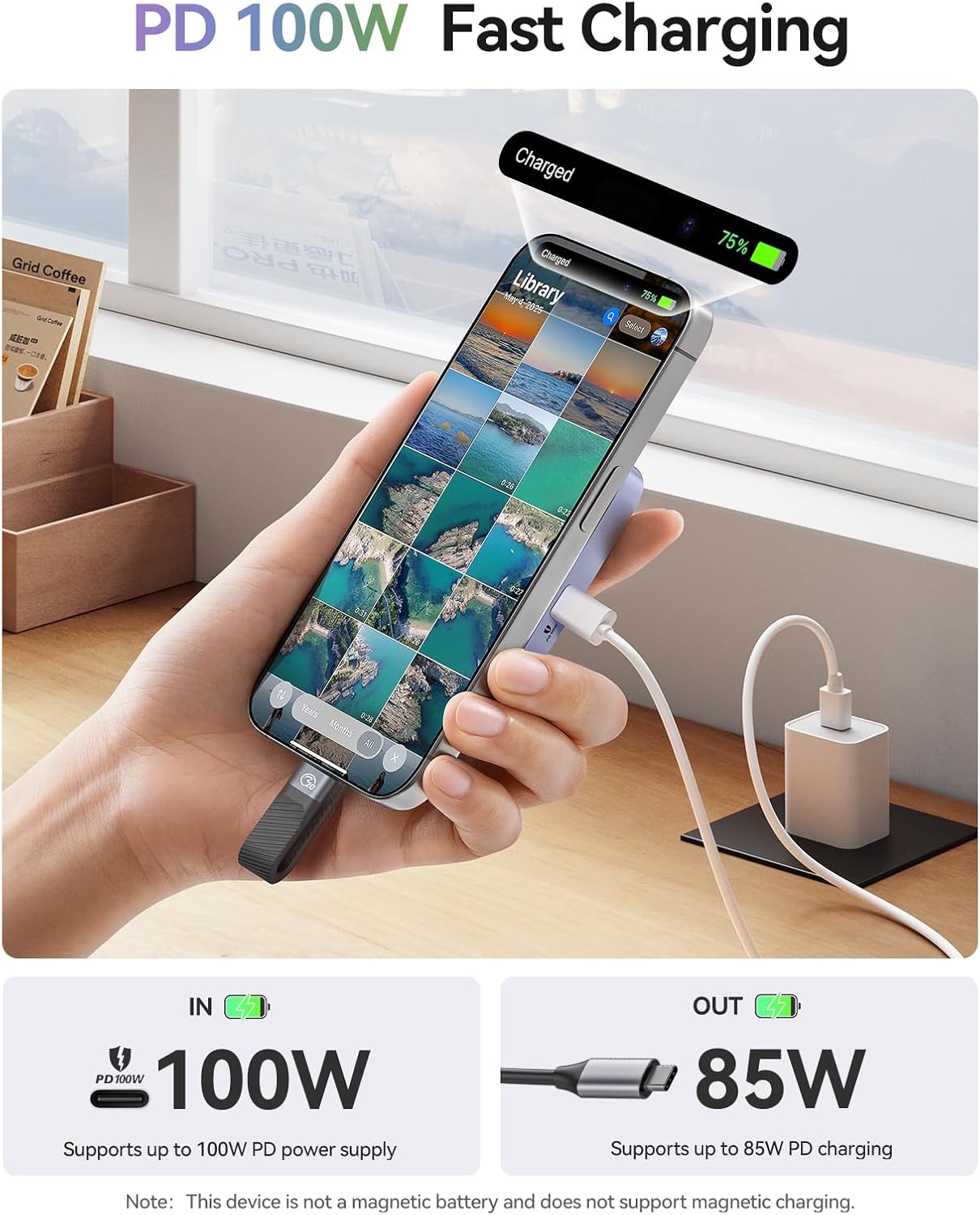
Figure 4.4: PD 100W Fast Charging Capability.
4.5 Magnetic Attachment
The enclosure features 17 built-in magnets for secure attachment to MagSafe-compatible devices. For devices without MagSafe, a universal adapter magnetic ring is included in the package to enable magnetic attachment.

Figure 4.5: Magnetic Attachment Feature.
4.6 Saving Files to the Enclosure
4.6.1 iPhone (iOS 15/16/17 Series)
To save photos or videos from your iPhone to the ORICO AP42P enclosure:
- Connect the enclosure to your iPhone 15/16/17 series device.
- Open the Photos app and select the desired photos or videos.
- Tap the "Share" icon (square with an arrow pointing up).
- Select "Save to Files".
- Tap "Browse" and then select "AP42P" (or the name of your enclosure).
- Tap "Save" to transfer the files.
Note: This method is not applicable for iPhone 14/13/12/11/XS/XR/X/SE series.

Figure 4.6: iPhone File Saving Steps.
4.6.2 Android Phone
To save photos or videos from your Android phone to the ORICO AP42P enclosure:
- Connect the enclosure to your Android phone.
- Open the "Files" or "File Manager" application.
- Navigate to the location of your photos or videos (e.g., "Images" or "DCIM").
- Select the desired photos or videos and choose "Copy" or "Move".
- Browse to the "ORICO" drive (or the name of your enclosure) and paste the files.
- Confirm the transfer.

Figure 4.7: Android File Saving Steps.
5. Maintenance
5.1 Heat Dissipation
The ORICO AP42P enclosure is designed with multi-heat dissipation features, including an aluminum alloy frame and a thermal pad, to help manage operating temperatures of the SSD. Ensure proper airflow around the device during extended use.

Figure 5.1: Multi-Heat Dissipation Design.
5.2 Cleaning
To clean the enclosure, use a soft, dry cloth. Avoid using liquid cleaners or solvents, as these may damage the device. Ensure the device is disconnected from all power sources before cleaning.
6. Troubleshooting
- SSD Not Recognized:
- Ensure the SSD is correctly installed and secured within the enclosure.
- Verify that the SSD is an M.2 NVMe (M Key) 2230 or 2242 type. The enclosure is not compatible with M SATA or M.2 SATA SSDs.
- Check the USB-C cable connection to both the enclosure and the host device. Try a different USB-C port or cable if available.
- For higher-power SSDs, ensure an external power supply is connected to the PD port of the enclosure.
- Disconnections During Recording/Transfer:
- This can occur if the SSD's power draw exceeds the host device's USB port limitations (e.g., phone's USB port). It is recommended to use SSDs with a power consumption of 4.5W or lower when powered solely by the host device.
- For higher-power SSDs or prolonged use, connect an external power supply to the PD port of the enclosure.
- Ensure the USB-C cable is securely connected and not damaged.
- Slow Transfer Speeds:
- Ensure your host device's USB-C port supports USB 3.2 Gen2 (10Gbps) speeds. Older USB versions will result in lower speeds.
- Verify that the SSD itself is capable of 10Gbps speeds.
- Use the provided high-speed USB-C cable.
- Close other applications that might be consuming system resources or bandwidth.
- Magnetic Attachment Issues:
- Ensure the magnetic ring is properly applied to non-MagSafe compatible devices or cases.
- Check for any obstructions between the enclosure and the device that might weaken the magnetic connection.
7. Specifications
| Model Number | AP42P |
| Brand | ORICO |
| Compatible SSDs | M.2 NVMe (M Key) 2230/2242 SSDs |
| Transfer Interface | USB 3.2 Gen2 Type-C |
| Transfer Speed | Up to 10Gbps (1000MB/s) |
| Max Storage Capacity | Up to 2TB |
| PD Charging Port | PD 100W Input, up to 85W Output |
| Magnetic Feature | 17 built-in magnets |
| Compatible Phone Models | iPhone 15/16/17 Series |
| Dimensions | 70mm (L) x 60mm (W) x 13mm (T) (Approximate) |
| Item Weight | 8 ounces |
8. Warranty and Support
8.1 Warranty Information
ORICO products typically come with a limited warranty. Please refer to the warranty card included in your product packaging or visit the official ORICO website for detailed warranty terms and conditions specific to the AP42P model.
8.2 Customer Support
For technical assistance, troubleshooting, or warranty claims, please contact ORICO customer support through their official website or the contact information provided in your product documentation. When contacting support, please have your product model number (AP42P) and purchase details ready.
Related documentsAP42P


Ask a question about this manual
Ask about setup, troubleshooting, compatibility, parts, safety, or missing instructions. Manuals+ will review the question and use this page’s manual context to help answer it.