
1. Introduction
This manual provides detailed instructions for the setup, operation, and maintenance of your AULA SC900 Pro Wireless Gaming Mouse. Designed for high-performance gaming and versatile use, this mouse features tri-mode connectivity, an advanced sensor, and customizable options. Please read this manual thoroughly to ensure proper use and to maximize your device's potential.
2. Package Contents
- AULA SC900 Pro Wireless Gaming Mouse
- USB-C to USB-A Charging Cable
- 2.4G Wireless Receiver (USB-A)
- Replaceable 400mAh Lithium-Ion Batteries (2 included)
- User Manual (this document)
- Grip Tapes (optional for customization)
3. Product Overview
Familiarize yourself with the various components and buttons of your AULA SC900 Pro mouse.

Figure 1: Multi-function buttons and ports diagram. This image illustrates the location of the left key, right key, middle key (scroll wheel), forward key, back key, indicator lights (DPI, charging, mode indicator), Type-C charging port, DPI button, 2.4G/OFF/BT switch, battery cover, and receiver Type-C port with the receiver.
4. Setup
4.1. Battery Installation and Charging
- Open the battery cover located on the underside of the mouse.
- Insert one of the provided 400mAh Lithium-Ion batteries.
- Close the battery cover.
- To charge, connect the USB-C charging cable to the mouse's Type-C port and the USB-A end to a computer's USB port or a standard 5V USB charger.
- The indicator lights will show charging status.

Figure 2: The underside of the mouse showing the battery compartment and two replaceable 400mAh batteries. One battery is inserted, and another is shown ready for replacement, highlighting the long-lasting endurance feature.
4.2. Connection Modes
The AULA SC900 Pro supports three connection modes: 2.4G Wireless, Bluetooth 5.0, and Wired (USB-C). Use the switch on the underside of the mouse to select your desired mode.
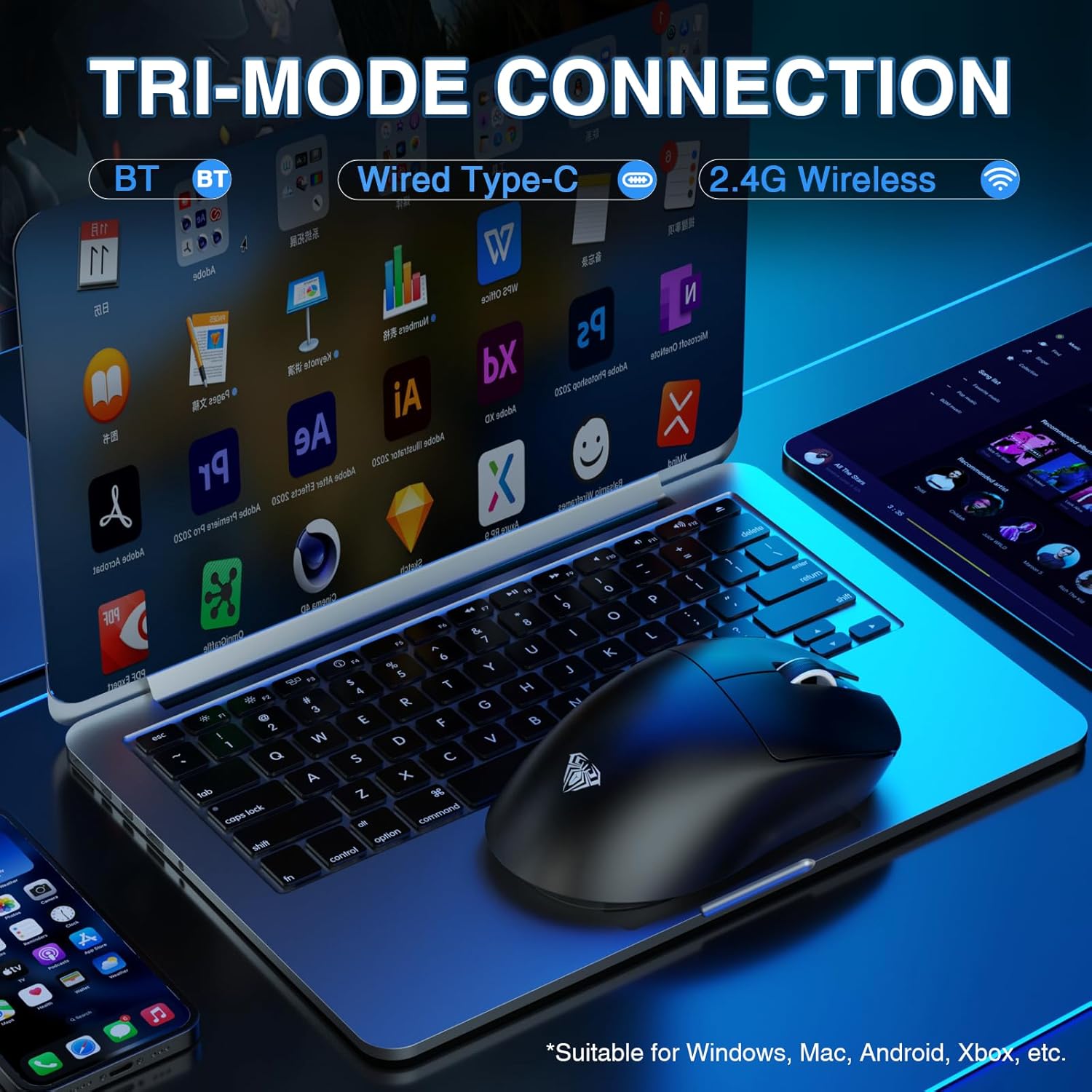
Figure 3: The mouse connected to a laptop, demonstrating its tri-mode connection capabilities. The image highlights Bluetooth, Wired Type-C, and 2.4G Wireless options, suitable for various operating systems.
4.2.1. 2.4G Wireless Mode
- Slide the switch on the mouse's underside to the '2.4G' position.
- Plug the 2.4G wireless receiver into an available USB-A port on your computer.
- The mouse will automatically connect. The indicator light will flash green during pairing and become solid green upon successful connection.
4.2.2. Bluetooth 5.0 Mode
- Slide the switch on the mouse's underside to the 'BT' position.
- On your computer, navigate to Bluetooth settings and search for new devices.
- Select 'SC900 Pro' from the list of available devices to pair.
- The indicator light will flash blue during pairing and become solid blue upon successful connection.
4.2.3. Wired USB-C Mode
- Connect the USB-C charging cable to the mouse's Type-C port and the USB-A end to your computer.
- The mouse will function as a wired device and charge simultaneously.
5. Operating Instructions
5.1. DPI Adjustment
The mouse features a PAW3395 sensor with 6-speed adjustable DPI settings (400/800/1600/3200/6400/26000). Press the dedicated DPI button on the underside of the mouse to cycle through these settings. The indicator lights on the top of the mouse will change to reflect the current DPI level.

Figure 4: An internal view of the mouse highlighting the PAW3395 flagship sensor and its capabilities, including DPI adjustment from 400 to 26000, 650 IPS, and 50G accelerated speed.
5.2. Polling Rate
The AULA SC900 Pro supports a dual 8000Hz polling rate in 2.4G wireless or wired mode. This high polling rate ensures lower latency and precise tracking, enhancing your gaming experience.

Figure 5: The mouse connected via its wired mode, illustrating the dual 8KHz polling rate for low latency and fast response.
5.3. Programmable Buttons and Software
The mouse features 5 programmable buttons. Users can configure mouse buttons, DPI settings, lighting effects, and report rates through the dedicated software. The driver is compatible only with Windows systems and functions in 2.4GHz wireless and USB-C wired modes; Bluetooth mode is not supported for customization. Download the driver from: bit.ly/m/AULA

Figure 6: A screenshot of the customizable driver software interface, demonstrating options for button configuration and other settings. Note that the driver is Windows-compatible only for 2.4GHz wireless and USB-C wired modes.
5.4. Battery Management
The mouse is equipped with two replaceable 400mAh batteries, allowing for extended use. You can charge one battery while using the other, ensuring minimal downtime. The lightweight design (62g) contributes to comfortable use even during prolonged sessions.

Figure 7: The mouse showcasing its lightweight design (58g without battery) and ergonomic shape, suitable for various grip styles.
6. Maintenance
- Cleaning: Use a soft, dry cloth to clean the mouse surface. For optical sensor, use a cotton swab lightly dampened with isopropyl alcohol.
- Battery Care: Ensure batteries are charged regularly. Avoid exposing batteries to extreme temperatures. Use only the original charging cable and a standard USB port for charging. Do not use fast-charging phone chargers or wall chargers for direct charging.
- Storage: When not in use for extended periods, turn off the mouse to conserve battery life. Store in a cool, dry place.
7. Troubleshooting
- Mouse not responding: Check battery level. Ensure the correct connection mode (2.4G, BT, Wired) is selected. Re-pair Bluetooth or re-insert 2.4G receiver. Try a different USB port.
- Lag or delay in wireless mode: Ensure the mouse is within range of the receiver/Bluetooth device. Minimize interference from other wireless devices. Ensure the polling rate is set correctly (8000Hz for 2.4G/wired).
- DPI not changing: Ensure the mouse is powered on. Press the DPI button firmly. If using customization software, verify settings are applied.
- Customization software not working: Ensure the mouse is connected via 2.4GHz wireless or USB-C wired mode. The software is not supported in Bluetooth mode. Verify your operating system is Windows.
- Battery not charging: Check cable connections. Try a different USB port or charging cable. Ensure the charging source is a standard 5V USB port.
8. Specifications
| Feature | Detail |
|---|---|
| Model Number | SC900Pro |
| Connectivity Technology | 2.4G Receiver, Bluetooth 5.0, USB-C (Wired) |
| Movement Detection Technology | Optical (PAW3395 Sensor) |
| DPI Range | 400/800/1600/3200/6400/26000 (Adjustable) |
| IPS Tracking Speed | 650 IPS |
| Acceleration | 50G |
| Polling Rate | Dual 8000Hz (2.4G Wireless & Wired) |
| Switches | Optical Switch (Up to 100 million clicks) |
| Programmable Buttons | 5 |
| Battery | 2 x 400mAh Replaceable Lithium-Ion |
| Item Weight | 62g (2.19 ounces) |
| Product Dimensions | 5.12 x 2.68 x 1.18 inches |
| Manufacturer | AULA |
9. Warranty and Support
The AULA SC900 Pro Wireless Gaming Mouse comes with a 1-Year Limited Hardware Warranty. For technical support, driver downloads, or warranty claims, please visit the official AULA website or contact customer service through your retailer.
10. Official Product Video
Watch this official video for a visual guide on the AULA SC900 Pro Tri-Mode Wireless Gaming Mouse.
Video 1: Official product video showcasing the AULA SC900 Pro Tri-Mode Wireless Gaming Mouse. This video demonstrates the mouse's features and functionality.


