
1. Introduction
This manual provides comprehensive instructions for the CORSAHD CO-EX11HA21-EO HDMI 2.1 eARC Audio Extractor Converter. This device is designed to extract audio from a digital HDMI signal, allowing it to be output to an eARC/ARC soundbar, speaker, or other audio systems. It supports high-resolution video up to 4K@120Hz and various audio formats including 7.1Ch eARC/ARC and 5.1Ch Optical SPDIF. Please read this manual carefully before use to ensure proper installation and operation.
2. Package Contents
Verify that all items listed below are included in your package:
- 1 x HDMI 2.1 eARC Audio Extractor
- 1 x Type C Cable (for power)
- 1 x User Manual
3. Product Overview
Familiarize yourself with the ports and controls on your CORSAHD HDMI 2.1 eARC Audio Extractor.

Image: Front and back view of the CORSAHD HDMI 2.1 eARC Audio Extractor, showing HDMI IN, HDMI OUT (TV), eARC/ARC (SOUNDBAR), SPDIF OUT, EDID switch, and POWER/FW port.

Image: Close-up of the EDID switch with settings for FIXED 4K7.1, ATMOS, and SPDIF 5.1.
Port Descriptions:
- HDMI IN: Connects to your HDMI source device (e.g., PS5, Xbox, PC).
- HDMI OUT (TV): Connects to your display device (e.g., TV, Monitor, Projector).
- eARC/ARC (SOUNDBAR): Connects to your eARC/ARC compatible soundbar or audio receiver.
- SPDIF OUT: Optical audio output for connecting to older audio systems or receivers.
- POWER/FW: USB Type-C port for power supply (5V/2A adapter not included) and firmware updates.
- EDID Switch: Allows selection of audio EDID modes (FIXED 4K7.1, ATMOS, SPDIF 5.1).
4. Setup Instructions
Follow these steps to connect your CORSAHD HDMI 2.1 eARC Audio Extractor:
- Connect HDMI Source: Plug a certified HDMI 2.1 cable (recommended length less than 10ft / 3m) from your HDMI source device (e.g., PS5, Xbox, PC) into the HDMI IN port on the audio extractor.
- Connect Display Device: Connect a certified HDMI 2.1 cable from the HDMI OUT (TV) port on the extractor to your display device (TV, monitor, or projector).
- Connect Audio System:
- For eARC/ARC compatible soundbars or receivers, connect an HDMI cable from the eARC/ARC (SOUNDBAR) port on the extractor to the eARC/ARC input on your audio system.
- For optical audio systems, connect an optical cable from the SPDIF OUT port on the extractor to your audio system.
- Power On: Connect the provided Type-C cable to the POWER/FW port on the extractor and plug the other end into a 5V/2A USB power adapter (not included). The device will power on automatically.
- Verify Connections: Ensure all cables are securely connected.
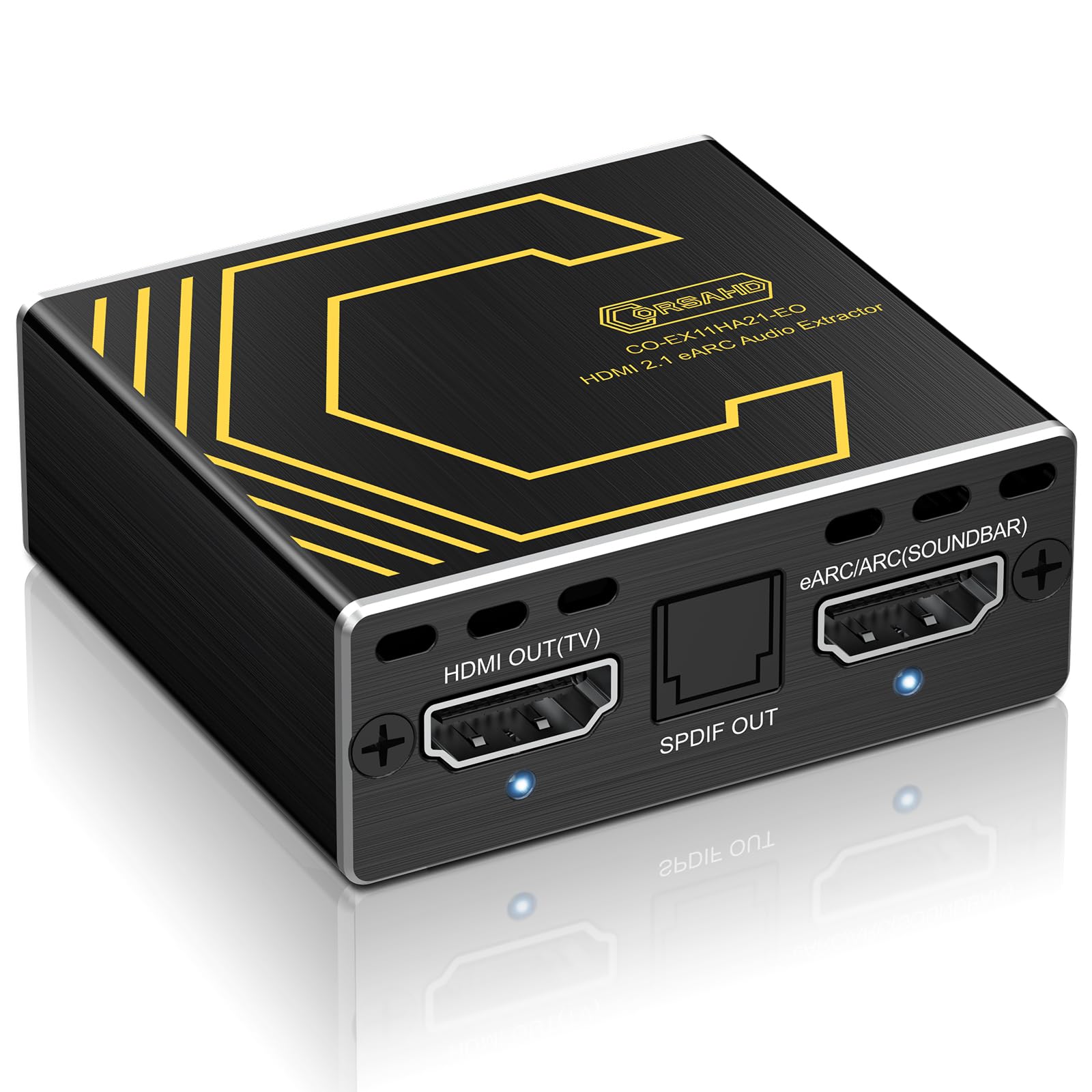
Image: Connection diagram illustrating HDMI input from a PS5 console to the extractor, with audio output to a soundbar and video output to a TV.

Image: Connection diagram illustrating HDMI input from a Nintendo Switch to the extractor, with audio output to a soundbar and video output to a TV, highlighting eARC/ARC and SPDIF options.
Setup Overview Video:
Video: A visual guide demonstrating the setup process for the CORSAHD HDMI 2.1 eARC Audio Extractor, including connecting source, display, and audio devices.
Compatibility Diagram:

Image: Diagram illustrating the wide compatibility of the CORSAHD HDMI 2.1 Audio Extractor with devices such as PS5, TV Box, Laptop, TV, Amplifier, Speakers, and eARC/ARC Soundbars.
5. Operating Instructions
EDID Settings:
The EDID switch on the device allows you to select the desired audio output format. Adjust this switch based on your audio system's capabilities and your preferred audio experience.
Image: Detailed view of the EDID switch and its three positions: FIXED 4K7.1, ATMOS, and SPDIF 5.1.
- FIXED 4K7.1: Slide the switch to the left position. In this mode, the display device will output 4K@120Hz video format, and the audio device will output Atmos or 7.1Ch audio format.
- SPDIF 5.1: Slide the switch to the middle position. The video will be output according to the settings of the device connected to HDMI OUT, and the audio device will output 5.1Ch audio format.
- ATMOS: Slide the switch to the right position. The video will be output according to the settings of the device connected to HDMI OUT, and the audio device will output Atmos or 7.1Ch audio format.
EDID Settings Video:
Video: A demonstration of how to adjust the EDID settings on the CORSAHD HDMI 2.1 eARC Audio Extractor for optimal audio and video output.
CEC Bypass Control:
The device supports CEC (Consumer Electronics Control) functionality. This allows your TV remote's directional and confirm buttons to control the menus of your source device (e.g., PS5/Xbox UI). Please note that CEC does not support volume control through this device.

Image: Illustration of CEC Bypass Control, showing a TV remote being used to navigate the menu of a connected source device.
6. Troubleshooting
If you encounter issues, please refer to the following common solutions:
- No Audio Output or Incorrect Audio Format:
- Ensure the EDID switch is set correctly for your audio system (FIXED 4K7.1, ATMOS, or SPDIF 5.1).
- Verify that your HDMI source device's audio settings are configured to output the desired format (e.g., 7.1Ch, 5.1Ch, Dolby Atmos). You may need to manually force the audio output format in your source device's settings.
- The SPDIF port will be inactive when the audio format is higher than 5.1Ch.
- Ensure all cables are securely connected.
- No Video Output or Incorrect Video Format:
- Ensure you are using certified HDMI 2.1 cables, especially for 4K@120Hz or 8K@60Hz resolutions. Cables longer than 10ft / 3m may require active certification.
- Verify that your HDMI source device's video settings are configured to output the desired resolution and refresh rate. You may need to manually force the video output format in your source device's settings.
- Check the connection to your display device (TV, monitor).
- CEC Functionality Issues:
- CEC supports menu control only; it does not support volume control through this device.
- Ensure CEC is enabled on both your source device and display device.
- General Connectivity Issues:
- Ensure the device is properly powered via the 5V/2A USB Type-C connection.
- Try disconnecting and reconnecting all cables.
- Restart your source device, display, and audio system.
7. Specifications
| Feature | Detail |
|---|---|
| Model Number | CO-EX11HA21-EO |
| HDMI Version | HDMI 2.1 |
| Supported Resolutions | Up to 8K@60Hz, 4K@120Hz, 1080p@240Hz, 5120x1440@120Hz, 3840x2160@60Hz, 1440p@60Hz (4:4:4 8bit) |
| Supported Audio Formats | eARC/ARC, Sonos ARC, 7.1Ch, 5.1Ch, Dolby Atmos, DTS X, Dolby True HD, DTS-HD Master Audio |
| HDCP Support | HDCP 2.2 & HDCP 2.3 Bypass |
| Other Features | VRR, ALLM, HDR 10, Dolby Vision, 3D effect, Lip Sync, Audio De-embed, EDID Management, CEC |
| Interface Type | HDMI, ARC, eARC, Sonos ARC, SPDIF |
| Maximum Supply Voltage | 5 Volts |
| Package Dimensions | 4.69 x 2.52 x 1.02 inches |
| Item Weight | 3.53 ounces |
8. Safety Information
Please observe the following safety guidelines to prevent damage to the device or injury to yourself:
- Do not expose the device to water, moisture, or extreme temperatures.
- Use only the specified power adapter (5V/2A) to power the device.
- Do not attempt to open or modify the device. This will void the warranty.
- Keep the device away from heat sources and direct sunlight.
- Ensure proper ventilation around the device to prevent overheating.
- Disconnect power during electrical storms or when unused for long periods.
9. Warranty and Support
This CORSAHD product comes with a manufacturer's warranty. For specific warranty details, please refer to the warranty card included in your package or contact CORSAHD customer support.
If you encounter any problems or have questions regarding the use of this item, please feel free to contact us through Amazon Message or visit the official CORSAHD website for support.