
1. Introduction
Thank you for choosing the EWEADN V102 Wired Gaming Keyboard. This manual provides detailed instructions for setting up, operating, and maintaining your keyboard to ensure optimal performance and longevity. The V102 features a compact 98-key layout, dynamic RGB backlighting, a multi-function control knob, and a smart display screen.
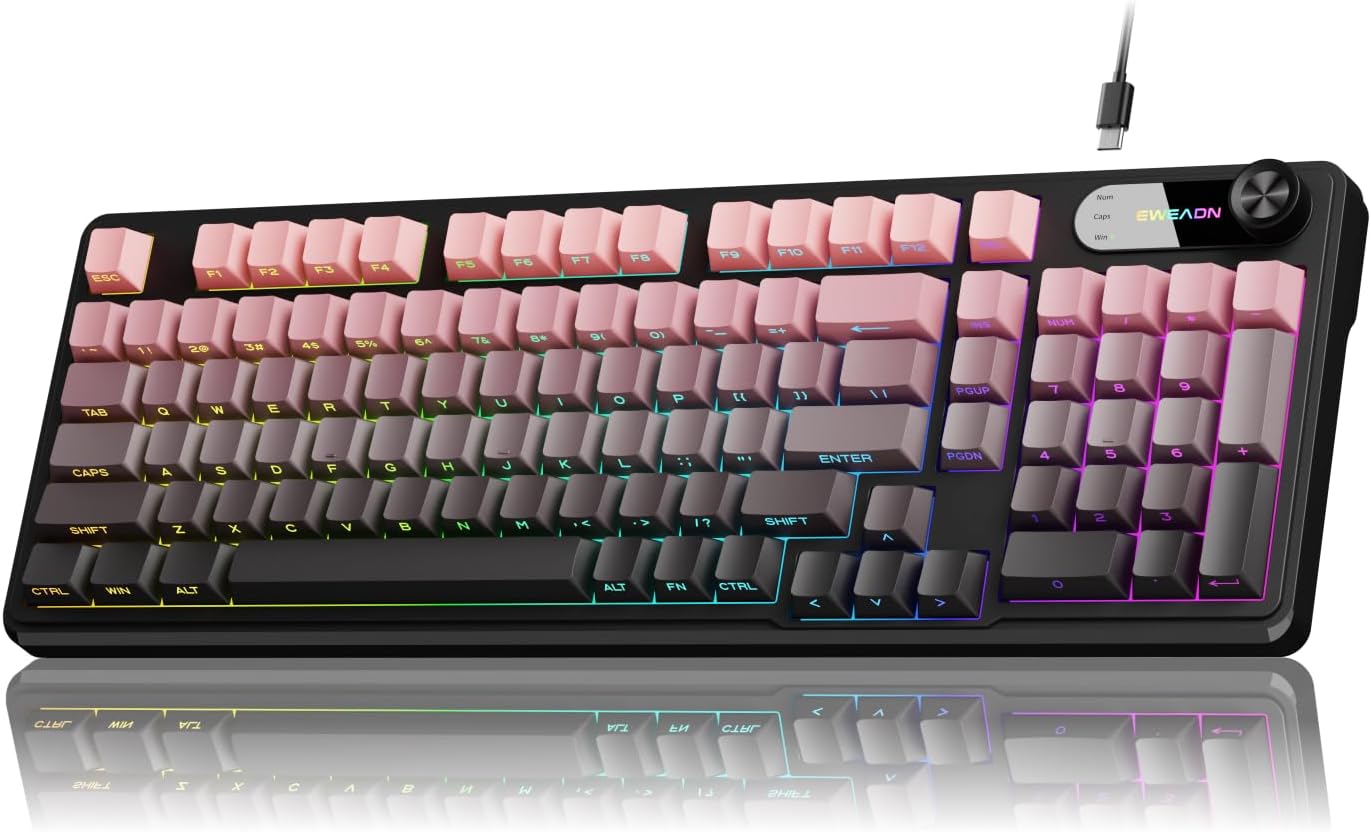
Image 1: EWEADN V102 Wired Gaming Keyboard, showcasing its compact layout and RGB lighting.
2. Package Contents
Please verify that all items are present in your package:
- EWEADN V102 Wired Gaming Keyboard
- USB Type-C Cable
- User Manual (this document)
3. Setup
3.1 Connecting the Keyboard
- Locate the USB Type-C port on the back of the EWEADN V102 keyboard.
- Connect one end of the provided USB Type-C cable to the keyboard's port.
- Connect the other end of the USB cable to an available USB port on your computer (PC, Laptop, Gaming Console, Tablet, or Smartphone).
- The keyboard is plug-and-play and should be recognized automatically by your operating system.

Image 2: Illustration of the wired Type-C connection, showing the cable connecting the keyboard to a computer.
4. Operating Instructions
4.1 Multi-Function Control Knob
The rotary knob on the keyboard provides quick access to various functions:
- Default Mode (Backlight Control):
- Press the knob: Toggles between different RGB backlight modes.
- Rotate the knob: Adjusts the backlight brightness (5 levels).
- Multimedia Mode (Volume Control):
- To switch to Multimedia Mode: Press and hold FN + Knob.
- Press the knob: Mutes/unmutes audio.
- Rotate the knob: Adjusts system volume.
- To switch back to Backlight Control Mode: Press and hold FN + Knob again.

Image 3: Detailed view of the multi-function control knob, illustrating its use for backlight and volume adjustments.
4.2 Dynamic RGB Backlighting
The keyboard features 12 dynamic RGB lighting effects. Control the backlighting using the following key combinations:
- FN + INS: Cycles through 12 different RGB lighting effects.
- FN + PGUP/PGDN: Adjusts backlight brightness (5 levels).
- FN + "_" / "+": Adjusts lighting speed (5 levels).
- FN + Backspace: Toggles backlight On/Off.

Image 4: Visual guide to RGB backlight controls, showing key combinations for effects, brightness, and speed.
4.3 Smart Display Screen
The built-in display screen provides real-time status indicators:
- Caps Lock: Indicates when Caps Lock is active.
- Num Lock: Indicates when Num Lock is active.
- Win Lock: Indicates when the Windows key is locked (preventing accidental presses during gaming).
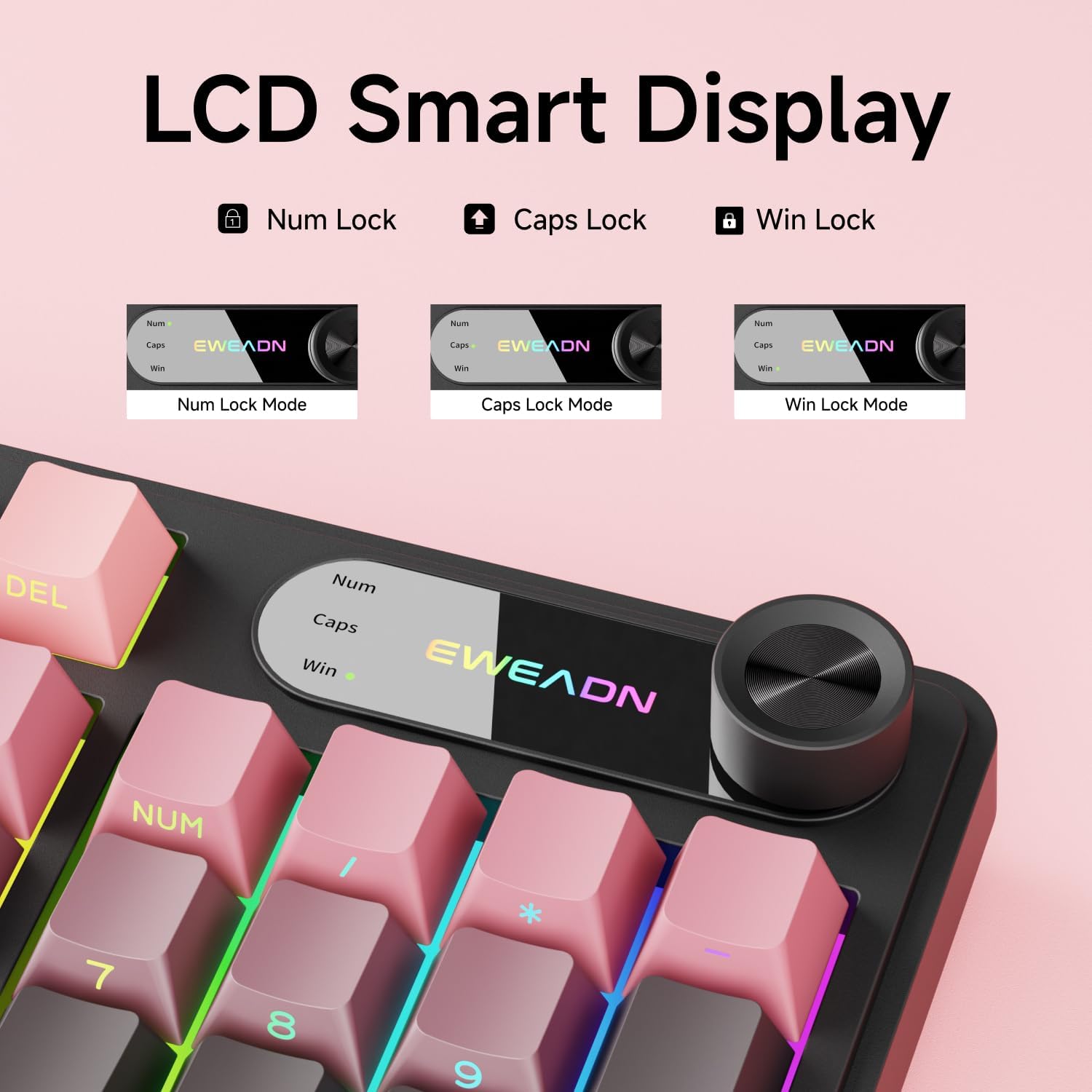
Image 5: Close-up of the LCD smart display, showing indicators for Num Lock, Caps Lock, and Win Lock.
4.4 Dual-System Compatibility
The EWEADN V102 keyboard supports both Windows and Mac operating systems. Switch between layouts using the following key combinations:
- FN + A: Switches to Windows layout.
- FN + S: Switches to Mac layout.

Image 6: Diagram illustrating the FN+A and FN+S key combinations for switching between Windows and Mac layouts.
4.5 Adjustable Typing Angles
The keyboard is equipped with two-stage adjustable feet on the bottom, allowing you to choose a comfortable typing angle:
- First stage: Provides a slight incline.
- Second stage: Provides a steeper incline for ergonomic comfort.

Image 7: Illustration of the keyboard's two-stage adjustable feet, demonstrating different typing angles.
5. Maintenance
5.1 Cleaning
- Disconnect the keyboard from your computer before cleaning.
- Use a soft, lint-free cloth slightly dampened with water or a mild cleaning solution to wipe the keycaps and keyboard surface.
- Avoid using harsh chemicals, abrasive cleaners, or solvents.
- For dust and debris between keys, use compressed air.
5.2 Spill Resistance
The keyboard features a spill-resistant design. In case of accidental spills:
- Immediately disconnect the keyboard from your computer.
- Wipe off any liquid from the surface with a clean cloth.
- Allow the keyboard to air dry completely before reconnecting it.

Image 8: Visual representation of the keyboard's spill-resistant capabilities.
6. Troubleshooting
- Keyboard not responding: Ensure the USB Type-C cable is securely connected to both the keyboard and the computer. Try a different USB port or a different cable.
- Keys not registering: Check for any debris under the keycaps. If specific keys are not working, contact customer support.
- Backlight not working: Ensure the backlight is not turned off (FN + Backspace). Adjust brightness using FN + PGUP/PGDN.
- Knob not controlling volume: Ensure the knob is in Multimedia Mode (press and hold FN + Knob to switch).
- Incorrect key functions (Mac/Windows): Verify you are in the correct operating system layout (FN + A for Windows, FN + S for Mac).
7. Specifications
| Feature | Detail |
|---|---|
| Model Number | V102 |
| Connectivity | Wired (USB Type-C) |
| Key Layout | 98-Key Compact Layout |
| Keyboard Type | Wired Membrane Keyboard |
| Backlighting | RGB (16.8 Million Colors) |
| Special Features | Multi-Function Knob, Smart Display Screen, Ergonomic Design, Adjustable Feet, Spill Resistant |
| Compatible Devices | Laptop, PC, Gaming Console, Tablet, Smartphone |
| Material | Metal, Plastic |
| Item Weight | 1 pound |
8. Warranty and Support
EWEADN is committed to providing quality products and customer satisfaction. For any inquiries, troubleshooting assistance, or warranty claims, please contact our support team.
8.1 Contact Information
- Email Support: eweadnkeyboard@outlook.com
- Amazon Store: Visit the EWEADN Store page on Amazon and click "Ask a question" to contact the seller.

Image 9: Overview of EWEADN's after-sales support services, including Q&A, troubleshooting, and returns.


