1. Introduction
This manual provides comprehensive instructions for the Jennov 5MP Wireless Security Camera System P48 Add-On Camera. This camera is designed for both outdoor and indoor surveillance, offering 5MP ultra-HD resolution, night vision, motion detection, and IP66 weatherproofing. It operates as an add-on unit for the Jennov P48 System (ASIN: B0FC22WYKN) and requires a dedicated outlet power source for continuous operation. Please read this manual thoroughly before installation and use to ensure optimal performance and safety.
2. What's in the Box
Carefully unpack the box and ensure all items are present and in good condition. If any items are missing or damaged, please contact customer support.
- 1 x Security Camera Outdoor Wireless
- 1 x Power Adapter for Camera
- Mounting Screws Pack
- User Manual
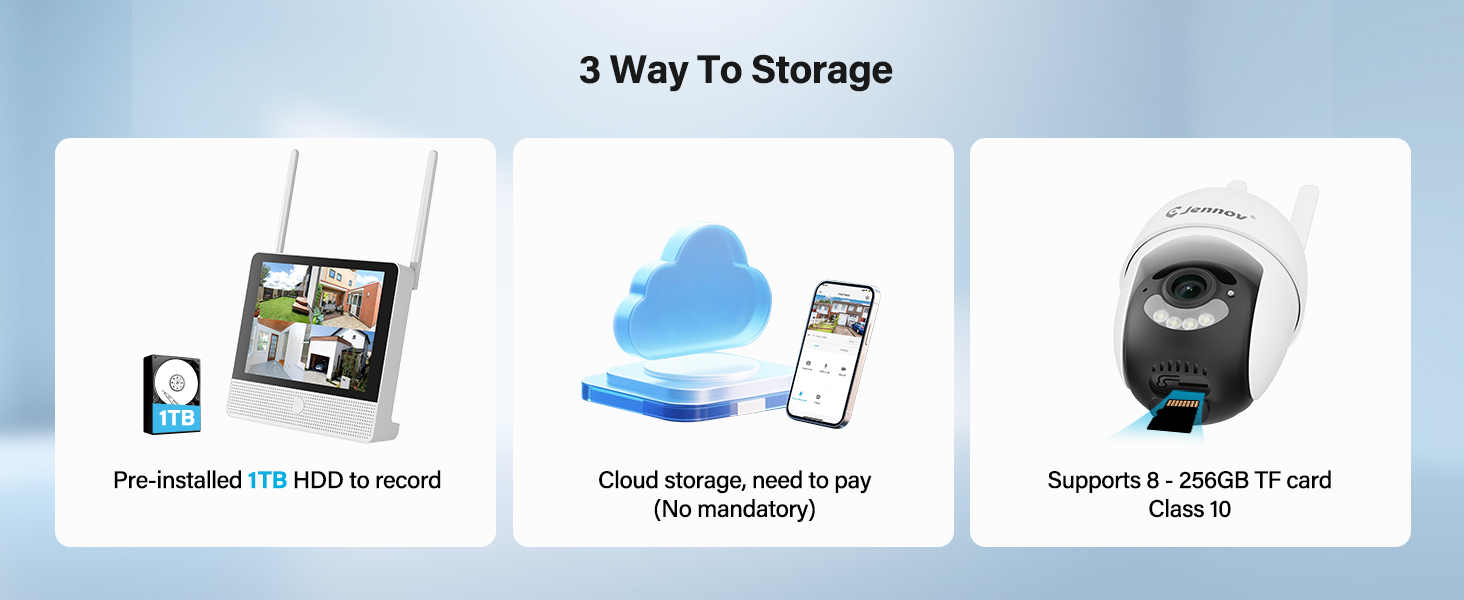
Figure 2.1: Included Components (Note: This product is an add-on camera, not the full system shown.)
3. Product Overview
The Jennov P48 Add-On Camera is a high-performance wireless security camera designed to expand your existing Jennov P48 NVR system. It features advanced imaging and connectivity for reliable surveillance.
3.1 Key Features
- 5MP Ultra-HD Resolution: Delivers clear and detailed video footage.
- Wireless Connectivity: Connects to the NVR without complex wiring.
- Plug-and-Play Power: Each camera is powered by an independent outlet adapter for uninterrupted operation.
- Smart Detection: Motion detection with instant alerts and recording.
- Night Vision: Provides clear footage in low-light conditions up to 15 meters.
- IP66 Weatherproof: Designed to withstand various outdoor weather conditions (-20°C to 60°C).
- Two-Way Audio: Allows for real-time communication through the camera.
- Pan/Tilt Functionality: Offers 355° horizontal and 90° vertical rotation for comprehensive coverage.
3.2 Camera Components

Figure 3.1: Jennov P48 Add-On Camera
- Camera Lens: Captures video footage.
- Infrared LEDs: Provide illumination for night vision.
- Spotlight LEDs: Enhance color night vision and act as a deterrent.
- Microphone: Captures audio for two-way communication.
- Speaker: Outputs audio for two-way communication.
- Antennas: For wireless signal transmission.
- Power Port: Connects to the power adapter.
- Mounting Base: For wall or ceiling installation.
4. Setup Instructions
This section guides you through the physical installation and initial connection of your add-on camera to the Jennov P48 NVR system.
4.1 Site Selection
Choose a location that provides the desired viewing angle and is within range of your Jennov P48 NVR's wireless signal. Ensure a power outlet is accessible for the camera's power adapter. The camera is IP66 weatherproof, suitable for outdoor use.
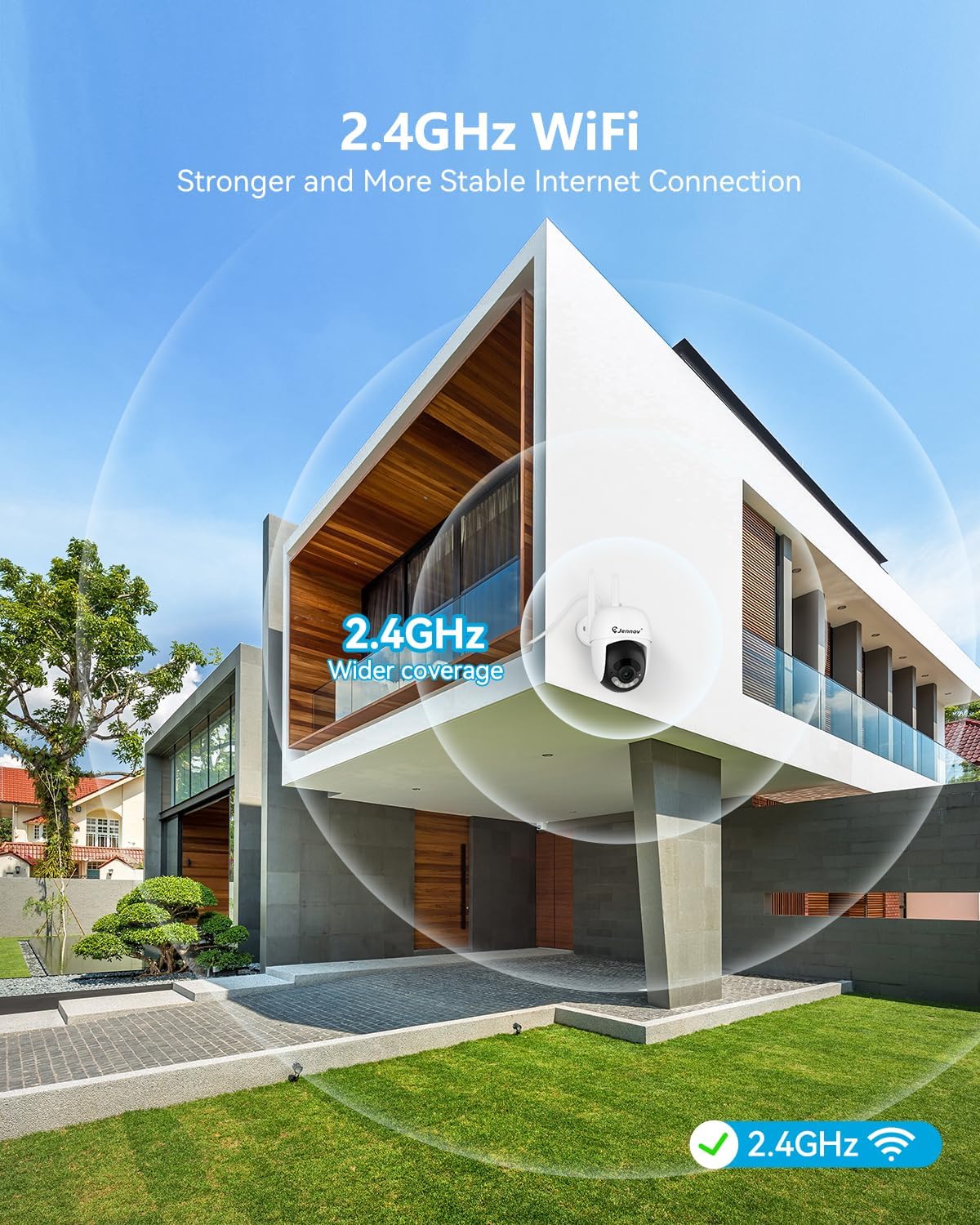
Figure 4.1: Optimal Camera Placement for 2.4GHz WiFi Coverage
4.2 Physical Installation
- Mark Drilling Points: Use the provided hole sticker or camera base as a template to mark the screw positions on the wall or ceiling.
- Drill Holes: Drill pilot holes at the marked positions. Insert wall anchors if installing on masonry or drywall.
- Mount Camera: Secure the camera's mounting base to the surface using the provided screws.
- Adjust Angle: Loosen the adjustment screws on the camera body to set the desired viewing angle, then tighten them to secure the position.

Figure 4.2: Installation Options (Ceiling-mounted and Wall-mounted)
4.3 Power Connection
Connect the camera's power adapter to the camera's power port, then plug the adapter into a standard electrical outlet. The camera will power on automatically.
4.4 Pairing with NVR (Add-On Camera)
The Jennov P48 Add-On Camera is designed to automatically pair with your existing Jennov P48 NVR system. Once powered on, the camera should establish a wireless connection with the NVR. If the camera does not appear on your NVR monitor:
- Access the NVR's menu and navigate to the 'Camera Management' or 'Channel Setup' section.
- Select an unused channel and initiate the 'Add Camera' or 'Wireless Pairing' function.
- The NVR will search for available cameras. Once detected, select your camera to add it to the system.
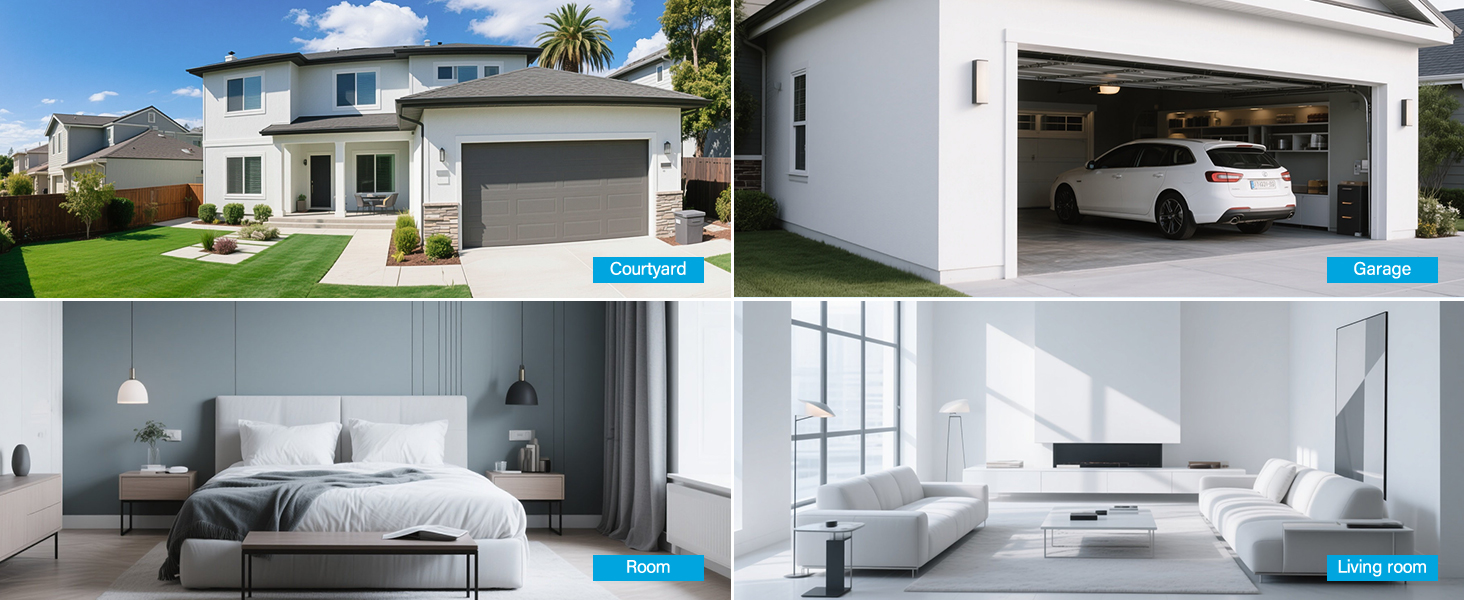
Figure 4.3: NVR System Connection Diagram
5. Operating Instructions
This section details how to utilize the various features of your Jennov P48 Add-On Camera through the NVR system and the mobile application.
5.1 Live View and Recording
Once connected to the NVR, you can view the live feed from your camera on the NVR's connected monitor. The system will automatically record footage based on your NVR's settings (e.g., continuous, motion-triggered).
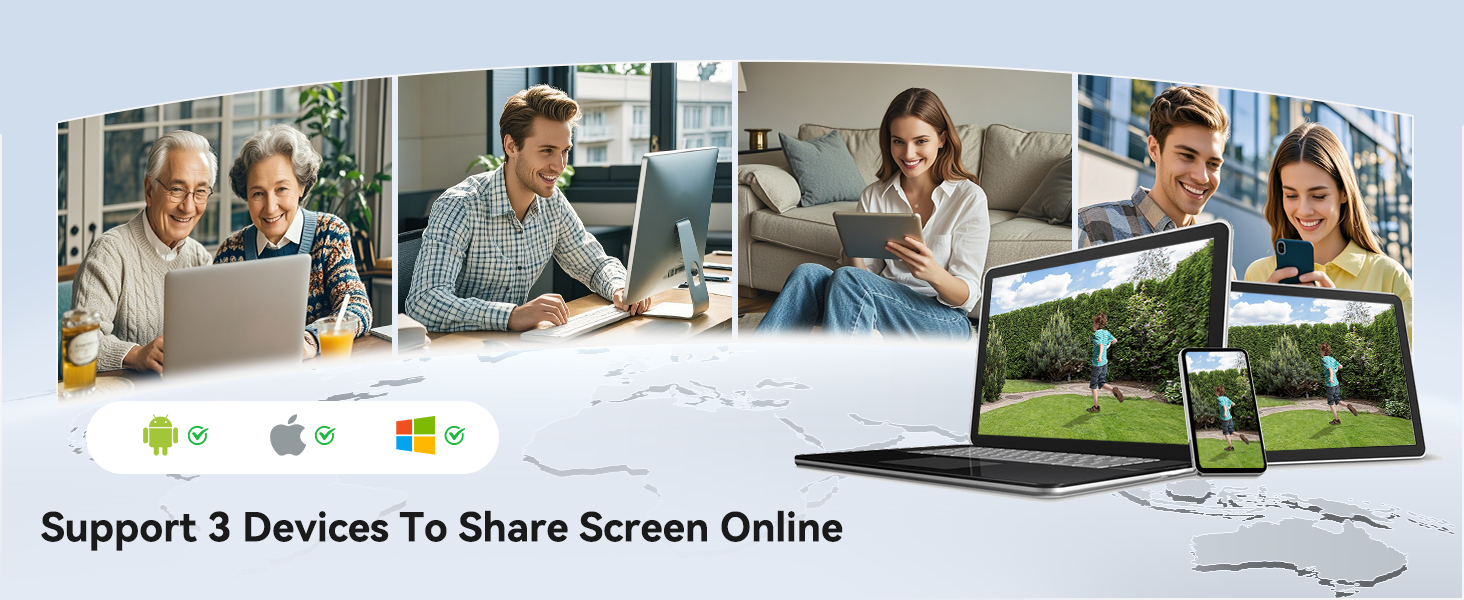
Figure 5.1: Multi-Camera Live View on NVR
5.2 Motion Detection and Alerts
The camera features smart motion detection. When motion is detected, the system can trigger recording, send alerts to your mobile device, and activate the camera's spotlight and siren.
- Setting Detection Zones: Through the NVR or mobile app, you can define specific areas within the camera's view for motion detection, minimizing false alarms.
- Alert Configuration: Customize alert types (push notifications, email) and schedules.

Figure 5.2: Customized Detection Areas
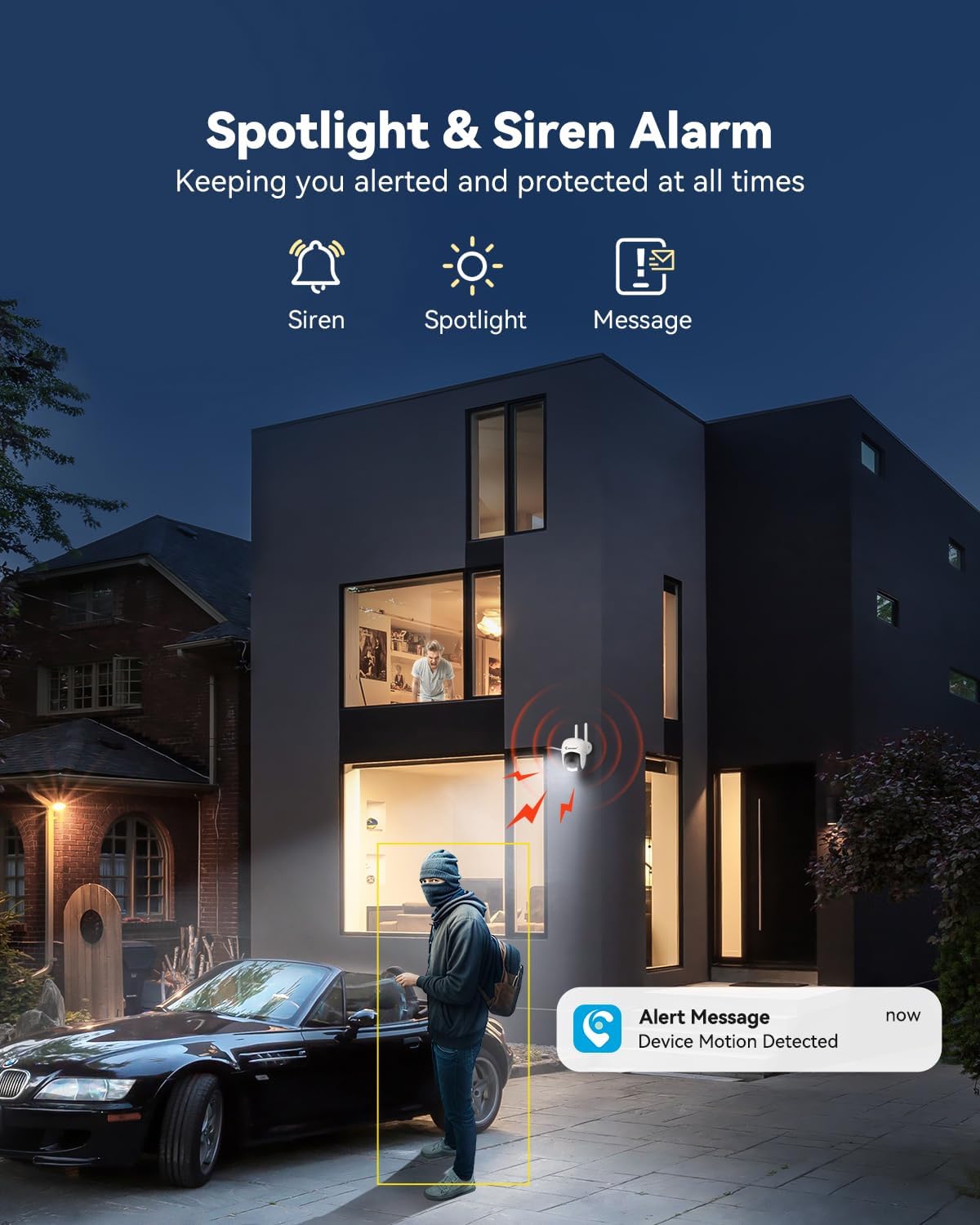
Figure 5.3: Spotlight and Siren Alarm in Action
5.3 Night Vision
The camera automatically switches to night vision in low-light conditions. It supports both infrared (black and white) and color night vision, enhanced by its built-in spotlights.

Figure 5.4: Color Night Vision vs. IR Night Vision
5.4 Two-Way Audio
Utilize the built-in microphone and speaker for real-time two-way communication. This feature is accessible through the NVR interface or the Jennov mobile application.

Figure 5.5: Real-Time Two-Way Audio
5.5 Remote Access (Jennov App)
Download the Jennov app on your smartphone or tablet to access live feeds, playback recordings, and manage camera settings remotely. The app supports multiple users and devices for screen sharing.
- App Download: Search for "Jennov" in your device's app store.
- Device Pairing: Follow the in-app instructions to add your NVR system and connected cameras.

Figure 5.6: Remote Access via Jennov App
5.6 Storage Options
Your Jennov P48 system offers multiple storage solutions for recorded footage:
- Pre-installed 1TB HDD: The NVR comes with a 1TB hard disk drive for local storage.
- Cloud Storage: Optional cloud storage plans are available for off-site backup (subscription may be required).
- TF Card: The camera supports 8-256GB TF cards (Class 10) for local edge recording.
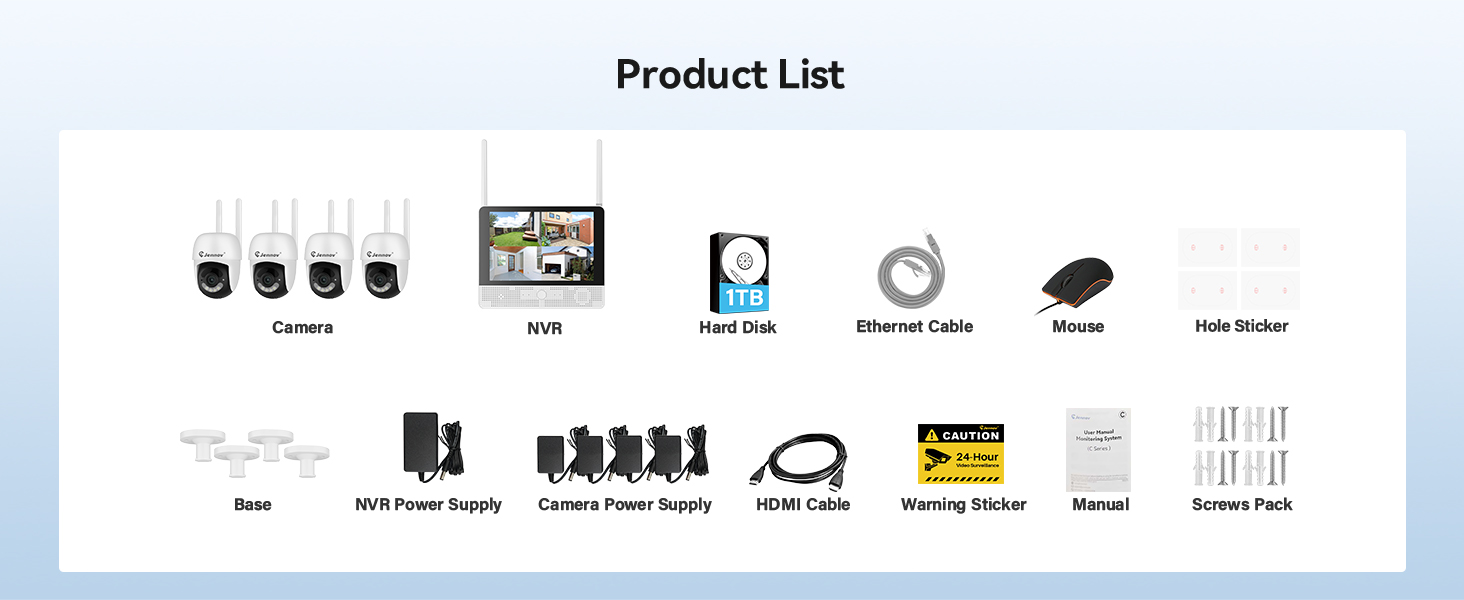
Figure 5.7: Available Storage Options
6. Maintenance
Regular maintenance ensures the longevity and optimal performance of your security camera.
- Cleaning: Periodically clean the camera lens with a soft, dry cloth to remove dust and smudges. Do not use harsh chemicals.
- Firmware Updates: Check the Jennov website or app for available firmware updates for your NVR and cameras. Keeping firmware updated ensures access to the latest features and security enhancements.
- Power Supply Check: Ensure the power adapter and cable are free from damage and securely connected.
- Environmental Check: For outdoor cameras, periodically check for obstructions to the camera's view, such as overgrown foliage, and ensure the mounting is secure.
7. Troubleshooting
If you encounter issues with your Jennov P48 Add-On Camera, refer to the following common problems and solutions.
| Problem | Possible Cause | Solution |
|---|---|---|
| Camera not displaying on NVR | No power; Out of wireless range; Not paired; NVR channel limit reached. | Check power connection; Relocate camera closer to NVR; Manually pair camera via NVR settings; Ensure NVR has available channels (max 8). |
| Poor image quality | Dirty lens; Low light conditions; Poor wireless signal. | Clean the camera lens; Ensure sufficient lighting or check night vision settings; Improve wireless signal by reducing distance or obstructions. |
| Motion detection not working | Detection sensitivity too low; Detection zones not set correctly; Schedule not active. | Adjust motion detection sensitivity; Configure detection zones; Check motion detection schedule. |
| Cannot access camera on mobile app | NVR not connected to internet; App not configured correctly; Incorrect login credentials. | Ensure NVR is connected to your router via Ethernet; Verify app settings and NVR pairing; Double-check login information. |
| Two-way audio not functioning | Microphone/speaker blocked; Volume settings too low; App permissions. | Check for obstructions on microphone/speaker; Adjust volume settings on NVR/app; Grant necessary microphone permissions to the app on your mobile device. |
8. Specifications
| Feature | Detail |
|---|---|
| Brand | Jennov |
| Model Number | P48HC55-3-FAS |
| Connectivity Technology | Wireless |
| Video Capture Resolution | 5MP Ultra-HD |
| Special Features | Easy to Install, Image Sensor, Night Vision, Video Recording, Weatherproof, Two-Way Audio, Motion Detection |
| Color | White |
| Power Source | Corded Electric |
| Item Dimensions (L x W x H) | 4.96 x 3.15 x 4.61 inches |
| Item Weight | 15.5 ounces |
| Recommended Uses | Outdoor |
| Low Light Technology | Night Color |
| Weather Resistance | IP66 |
| Operating Temperature | -20°C to 60°C |
9. Warranty and Support
Jennov is committed to providing reliable products and responsive customer support. While specific warranty details are not provided in this manual, Jennov products typically come with a manufacturer's warranty covering defects in materials and workmanship.
9.1 Customer Support
For technical assistance, troubleshooting, or warranty inquiries, please contact Jennov customer support through the following channels:
- Jennov Official Website: Visit the official Jennov website for FAQs, support resources, and contact information.
- Email Support: Refer to your product packaging or the Jennov website for the dedicated support email address.
- Online Chat: Some regions may offer online chat support via the Jennov website.
Please have your product model number (P48HC55-3-FAS) and purchase information ready when contacting support.


