
1. Introduction
The Cambridge Audio EVO 150 SE is an integrated amplifier and network player designed to deliver high-fidelity audio from various sources. This unit combines a powerful 150W per channel amplifier with a high-resolution network streamer, offering connectivity options including Bluetooth aptX HD, AirPlay 2, Chromecast Built-in, HDMI ARC, and a Moving Magnet (MM) Phono Stage. This manual provides essential information for setting up, operating, and maintaining your EVO 150 SE.

Image: Front view of the Cambridge Audio EVO 150 SE, showcasing its display and control knob.
2. What's in the Box
Carefully unpack all items from the box. Ensure all components are present before proceeding with setup.
- Evo 150 SE Streaming Amplifier
- Quick Start Guide
- Safety Guide
- Mains Lead (Power Cable)
- Remote Control
- 2 x AAA Batteries
- Customisable Side Panels x 2 (pre-installed or separate)
3. Setup
3.1 Placement
Place the EVO 150 SE on a stable, level surface away from direct sunlight, heat sources, and excessive moisture. Ensure adequate ventilation around the unit.
3.2 Connecting Speakers
Connect your passive speakers to the speaker terminals on the rear of the EVO 150 SE. Ensure correct polarity (+ to + and - to -) for each speaker. The EVO 150 SE supports dual speaker zones.

Image: The EVO 150 SE amplifier positioned next to a bookshelf speaker on a white shelf, illustrating a typical setup.
3.3 Connecting Audio Sources
- HDMI eARC: Connect an HDMI cable from your TV's HDMI ARC/eARC port to the HDMI ARC input on the EVO 150 SE for TV audio.
- Phono Stage: Connect a turntable with a Moving Magnet (MM) cartridge to the dedicated Phono input.
- Digital Inputs: Use coaxial or optical cables for other digital audio sources.
- Analog Inputs: Use RCA cables for analog audio sources.
3.4 Network Connection
Connect the EVO 150 SE to your home network via Ethernet cable for a stable connection, or use the built-in Wi-Fi. For Wi-Fi setup, follow the instructions in the StreamMagic app.
3.5 Power Connection
Once all connections are made, connect the supplied mains lead to the EVO 150 SE and then to a suitable wall outlet. Power on the unit using the power button.
4. Operating Instructions
4.1 Power On/Off
Press the power button on the front panel or the remote control to turn the unit on or off. The display will illuminate upon power-up.
4.2 Front Panel Controls
The front panel features a high-resolution display and a dual-concentric dial. The outer ring controls volume, while the inner ring allows navigation through menus and input selection. Press the inner ring to confirm selections.

Image: A detailed close-up of the EVO 150 SE's dual-concentric control dial, highlighting its textured surface.
4.3 Remote Control
Use the supplied remote control for convenient operation, including power, volume, input selection, and playback controls.
4.4 StreamMagic App
Download the StreamMagic app for iOS or Android to unlock the full potential of your EVO 150 SE. The app allows you to control streaming services, manage inputs, apply room compensation, and adjust the 7-band EQ for precise tonal control.
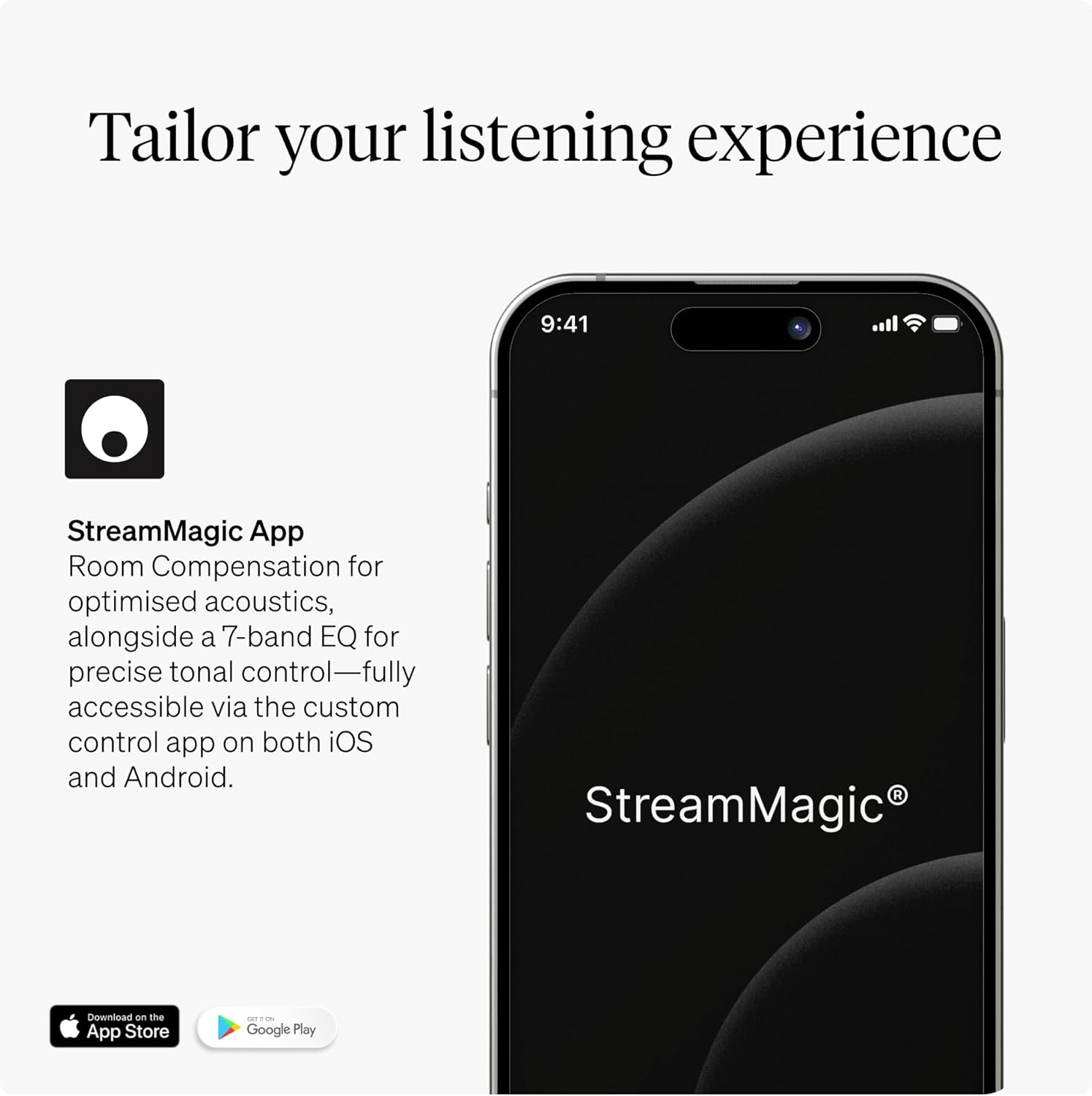
Image: A smartphone screen showing the StreamMagic app, which provides comprehensive control over the EVO 150 SE's features.
4.5 Streaming Services & Connectivity
The EVO 150 SE supports a wide range of streaming options:
- Built-in Streaming: Access services like Spotify, Tidal, Amazon Music, Qobuz, Deezer, and Internet Radio directly through the StreamMagic platform.
- Bluetooth aptX HD: Pair your Bluetooth-enabled devices for high-quality wireless audio streaming.
- AirPlay 2: Stream audio from Apple devices.
- Chromecast Built-in: Cast audio from compatible apps on your smartphone or tablet.

Image: A visual representation of the EVO 150 SE's extensive connectivity, including Spotify, Tidal, Amazon Music, Qobuz, Deezer, Internet Radio, HDMI eARC, AirPlay, Chromecast, Wi-Fi, aptX HD Bluetooth, and Phono Stage.
4.6 HDMI eARC Operation
When connected to a compatible TV via HDMI eARC, the EVO 150 SE will receive audio from your TV and can be controlled using your TV remote for volume. Ensure eARC/ARC is enabled in your TV's audio settings.

Image: A graphic illustrating the HDMI eARC connection for high-definition TV sound, indicating the ability to add a subwoofer for enhanced bass.
4.7 Phono Stage Operation
Connect your turntable to the MM Phono input. Select the Phono input on the EVO 150 SE to listen to vinyl records. No external phono preamplifier is required for Moving Magnet cartridges.

Image: A person browsing vinyl records next to the EVO 150 SE and a turntable, demonstrating its use with a built-in phono stage.
4.8 Dual Speaker Zones & Multiroom
The EVO 150 SE supports two independent speaker zones, allowing you to play different audio in separate rooms or the same audio simultaneously. Multiroom functionality can be managed via the StreamMagic app.
4.9 Customisable Side Panels
The EVO 150 SE comes with customisable side panels. You can easily swap these panels to match your aesthetic preferences. Refer to the quick start guide for instructions on changing the panels.

Image: The EVO 150 SE amplifier featuring elegant wooden side panels, demonstrating its customizable design.
5. Maintenance
5.1 Cleaning
Wipe the unit with a soft, dry, lint-free cloth. Do not use abrasive cleaners, waxes, or solvents. Avoid spraying cleaning fluids directly onto the unit.
5.2 Software Updates
The EVO 150 SE's firmware can be updated via the StreamMagic app or through its network connection. Ensure your unit is connected to the internet to receive important updates that improve performance and add new features.
6. Troubleshooting
If you encounter issues with your EVO 150 SE, refer to the following common solutions:
- No Power: Check the mains lead connection and ensure the power outlet is active.
- No Sound: Verify speaker connections, input selection, and volume level. Check if mute is active.
- Network Connection Issues: Ensure your router is working correctly. For Wi-Fi, check signal strength. For Ethernet, ensure the cable is securely connected. Try restarting the unit and your router.
- Bluetooth Pairing Problems: Ensure the EVO 150 SE is in pairing mode and your device's Bluetooth is enabled and discoverable.
- Remote Control Not Working: Check and replace the AAA batteries. Ensure no obstructions are blocking the remote's signal to the unit.
For more detailed troubleshooting or persistent issues, please visit the Cambridge Audio support website or contact customer service.
7. Specifications
| Feature | Specification |
|---|---|
| Output Power | 150 Watts per channel |
| DAC | ESS SABRE ES9018k2m |
| Phono Stage | Moving Magnet (MM) |
| Amplifier Class | Hypex NCOREx Class D |
| Streaming Platform | StreamMagic Gen 4 |
| Bluetooth | aptX HD |
| HDMI | eARC |
| Speaker Zones | Dual |
| Connectivity Technology | AirPlay 2, Bluetooth, Chromecast, Ethernet, Wi-Fi |
| Controller Type | StreamMagic App |
| Item Weight | 19.51 pounds (8.85 kg) |
| Package Dimensions | 20.1 x 18 x 6.6 inches (51.05 x 45.72 x 16.76 cm) |
8. Warranty and Support
Your Cambridge Audio EVO 150 SE is covered by a manufacturer's warranty. Please refer to the warranty card included in your packaging for specific terms and conditions. For technical support, product registration, or to download the latest firmware and manuals, please visit the official Cambridge Audio website:


