
Introduction
This manual provides detailed instructions for the ORICO MiniLink M45P docking station, designed to seamlessly integrate with your Mac mini M4. It offers expanded storage capabilities with an M.2 NVMe SSD enclosure, high-speed USB4 connectivity, additional USB-A ports, and audio input/output, enhancing your desktop experience.
Package Contents
Please verify that all items listed below are included in your package:
- ORICO MiniLink M45P Docking Station ×1
- 15cm USB-C to C Cable ×1
- Heatsink ×1
- Thermal Pad ×1
- User Manual ×1

Setup Guide
1. SSD Installation
The MiniLink M45P supports M.2 NVMe SSDs up to 8TB (compatible with 2230/2242/2260/2280 sizes) for expanded storage.
- Locate the bottom cover of the docking station.
- Gently remove the cover by rotating it counter-clockwise to reveal the M.2 slot.
- Insert your M.2 NVMe SSD into the slot, ensuring it is properly seated.
- Secure the SSD with the provided screw.
- Apply the thermal pad and heatsink to the SSD for optimal heat dissipation.
- Replace the bottom cover by aligning and rotating it clockwise until it locks.

2. Connecting to Mac mini M4
Follow these steps to connect the docking station to your Mac mini M4:
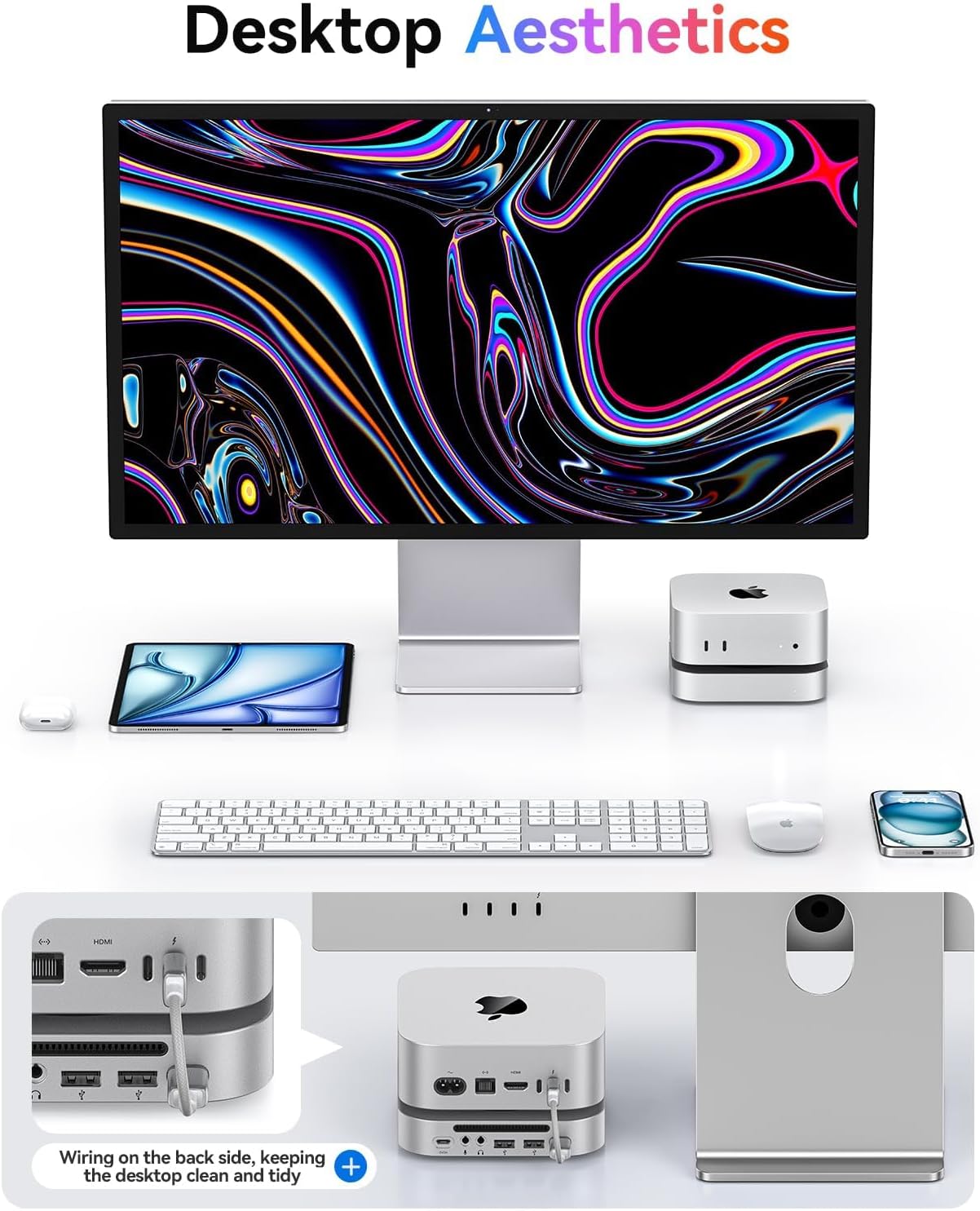
- Place your Mac mini M4 directly on top of the ORICO MiniLink M45P. The design ensures a seamless fit.
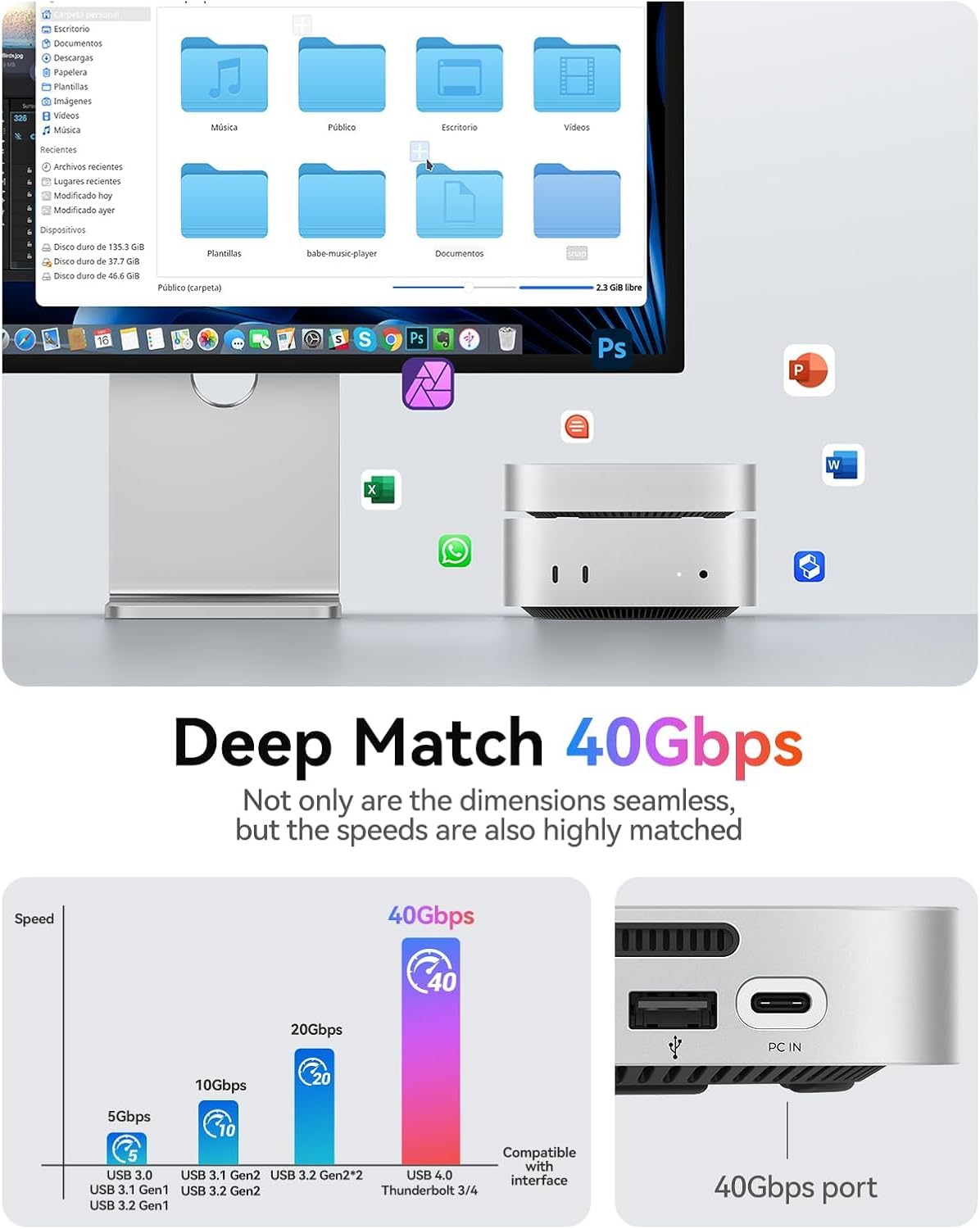
- Connect the provided 15cm USB-C to C cable from the MiniLink's PC IN port (located on the rear) to a Thunderbolt/USB4 port on your Mac mini M4.
- For optimal performance and stability, especially when using multiple power-intensive devices or a high-capacity SSD, connect an external 5V/3A power adapter (not included) to the USB-C Power Supply (5V/3A) port on the MiniLink.

Operation
Port Functionality
The ORICO MiniLink M45P expands your Mac mini's connectivity with the following ports, located on the front and rear of the device:
- 1x USB-C (USB4 40Gbps): This port provides the primary high-speed connection to your Mac mini for data transfer and power delivery. It is compatible with Thunderbolt 4 and USB4.
- 2x USB-A 2.0 (480Mbps): These ports are suitable for connecting standard USB peripherals such as keyboards, mice, printers, or USB flash drives.
- 1x 3.5mm Microphone Input: Connect an external microphone for audio recording or voice communication.
- 1x 3.5mm Headphone Jack: Connect headphones or external speakers for audio output.
- 1x USB-C Power Supply (5V/3A): An optional power input to provide additional power to the docking station and connected devices, ensuring stable operation under heavy loads.

Data Transfer
The integrated USB4 40Gbps interface delivers exceptional data transfer speeds, allowing for rapid file transfers and efficient workflow with large media files. Expect read performance up to 3000MB/s when utilizing a compatible NVMe SSD.

Maintenance
To ensure the longevity and optimal performance of your ORICO MiniLink M45P, please follow these maintenance guidelines:
- Cleaning: Keep the device clean and free from dust. Use a soft, dry, lint-free cloth for cleaning the exterior. Avoid using liquid cleaners or aerosols directly on the device.
- Environment: Avoid exposing the device to extreme temperatures, direct sunlight, or high humidity. Operate it in a well-ventilated area.
- Ventilation: Ensure that the ventilation grilles on the docking station are not obstructed to allow for proper airflow and prevent overheating, especially when an SSD is installed and under heavy use.
- Disassembly: Do not attempt to disassemble the device beyond the SSD installation process. Unauthorized disassembly may void the product warranty and could cause damage.
Troubleshooting
No Power/Device Not Recognized
- Ensure the USB-C to C cable is securely connected between the MiniLink's PC IN port and a Thunderbolt/USB4 port on your Mac mini.
- Verify that the optional external 5V/3A power supply (if used) is properly connected to the MiniLink and a working power outlet.
- Try connecting the MiniLink to a different Thunderbolt/USB4 port on your Mac mini to rule out a faulty port.
- If an SSD is installed, ensure it is correctly seated and secured within the M.2 slot. Re-seat the SSD if necessary.
Slow Data Transfer Speeds
- Confirm you are using the provided high-speed USB-C to C cable, as generic cables may not support 40Gbps speeds.
- Ensure your Mac mini's connected port supports USB4 or Thunderbolt 4 for maximum speeds. Older USB-C ports may offer lower performance.
- Check the health and performance of your installed NVMe SSD. A failing or low-quality SSD can limit transfer speeds.
- Avoid connecting multiple high-bandwidth devices simultaneously to the USB-A 2.0 ports if experiencing slowdowns on the main data connection.
Audio Issues
- Verify that your microphone or headphones are correctly plugged into the respective 3.5mm jacks on the MiniLink.
- Check your Mac mini's sound settings (System Settings > Sound) to ensure the ORICO MiniLink is selected as the input/output device.
- Test with different audio devices to determine if the issue lies with the MiniLink or your audio peripherals.
Product Specifications
| Feature | Detail |
|---|---|
| Brand | ORICO |
| Model | M45P |
| Color | Silver |
| Hardware Interface | USB |
| Compatible Devices | Desktops (Mac mini M4) |
| USB-A Ports | 2x USB-A 2.0 (480Mbps) |
| USB-C Ports | 1x USB-C (USB4 40Gbps), 1x USB-C Power Supply (5V/3A) |
| Audio Ports | 1x 3.5mm Microphone Input, 1x 3.5mm Headphone Jack |
| M.2 NVMe SSD Enclosure | Supports up to 8TB (2230/2242/2260/2280 sizes) |
| Manufacturer | SHENZHEN ORICO TECHNOLOGIES CO.,LTD |
Warranty and Support
This ORICO product comes with a standard manufacturer's warranty. Please refer to the included warranty card or visit the official ORICO website for detailed warranty terms and conditions specific to your region.
For technical support, troubleshooting assistance, or product inquiries, please contact ORICO customer service through their official website or the contact information provided in the product packaging.
You can also find more information and products by visiting the ORICO Store on Amazon.


