
1. Introduction
This manual provides detailed instructions for the setup, operation, and maintenance of your MOKiN 13-in-1 USB-C Docking Station. Please read this manual thoroughly before using the device to ensure proper functionality and to prevent damage.
Safety Guidelines
- Do not expose the device to water, moisture, or extreme temperatures.
- Avoid dropping or subjecting the device to strong impacts.
- Use only the provided power adapter or a compatible power source.
- Keep the device away from children.
- Do not attempt to disassemble or repair the device yourself. Contact customer support if service is required.
2. Product Overview
The MOKiN 13-in-1 USB-C Docking Station is designed to expand the connectivity of your USB-C enabled laptop, providing multiple ports for display, data transfer, network, and charging.
Key Features
- 13-in-1 Expansion: Includes 2 HDMI ports, 2 USB-C data ports, 1 USB-A data port, 1 USB-A 2.0 port, 3 USB-C charging ports (including host), 1 USB-A charging port, Gigabit Ethernet, AC power port, and a screen-lock button.
- Dual Display Support: Extends your display in up to 4K resolution via HDMI ports. Supports dual-display mode for macOS and Windows.
- High-Speed Data Transfer: USB 3.2 Gen 2 ports (2 USB-C and 1 USB-A) offer up to 10Gbps data transfer speeds.
- 160W Max Power Output: Capable of charging up to four devices simultaneously, with individual ports supporting up to 100W (USB-C) and 12W (USB-A).
- 2.26" LCD Smart Display: Provides real-time monitoring of charging status, power output, display resolution, and refresh rate.
- Gigabit Ethernet: Ensures fast and stable wired network connection up to 1000Mbps.
- Innovative Design: Compact vertical design with an aluminum finish, 80cm host cable, and a magnetic base.
- Privacy Feature: Built-in screen-lock button for securing sensitive information.
Port Layout

Detailed diagram illustrating the front and rear ports of the MOKiN Docking Station, including USB-C, USB-A, HDMI, Ethernet, and power input.
Front Ports:
- Power Button
- 3 x USB 3.2 Gen 2 Data Ports (2x USB-C, 1x USB-A) - 10Gbps
- 2 x USB-C Charging Ports
- 1 x USB-A Charging Port
Rear Ports:
- 1 x USB-C Host Port (20Gbps/100W PD)
- 1 x USB-A 2.0 Port
- 2 x HDMI Ports (up to 4K@60Hz)
- 1 x Gigabit Ethernet Port
- AC Power Input
3. Setup Instructions
Step 1: Power Connection
- Connect the provided AC power adapter to the AC Power Input port on the rear of the docking station.
- Plug the power adapter into a wall outlet.
Step 2: Connecting to Host Device
- Connect the integrated USB-C host cable from the docking station to a compatible USB-C, USB4, or Thunderbolt port on your laptop.
- Ensure your laptop supports DP Alt Mode and Power Delivery for full functionality.
Step 3: Connecting Peripherals
- Displays: Connect your monitors to the HDMI ports on the rear of the docking station using HDMI cables.
- USB Devices: Connect USB peripherals such as keyboards, mice, external hard drives, or USB flash drives to the available USB-A and USB-C data ports.
- Network: For a wired internet connection, connect an Ethernet cable from your router or modem to the Gigabit Ethernet port on the rear.
- Charging Devices: Use the dedicated USB-C and USB-A charging ports on the front to charge your smartphones, tablets, or other compatible devices.
4. Operating Instructions
General Use
Once all connections are made, the docking station should automatically be recognized by your laptop. Drivers are typically installed automatically by your operating system (Windows, macOS, ChromeOS).
LCD Smart Display
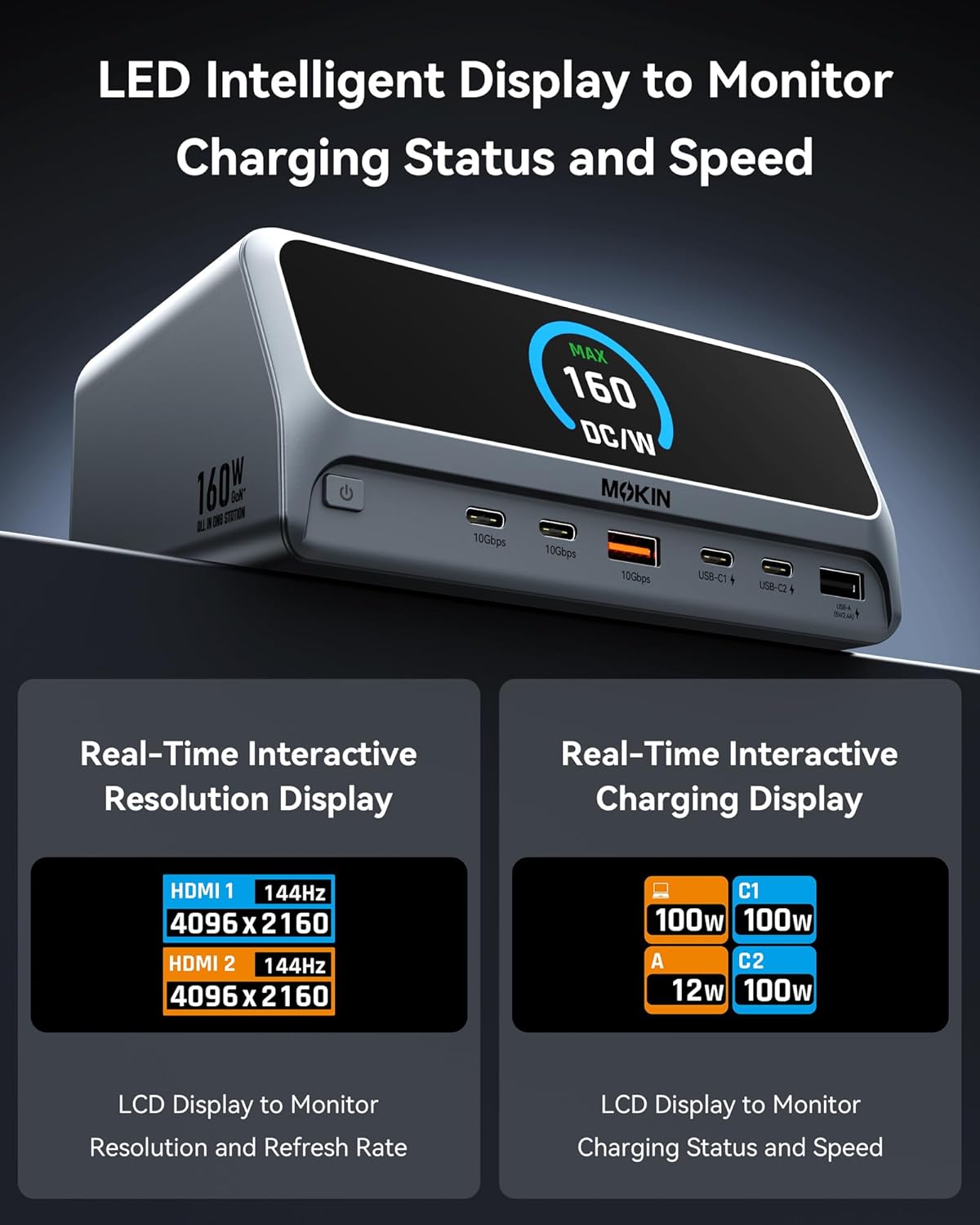
Close-up of the docking station's LCD smart display, showing real-time information such as charging status, power output, and display resolution.
The 2.26-inch LCD smart display provides real-time information:
- Charging Status: Displays the power output (in Watts) for each connected charging port (USB-C1, USB-C2, USB-A).
- Display Resolution: Shows the resolution and refresh rate of connected HDMI monitors (e.g., HDMI 1: 144Hz 4096x2160).
- Total Power Output: Indicates the maximum total power being drawn from the docking station.
Screen-Lock Button
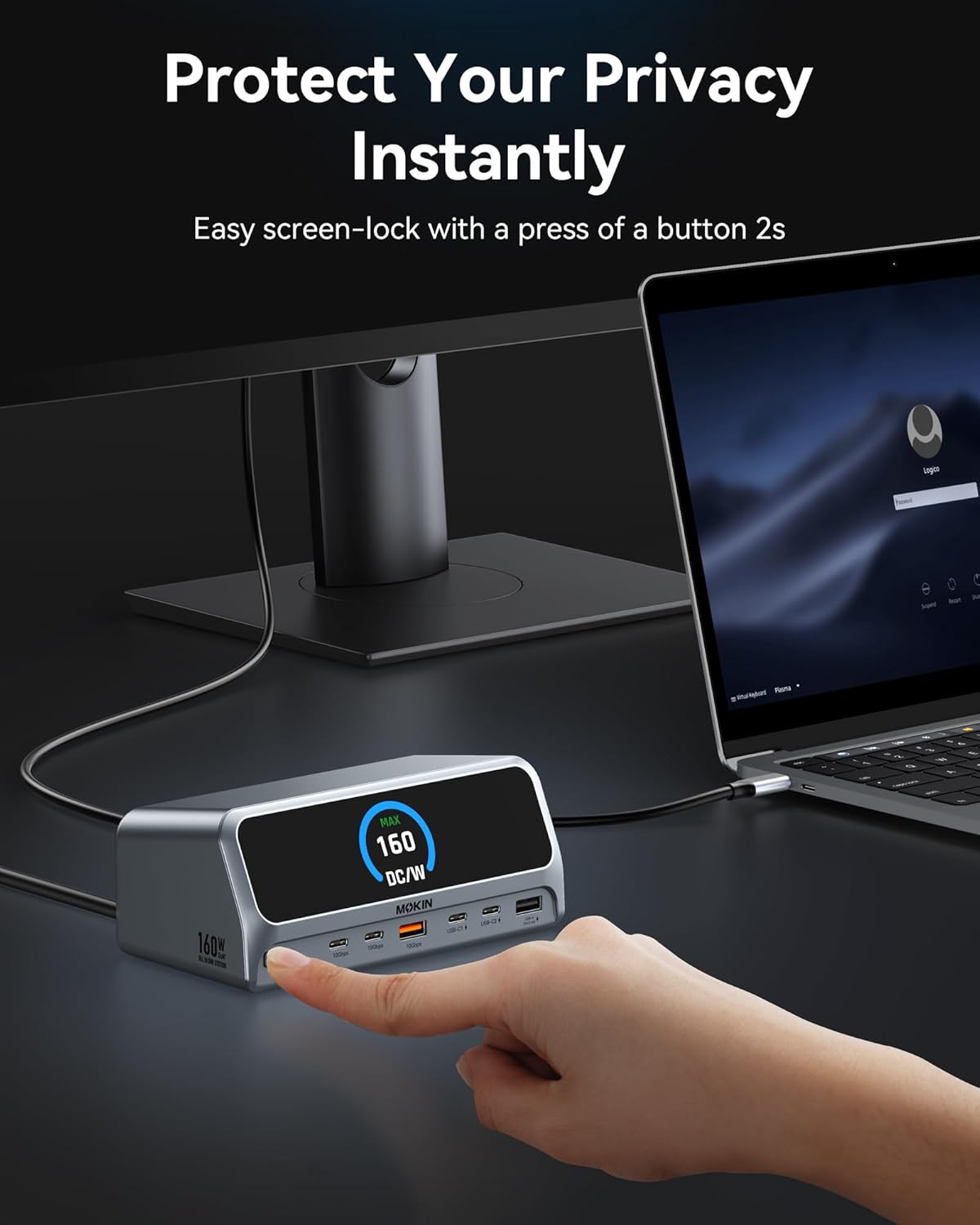
A hand pressing the screen-lock button on the docking station, demonstrating the privacy feature.
Press and hold the screen-lock button for approximately 2 seconds to instantly turn off the connected displays. This feature is useful for privacy or when you need to quickly disable external monitors without disconnecting them.
5. Display Configuration

Visual guide demonstrating various dual 4K display configurations supported by the docking station for both Windows and macOS operating systems.
The docking station supports dual 4K displays. The behavior of extended displays varies slightly between Windows and macOS.
- Windows Systems: Support Multi-Stream Transport (MST) for dual independent displays (A+B, A+B+C, etc.).
- macOS Systems: Support dual-display mode, typically mirroring the primary display or extending it with a single additional desktop (A+A, A+B).
To configure your displays, access your operating system's display settings:
- Windows: Right-click on the desktop > Display settings.
- macOS: System Settings > Displays.
6. Charging Capabilities

Image showing the MOKiN Docking Station charging multiple devices simultaneously, highlighting its 160W total power output capability.
The docking station delivers a total of 160W power output, distributed across its charging ports:
- Host Port (USB-C): Up to 100W Power Delivery to your laptop.
- Dedicated USB-C Charging Ports: Each supports up to 100W max output.
- Dedicated USB-A Charging Port: Supports up to 12W max output.
Note: The dedicated charging ports do not support data transmission or display extension functions.
7. Data Transfer
The docking station is equipped with high-speed data transfer ports:
- USB 3.2 Gen 2 Ports (2x USB-C, 1x USB-A): Provide data transfer speeds of up to 10Gbps, allowing for rapid file transfers.
- USB 2.0 Port (1x USB-A): Suitable for connecting standard peripherals like keyboards, mice, or printers.
8. Network Connection
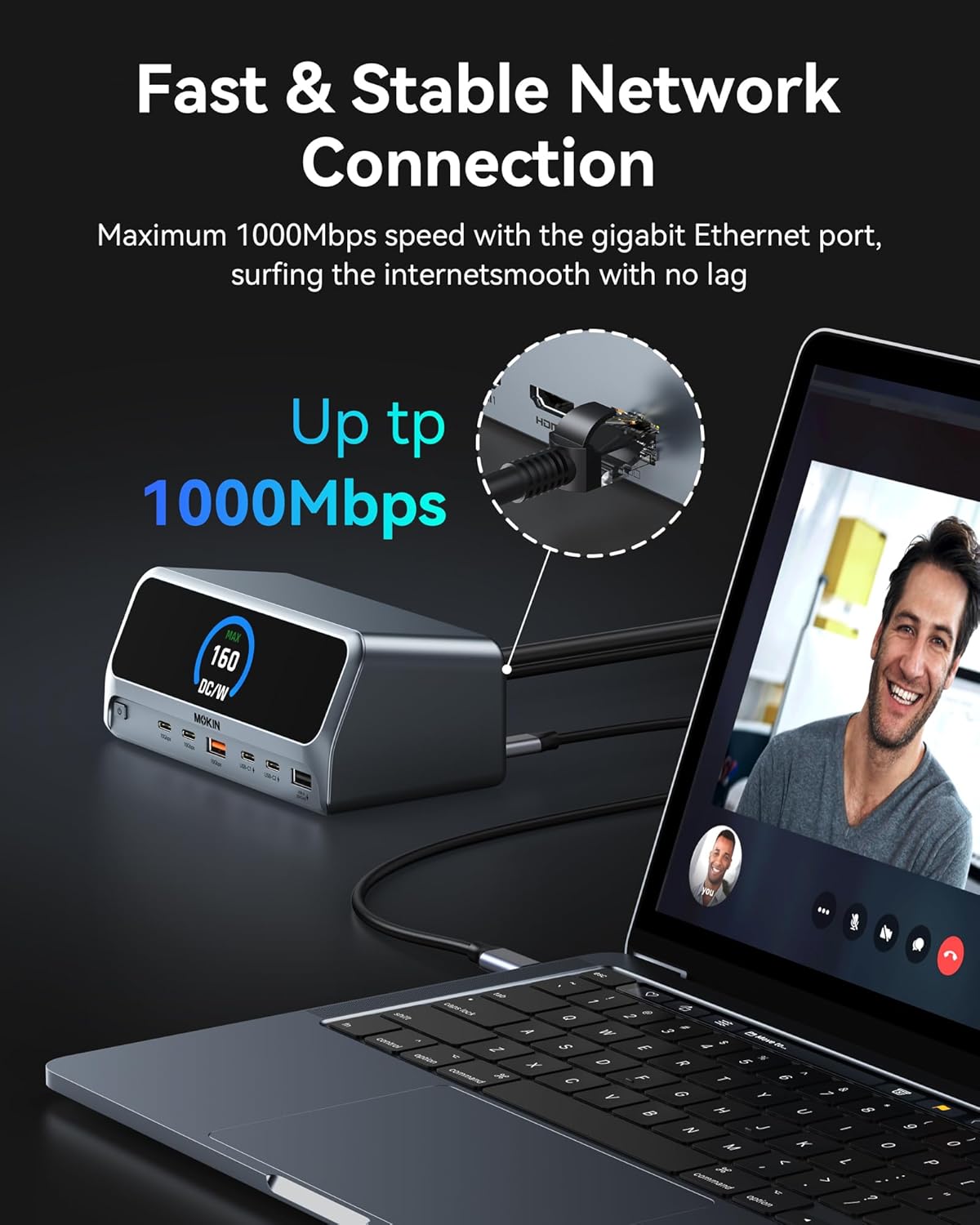
A laptop connected to the docking station via an Ethernet cable, illustrating the stable gigabit network connection.
The integrated Gigabit Ethernet port provides a stable and fast wired network connection, supporting speeds up to 1000Mbps. This is ideal for reliable internet access and large file transfers, especially in environments where Wi-Fi may be unstable or slow.
9. Specifications
| Feature | Specification |
|---|---|
| Model | 13 in 1 Charging Station |
| Brand | MOKiN |
| Host Connection | USB Type-C (USB-C, USB4, Thunderbolt compatible) |
| Total USB Ports | 7 (3x 10Gbps data, 1x USB 2.0 data, 3x charging) |
| Video Output | 2 x HDMI (up to 4K@60Hz) |
| Ethernet | Gigabit Ethernet (10/100/1000Mbps) |
| Power Output (Total) | 160W Max |
| Power Output (Host) | Up to 100W Power Delivery |
| Power Output (Charging Ports) | USB-C: 100W Max each; USB-A: 12W Max |
| Data Transfer Speed | 10Gbps (USB 3.2 Gen 2 ports) |
| Display | 2.26" LCD Smart Display |
| Compatible OS | Windows 10/11, macOS, ChromeOS |
| Item Weight | 2.48 pounds |
| Package Dimensions | 7.83 x 7.28 x 3.11 inches |
10. Troubleshooting
Common Issues and Solutions
- No Display Output:
- Ensure the docking station is powered on and connected to your laptop's USB-C port.
- Verify that your laptop's USB-C port supports DisplayPort Alternate Mode (DP Alt Mode).
- Check HDMI cable connections to both the docking station and the monitor.
- Confirm that the monitor input source is set correctly (e.g., HDMI 1, HDMI 2).
- Try updating your laptop's graphics drivers.
- Restart your laptop and the docking station.
- USB Devices Not Recognized:
- Ensure the docking station is properly connected to your laptop.
- Try connecting the USB device to a different port on the docking station.
- Connect the USB device directly to your laptop to confirm it functions independently.
- Check your laptop's Device Manager (Windows) or System Information (macOS) for any unrecognized USB devices.
- Slow Charging or No Charging:
- Verify that the docking station's power adapter is securely connected and receiving power.
- Ensure your laptop's USB-C port supports Power Delivery (PD).
- Check the power requirements of your laptop; if it requires more than 100W, it may charge slower or not at all through the docking station.
- Note that the USB-C downstream data ports do not support charging. Use the dedicated charging ports.
- Ethernet Connection Issues:
- Ensure the Ethernet cable is securely connected to both the docking station and your router/modem.
- Check network settings on your laptop.
- Try a different Ethernet cable.
- Docking Station Not Detected by Laptop:
- Disconnect and reconnect the USB-C host cable.
- Restart your laptop.
- Ensure your laptop's operating system is up to date.
11. Maintenance
To ensure the longevity and optimal performance of your MOKiN Docking Station, follow these maintenance guidelines:
- Cleaning: Use a soft, dry cloth to wipe the exterior of the docking station. Do not use liquid cleaners or abrasive materials.
- Storage: When not in use for extended periods, store the docking station in a cool, dry place away from direct sunlight.
- Ventilation: Ensure the docking station has adequate airflow around it to prevent overheating. Do not block ventilation openings.
12. Warranty and Support
MOKiN products are designed for reliability and performance. For warranty information and technical support, please refer to the warranty card included with your product or visit the official MOKiN website. Please have your product model and purchase information ready when contacting support.


