
1. Introduction
Thank you for choosing the MOKiN 13-in-1 USB-C Docking Station. This device is designed to expand the connectivity of your laptop, providing multiple ports for display, data transfer, network, and power delivery. Please read this manual carefully to ensure proper setup and operation.
2. Product Overview
The MOKiN 13-in-1 USB-C Docking Station features a compact vertical design with a 2.26-inch LCD smart display. It offers a comprehensive set of ports to meet diverse connectivity needs.

Figure 2.1: Front view of the MOKiN 13-in-1 USB-C Docking Station, showcasing its sleek design and integrated LCD display.
2.1 Port Layout
The docking station is equipped with various ports on its front and rear panels:
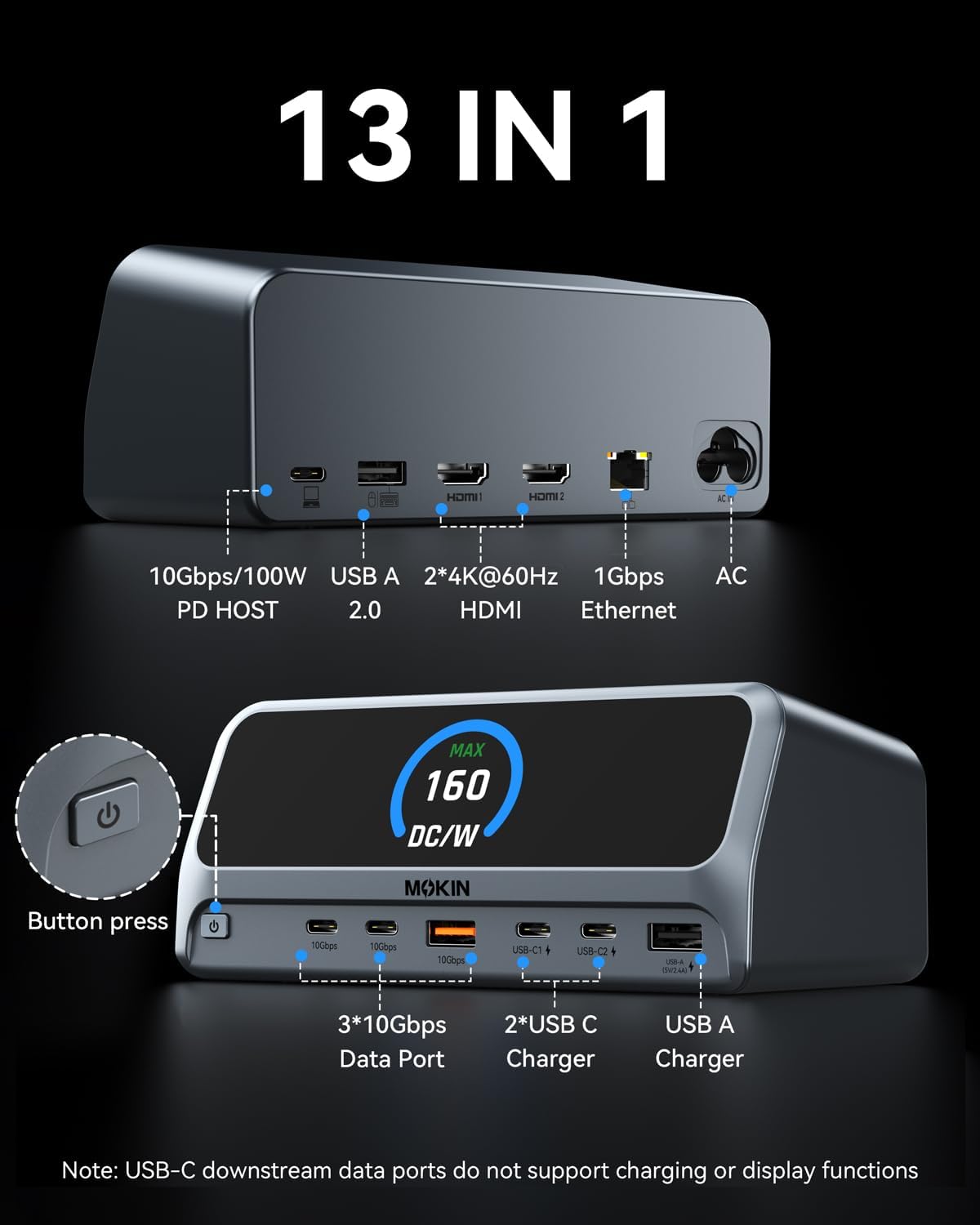
Figure 2.2: Detailed view of the docking station's front and rear ports, including HDMI, USB-C, USB-A, Ethernet, and AC power input.
- Front Ports: Power Button, 3x 10Gbps Data Ports (2x USB-C, 1x USB-A), 2x USB-C Charger Ports, 1x USB-A Charger Port.
- Rear Ports: 10Gbps/100W PD Host Port (USB-C), USB-A 2.0 Port, 2x 4K@60Hz HDMI Ports, 1Gbps Ethernet Port, AC Power Input.
2.2 LCD Smart Display
The integrated 2.26-inch LCD display provides real-time information about the docking station's operation, including resolution, refresh rate, and charging status of connected devices.
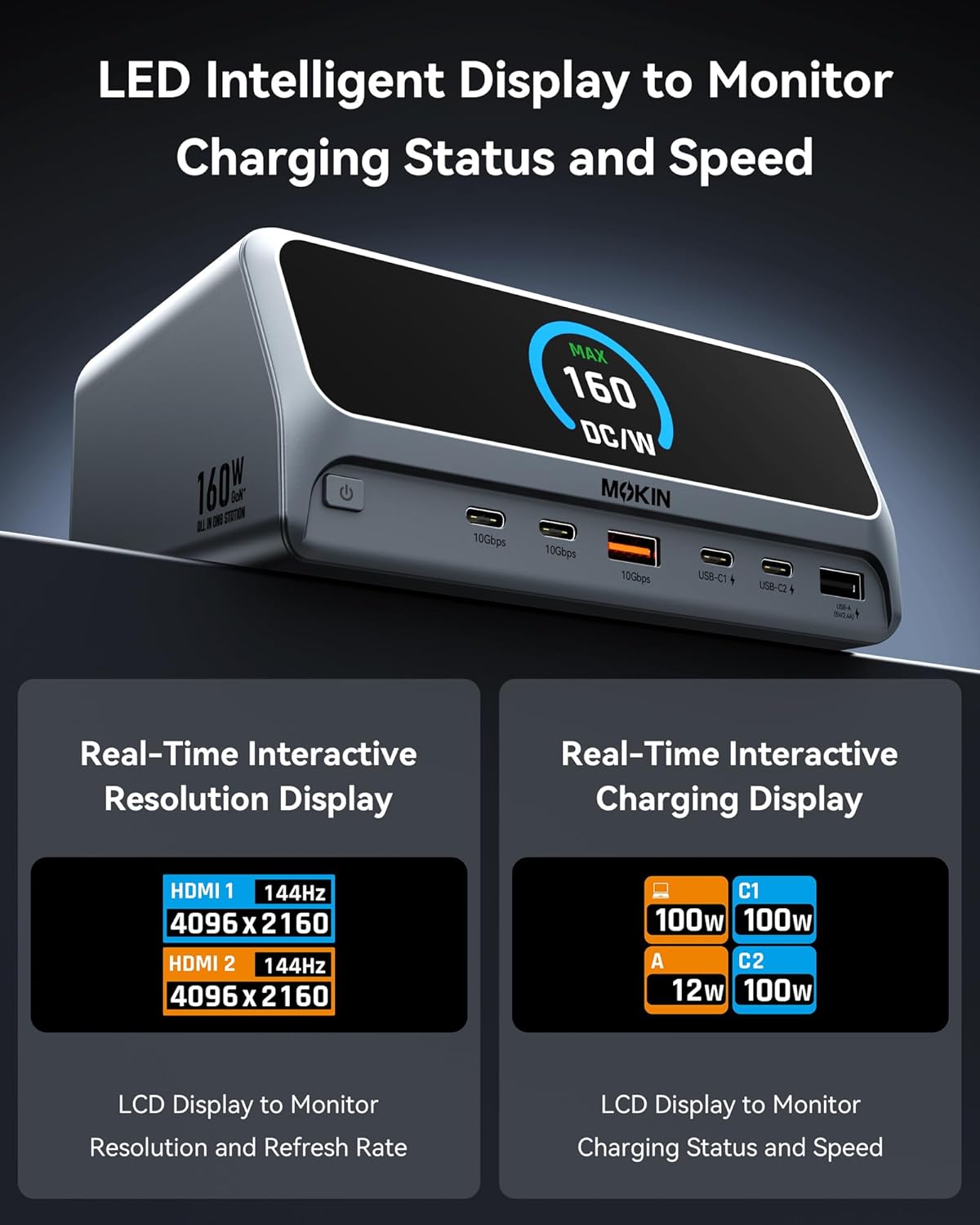
Figure 2.3: The LCD display provides real-time interactive resolution and charging information, showing connected HDMI resolutions and power output per port.
2.3 Screen-Lock Button
A dedicated screen-lock button allows for instant privacy protection by locking the display. Press and hold for 2 seconds to activate.
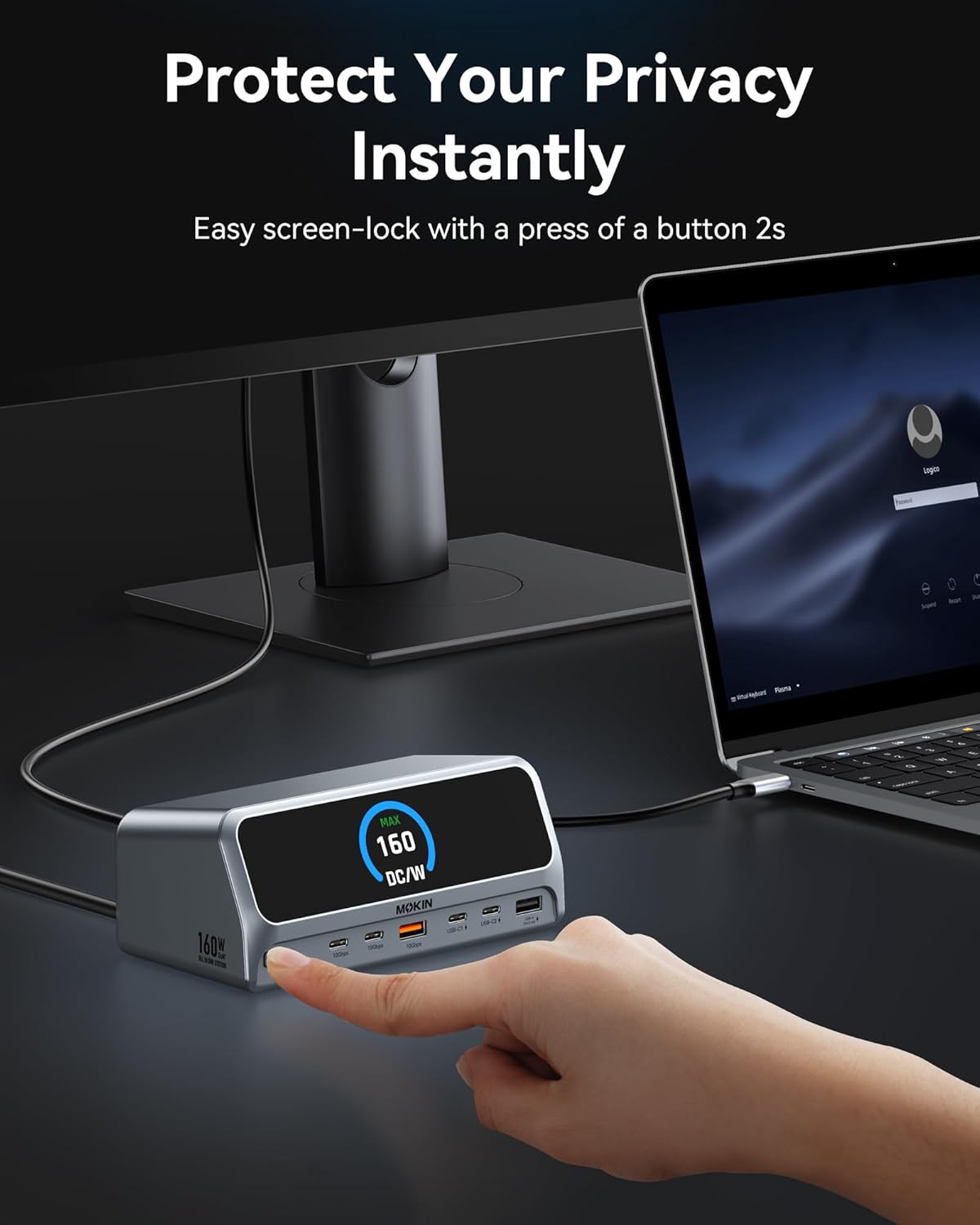
Figure 2.4: The screen-lock button located on the front panel, enabling quick privacy protection by locking the display.
3. Setup Guide
Follow these steps to set up your MOKiN Docking Station:
- Connect Power: Plug the AC power adapter into the docking station's AC input port and then into a wall outlet.
- Connect to Laptop: Use the provided USB-C cable to connect the docking station's PD Host Port (rear) to your laptop's USB-C, USB4, or Thunderbolt port.
- Connect Displays: Connect your external monitors to the HDMI ports on the rear of the docking station using HDMI cables.
- Connect Peripherals: Connect your USB devices (keyboard, mouse, external drives) to the available USB-A and USB-C data ports.
- Connect Network (Optional): For a stable wired internet connection, connect an Ethernet cable from your router/modem to the Gigabit Ethernet port on the docking station.
4. Operating Instructions
4.1 Display Configuration
The docking station supports dual display output. Configuration varies based on your operating system:
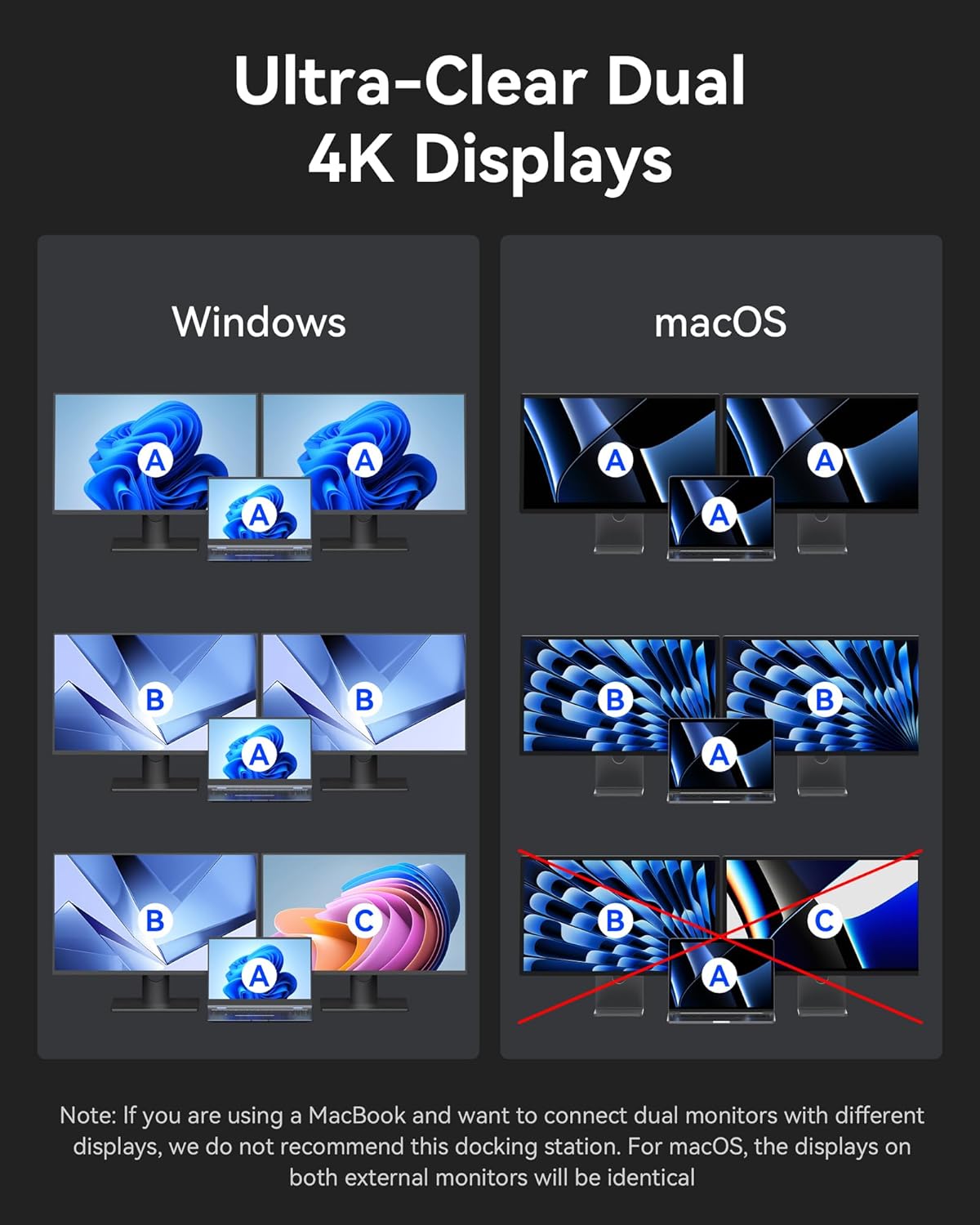
Figure 4.1: Comparison of display output capabilities for Windows and macOS systems when connected to the docking station.
- Windows Systems: Supports extended dual display mode (MST), allowing two different external monitors to extend your desktop in 4K resolution.
- macOS Systems: Due to macOS limitations, only one external display can be extended. If two monitors are connected, they will mirror each other (SST). For different displays, we do not recommend this docking station for macOS.
4.2 Data Transfer
The docking station features USB 3.2 Gen 2 ports (2x USB-C and 1x USB-A) that support data transfer speeds up to 10Gbps. This allows for rapid transfer of large files.
4.3 Charging Capabilities
With a total output of 160W, the docking station can charge up to four devices simultaneously. It includes three USB-C charging ports (up to 100W max each) and one USB-A charging port (up to 12W max).
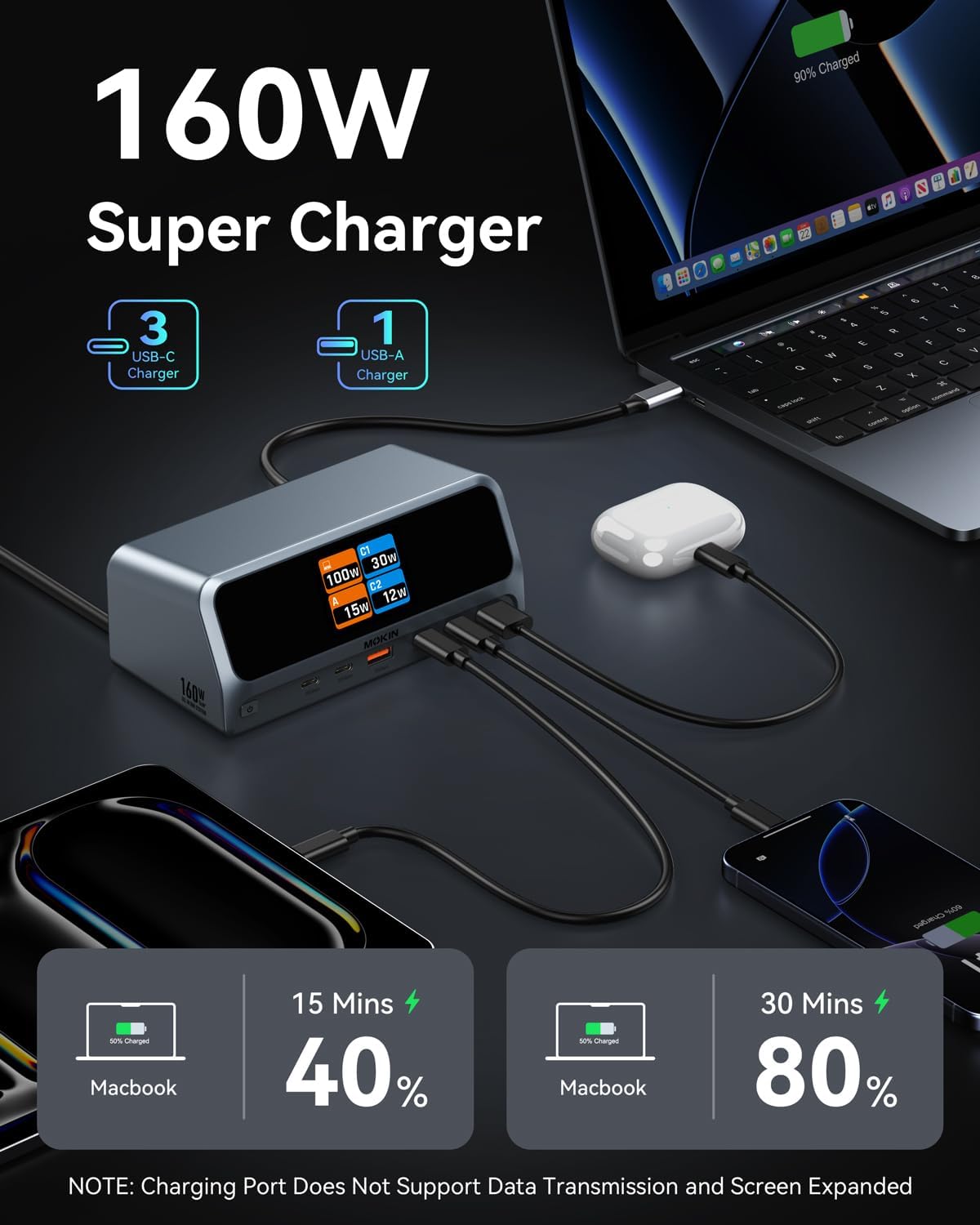
Figure 4.2: The docking station actively charging multiple devices, demonstrating its 160W super charging capability.
Note: Charging ports do not support data transmission or display expansion.
4.4 Network Connection
The Gigabit Ethernet port provides a stable and fast wired network connection, supporting speeds up to 1000Mbps.
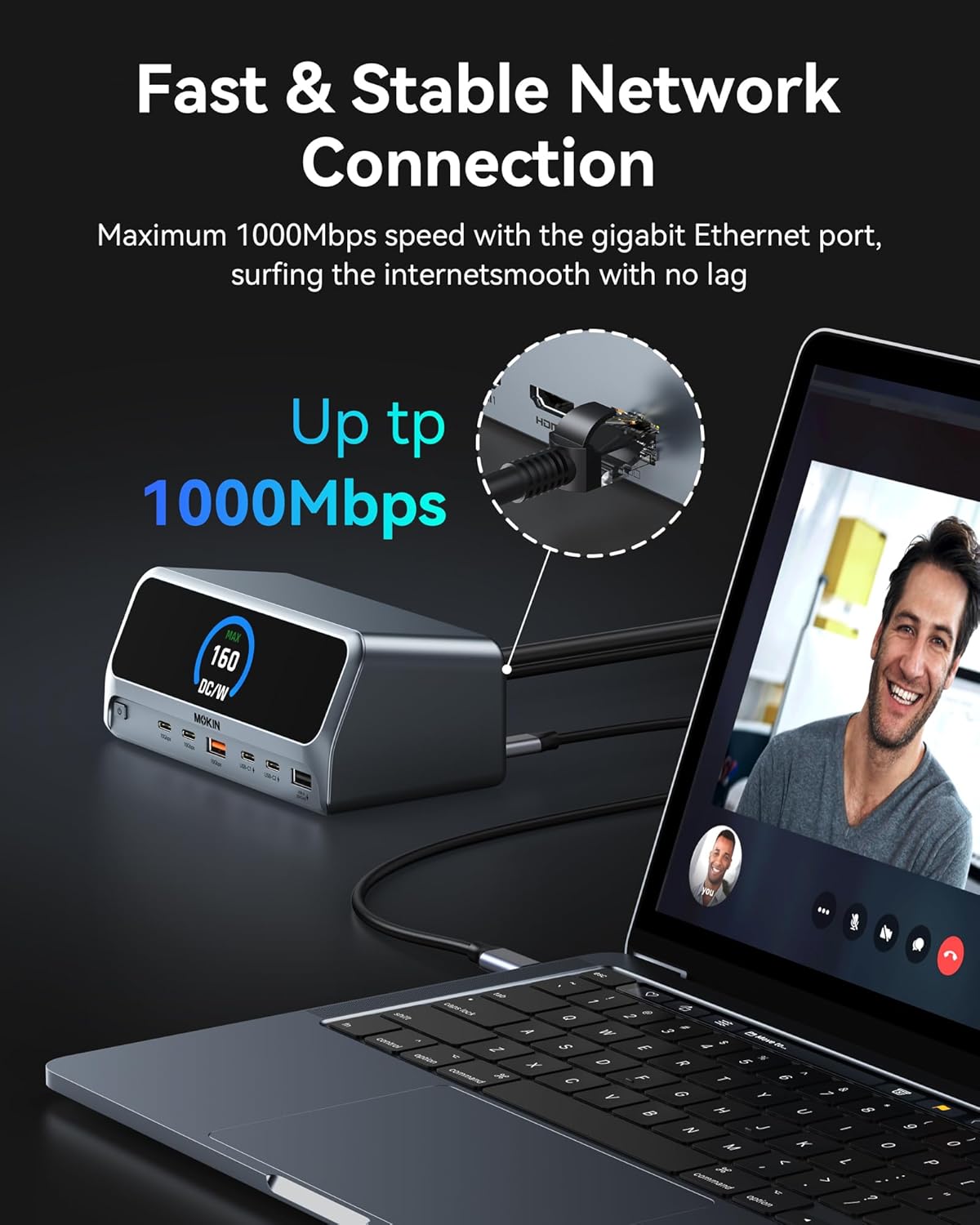
Figure 4.3: An Ethernet cable connected to the docking station, illustrating its capability for a fast and stable network connection.
5. Maintenance
- Keep the docking station in a dry environment, away from direct sunlight and extreme temperatures.
- Clean the surface with a soft, dry cloth. Do not use liquid or aerosol cleaners.
- Avoid dropping or subjecting the device to strong impacts.
- Ensure proper ventilation around the device to prevent overheating.
6. Troubleshooting
| Problem | Possible Cause | Solution |
|---|---|---|
| No display output | Incorrect cable connection; Laptop not supporting DP Alt Mode; Driver issue. | Ensure HDMI cables are securely connected. Verify your laptop's USB-C port supports DisplayPort Alternate Mode. Update graphics drivers on your laptop. |
| Charging not working | Device not connected to charging port; Power adapter not connected. | Ensure devices are connected to the designated charging ports. Verify the docking station's AC power adapter is securely plugged in. |
| Slow data transfer speed | Device connected to a slower port; Cable limitation. | Ensure high-speed devices are connected to the 10Gbps USB 3.2 Gen 2 ports. Use high-quality USB 3.2 compatible cables. |
| Ethernet not connecting | Cable issue; Driver issue; Network settings. | Check Ethernet cable connection. Ensure network drivers are installed/updated. Verify network settings on your laptop. |
| Docking station not recognized by laptop | Incompatible laptop port; Power issue. | Ensure your laptop's USB-C port supports USB-C, USB4, or Thunderbolt connections and Power Delivery. Reconnect the USB-C host cable. Restart your laptop. |
7. Specifications
| Feature | Detail |
|---|---|
| Model | MOKiN 13-in-1 USB-C Docking Station |
| Connectivity | 13-in-1 Expansion |
| Host Connection | USB-C (Supports USB-C, USB4, Thunderbolt) |
| Video Output | 2 x HDMI (up to 4K@60Hz) |
| Data Ports | 2 x USB-C 3.2 Gen 2 (10Gbps), 1 x USB-A 3.2 Gen 2 (10Gbps), 1 x USB-A 2.0 |
| Charging Ports | 3 x USB-C (100W max each), 1 x USB-A (12W max) |
| Total Power Output | 160W Max |
| Ethernet | Gigabit Ethernet (10/100/1000Mbps) |
| Display | 2.26" LCD Smart Display |
| Compatibility | Windows 10/11, ChromeOS (Laptops supporting DP Alt Mode & Power Delivery). Note: macOS supports only mirrored external displays. Not compatible with Linux. |
| Color | Silvery |
8. Warranty and Support
MOKiN products come with a standard manufacturer's warranty. For detailed warranty information, technical support, or customer service, please refer to the warranty card included with your product or visit the official MOKiN website. Please retain your proof of purchase for warranty claims.
MOKiN Official Website: MOKiN Store on Amazon


