
1. Introduction
Thank you for choosing the XFX Swift AMD Radeon RX 9070 OC Triple Fan Gaming Edition Graphics Card. This manual provides essential information for the proper installation, operation, and maintenance of your new graphics card. Please read this manual thoroughly before installation to ensure optimal performance and to prevent damage.
The XFX Swift RX 9070 is designed to deliver high-performance gaming and computing experiences, featuring 16GB GDDR6 memory and the XFX SWFT Triple Fan Cooling Solution for efficient thermal management.
2. Safety Information
Observe the following safety precautions during installation and operation:
- Always disconnect the power supply from your computer before installing or removing any components.
- Wear an anti-static wrist strap or frequently touch a grounded metal object to discharge static electricity, which can damage electronic components.
- Handle the graphics card by its edges to avoid touching sensitive components.
- Ensure proper ventilation within your computer case to prevent overheating.
- Do not expose the graphics card to moisture or extreme temperatures.
- Keep out of reach of children.
3. Package Contents
Verify that all items are present in your package:
- XFX Swift AMD Radeon RX 9070 OC Triple Fan Gaming Edition Graphics Card
- Quick Install Guide
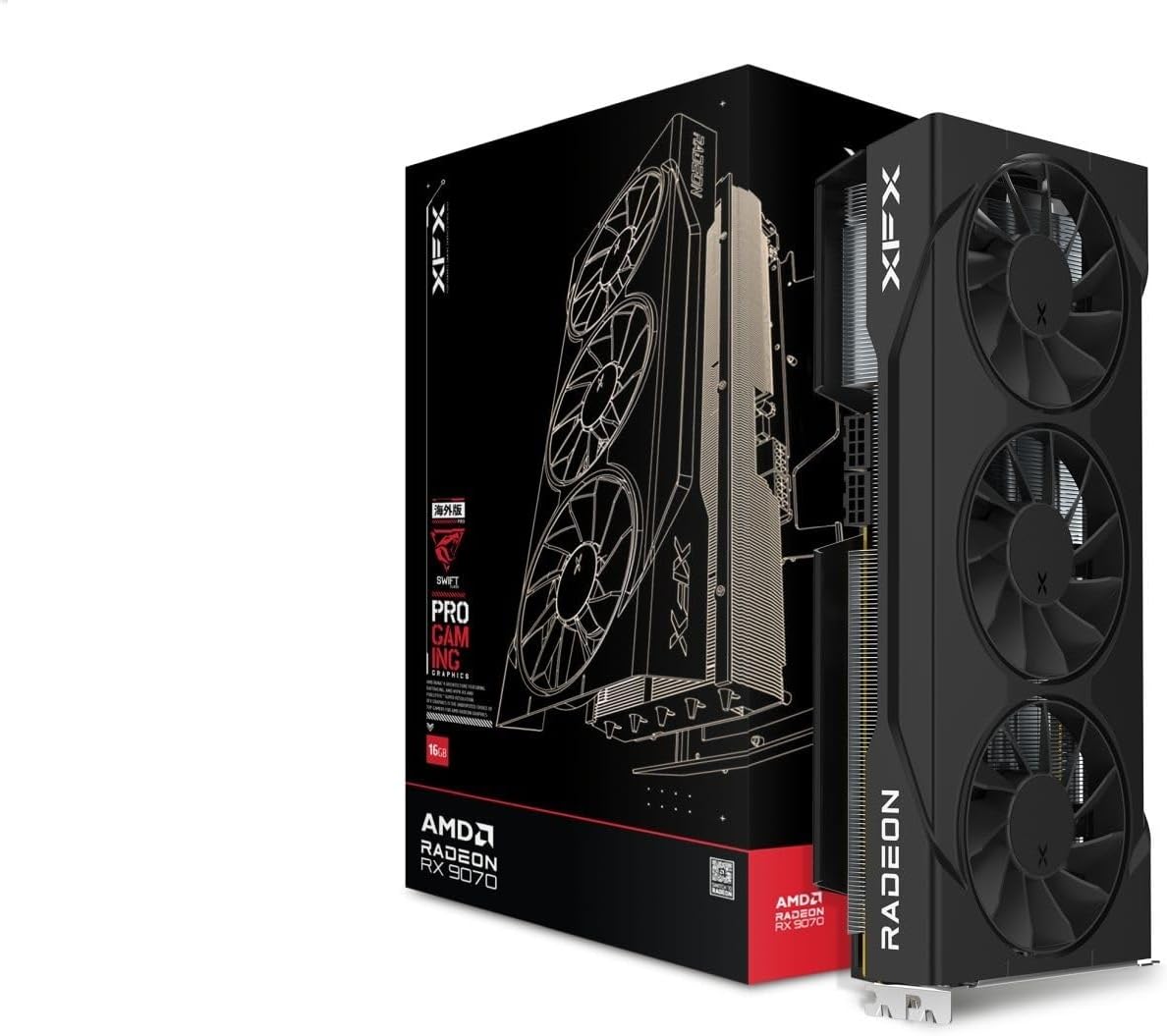
Figure 3.1: XFX Swift RX 9070 Graphics Card and its retail packaging.
4. Setup and Installation
4.1 System Requirements
- PCI Express-compliant motherboard with one x16 graphics slot.
- Minimum 750W power supply with appropriate PCIe power connectors (e.g., 8-pin + 8-pin).
- Minimum 8GB system memory (16GB recommended).
- Operating System: Windows 10/11 64-bit or Linux 64-bit.
- Internet connection for driver installation.
4.2 Hardware Installation
- Prepare Your System: Power off your computer and disconnect the power cable. Open the computer case.
- Locate PCIe Slot: Identify an available PCI Express x16 slot on your motherboard. Remove any expansion slot covers that block the slot.
- Install the Graphics Card: Carefully align the graphics card with the PCIe x16 slot. Press down firmly and evenly until the card is securely seated in the slot. A click may be heard.
- Secure the Card: Use a screw to fasten the graphics card to the computer case's expansion slot bracket.
- Connect Power Cables: Connect the required PCIe power cables from your power supply to the graphics card's power connectors. The XFX RX 9070 typically requires two 8-pin PCIe power connectors. Ensure they are fully seated.
- Close Case and Reconnect: Close your computer case and reconnect all peripherals and the power cable.

Figure 4.1: Side view of the graphics card, highlighting the PCIe power connectors.

Figure 4.2: Rear view of the graphics card, showing the video output interfaces (DisplayPort and HDMI).
4.3 Driver Installation
- Power On: Turn on your computer. The operating system may install a basic display driver.
- Download Drivers: Visit the official AMD website (www.amd.com/support) or the XFX support page (www.xfxforce.com/support) to download the latest drivers for your AMD Radeon RX 9070 graphics card.
- Install Drivers: Run the downloaded driver installer and follow the on-screen instructions. It is recommended to perform a clean installation.
- Restart: Restart your computer after the driver installation is complete.
5. Operating Instructions
5.1 Connecting Displays
Connect your monitor(s) to the available DisplayPort or HDMI ports on the graphics card. The XFX RX 9070 supports multiple displays. Ensure your display cables are securely connected.
5.2 AMD Software: Adrenalin Edition
After driver installation, the AMD Software: Adrenalin Edition will be available. This software allows you to:
- Adjust graphics settings for games and applications.
- Monitor GPU performance, temperature, and fan speeds.
- Update drivers.
- Access features like Radeon Anti-Lag, Radeon Boost, and Radeon Image Sharpening.
Refer to the AMD Software: Adrenalin Edition documentation for detailed usage instructions.
6. Maintenance
6.1 Cleaning
To maintain optimal performance and longevity, periodically clean your graphics card:
- Power Off: Always power off your computer and disconnect the power cable before cleaning.
- Dust Removal: Use compressed air to gently blow dust from the fans, heatsink fins, and other components. Hold the fans to prevent them from spinning rapidly during cleaning.
- Surface Cleaning: Use a soft, dry, lint-free cloth to wipe the exterior surfaces of the card. Do not use liquid cleaners directly on the card.

Figure 6.1: Top view of the graphics card, illustrating the triple fan cooling system. Regular cleaning of these fans is recommended.
6.2 Driver Updates
Regularly check for and install the latest graphics drivers from AMD's official website. Driver updates often include performance improvements, bug fixes, and support for new games and applications.
7. Troubleshooting
If you encounter issues with your graphics card, refer to the following common solutions:
| Problem | Possible Solution |
|---|---|
| No display output. |
|
| System crashes or freezes during gaming. |
|
| Driver installation failure. |
|
| Fans are not spinning or are excessively loud. |
|
8. Specifications
Key technical specifications for the XFX Swift AMD Radeon RX 9070 OC Triple Fan Gaming Edition Graphics Card:
| Feature | Detail |
|---|---|
| Model Number | RX-97SWFT3B7 |
| Graphics Coprocessor | AMD RX 9070 |
| Memory | 16 GB GDDR6 |
| Boost Clock | Up to 2700 MHz |
| GPU Clock Speed | 1440 MHz (Base) |
| Cooling Solution | XFX SWFT Triple Fan |
| Video Output Interface | DisplayPort, HDMI (3xDP, 1xHDMI) |
| Product Dimensions | 11.42 x 5.91 x 0.04 inches |
| Item Weight | 3.83 pounds |
9. Warranty and Support
XFX products are manufactured to the highest quality standards. For information regarding your product's warranty, please refer to the warranty card included with your purchase or visit the official XFX website:
For technical support, driver downloads, and frequently asked questions, please visit the XFX support page. You may also contact XFX customer service directly through the contact information provided on their website.
10. Regulatory Compliance
This device complies with Part 15 of the FCC Rules. Operation is subject to the following two conditions: (1) This device may not cause harmful interference, and (2) this device must accept any interference received, including interference that may cause undesired operation. For full regulatory compliance details, please refer to the documentation provided with your product or the XFX official website.


