
1. Introduction
This manual provides detailed instructions for the installation, operation, and maintenance of the LiftMaster SRDRST O2-SRDRST Multi-Technology Smart Reader. This device is designed for secure access control in both indoor and outdoor environments, supporting various credential types including 125 KHz proximity cards, 13.56 MHz cards, and Bluetooth Low Energy (BLE) mobile credentials.
2. Safety Information
Please read and understand all safety instructions before installing or operating the SRDRST Smart Reader. Failure to follow these instructions may result in product damage, property damage, or personal injury.
- Electrical Safety: Ensure power is disconnected before performing any wiring or installation procedures. All wiring should be performed by a qualified technician in accordance with local electrical codes.
- Environmental Conditions: While designed for indoor/outdoor use, avoid exposing the reader to extreme temperatures, direct water spray, or corrosive substances beyond its specified operating conditions.
- Mounting: Mount the reader securely to a stable surface to prevent accidental dislodgement.
- Authorized Use: This device is intended for access control applications only. Do not use it for purposes other than its intended design.
3. Package Contents
Verify that all components are present in the package before beginning installation:
- SRDRST Smart Reader (Model O2-SRDRST)
- Mounting Hardware (screws, anchors)
- Installation Guide (this document)
4. Setup and Installation
The SRDRST Smart Reader offers flexible installation options, including surface mount or single gang box mounting.
4.1 Mounting the Reader
- Select Location: Choose a suitable indoor or outdoor location for the reader, ensuring it is within reach of necessary wiring and at an appropriate height for user access.
- Prepare Surface: For surface mounting, ensure the surface is clean and flat. For single gang box mounting, ensure the box is securely installed.
- Drill Holes: Use the reader's mounting plate (if applicable) or the reader itself as a template to mark and drill pilot holes for the mounting screws.
- Secure Reader: Attach the reader securely to the wall or single gang box using the provided mounting hardware. Do not overtighten screws.
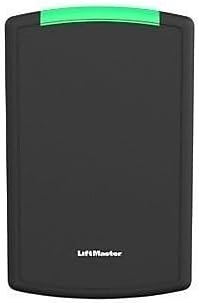
Figure 1: Front view of the SRDRST O2-SRDRST Smart Reader. This image shows the sleek, black rectangular reader with a green indicator light at the top and the LiftMaster logo at the bottom.
4.2 Wiring Connections
WARNING: Disconnect all power before making any wiring connections.
The SRDRST reader typically connects to an access control panel using standard Wiegand or OSDP protocols. Refer to your access control panel's documentation for specific wiring requirements.
- Power: Connect the reader to a regulated DC power supply (voltage range typically 9-16V DC). Observe correct polarity.
- Data: Connect the data lines (e.g., Data 0, Data 1 for Wiegand, or RS485 A, B for OSDP) from the reader to the corresponding inputs on the access control panel.
- Ground: Ensure a proper ground connection.

Figure 2: Angled view of the SRDRST O2-SRDRST Smart Reader. This image provides a side perspective of the reader, highlighting its depth and the green indicator light.
4.3 Power Up and Testing
- After all wiring is complete and verified, restore power to the access control system.
- Observe the reader's LED indicator. It should typically illuminate or flash to indicate power and readiness.
- Present a known valid credential (card or mobile device) to the reader to confirm proper operation and communication with the access control panel.
5. Operating Instructions
The SRDRST Smart Reader supports multiple credential technologies for flexible access.
5.1 Using 125 KHz and 13.56 MHz Cards/Fobs
- Ensure your card or fob is enrolled in the access control system.
- Present the card or fob directly to the face of the SRDRST reader.
- The reader will emit an audible beep and/or change its LED indicator color (e.g., green for access granted, red for access denied) to indicate the access status.
5.2 Using BLE Mobile Credentials
- Ensure your mobile device has the compatible access control application installed and your mobile credential is provisioned.
- Enable Bluetooth on your mobile device.
- Depending on the application settings, you may need to open the app, tap your phone to the reader, or simply approach the reader with your phone in your pocket (hands-free mode).
- The reader will communicate with your mobile device via Bluetooth and indicate access status through its LED and/or an audible signal.
6. Maintenance
The SRDRST Smart Reader is designed for minimal maintenance. Follow these guidelines to ensure optimal performance:
- Cleaning: Clean the reader's surface periodically with a soft, damp cloth. Do not use abrasive cleaners, solvents, or harsh chemicals, as these can damage the housing.
- Inspection: Periodically inspect the reader for any signs of physical damage or loose connections.
- Firmware Updates: Consult your access control system administrator or LiftMaster support for information on available firmware updates for enhanced features or security.
7. Troubleshooting
If you encounter issues with your SRDRST Smart Reader, refer to the following common problems and solutions:
| Problem | Possible Cause | Solution |
|---|---|---|
| Reader is not powering on (no LED activity). | No power supply; incorrect wiring; faulty power supply. | Check power connections and voltage. Ensure power supply is active. Verify wiring polarity. |
| Reader does not respond to cards/fobs. | Credential not enrolled; incorrect credential type; reader malfunction; communication issue with panel. | Verify credential enrollment in the access control system. Ensure the credential type is supported by the reader. Check wiring to the access control panel. |
| BLE mobile access not working. | Bluetooth off on mobile device; app not running; credential not provisioned; signal interference. | Ensure Bluetooth is enabled. Open the access app. Verify mobile credential provisioning. Reduce interference. |
| Reader grants access but door does not unlock. | Issue with door strike/lock; wiring to door strike; access control panel output. | This indicates the reader is functioning. Troubleshoot the door lock mechanism or the access control panel's output to the lock. |
8. Specifications
- Model: O2-SRDRST
- Manufacturer: LiftMaster
- Supported Technologies:
- 125 KHz Proximity Cards/Fobs (e.g., 26 Bit HID, 30 Bit, 36 Bit Li'Master, 37 Bit formats)
- 13.56 MHz Cards/Fobs (e.g., 32 Bit Mi Fare, 56 Bit Li'Master)
- Bluetooth Low Energy (BLE) Mobile Credentials
- Installation Options: Surface Mount, Single Gang
- Included Components: SRDRST Smart Reader
- Environment: Indoor/Outdoor
9. Warranty and Support
Specific warranty details for the SRDRST O2-SRDRST Smart Reader are not provided in this document. For warranty information, technical support, or service, please refer to the official LiftMaster website or contact your authorized LiftMaster dealer.
It is recommended to register your product to receive updates and support.