1. Introduction
This manual provides detailed instructions for the installation, operation, and maintenance of your ITleads Peerless Assassin 120 Digital ARGB CPU Air Cooler. This high-performance air cooler features a digital screen top cover, six heatpipes, and 1850RPM PWM fans, designed for efficient cooling of Intel LGA115X/1200/1700/1851 and AMD AM4/AM5 processors.

Image 1.1: The Peerless Assassin 120 Digital ARGB CPU Air Cooler.
2. Package Contents
Please verify that all components are present before beginning installation:
- Peerless Assassin 120 Digital ARGB CPU Cooler (Heatsink with Digital Top Cover)
- TL-C12C-X28-S V2 PWM Fans (x2)
- Intel Mounting Brackets (x2)
- AMD Mounting Brackets (x2)
- Thermal Compound (x1 syringe)
- LGA115X/1200 Spacers (x4)
- LGA1851/1700 Spacers (x4)
- Intel Mounting Screws (x4)
- AM4/AM5 Mounting Screws (x4)
- Fan Y-Cable (x1)
- AM4/AM5 Spacers (Pink, x4)
- Intel LGA1700 Backplate (x1)
- Fan Clips (x4)
- ARGB Lighting Cable (x1)
- USB Cable for Digital Display (x1)
3. Specifications
| Feature | Specification |
|---|---|
| Overall Dimensions | L138mm x W125mm x H162mm (5.4x4.9x6.38 inches) |
| Heatsink Material | Pure Copper Heatpipes and Aluminum Fins |
| Fan Model | TL-C12C-X28-S V2 |
| Fan Size | 120x120x28mm (4.7x4.7x1.1 inches) |
| Fan Speed | 1850 RPM ±10% (MAX) |
| Power Connector | 4-Pin PWM |
| Airflow | 88.89 CFM (MAX) |
| Noise Level | ≤25.6 dB(A) |
| Heat Pipe Technology | AGHP 5.0 (6 pure copper heat pipes) |
| TDP | Up to 265W |
| Compatibility | Intel LGA 1851/1700/1200/115X; AMD AM4/AM5 |
| Digital Display | CPU Temperature, CPU Occupancy, Graphics Card Temperature, Graphics Card Occupancy |
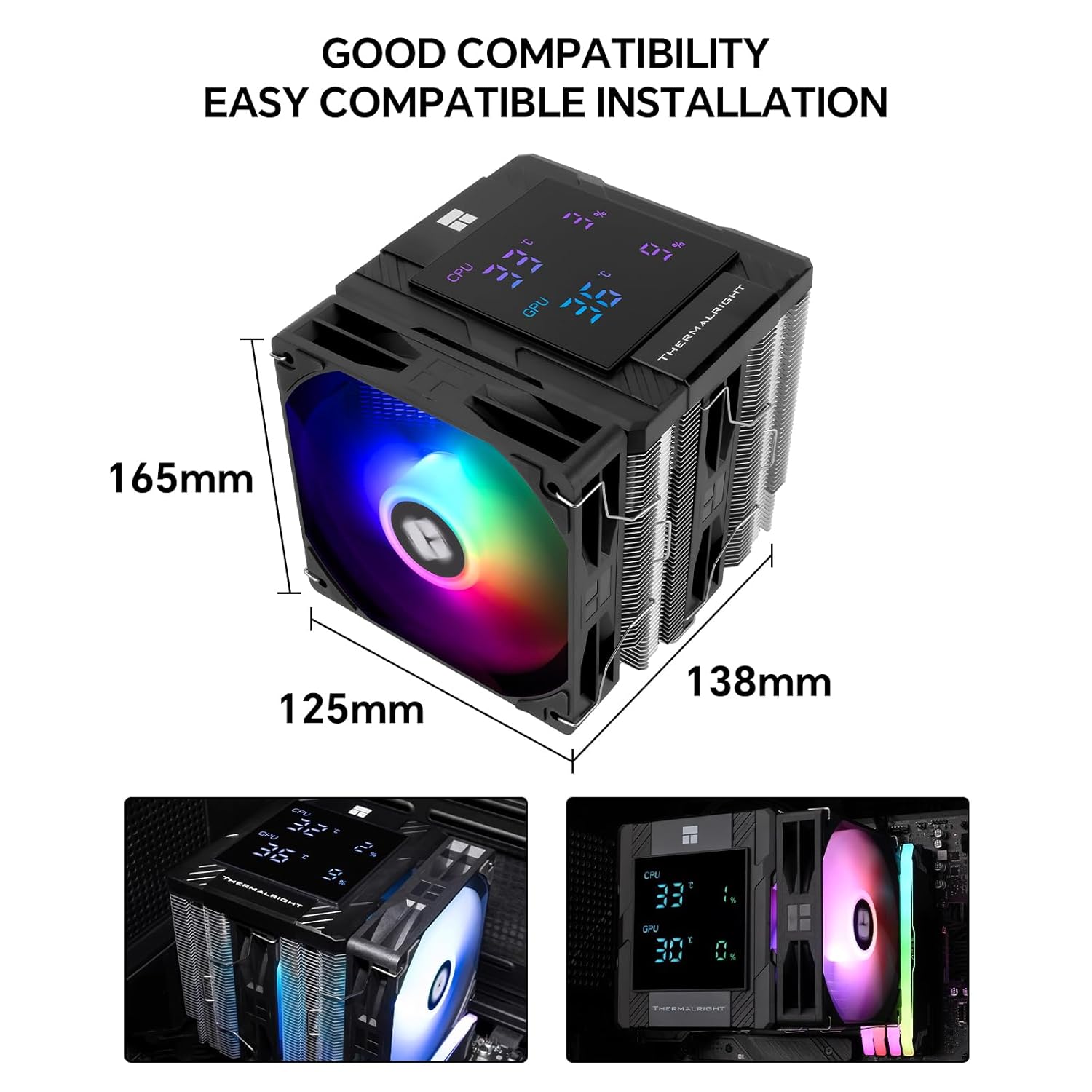
Image 3.1: Cooler dimensions and compatibility overview.
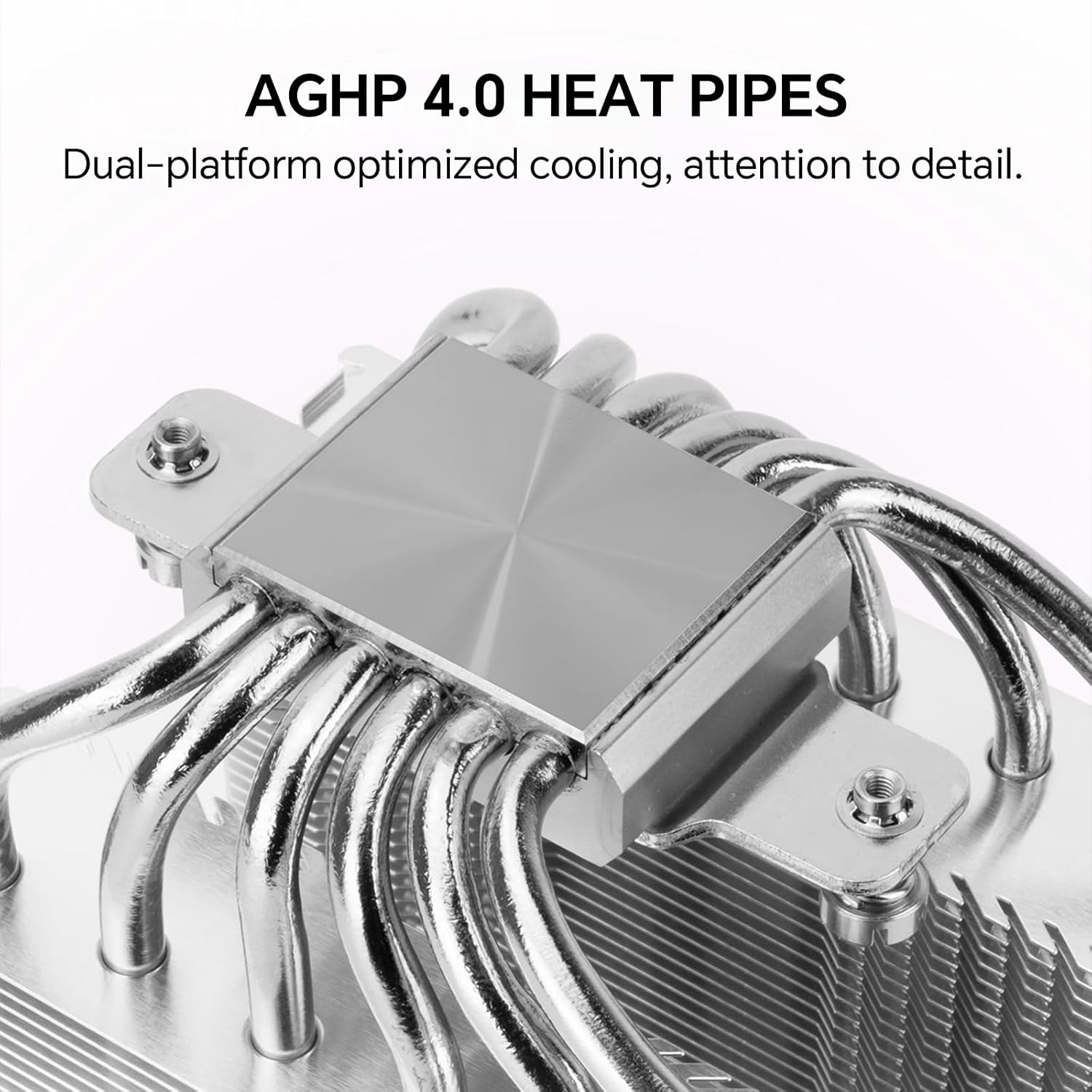
Image 3.2: Detail of the AGHP 5.0 heat pipe technology.
4. Setup and Installation
Follow these steps carefully to install your Peerless Assassin 120 Digital ARGB CPU Air Cooler. Refer to the embedded video for visual guidance.
4.1. Pre-Installation Steps
- Remove the top panel from the heatsink before installation.
- Remove the protective sticker from the heatsink base.
4.2. Platform-Specific Installation
For Intel LGA1700/1851 Motherboards:
- Adjust the backplate mounting hole position to '1700'.
- Install the backplate from the back side of the motherboard.
- Install the blue LGA1700/1851 spacers onto the backplate from the front side of the motherboard.
- Install the metal brackets onto the spacers using the Intel screws. Ensure the Intel screws pass through the LGA1700/1851 holes on the brackets.
- Secure the metal brackets with four Intel screws.
For AMD AM5/AM4 Motherboards:
- Remove the motherboard's pre-installed plastic brackets. Keep the original motherboard backplate.
- Install the four pink AMD spacers onto the motherboard.
- Install the two metal brackets onto the spacers using the AMD screws.
- Secure the metal brackets with a screwdriver.
4.3. Common Installation Procedures (All Platforms)
- Apply thermal compound to the CPU Integrated Heat Spreader (IHS).
- Place the heatsink onto the CPU, ensuring the heatsink bracket nuts align with the screws on the brackets.
- Tighten both nuts on the bracket with a screwdriver to apply mounting pressure evenly.
- Install the fan clips onto the two fans.
- Install the fans onto the heatsink using the fan clips.
- Connect the 4-pin fan connectors from both fans to the fan Y-cable to synchronize fan speed.
- Connect the fan Y-cable to the motherboard's CPU_FAN header.
- For ARGB lighting, connect the 3-pin ARGB headers to sync the lighting effect.
- Connect the ARGB lighting cable to the motherboard's +5V ARGB header.
- Install the top panel back onto the heatsink.
- Connect the USB cable from the cooler to a USB 2.0 header on the motherboard for the digital display functionality.
4.4. Installation Video Guide
Video 4.1: Official installation guide for the Peerless Assassin 120 Digital CPU Cooler Series.
This video demonstrates the step-by-step process for installing the cooler on both Intel and AMD platforms, including mounting brackets, thermal paste application, fan attachment, and cable connections.
5. Operating Instructions
The Peerless Assassin 120 Digital ARGB CPU Air Cooler features an integrated digital display for real-time system monitoring.
5.1. Digital Display Functionality
The digital screen on the top cover provides immediate feedback on critical system parameters:
- CPU Temperature: Displays the current temperature of your CPU.
- CPU Occupancy: Shows the current utilization percentage of your CPU.
- Graphics Card Temperature: Displays the current temperature of your graphics card.
- Graphics Card Occupancy: Shows the current utilization percentage of your graphics card.
These metrics are monitored simultaneously through TRCC control, allowing you to quickly assess your computer's health.
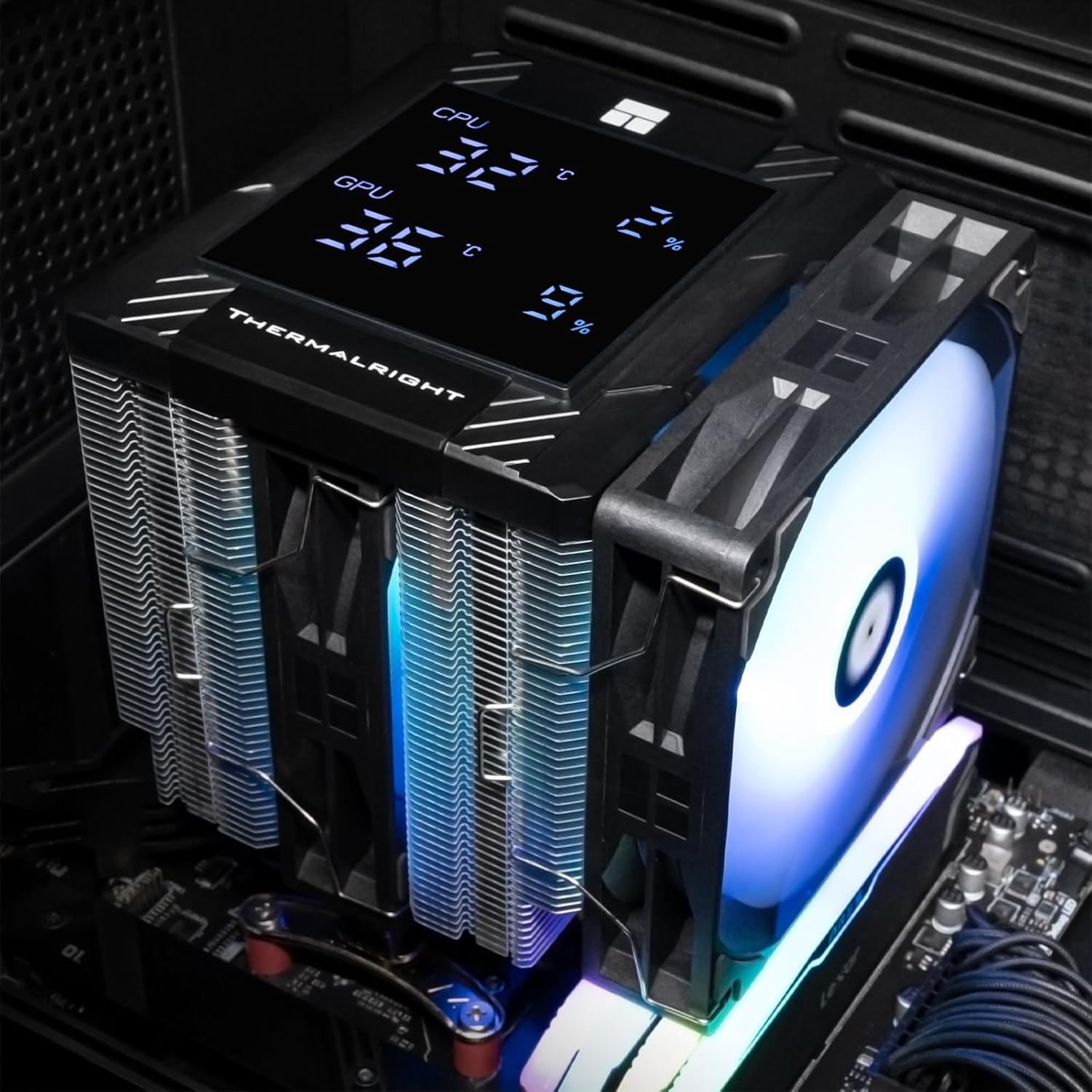
Image 5.1: The cooler's digital display showing CPU and GPU metrics within a PC build.
5.2. TRCC Control Software
For advanced monitoring and customization of the digital display and ARGB lighting, install the TRCC control software. This software allows you to:
- View detailed temperature and occupancy data.
- Adjust ARGB lighting effects and colors.
- Configure display settings.
The digital display requires the operating system to be booted and the TRCC software running to function. Ensure the USB 2.0 header is connected for this feature.

Image 5.2: Close-up of the digital display and a representation of the TRCC software interface.
6. Maintenance
Regular maintenance ensures optimal performance and longevity of your CPU cooler.
- Dust Removal: Periodically clean the heatsink fins and fan blades using compressed air or a soft brush. Ensure the fans are not spinning during cleaning to prevent damage.
- Thermal Paste: Over time, thermal paste can dry out. Consider reapplying thermal paste every 2-3 years, or if you notice a significant increase in CPU temperatures.
- Fan Inspection: Check fan cables for secure connections and ensure fans spin freely without obstruction.
7. Troubleshooting
If you encounter issues with your CPU cooler, refer to the following common troubleshooting steps:
- Digital Display Not Working:
- Ensure the USB cable is securely connected to both the cooler and a functional USB 2.0 header on your motherboard.
- Verify that the TRCC control software is installed and running on your operating system.
- Poor Cooling Performance:
- Check that the heatsink is securely mounted to the CPU and that thermal paste was applied correctly.
- Ensure both fans are spinning and oriented correctly to push air through the heatsink.
- Clean any dust accumulation from the heatsink fins and fan blades.
- Verify fan speeds are set appropriately in your motherboard's BIOS/UEFI or through software.
- Excessive Fan Noise:
- Check for any cables or obstructions interfering with the fan blades.
- Adjust fan speed settings in your motherboard's BIOS/UEFI or through the TRCC software to a lower RPM if temperatures allow.
- Ensure fans are securely attached to the heatsink to prevent vibrations.
- ARGB Lighting Not Functioning:
- Confirm the ARGB lighting cable is correctly connected to a +5V ARGB header on your motherboard (not a +12V RGB header).
- Check your motherboard's ARGB control software or BIOS settings to ensure lighting is enabled and configured.
8. Warranty and Support
Your ITleads Peerless Assassin 120 Digital ARGB CPU Air Cooler is covered by a manufacturer's warranty. Please refer to the warranty information provided with your purchase for specific terms and conditions.
For technical support, troubleshooting assistance, or warranty claims, please contact ITleads customer service through their official website or the retailer where the product was purchased.


